Bubuka
This manual provides essential instructions for the safe and efficient operation of your Fujitsu FS-6160ZLA Document Scanner. Please read this manual thoroughly before using the scanner and retain it for future reference. Following these guidelines will ensure optimal performance and longevity of your device.
Produk Leuwihview
The Fujitsu FS-6160ZLA is a high-performance document scanner designed for efficient paper handling and digital conversion. It features an Automatic Document Feeder (ADF) for batch scanning and a user-friendly control panel.
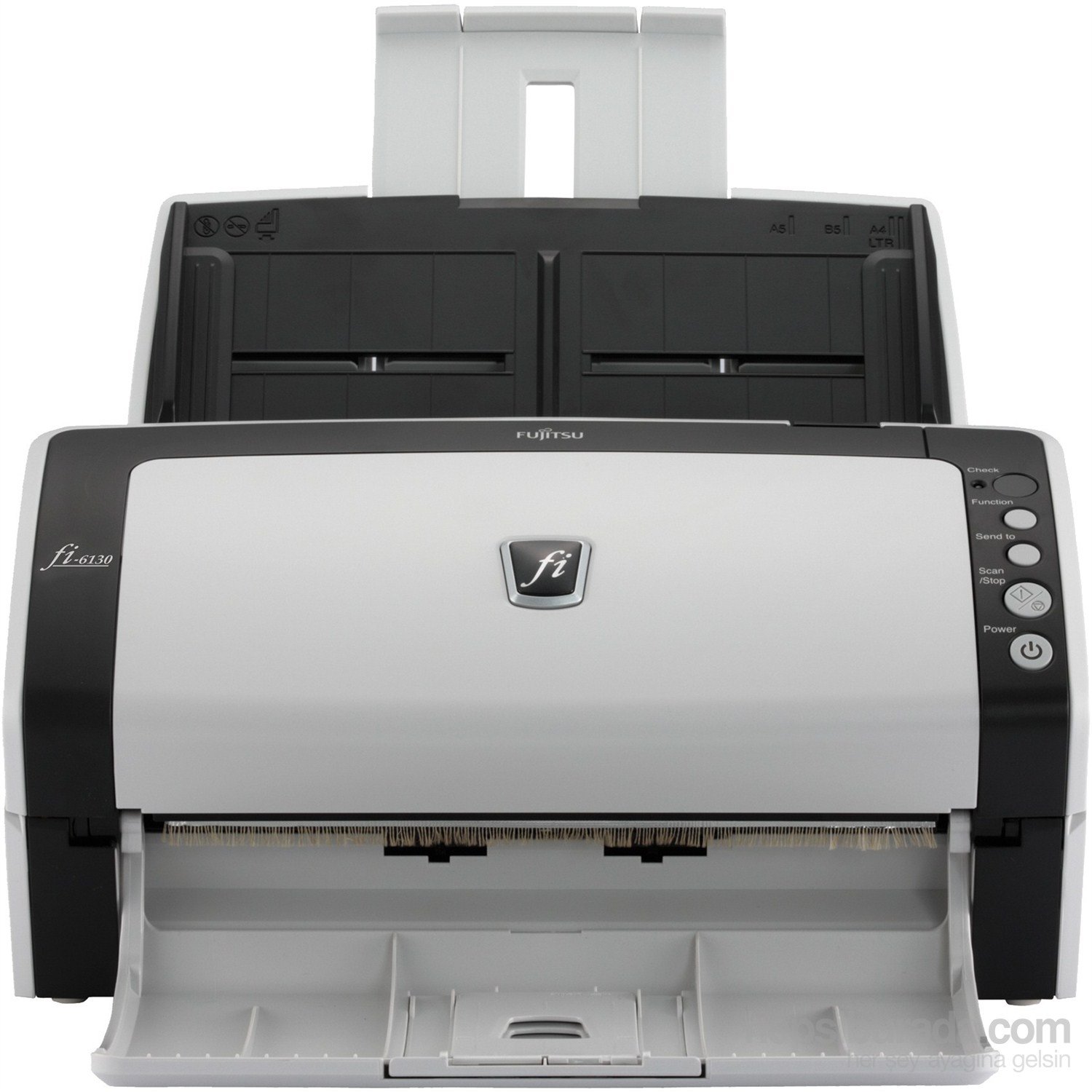
Gambar 1: Hareupeun view of the Fujitsu fi-6130 document scanner, showing the automatic document feeder (ADF) input tray at the top, the control panel on the right, and the output tray at the bottom. The scanner is white and black.
Komponén konci:
- Feeder Dokumén Otomatis (ADF): For loading multiple documents for continuous scanning.
- Panél kontrol: Buttons for various functions including power, scan, and job selection.
- Baki kaluaran: Collects scanned documents.
- USB/Power Ports: Located at the rear for connectivity and power supply.
Disetél
- Ngabongkar bungkusan: Carefully remove the scanner and all accessories from the packaging. Ensure all components are present: scanner unit, AC adapter, USB cable, and software CD/DVD (if included).
- panempatan: Place the scanner on a stable, flat surface with adequate space for document feeding and output. Ensure proper ventilation.
- Sambungkeun Kakuatan: Connect the AC adapter to the scanner's power input and then plug it into a wall outlet.
- Nyambung ka Komputer:
- Sambungan USB: Sambungkeun hiji tungtung kabel USB kana port USB pamindai sareng tungtung anu sanésna kana port USB anu sayogi dina komputer anjeun.
- Sambungan Wi-Fi: Refer to the separate network setup guide or the scanner's display (if applicable) for instructions on connecting to your wireless network.
- Pamasangan parangkat lunak: Insert the provided software CD/DVD into your computer's drive, or download the latest drivers and scanning software from the official Fujitsu support websitus. Turutan pitunjuk dina layar pikeun ngarengsekeun pamasangan.
Parentah Operasi
- Daya Hurung: Pencét éta Kakuatan button on the control panel to turn on the scanner. Wait for the scanner to initialize.
- Muat Dokumén:
- Fan the stack of documents to separate pages and align edges.
- Place documents face-down in the Automatic Document Feeder (ADF) input tray. Adjust the side guides to fit the width of your documents.
- Ensure documents are within supported sizes (e.g., A4, A5, B5, Letter, Legal).
- Pilih Setélan Scan: Open your scanning software on the computer. Select the desired scan profile, resolution, color mode (e.g., color, grayscale, black & white), and destination folder.
- Mimitian nyeken:
- Pencét éta Scan / eureun button on the scanner's control panel, or initiate the scan from your computer software.
- The scanner will feed and scan the documents.
- Review sareng Simpen: Saatos scan, ulangview the digitized images on your computer. Save them to your preferred location and format.
- Fungsi Panel Kontrol:
- Pariksa: Verifies scanner status or settings.
- fungsi: Cycles through predefined scan jobs or settings.
- Kirim ka: Directs scanned documents to a specific application or destination.
- Scan/Stop: Starts or stops the scanning process.
- kakuatan: Ngahurungkeun atanapi mareuman scanner.
Pangropéa
Pangropéa rutin mastikeun kualitas scan konsisten sareng manjangkeun umur scanner anjeun.
- Ngabersihan Rollers:
- Pareuman sareng cabut panyeken.
- Open the scanner cover to access the feed rollers.
- Gently wipe the rollers with a lint-free cloth dampened with isopropyl alcohol or a specialized roller cleaner. Allow to dry completely before closing the cover.
- Ngabersihan Kaca:
- Locate the glass scanning surface inside the scanner.
- Make lawon anu lemes, teu aya serat dampened with glass cleaner (non-abrasive) to clean the glass. Avoid spraying cleaner directly onto the glass.
- Bersihan Luar: Wipe the exterior of the scanner with a soft, dry cloth. Do not use abrasive cleaners or solvents.
- Consumables: Periodically check the condition of feed rollers and separation pads. Replace them as recommended by Fujitsu to maintain optimal performance. Refer to the Fujitsu support websitus pikeun inpormasi suku cadang pangganti.
Pamérésan masalah
This section addresses common issues you might encounter with your Fujitsu FS-6160ZLA scanner.
- Scanner teu hurung:
- Ensure the power cable is securely connected to both the scanner and a working power outlet.
- Pastikeun adaptor kakuatan berpungsi leres.
- Documents Jamming:
- Remove all jammed documents carefully, following the scanner's internal guides.
- Ensure documents are properly fanned and aligned in the ADF.
- Check for worn-out feed rollers or separation pads and replace if necessary.
- Avoid loading creased, stapled, or damaged documents.
- Poor Scan Quality (Streaks, Blurs, Dots):
- Clean the glass scanning surface and feed rollers as described in the Maintenance section.
- Adjust scan settings (e.g., resolution, brightness) in your scanning software.
- Ensure documents are clean and free of debris.
- Scanner Not Detected by Computer:
- Verify the USB or Wi-Fi connection is secure and active.
- Pareuman terus hurungkeun deui scanner sareng komputer anjeun.
- Reinstall the scanner drivers and software.
- Coba port USB atawa kabel béda.
spésifikasi
| Fitur | Rincian |
|---|---|
| merek | Fujitsu |
| Modél | FS-6160ZLA |
| Jenis scanner | Dokumén |
| Téhnologi konektipitas | Wifi |
| Téhnologi sénsor optik | CIS |
| Resolusi | 200 dpi |
| Jerona Jerona | 24-bit |
| Beurat | 4.2 kg |
| Ukuran (W x D x H) | 301 mm x 160 mm x 158 mm |
| Ukuran Dokumén Maksimum | A4 Vertical: 210 mm x 297 mm, Legal: 216 mm x 355.6 mm (8.5 in x 14 in) |
Garansi sareng Rojongan
For detailed warranty information, technical support, or to purchase replacement parts and consumables, please visit the official Fujitsu website or contact your local Fujitsu service provider. Keep your purchase receipt as proof of purchase for warranty claims.
Sumberdaya Online:


