1. Bubuka
This manual provides essential information for the installation, configuration, operation, and maintenance of the MOXA AWK-1137C-US-T 802.11n Wireless AP Client. This device is designed for industrial wireless applications, offering reliable 802.11n connectivity in challenging environments with a wide operating temperature range.
2. Émbaran Kasalametan
- Always disconnect power before cleaning or servicing the device.
- Pastikeun grounding anu leres pikeun nyegah bahaya listrik.
- Jalankeun alat dina kisaran suhu sareng kalembaban anu ditangtukeun.
- Ulah ngalaan alat ka beueus atawa suhu ekstrim.
- Ngan tanaga anu mumpuni kedah ngalaksanakeun pamasangan sareng perawatan.
3. Eusi Paket
Pariksa yén pakét anjeun ngandung barang-barang ieu:
- MOXA AWK-1137C-US-T Wireless AP Client unit
- Guide Instalasi Gancang
- Documentation CD (or link to online resources)
- Mounting kit (if applicable)
- Power adapter or terminal block (if applicable)
Upami aya barang anu leungit atanapi ruksak, mangga langsung ngahubungi vendor anjeun.
4. Pakakas Ngalangkunganview
The AWK-1137C-US-T features robust industrial design. Key components typically include:
- Port Ethernet: Pikeun sambungan jaringan kabel.
- Panyambung Antenna: For external antennas to optimize wireless signal.
- Input kakuatan: Terminal block for DC power input.
- Indikator LED: Provide status information for power, WLAN, and Ethernet activity.
- Tombol Reset: For restoring factory default settings.
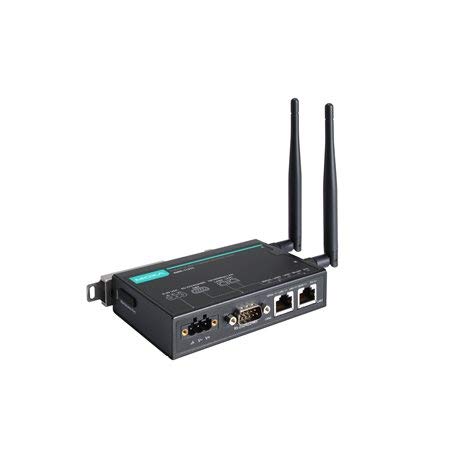
Figure 1: MOXA AWK-1137C-US-T Wireless AP Client. This image shows the compact industrial design of the device, typically featuring antenna ports, Ethernet connections, and power input.
5. Setélan
5.1 Pamasangan
The AWK-1137C-US-T supports DIN-rail mounting. Attach the DIN-rail kit to the device and snap it onto a standard DIN-rail. Ensure the device is securely fastened to prevent vibration or accidental dislodgement.
5.2 Sambungan Daya
- Connect a suitable DC power source (e.g., 12-48 VDC) to the device's power input terminal block.
- Ensure correct polarity (+ and -) as indicated on the device.
- Tighten the screws on the terminal block to secure the power wires.
5.3 Sambungan Jaringan
- Connect an Ethernet cable from your network switch or router to the Ethernet port on the AWK-1137C-US-T.
- Attach appropriate antennas to the antenna connectors. Ensure they are securely tightened.
5.4 Konfigurasi Awal
To access the device's webpanganteur manajemén basis:
- Connect a computer directly to the device's Ethernet port or ensure it is on the same network segment.
- Configure your computer's IP address to be in the same subnet as the device's default IP address (refer to the Quick Installation Guide for the default IP).
- Buka a web browser and enter the device's default IP address.
- Log in using the default username and password (refer to the Quick Installation Guide).
- Ganti kecap akses standar langsung pikeun kaamanan.
6. Nyuping
6.1 Modeu operasi
The AWK-1137C-US-T can operate in various modes, including Access Point (AP) and Client mode. Select the appropriate mode based on your network requirements.
- Modeu Access Point (AP): The device acts as a central hub for wireless clients to connect.
- Mode klien: The device connects to an existing Access Point, extending wired network connectivity wirelessly.
6.2 Setélan nirkabel
Configure the following wireless parameters via the web panganteur:
- SSID: The name of your wireless network.
- Saluran: Select an appropriate wireless channel to avoid interference.
- Band: Configure for 2.4 GHz or 5 GHz operation, depending on the model and environment.
- Pangiriman Daya: Adjust the output power for optimal coverage and compliance.
6.3 Setélan Kaamanan
Implement strong wireless security to protect your network:
- Énkripsi: Use WPA2/WPA3-PSK or Enterprise for robust security.
- Password/Passphrase: Choose a strong, unique password.
- Nyaring Alamat MAC: Optionally restrict access to specific devices.
7. Pangropéa
7.1 Apdet firmware
Regularly check the MOXA website for the latest firmware updates. Firmware updates can provide new features, performance improvements, and security patches. Follow the instructions provided with the firmware package for a safe update process.
7.2 beberesih
Clean the device periodically with a soft, dry cloth. Do not use liquid or aerosol cleaners. Ensure the device is powered off before cleaning.
7.3 Pertimbangan Lingkungan
Ensure the operating environment remains within the specified temperature and humidity limits (-40 to 75°C). Avoid placing the device near heat sources or in direct sunlight.
8. Cara ngungkulan
8.1 Taya Daya
- Check the power cable connection and ensure the power source is active.
- Pariksa catu daya voltage is within the device's specified range.
- Inspect the power input terminal block for loose connections.
8.2 Teu Aya Sambungan Jaringan
- Check Ethernet cable connections and ensure they are properly seated.
- Verify that the network switch or router is functioning correctly.
- For wireless connections, ensure the SSID, security settings, and channel match the connected AP/client.
- Check the LED indicators for network activity.
8.3 Laju Nirkabel Leutik
- Ensure antennas are properly connected and positioned for optimal signal.
- Check for sources of interference (e.g., other wireless devices, microwave ovens).
- Adjust the wireless channel to a less congested one.
- Verify that the device is operating in 802.11n mode and not a slower standard.
8.4 Ngareset ka Setelan Standar Pabrik
If configuration issues persist, you may need to reset the device to its factory default settings. Locate the reset button (often recessed) and press and hold it for approximately 5-10 seconds while the device is powered on. The device will reboot with default settings.
9. Spésifikasi
| Fitur | Spésifikasi |
|---|---|
| Nomer modél | AWK-1137C-AS-T |
| Tanpa kabel | 802.11n |
| Band Operasi | US Band |
| Suhu Operasi | -40 nepi ka 75 ° C |
| Ukuran Paket | 7.87 x 6.57 x 1.97 inci |
| Item Beurat | 1.15 pon |
| Produsén | MOXA |
| Tanggal Kahiji Sadia | 30 April 2018 |
10. Garansi jeung Rojongan
10.1 Émbaran jaminan
MOXA products typically come with a standard warranty. For detailed warranty terms and conditions, please refer to the official MOXA websitus atanapi kartu garansi anu kalebet sareng produk anjeun. Simpen bukti pameseran anjeun pikeun klaim garansi.
10.2 Rojongan Téknis
For technical assistance, product documentation, or driver downloads, please visit the official MOXA support website. You can also contact MOXA's customer support team directly through the contact information provided on their websitus.


