1. Bubuka
This manual provides essential information for the safe and efficient use of your ASUS C302CA-DH75-G Chromebook. This device is a versatile 12.5-inch Full HD touchscreen laptop with a flip design, powered by an Intel Core m7 processor and running Google Chrome OS. Please read this manual thoroughly before operating your device.
2. Émbaran Kasalametan
- Use only the original power adapter and battery provided with your Chromebook.
- Ulah ngalaan alat ka suhu ekstrim, kalembaban, atawa sinar panonpoé langsung.
- Avoid placing heavy objects on the Chromebook.
- Keep the device away from liquids and sources of strong magnetic fields.
- Ulah nyobian ngabongkar atanapi ngalereskeun alat nyalira. Hubungi petugas layanan anu diidinan pikeun bantosan.
- Pastikeun ventilasi anu cekap nalika nganggo alat pikeun nyegah panas teuing.
3. Eusi Paket
Pastikeun yén sadaya item aya dina pakét anjeun:
- ASUS C302CA-DH75-G Chromebook
- Adaptor kakuatan
4. Tata perenah
Familiarize yourself with the key components and ports of your Chromebook.

Gambar 4.1: Hareupeun view of the ASUS C302CA-DH75-G Chromebook in traditional laptop configuration.

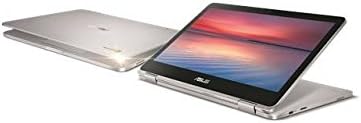
Gambar 4.2: The Chromebook demonstrating its 360-degree hinge, allowing for various modes such as tent or stand mode.
4.1 Port Sisi Kénca
Gambar 4.3: Left side of the Chromebook, showing the USB-C port and other features.
- USB-C Gen1 Port: Supports high-resolution display output and power delivery.
- Pamaca Kartu MicroSD: Pikeun ngalegaan neundeun atanapi mindahkeun files.
4.2 Port Sisi Katuhu

Gambar 4.4: Right side of the Chromebook, featuring another USB-C port and the headphone jack.
- USB-C Gen1 Port: Another port supporting high-resolution display output and power delivery.
- Soket Kombinasi Headphone/Mikropon: Pikeun input audio sareng kaluaran.
4.3 Kibor sareng Touchpad
- kibor: Features a backlight for use in low-light conditions.
- Touchpad: Supports multi-touch gestures for navigation.
5. Setélan
5.1 Charging the Chromebook
- Connect the power adapter to one of the USB-C ports on your Chromebook.
- Colokkeun adaptor kakuatan kana stop kontak témbok.
- Allow the device to charge until the battery indicator shows a full charge, especially before first use.
5.2 Ngahurungkeun sareng Setup Awal
- Pencét tombol daya anu aya di sisi alat.
- Follow the on-screen instructions to select your language and connect to a Wi-Fi network.
- Sign in with your Google account. If you do not have one, you will be prompted to create one.
- Complete the initial setup steps as guided by Chrome OS.
6. Operating Your Chromebook
6.1 Chrome OS Basics
- rak: The taskbar at the bottom of the screen for quick access to apps.
- Ngaluncurkeun: Click the circle icon in the bottom-left corner to open the app launcher and search bar.
- Wewengkon Status: Located in the bottom-right corner, it displays Wi-Fi, battery, time, and settings.
6.2 Using the Touchscreen and Convertible Modes
Your Chromebook features a 10-point multi-touch display and a 360-degree hinge, allowing it to be used in multiple configurations:
- Modeu Laptop: Laptop tradisional nganggo keyboard sareng touchpad.
- Modeu tablet: Lipet layar ka tukang sagemblengna pikeun dianggo salaku tablet. Kibor sareng touchpad bakal otomatis mareuman.
- Mode tenda: Stand the device in an inverted 'V' shape for media consumption or presentations.
- Mode nangtung: Position the keyboard face down to use the screen as a display.
6.3 Keyboard Backlight
To adjust the keyboard backlight brightness, use the dedicated function keys on the top row of the keyboard.
7. Pangropéa
7.1 Ngabersihan Alat
- Make kaen nu lemes, teu aya lint rada dampdikumbah ku cai atawa pembersih layar pikeun ngusap layar.
- Pikeun chassis jeung keyboard, make kaen lemes, garing. Hindarkeun bahan kimia anu kasar atanapi bahan abrasive.
- Pastikeun alat dipareuman sareng dicabut colokan sateuacan beberesih.
7.2 Perawatan Batré
- Hindarkeun sering-sering ngeusi batre.
- Simpen alat ieu di tempat anu tiis sareng garing upami henteu dianggo kanggo waktos anu lami.
- Ulah ngalaan batréna ka suhu luhur.
7.3 Apdet parangkat lunak
Chrome OS automatically updates in the background. Ensure your device is connected to the internet regularly to receive the latest security patches and features.
8. Cara ngungkulan
- Alat teu hurung: Ensure the device is charged. Connect the power adapter and try again. If unresponsive, perform a hard reset by holding the power button for 10 seconds.
- Masalah sambungan Wi-Fi: Check if Wi-Fi is enabled in the status area. Restart your router and the Chromebook.
- kinerja slow: Close unnecessary tabs or applications. Restart the Chromebook. Ensure Chrome OS is up to date.
- Layar teu ngabales touch: Balikan deui alat. Pastikeun layar beresih jeung bebas tina lebu.
- Lampu tukang keyboard teu jalan: Check the function keys for backlight control. Ensure the device is not in tablet mode.
9. Spésifikasi
| Fitur | Rincian |
|---|---|
| Ngaran modél | ASUS Chromebook C302CA-DH75-G |
| Sistem operasi | Chrome OS |
| Prosesor | Intel Core m7 (6th Gen) 6Y75, 1.2 GHz (up to 3.1 GHz Turbo) |
| Ram | 16 GB LPDDR3 SDRAM (soldered) |
| Panyimpenan | 64 GB SSD (eMMC) |
| tampilan | 12.5-inch Full HD (1920 x 1080) LED-backlit LCD, 10-point multi-touch, glossy |
| Grafika | Intel HD Graphics 515 (Terpadu) |
| Konéktipitas Wireless | Bluetooth 4.0, 802.11ac Wi-Fi |
| Palabuhan | 2 x USB-C Gen1 (supports display output & power delivery), Headphone/microphone combo jack, MicroSD card reader |
| Batré | 2-cell Lithium Ion, 39 Wh (Up to 10 hours run time) |
| Ukuran (L x W x H) | 17.1 x 2.4 x 10.1 inci |
| Beurat | 4.25 pon |
| Warna | pérak |
10. Émbaran jaminan
Your ASUS C302CA-DH75-G Chromebook is covered by a limited manufacturer's warranty. Please refer to the warranty card included with your product or visit the official ASUS website for detailed terms and conditions, including warranty period and service procedures.
11. Rojongan
For further assistance, technical support, or to download updated drivers and manuals, please visit the official ASUS support websitus:
Anjeun ogé tiasa ngahubungi layanan palanggan ASUS sacara langsung pikeun dukungan pribadi.


