1. Bubuka
This manual provides detailed instructions for the installation, operation, and maintenance of your Intelbras MHDX-1004 4-Channel Multi HD Digital Video Recorder (DVR). This DVR is designed for surveillance applications, offering recording capabilities for up to four security cameras and comes with a pre-installed 1TB WD Purple hard drive for reliable 24/7 video storage.
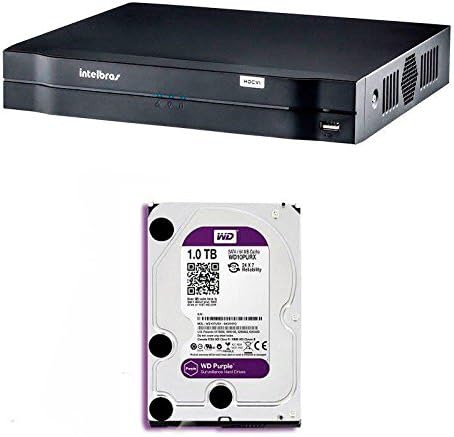
Gambar 1.1: Hareupeun view of the Intelbras MHDX-1004 Digital Video Recorder. This image shows the front view of the Intelbras MHDX-1004 Digital Video Recorder, featuring the Intelbras logo, status indicators, and a front USB port.

Gambar 1.2: Intelbras MHDX-1004 DVR with 1TB WD Purple hard drive. This image illustrates the Intelbras MHDX-1004 DVR unit alongside a 1TB WD Purple surveillance hard drive, indicating the pre-installed storage solution.
2. Eusi Paket
Mangga parios pakét kanggo barang-barang ieu:
- Intelbras MHDX-1004 DVR unit with pre-installed 1TB WD Purple HDD
- Adaptor kakuatan
- Mouse USB
- Pituduh Mimiti Gancang (dokumén ieu)
3. Setélan
3.1. Sambungan fisik
Before powering on the DVR, connect all necessary cables as described below. Refer to Figure 3.1 for a visual guide to the rear panel connections.
- Input Video: Connect your security cameras to the BNC video input ports (1-4). The DVR supports Multi HD technologies (HDCVI, HDTVI, AHD, IP, Analog).
- Kaluaran Video: Connect a monitor to either the HDMI or VGA port for local display.
- Audio Inputs/Output: Connect audio input devices to the RCA audio input ports and an audio output device (e.g., speakers) to the RCA audio output port.
- Jaringan: Connect an Ethernet cable from your router or network switch to the RJ45 LAN port for network access and remote viewing.
- Port USB: Connect the included USB mouse to one of the USB ports. The other USB port can be used for data backup or connecting other USB devices.
- Input kakuatan: Connect the power adapter to the DC 12V power input port.
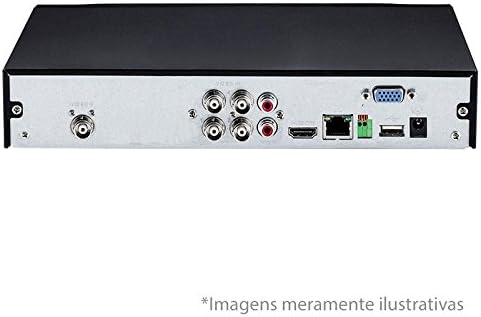
Gambar 3.1: Rear panel connections of Intelbras MHDX-1004 DVR. This image displays the rear panel of the Intelbras MHDX-1004 DVR, showing various ports including BNC video inputs, HDMI, VGA, audio, Ethernet, and USB connections.
3.2. Hard Drive Installation (Pre-installed)
The Intelbras MHDX-1004 DVR comes with a 1TB WD Purple surveillance-grade hard drive pre-installed. No additional installation is required for initial setup. If you need to replace or upgrade the hard drive in the future, ensure the DVR is powered off and disconnected from the power source before opening the casing. Refer to the detailed instructions in the full user manual for hard drive replacement procedures.

Gambar 3.2: Internal view of Intelbras MHDX-1004 DVR with 1TB WD Purple HDD installed. This image provides an internal view of the Intelbras MHDX-1004 DVR, clearly showing the 1TB WD Purple hard drive securely installed within the chassis.
3.3. Daya Hurung sareng Konfigurasi Awal
After all connections are made, connect the power adapter to an electrical outlet. The DVR will power on automatically. Follow the on-screen wizard for initial setup, which typically includes:
- Pilihan basa
- Setélan tanggal sareng waktos
- Network configuration (DHCP recommended for most users)
- Setting up a strong administrator password (crucial for security)
- Hard drive initialization (if prompted, though pre-installed drives are usually pre-formatted)
4. Parentah Operasi
4.1. Pamaké Interface Napigasi
Navigate the DVR's graphical user interface (GUI) using the connected USB mouse. Right-click to access the main menu, and left-click to select options or confirm actions.
4.2. Hirup View
Upon startup, the DVR will display the live view tina kaméra disambungkeun. Anjeun tiasa pindah antara kaméra tunggal view jeung multi-kaméra grid views (e.g., 4-channel view) using the icons at the bottom of the screen or by right-clicking and selecting the appropriate option.
4.3. Ngarekam
DVR ngadukung sababaraha modeu rekaman:
- Rékam Kontinyu: Rékaman 24/7.
- Ngarekam Deteksi Gerak: Ngarékam ngan nalika aya gerakan anu kadeteksi dina widang kaméra view.
- Rekaman Dijadwalkeun: Rékam nurutkeun jadwal nu geus ditangtukeun.
Configure recording settings via the Main Menu > Record > Record Schedule. Ensure the hard drive is initialized and healthy for recording functionality.
4.4. Puterkeun deui
Pikeun ulangview dirékam footage:
- Go to Main Menu > Playback.
- Select the desired date and camera channel(s).
- Use the timeline to navigate to the specific time. Different colors on the timeline indicate different recording types (e.g., green for continuous, yellow for motion).
- Use playback controls (play, pause, fast forward, rewind) as needed.
4.5. Nyadangkeun Data
Kadaharan pentingtage can be backed up to a USB flash drive or over the network.
- Nyadangkeun USB: Insert a formatted USB drive into a USB port. Go to Main Menu > Backup, select the camera, time range, and file type, then initiate the backup.
- Nyadangkeun jaringan: Use the Intelbras client software on a connected computer to download footage directly from the DVR.
4.6. Jauh Aksés
Pikeun jauh viewing on a smartphone or computer, ensure the DVR is connected to the internet. Configure network settings (e.g., port forwarding or P2P/Cloud service) and install the appropriate Intelbras mobile app or client software on your device. Refer to the full user manual for detailed network configuration steps.
5. Pangropéa
5.1. beberesih biasa
Keep the DVR unit clean and free from dust. Use a soft, dry cloth to wipe the exterior. Ensure ventilation openings are not obstructed to prevent overheating.
5.2. Apdet firmware
Periodically check the Intelbras official website for firmware updates. Firmware updates can improve performance, add new features, and enhance security. Follow the instructions provided with the firmware update package carefully.
5.3. Hard Drive Health Check
The pre-installed WD Purple hard drive is designed for continuous surveillance. However, it is good practice to periodically check its health status through the DVR's system information or storage management menu. For more information on WD Purple drives, you can visit the WD Purple product page.

Gambar 5.1: 1TB WD Purple surveillance hard drive. A detailed image of the 1TB WD Purple hard drive, designed specifically for 24/7 surveillance systems, showing its label and specifications.
5.4. Manajemén Sandi
Regularly change your administrator password and ensure it is strong (a combination of uppercase, lowercase, numbers, and symbols). Do not share your password.
6. Cara ngungkulan
If you encounter issues with your DVR, refer to the following common troubleshooting steps:
- Taya Kaluaran Video:
- Check HDMI/VGA cable connections to the monitor and DVR.
- Pastikeun monitor dihurungkeun tur disetel ka sumber input nu bener.
- Coba monitor atanapi kabel anu béda.
- Henteu aya rékaman:
- Verify the hard drive status in the DVR's menu (Main Menu > Storage > HDD Manage). Ensure it is initialized and healthy.
- Check recording schedules and settings (Main Menu > Record > Record Schedule).
- Ensure cameras are properly connected and displaying live video.
- Network Issues / Remote Access Failure:
- Pariksa sambungan kabel Ethernet.
- Verify network settings (IP address, gateway, DNS) in Main Menu > Network.
- Ensure your router is functioning correctly and providing internet access.
- Confirm port forwarding or P2P/Cloud service settings are correctly configured.
- System Malfunctions:
- Restart the DVR by disconnecting and reconnecting the power.
- If issues persist, consider restoring the DVR to factory default settings (Main Menu > System > Default), but be aware this will erase all configurations.
7. Spésifikasi
| Fitur | Spésifikasi |
|---|---|
| Modél | MHDX-1004 |
| merek | Intelbras |
| Jumlah Saluran | 4 |
| Video Input Technology | Multi HD (HDCVI, HDTVI, AHD, IP, Analog) |
| Kaluaran Video | HDMI, VGA |
| Audio Inputs/Output | RCA |
| Kapasitas Panyimpenan | 1 TB WD Purple HDD (pre-installed) |
| Konektipitas | Ethernet (RJ45), USB |
| Alat nu cocog | Kaméra Kaamanan |
| ASIN | B078K2QS7V |
| EAN | 7896637650984 |
8. Garansi jeung Rojongan
8.1. Émbaran jaminan
Your Intelbras MHDX-1004 DVR is covered by a manufacturer's warranty. Please refer to the warranty card included in your product packaging or visit the official Intelbras websitus pikeun istilah jaminan lengkep jeung kaayaan husus pikeun wewengkon Anjeun.
8.2. Rojongan Téknis
For technical assistance, product inquiries, or further support, please contact Intelbras customer service through their official websitus atanapi inpormasi kontak anu disayogikeun dina dokuméntasi produk anjeun. Pastikeun anjeun gaduh modél produk sareng nomer séri anjeun nalika ngahubungi dukungan.


