1. Bubuka
This manual provides detailed instructions for the ELECROW 7-inch 1024x600 HD IPS TFT LCD Touch Monitor. This versatile display is designed for various applications, including use with Raspberry Pi, Windows PCs, and other compatible devices. It features a capacitive USB touch screen and supports multiple display modes.
2. Naon dina Kotak?
Punten parios yén sadaya barang anu didaptarkeun di handap kalebet kana pakét anjeun:

Gambar: Eusi pakét produk.
- 7-inch Touch Monitor x1
- HD ka HD Kabel x1
- HD to Micro HD Adapter x1
- USB A to Micro USB Cable x1
- DVD x1 (containing drivers/software)
- Buku Panduan x1
- Copper Screws Pack x1
3. Spésifikasi
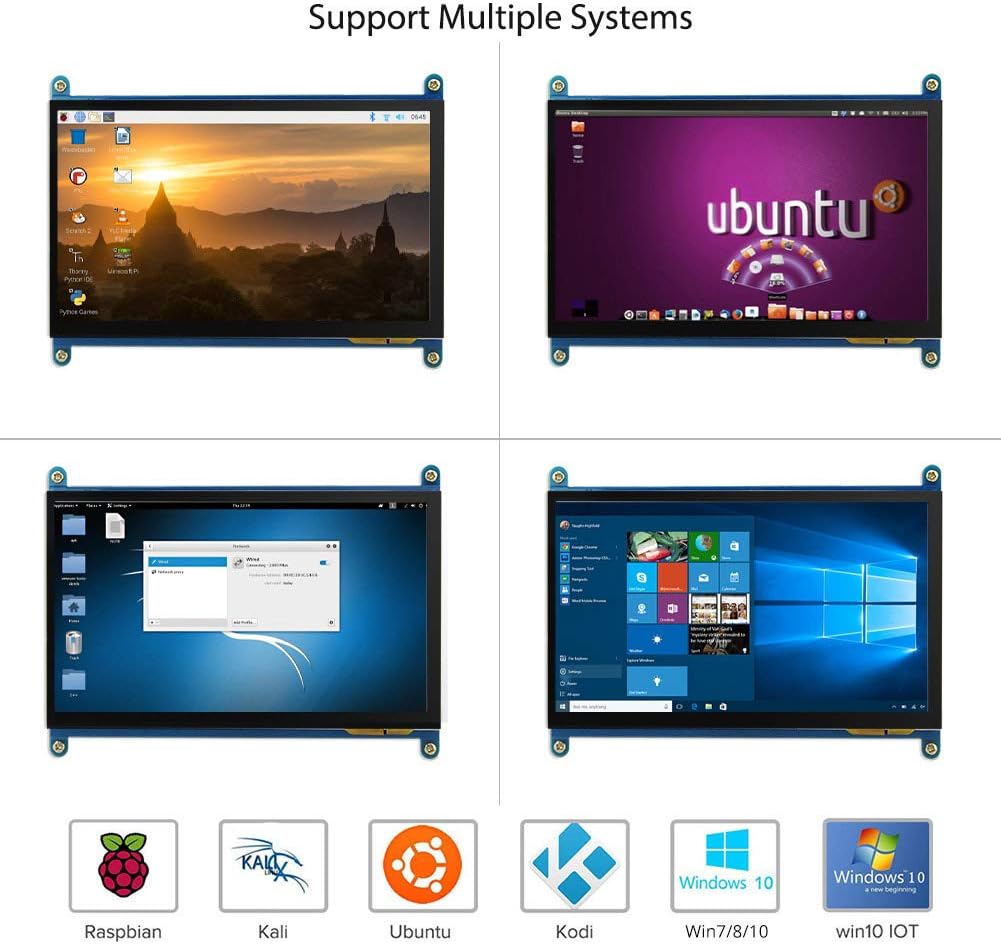
Image: The 7-inch IPS display highlighting its 1024x600 resolution.
| Fitur | Rincian |
|---|---|
| merek | ELEKTRIK |
| Nomer Modél Item | 7-inch 1024x600 Monitor |
| Runtuyan | Layar cabak |
| Warna | Rupa-rupa Warna |
| Tipe Layar | LCD |
| Ukuran layar | 7 inci |
| Resolusi layar | 1024 x 600 |
| Resolusi tampilan maksimum | 1024 x 600 |
| Panganteur Hardware | HDMI, Micro-HDMI, USB |
| Jumlah palabuhan HDMI | 1 |
| Tipe Panyambung | HDMI, USB |
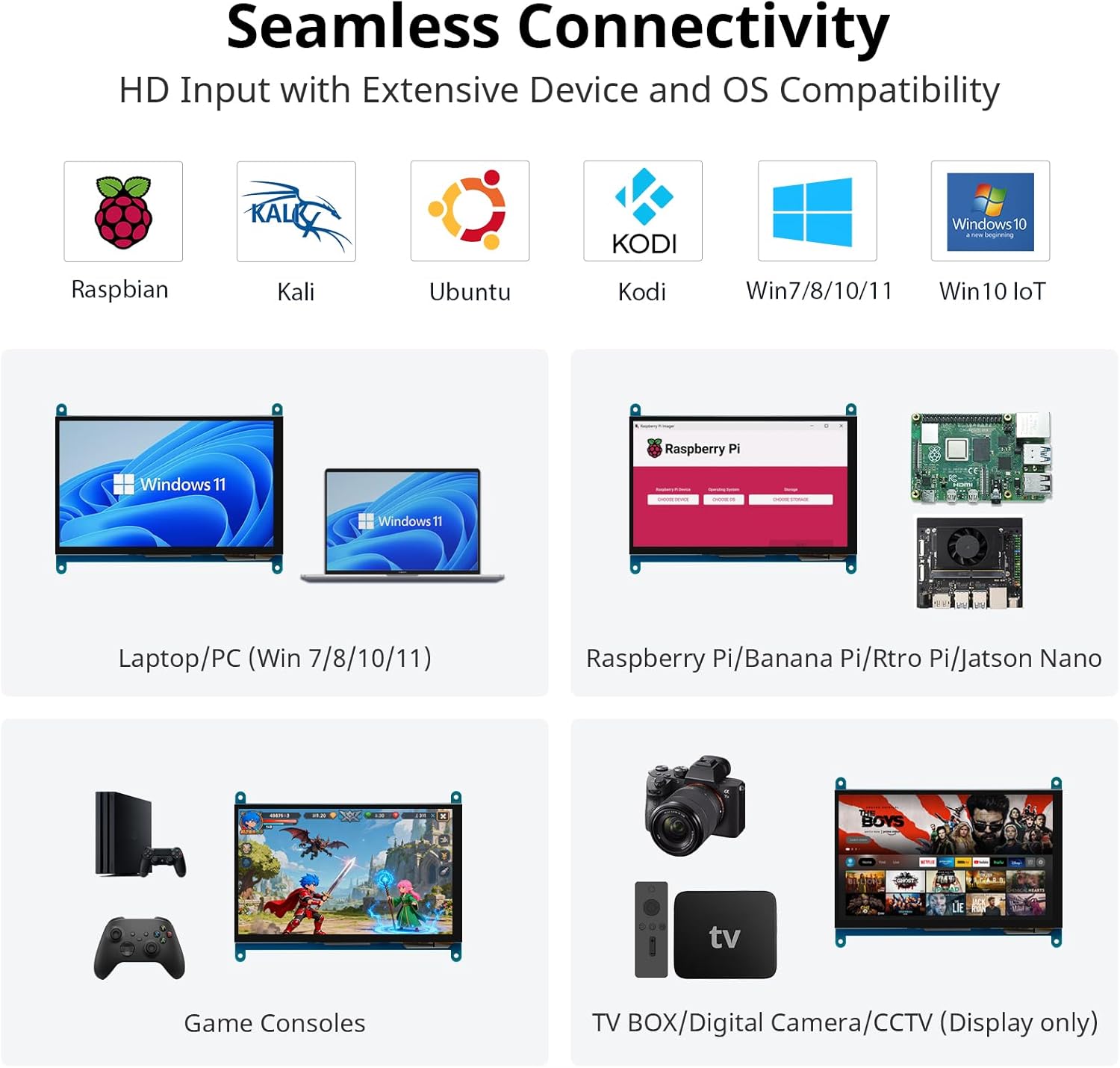
| Kasaluyuan alat | Raspberry Pi (5/400/4/3/2/1/3B+/BB), Banana Pi, Jetson Nano, BB Black |
| Item Ukuran L x W x H | 15 x 164 x 123 milimeter |
| Fitur husus | Layar cabak |
| Rasio Aspék | 1.71:1 |
| Pedaran Permukaan layar | Lemes |
| Babandingan Kontras Gambar | [Estimated] 800:1 |
| Waktu Tanggapan | 5 milidetik |
| Refresh Laju | 60 Hz |
| Kasadiaan suku cadang | Inpormasi henteu sayogi |
| Software Apdet Dijamin Dugi | Inpormasi henteu sayogi |
4. Parentah Setup
Follow these steps to connect and set up your ELECROW 7-inch monitor.
4.1 Hardware Leuwihview
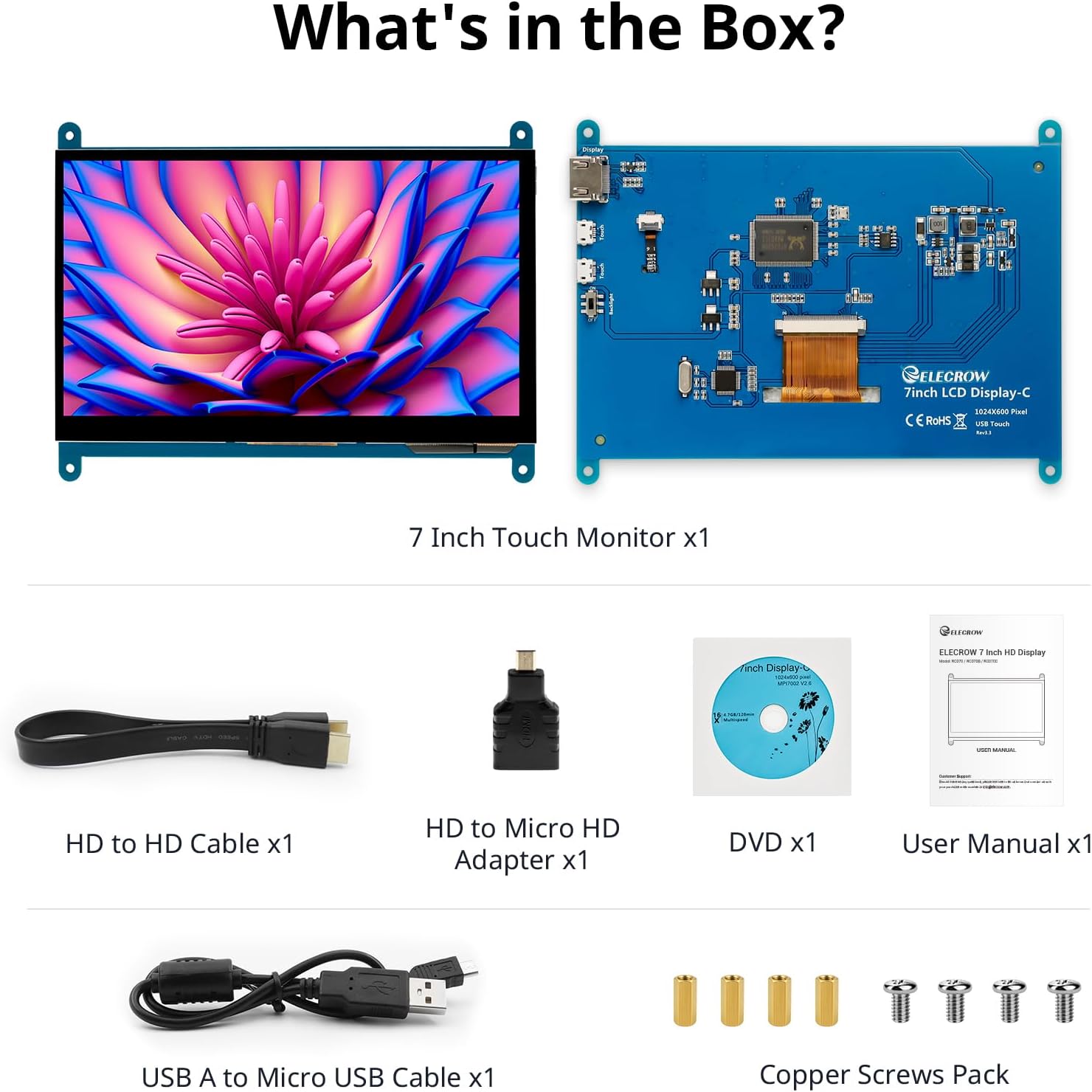
Image: Hardware overview of the monitor, indicating ports and backlight.
Fitur monitor:
- Standard HD Port for Data Transfer
- Micro USB Port for Touch and Power
- Backlight (control)
4.2 Sambungan Umum
To enable both display and touch functionality, connect the monitor to your device using both the HD cable for video and the USB cable for touch and power.

Image: Seamless connectivity options for various devices.
4.3 Nyambungkeun ka Raspberry Pi
The monitor is fully compatible with Raspberry Pi models (5/400/4/3/2/1/3B+/BB). For touch functionality with Raspberry Pi, ensure the USB touch port is powered. The monitor supports Raspbian, Ubuntu, and single-touch input.
- Connect the HD cable from the Raspberry Pi to the monitor's HD port.
- Connect the USB A to Micro USB cable from a USB port on the Raspberry Pi to the monitor's Micro USB port. This provides power for the touch function.
- For initial boot or if experiencing issues, use an external power source for the Raspberry Pi, then unplug the USB power from the monitor and reconnect it to the Raspberry Pi's USB port.

Image: Raspberry Pi monitor setup diagram.
4.4 Connecting to a PC (Windows)
When used as a computer monitor, it supports Windows 10/8/7 with 5-point touch. No driver installation is typically required; it's plug and play.
- Connect the HD cable from your PC's HD output to the monitor's HD port.
- Connect the USB A to Micro USB cable from a USB port on your PC to the monitor's Micro USB port. This enables the touch functionality.

Image: Monitor connected to a laptop as a PC monitor.
5. Parentah Operasi
5.1 Fungsi Toél
The monitor features a capacitive touch screen. When connected to a Windows PC, it supports 5-point multi-touch for a smooth and responsive experience. With Raspberry Pi, it supports single-touch.
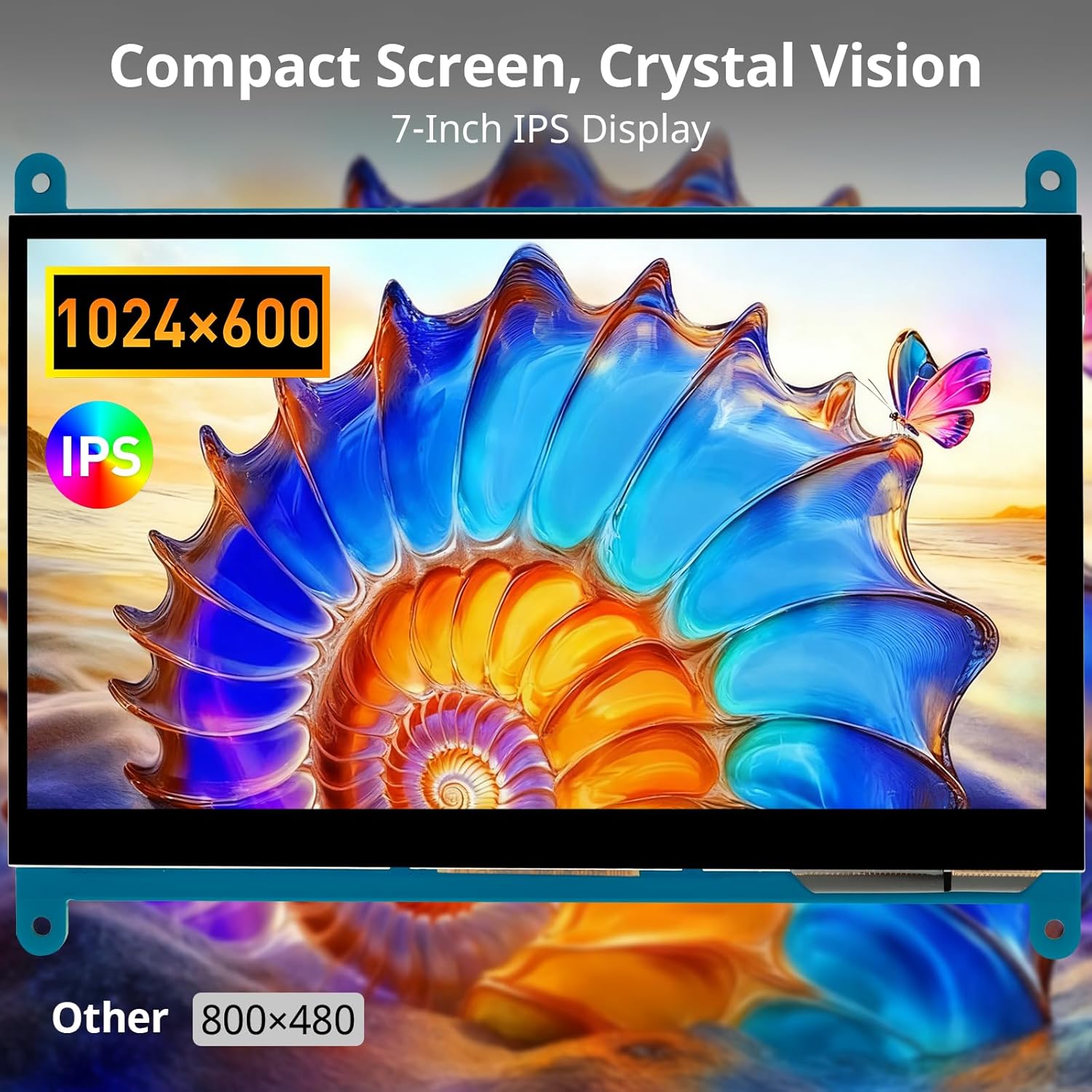
Image: Demonstration of 5-point multi-touch gestures.
5.2 Modeu Paparan
This mini monitor operates in three modes when connected to a compatible system:
- Mode Salin: Duplicates the primary display's content.
- Mode ngalegaan: Extends the desktop across both displays, providing more screen real estate.
- Modeu Layar Kadua: Uses only the monitor as the primary display.
5.3 Aplikasi serbaguna
The monitor's compact size and features make it suitable for various uses:
Gambar: Examples of versatile display applications.
- Raspberry Pi Monitor: Ideal for DIY projects and embedded systems.
- Windows PC Monitor: Functions as a secondary or primary display for Windows 10/8/7.
- Gaming Monitor: Can be used with mini gaming setups.
- Pigura Poto Digital: Display photos or other media.
- Home Monitoring Display: Integrate into smart home systems.
- In-Case System Monitor: Mount inside PC cases for system stats.
6. Pangropéa
Pikeun mastikeun umur panjang sareng kinerja optimal monitor anjeun, turutan tungtunan pangropéa ieu:
- Ngabersihan layar: Make kaen nu lemes, teu aya lint rada dampened with water or a screen-cleaning solution. Avoid harsh chemicals, abrasive materials, or excessive moisture.
- Ngabersihan Casing: Ngusap monitor casing ku lawon anu lemes sareng garing.
- Panyimpenan: Lamun teu dipaké pikeun période nambahan, nyimpen monitor dina tiis, tempat garing jauh ti sinar panonpoé langsung jeung hawa ekstrim.
- Penanganan: Avoid dropping the monitor or subjecting it to strong impacts. Do not apply excessive pressure to the screen.
- Ventilasi: Pastikeun aliran hawa di sabudeureun monitor lancar pikeun nyegah panas teuing.
7. Cara ngungkulan
If you encounter issues with your ELECROW monitor, refer to the following common problems and solutions:
| Masalah | Mungkin Cukang lantaranana / Solusi |
|---|---|
| Screen remains black / No signal |
|
| Pungsi toél teu jalan |
|
| Display resolution incorrect |
|
| Layar kedip-kedip atanapi gambar anu distorsi |
|
8. Garansi jeung Rojongan
8.1 Émbaran jaminan
Specific warranty details for this product are typically provided at the point of purchase or within the product packaging. Please refer to your purchase documentation for information regarding warranty duration and terms. Spare parts availability information is not available at this time.
8.2 Rojongan Palanggan
For further assistance, technical support, or inquiries not covered in this manual, please contact ELECROW customer service through their official websitus atanapi pangecér ti saha anjeun mésér produk.


