
1. Bubuka
Hatur nuhun pikeun meuliasing the Andoer HDV-Z20 Digital Camcorder. This manual provides detailed instructions for the proper use, setup, operation, and maintenance of your device. Please read this manual thoroughly before using the camcorder to ensure optimal performance and to prevent damage.
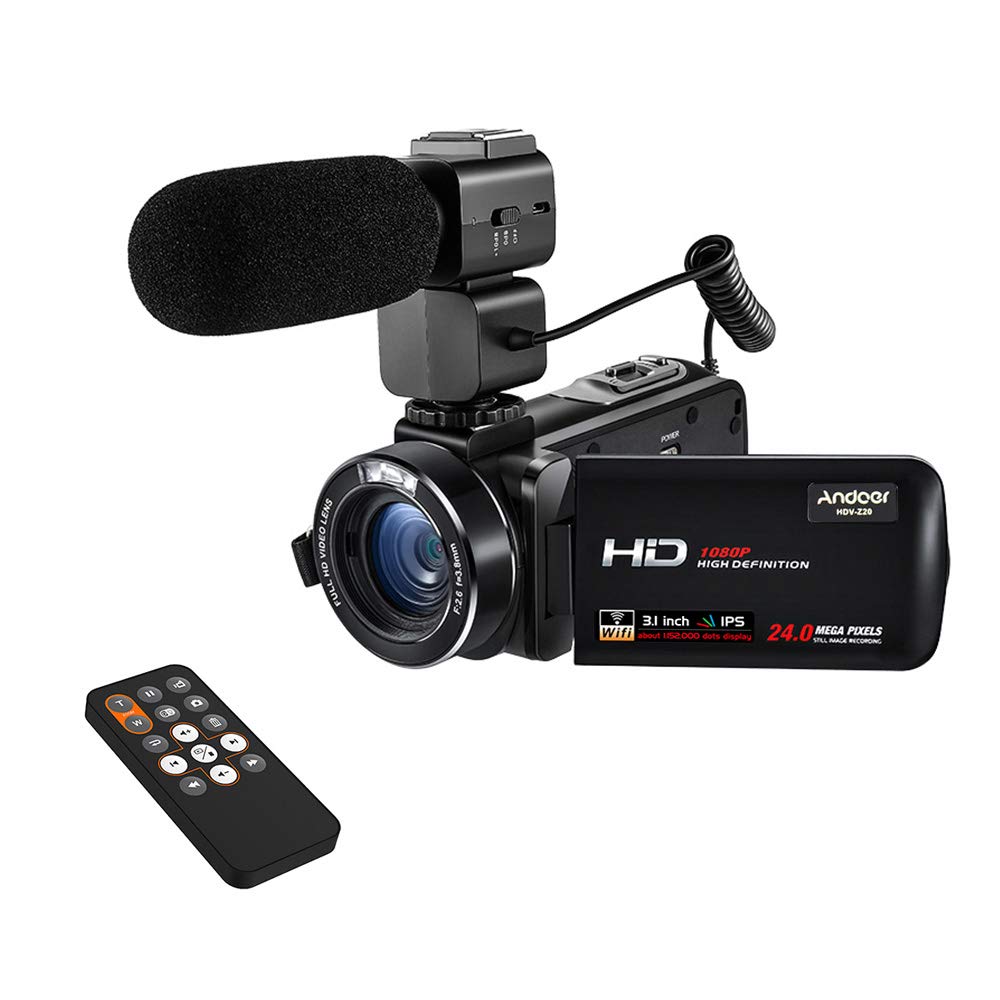
Image 1.1: Andoer HDV-Z20 Digital Camcorder. This image shows the overall design of the camcorder from a front-side angle.
2. Produk Langkungview
2.1 Fitur konci
- Pencitraan Resolusi Tinggi: Equipped with an 8-megapixel CMOS sensor, capable of 1080P Full HD video recording at 30 frames per second and still images up to 24 megapixels (5600 * 4200).
- Mikropon Éksternal: Includes an aluminum alloy external microphone with NCR noise reduction technology, a 3-level anti-vibration design, and a windscreen to minimize environmental noise.
- tampilan: Features a 3.0-inch TFT LCD rotating touchscreen for easy navigation and viewing.
- Zoom and Stabilization: Offers 16x digital zoom and digital image stabilization.
- Konektipitas: Supports WiFi for smartphone app control (LzxViewer app), HDMI output for TV connection, and USB for PC connection.
- Panyimpenan: Compatible with external SD cards up to 64GB (not included).
- Fitur tambahan: LED fill light for low-light conditions, hot shoe mount for accessories, and a multi-function remote controller.
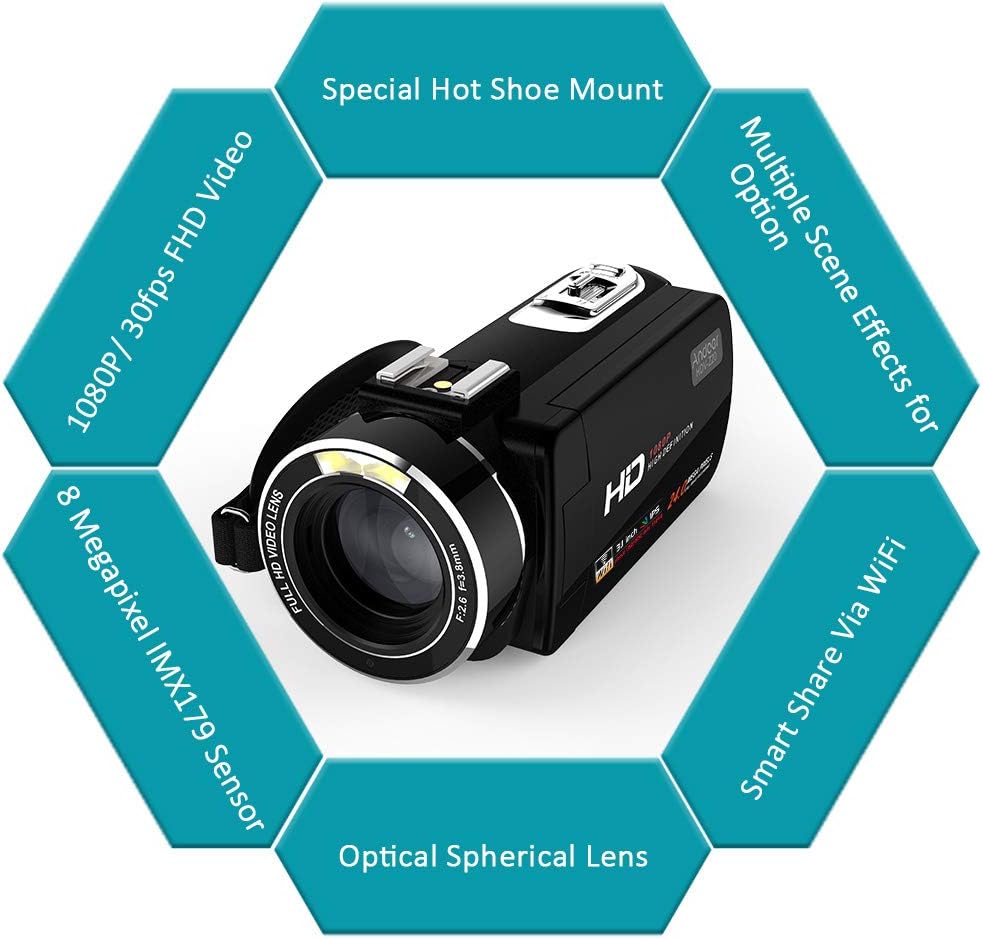
Image 2.1: Key features of the Andoer HDV-Z20 camcorder, including 1080P/30fps FHD Video, 8 Megapixel IMX179 Sensor, Optical Spherical Lens, Smart Share Via WiFi, Multiple Scene Effects, and Special Hot Shoe Mount.
2.2 Eusi pakét
Mangga parios pakét kanggo barang-barang ieu:
- Andoer HDV-Z20 Digital Video Camera (with NP-40 Li-ion Battery)
- Remote Control (with CR2025 Button Cell Battery)
- External Microphone (with CR2032 Button Cell Battery)
- Cap Lénsa
- Kabel USB
- Kabel HD (HDMI)
- Kantong kaméra
- Tali
- Camera User Manual (English)
- Microphone User Manual (English/Chinese)
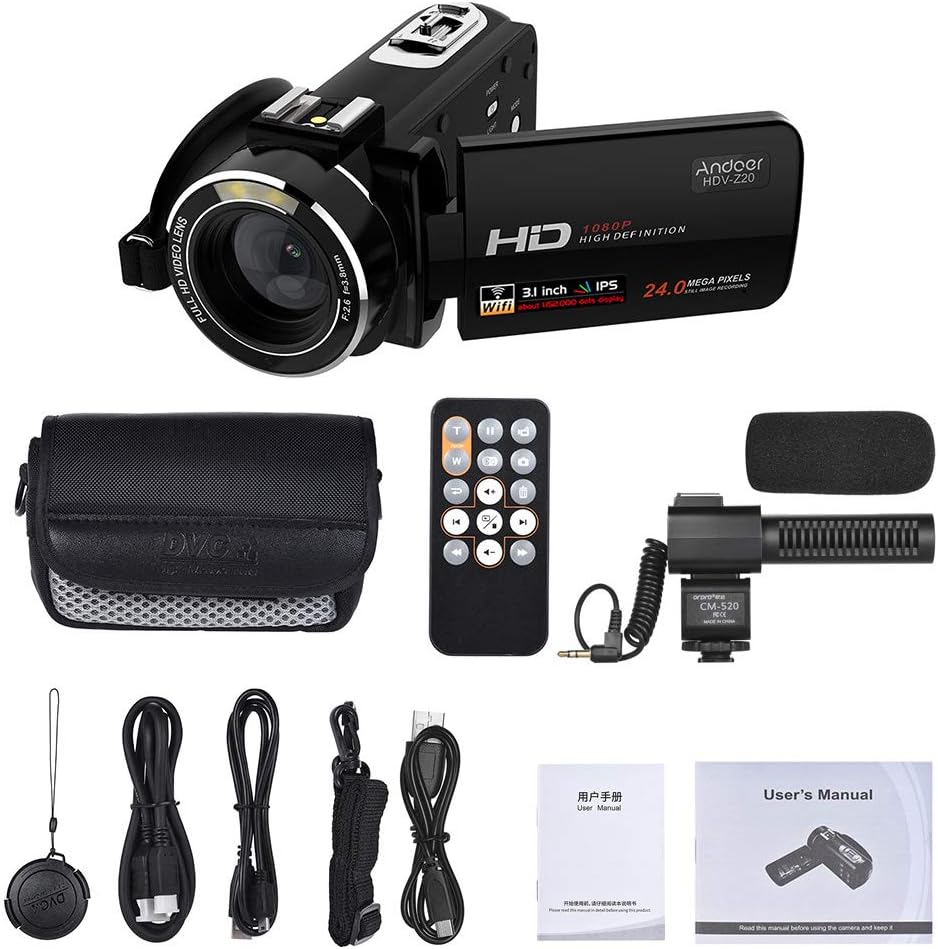
Image 2.2: All items included in the Andoer HDV-Z20 camcorder package, showing the camera, remote, microphone, cables, bag, strap, and manuals.
3. Setélan
3.1 Pamasangan batré
- Buka panutup kompartemen batré anu aya di handapeun camcorder.
- Insert the provided NP-40 Li-ion battery, ensuring the correct polarity. Important: Remove any plastic protective sticker from the battery terminals before insertion.
- Tutup panutup kompartemen batré aman.
- For first use, fully charge the battery using the supplied USB cable and a compatible USB power adapter (not included).
3.2 Pamasangan Kartu Mémori
The camcorder supports SD cards up to 64GB. A memory card is teu kaasup dina pakét sareng kedah dipésér misah.
- Pilari slot kartu SD, biasana di sisi atawa handap kaméra video.
- Insert the SD card with the metal contacts facing the correct direction (refer to the diagram near the slot if available) until it clicks into place.
- Pikeun nyabutna, pencét kartu lalaunan ka jero dugi ka kaluar.
3.3 External Microphone Installation
- Slide the external microphone onto the hot shoe mount located on top of the camcorder.
- Secure the microphone by tightening the locking mechanism on its base.
- Connect the microphone's 3.5mm audio jack into the microphone input port on the camcorder.
- Ensure the CR2032 button cell battery is installed in the microphone. Important: Remove any plastic protective sticker from the battery terminals before insertion.

Gambar 3.1: Detil view of the external microphone, showing its NCR denoise technology, +10dB sensitivity adjustment switch, and windscreen for minimizing environmental noise.
3.4 Daya Awal Hurung
- Open the LCD screen. This action typically powers on the camcorder automatically.
- If the camcorder does not power on, press and hold the 'POWER' button.
- Turutan sagala ajakan dina layar pikeun setelan awal, sapertos nyetel tanggal sareng waktos.
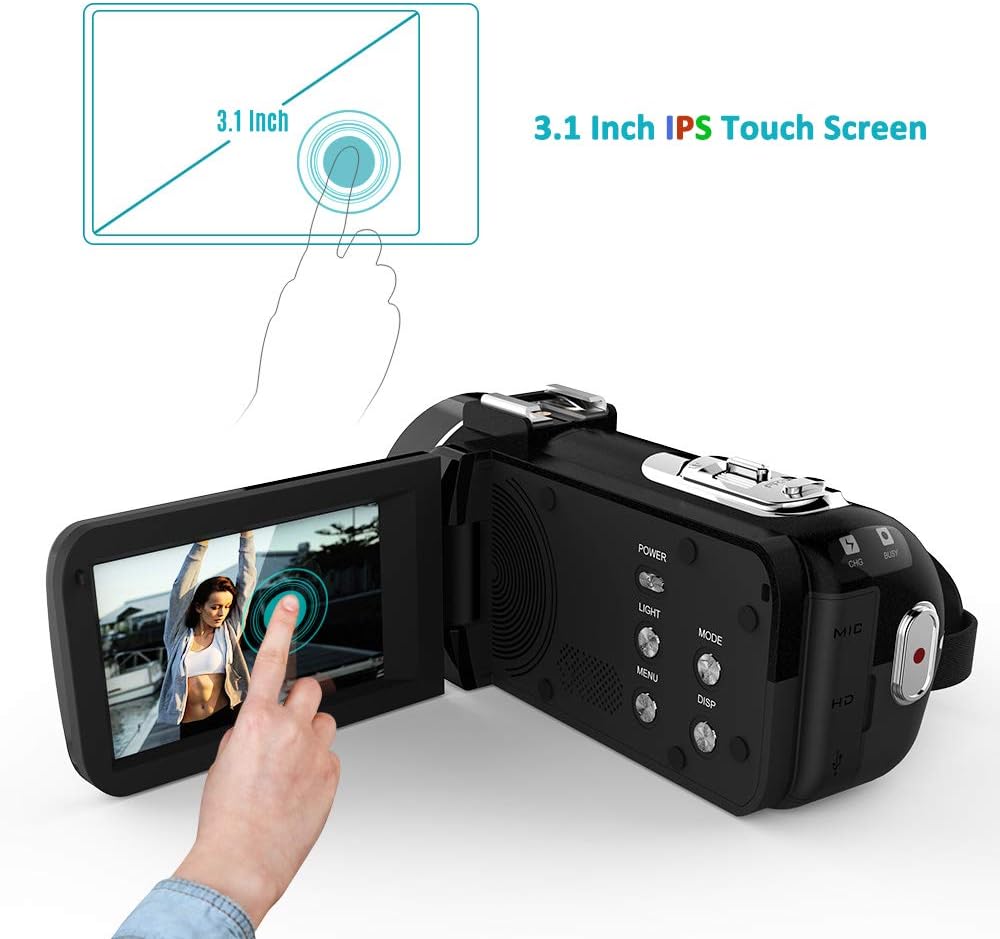
Image 3.2: The 3.0-inch IPS touchscreen of the Andoer HDV-Z20 camcorder, shown open and displaying a live view, with a finger interacting with the screen.
4. Parentah Operasi
4.1 Operasi Dasar
- Hurungkeun/Pareuman: Open the LCD screen to power on. Close the LCD screen or press and hold the 'POWER' button to power off.
- Pilihan Mode: Use the 'MODE' button or the touchscreen interface to switch between video recording mode, photo capture mode, and playback mode.
- Ngarékam pidéo: In video mode, press the 'RECORD' button (usually a red circle) to start recording. Press it again to stop.
- Nyokot poto: In photo mode, press the 'SHUTTER' button to take a picture.
- Zum: Use the 'W' (Wide) and 'T' (Telephoto) buttons to adjust the 16x digital zoom.

Image 4.1: Illustration of the 24-megapixel photo capability and the 16x digital zoom function, showing how zooming in magnifies a subject.
4.2 Fitur canggih
- Konéktivitas WiFi & Kontrol Aplikasi:
- Enable WiFi on the camcorder via the menu settings.
- Download the 'LzxViewer' app on your smartphone (available for iOS and Android).
- Connect your smartphone to the camcorder's WiFi network (SSID and password will be displayed on the camcorder screen).
- Once connected, you can control the camcorder remotely, view hirup footage, take photos, record videos, and transfer files ngaliwatan aplikasi.
- Kadali jauh: Use the included remote control for convenient operation from a distance, including starting/stopping recording, taking photos, and navigating menus. Important: Ensure the CR2025 button cell battery is installed in the remote and any plastic protective sticker is removed.
- Lampu Eusian LED: Activate the built-in LED light for additional illumination in dark environments. This option is usually found in the camcorder's menu or via a dedicated button.
- Timing Photography: The camcorder supports timing photography, allowing you to set a delay before a photo is taken, useful for selfies or group shots.

Image 4.2: Illustration of the camcorder's WiFi remote control feature, showing the camcorder connected to smartphones via the LzxViewer app for shooting, recording, and zooming.
4.3 Connecting to TV/PC
- HDMI Output (to TV): Use the supplied HD cable to connect the camcorder's HDMI output port to an HDMI input port on your television. Switch your TV's input source to the corresponding HDMI port to view rékaman anjeun.
- USB Connection (to PC): Use the supplied USB cable to connect the camcorder to your computer. The camcorder will typically appear as a removable storage device, allowing you to transfer photos and videos.

Image 4.3: The camcorder connected to a computer via USB and displaying its output on a monitor, demonstrating 1080P/30fps Full HD video recording and HDMI output capabilities.
5. Pangropéa
5.1 beberesih
- Lensa: Use a soft, lint-free cloth specifically designed for camera lenses to gently wipe the lens. For stubborn smudges, use a small amount of lens cleaning solution. Avoid touching the lens with your fingers.
- Layar LCD: Wipe the touchscreen with a soft, dry microfiber cloth. Do not use abrasive cleaners or solvents.
- awak: Clean the camcorder body with a soft, dry cloth. If necessary, slightly dampen lawon ku cai, teras usap garing langsung.
5.2 Panyimpenan
- Store the camcorder in a cool, dry place away from direct sunlight, extreme temperatures, and high humidity.
- When storing for extended periods, remove the battery from the camcorder and store it separately.
- Use the provided camera bag to protect the camcorder from dust and scratches.
6. Cara ngungkulan
| Masalah | Mungkin Cukang lantaranana | Solusi |
|---|---|---|
| Camcorder teu hurung. | Battery is dead or not installed correctly. Protective sticker on battery terminals. | Charge the battery. Ensure the battery is inserted with correct polarity. Remove any plastic protective sticker from battery terminals. |
| Teu tiasa ngarékam pidéo atanapi nyandak poto. | No SD card or SD card full/corrupted. Incorrect mode selected. | Insert a compatible SD card. Format the SD card (this will erase all data). Switch to video or photo mode. |
| Poor audio quality with external microphone. | Microphone not connected properly. Microphone battery low/dead. Sensitivity setting incorrect. | Ensure microphone is securely connected to the hot shoe and audio jack. Check/replace microphone battery. Adjust microphone sensitivity (+10dB switch). |
| Masalah sambungan WiFi. | Incorrect WiFi password. App not installed or outdated. Distance too far. | Verify WiFi password. Ensure 'LzxViewer' app is installed and updated. Stay within 3 meters of the camcorder for optimal connection. |
| Images/videos are blurry. | Lens is dirty. Digital image stabilization off. | Clean the lens. Ensure digital image stabilization is enabled in settings. |
7. Spésifikasi
| Fitur | Rincian |
|---|---|
| Ngaran modél | HDV-Z20 |
| Sénsor Gambar | 8 Sensor CMOS Megapiksel |
| Resolusi Video | 1080P (1920*1080) 30fps, 720P, VGA |
| Resolusi gambar | 24M (5600*4200), 20M, 16M, 12M, 10M, 7MHD, 5M, 3M, 2MHD, VGA |
| Format pidéo | MOV |
| Format Gambar | JPEG |
| Lensa | F=3.8mm, fno: 2.6, 37mm wire |
| Zum | 16x Digital Zoom |
| Layar Pintonan | 3.0-inch TFT LCD Touchscreen |
| Média Panyimpenan | SD Card, Max 64GB (not included) |
| Konektipitas | USB, HDMI, WiFi |
| Batré kaméra | 3.7V 1250mAh NP-40 Li-ion Battery |
| Batré Kadali Jauh | CR2025 3V Button Cell Battery |
| Batré Mikropon | CR2032 3V Button Cell Battery |
| Réspon Frékuénsi Mikropon | 50Hz - 16kHz |
| Sensitipitas mikropon | -37dB ± 3dB (0dB=1V/Pa at 1kHz), +10dB enhancement |
| Dimensi (Kaméra) | 12.6 * 6.1 * 5.8 cm / 5 * 2.4 * 2.3 in (L*H*W) |
| Weight (Camera) | 320 g / 11.3 oz |
8. Garansi jeung Rojongan
For warranty information and technical support, please refer to the documentation provided with your purchase or contact Andoer customer service through their official websitus. Punten tahan bukti pameseran anjeun pikeun klaim garansi.