1. Bubuka
The Sengled Smart Light Bulbs A19 are Zigbee-compatible LED bulbs designed for integration into smart home systems. These bulbs provide soft white (2700K) illumination, are dimmable, and offer control via voice commands or a mobile application when connected to a compatible Zigbee hub. This manual provides instructions for installation, setup, operation, and troubleshooting.

Image 1.1: Sengled Smart Light Bulbs A19 (4-Pack)
2. Émbaran Kasalametan
- Kasalametan listrik: Always ensure power is turned off at the switch before installing or removing bulbs.
- Pamakéan jero rohangan wungkul: These bulbs are designed for indoor use in dry locations. Do not expose to water or excessive humidity.
- Suhu operasi: Do not install in enclosed fixtures that restrict airflow, as this may reduce bulb lifespan.
- Kasaluyuan dimmer: These bulbs are dimmable via the smart home system. Do not use with standard incandescent dimmers.
- pembuangan: Miceun runtah éléktronik sacara tanggung jawab nurutkeun peraturan lokal.
3. Eusi Paket
pakét ngawengku:
- 4 x Sengled Smart LED Light Bulbs (A19, Soft White 2700K)
4. Spésifikasi
| Fitur | Rincian |
|---|---|
| Nomer modél | E21-N13A |
| Jenis Bohlam | LED |
| Ukuran Bentuk Bohlam | A19 |
| Dasar Bulb | E26 |
| Wattage | 9 Watt |
| Sarua Pijar | 60 Watt |
| Caang | 800 Lumén |
| Suhu Warna | 2700 Kelvin (Bodas Lemes) |
| Voltage | 120 Volt (100-120V, 60Hz) |
| Métode kontrol | Sora, Aplikasi |
| Konektipitas | Zigbee Protocol (Hub Required) |
| Rata Kahirupan | 25,000 Jam |
| Pamakéan jero rohangan / outdoor | jero rohangan |
| Diménsi | 2.4" W x 4.5" H |
5. Parentah Setup
These Sengled Smart Light Bulbs require a compatible Zigbee hub for full functionality. Compatible hubs include Sengled Smart Hub, Amazon Echo devices with a built-in Zigbee hub (e.g., Echo 4th Gen, Echo Plus, Echo Show 10, Echo Studio), SmartThings Hub, Wink Hub, or Hubitat Hub.
5.1. Léngkah-léngkah Persiapan Awal
- Pasang bohlam: Screw the Sengled Smart Light Bulb into a standard E26 light socket. Ensure the power to the fixture is turned off before installation.
- Daya Hurung: Hurungkeun kakuatan ka fixture lampu. Bohlam kedah caang.
- Unduh Aplikasi: Download the Sengled Home App from the Apple App Store or Google Play Store. Alternatively, use the app for your chosen compatible hub (e.g., Amazon Alexa App, SmartThings App).
- Ngadaptar / Asup: Buka aplikasina teras daptar pikeun ngadamel akun atanapi lebet upami anjeun parantos gaduh.
- Tambahkeun Alat: Follow the in-app instructions to add a new device. This typically involves scanning a QR code on the bulb or packaging, or initiating a device search within the app.
- Nyambung ka Hub: The bulb will connect to your Zigbee hub. This process usually completes within one minute.
5.2. Hub-Specific Setup Options
The following images illustrate common setup configurations:

Image 5.1: Setup with Sengled Smart Hub

Image 5.2: Setup with Samsung SmartThings Hub

Image 5.3: Setup with Amazon Echo (Built-in Hub)
6. Operasi
Once successfully paired with your smart hub, the Sengled Smart Light Bulbs offer various control options.
6.1. Kontrol sora
Control your lights hands-free using voice commands with compatible assistants like Amazon Alexa or Google Home Assistant.

Image 6.1: Voice control example with Alexa
6.2. Dimming and Remote Control
Adjust the brightness from 1% to 100% and control your lights from anywhere using the Sengled Home App or your smart home platform's app.

Image 6.2: Dimming functionality from 100% to 30%

Image 6.3: Remote control from any location
6.3. Scheduling and Routines
Set schedules for your lights to turn on/off or adjust brightness at specific times, such as dusk or sunrise. Create routines for automated lighting scenarios.
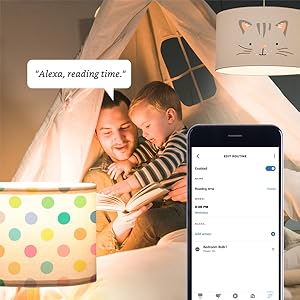
Image 6.4: Setting up a reading time routine
6.4. Kontrol Grup
Add multiple smart bulbs (up to 64) to your smart hub system and control them individually or as a group within the app.
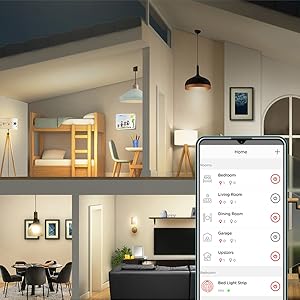
Image 6.5: Managing lights by room for group control
7. Pangropéa
- beberesih: Pastikeun bohlamna pareum sareng tiis sateuacan dibersihkeun. Lap ku lawon anu lemes sareng garing. Entong nganggo pembersih cair.
- Panyimpenan: Lamun nyimpen bulbs, tetep dina tiis, tempat garing jauh ti sinar panonpoé langsung jeung hawa ekstrim.
- Henteu aya Bagian anu Bisa Dilayanan Pamaké: Do not attempt to disassemble or repair the bulb. This will void the warranty.
8. Cara ngungkulan
8.1. Bulb Not Responding/Connecting
- Pariksa kakuatan: Ensure the light fixture switch is in the ON position and the bulb is receiving power.
- Hub Connection: Verify that your Zigbee hub is powered on and connected to your network.
- Deukeutna: Ensure the bulb is within range of your Zigbee hub or another Zigbee device acting as a repeater.
- Papasangan deui: If the bulb loses connection, try removing it from your app and re-pairing it according to the setup instructions. Power cycling the bulb (turning it off and on 5 times) can sometimes reset it for re-pairing.
- Apdet aplikasi: Ensure your Sengled Home App or smart home platform app is updated to the latest version.
8.2. Voice Control Issues
- Assistant Link: Confirm that your Sengled account (or smart hub) is correctly linked to your voice assistant (Alexa, Google Home).
- Kapanggihna Alat: Ask your voice assistant to "Discover devices" to ensure all bulbs are recognized.
- Command Clarity: Speak commands clearly and ensure the device name used in the command matches the name in your app.
8.3. Unstable Connection
- Jaringan Zigbee: A strong Zigbee mesh network is crucial. Adding more Zigbee devices (like smart plugs or other bulbs) can strengthen the network.
- gangguan: Keep your Zigbee hub away from Wi-Fi routers, microwaves, or other devices that might cause wireless interference.
9. Émbaran jaminan
Sengled Smart Light Bulbs are covered by a 3-taun jaminan kawates from the date of purchase. This warranty covers defects in materials and workmanship under normal use. For warranty claims or detailed terms, please refer to the official Sengled websitus atanapi ngahubungan rojongan customer.
10. Rojongan Palanggan
For further assistance, technical support, or to report issues, please visit the official Sengled support website or contact their customer service department. Contact information can typically be found on the Sengled website or within the Sengled Home App.


