1. Bubuka
This manual provides essential information for the safe and efficient use of your Brother DCP-L8410CDW Color Laser Multifunction Printer. This 3-in-1 device is designed for professional environments, offering printing, copying, and scanning functionalities. It features an intuitive touchscreen, Wi-Fi, and Ethernet connectivity, making it suitable for various work settings.
fitur konci ngawengku:
- Print, copy, and scan capabilities
- High-quality color laser printing (up to 2400 dpi)
- Percetakan duplex otomatis
- Flexible paper handling with a maximum capacity of 300 sheets
- Integrated Wi-Fi and Gigabit Ethernet for versatile connectivity

Gambar 1.1: Hareupeun view of the Brother DCP-L8410CDW printer.
2. Setélan
Follow these steps to set up your Brother DCP-L8410CDW printer:
- Ngabongkar bungkusan: Kaluarkeun printer tina bungkusna kalawan ati-ati. Pastikeun sadaya pita pelindung sareng bahan bungkus parantos dicabut tina bagian luar sareng jero alat.
- Pasang Kartrid Toner: Open the front cover and install the toner cartridges into their respective slots. Refer to the labels for correct color placement.
- Kertas beban: Open the paper tray and adjust the paper guides to fit your paper size (e.g., A4). Load paper into the tray and close it securely.
- Sambungkeun Kakuatan: Sambungkeun kabel listrik ka printer teras ka outlet listrik grounded.
- Nyambung ka Jaringan/Komputer:
- Nirkabel (Wi-Fi): On the printer's touchscreen, navigate to Network settings and follow the prompts to connect to your Wi-Fi network.
- Kabel (Ethernet): Sambungkeun kabel Ethernet tina port LAN printer ka router jaringan atanapi switch anjeun.
- USB: Sambungkeun kabel USB 2.0 tina printer ka komputer anjeun.
- Pasang Supir: Insert the installation CD (if provided) into your computer or download the latest drivers and software from the official Brother support websitus. Turutan pitunjuk dina layar pikeun ngarengsekeun pamasangan.

Gambar 2.1: Sisi view of the Brother DCP-L8410CDW, showing the paper tray.
3. Parentah Operasi
The Brother DCP-L8410CDW features an intuitive touchscreen for easy operation.
3.1. Nyitak
- Pastikeun printer parantos dihurungkeun sareng nyambung ka jaringan atanapi komputer anjeun.
- Buka dokumén atanapi gambar anu anjeun hoyong nyitak dina komputer atanapi alat sélulér anjeun.
- Select the 'Print' option from your application.
- Choose the Brother DCP-L8410CDW from the list of available printers.
- Adjust print settings (e.g., number of copies, color/mono, duplex) as needed.
- Klik 'Cetak'.
3.2. Niron
- Place your document face down on the scanner glass or face up in the Automatic Document Feeder (ADF).
- On the printer's touchscreen, select the 'Copy' function.
- Adjust settings such as number of copies, color/mono, and enlargement/reduction.
- Pencét 'Mimitian' pikeun ngamimitian nyalin.
3.3. Nyeken
- Place your document face down on the scanner glass or face up in the ADF.
- On the printer's touchscreen, select the 'Scan' function.
- Choose your desired scan destination (e.g., Scan to PC, Scan to USB, Scan to Email).
- Atur setélan scan (contona, résolusi, file type) if necessary.
- Pencét 'Mimitian' pikeun ngamimitian scan.

Image 3.1: The intuitive touchscreen control panel of the DCP-L8410CDW.

Image 3.2: Using the Automatic Document Feeder for scanning or copying, and the USB port for direct printing/scanning.
4. Pangropéa
Pangropéa rutin mastikeun kinerja anu optimal sareng manjangkeun umur printer anjeun.
4.1. Ngaganti Cartridges Toner
- When a 'Low Toner' or 'Replace Toner' message appears on the display, order new genuine Brother toner cartridges.
- Buka panutup hareup printer.
- Cabut kartrid toner sareng rakitan unit drum anu lami.
- Pisahkeun kartrid toner tina unit drum.
- Unpack the new toner cartridge and install it into the drum unit until it clicks into place.
- Insert the new toner and drum unit assembly back into the printer.
- Tutup panutup hareup.
4.2. Ngabersihan Printer
- Luar: Lap bagian luar printer ku lawon anu lemes sareng henteu ngaganggu. Entong nganggo pembersih anu kasar.
- Kaca scanner: Clean the scanner glass with a soft, dry cloth. For stubborn marks, use a small amount of glass cleaner applied to the cloth (not directly to the glass).
- Kawat Korona: Periodically clean the corona wire inside the drum unit to prevent print quality issues. Refer to the printer's internal instructions or the full user guide for detailed steps.
5. Cara ngungkulan
Bagian ieu alamat masalah umum Anjeun bisa sapatemon jeung printer Anjeun.
5.1. Kertas macét
If a 'Paper Jam' message appears:
- Pareuman printer sareng cabut kabel listrik.
- Open the rear cover or other access points as indicated on the display or in the full user guide.
- Carefully pull out any jammed paper in the direction of the paper path. Avoid tearing the paper.
- Check all paper trays and internal areas for small pieces of torn paper.
- Tutup sadaya panutup, colokkeun kabel listrik, sareng hurungkeun printer.
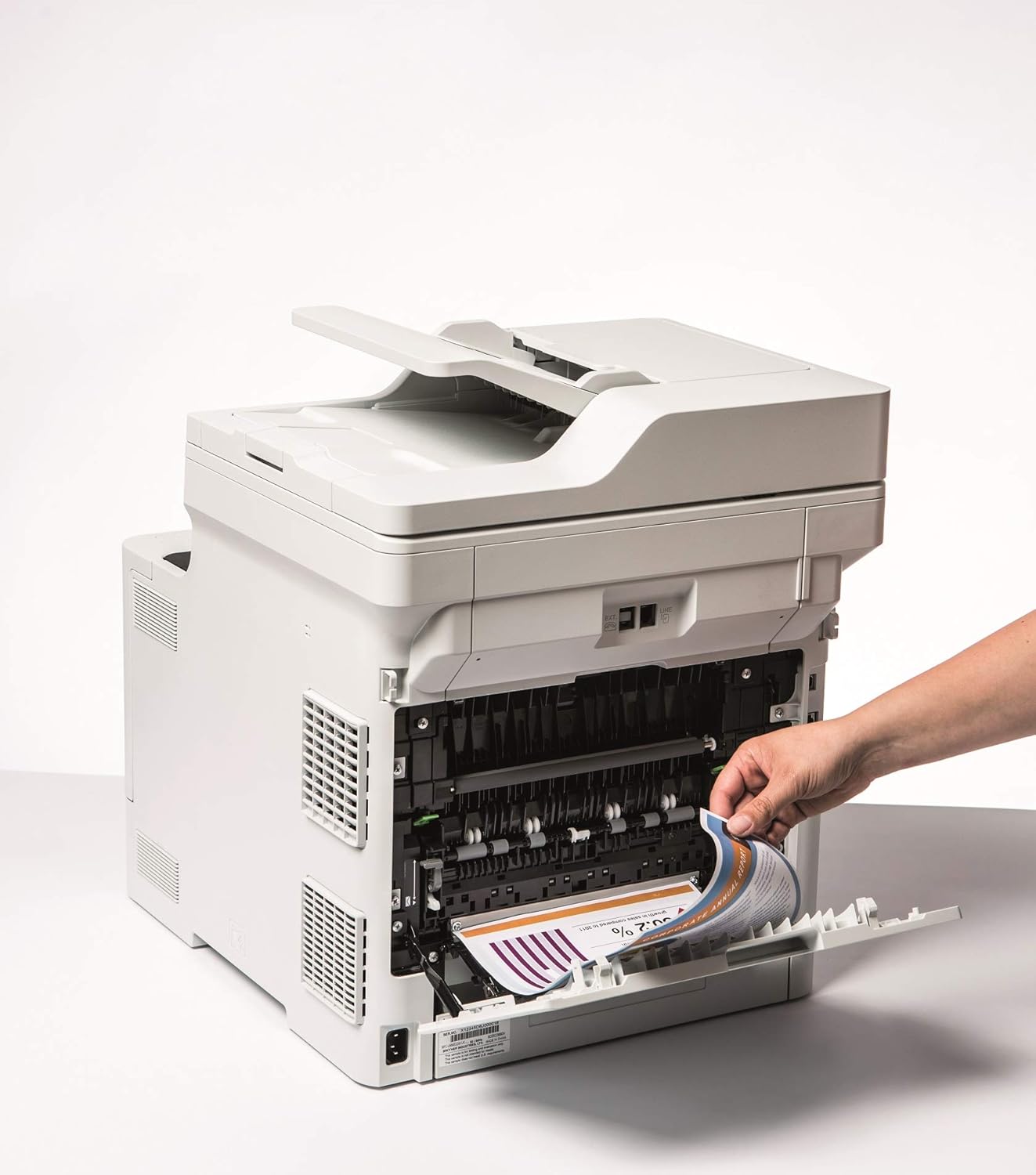
Image 5.1: Clearing a paper jam from the rear of the printer.
5.2. Masalah Kualitas Cetak
- Faded Prints: Toner cartridge may be low. Replace if necessary.
- Streaks or Spots: Clean the corona wire or check for foreign objects on the drum unit.
- kelir salah: Ensure genuine Brother toner cartridges are used and perform a color calibration from the printer's menu.
5.3. Masalah Konéktivitas
- Wi-Fi Disconnected: Check network settings on the printer and ensure your router is functioning correctly. Restart both devices if needed.
- Cannot Print from PC: Verify that the printer drivers are correctly installed and updated. Check cable connections for wired setups.
6. Spésifikasi
| Fitur | Spésifikasi |
|---|---|
| Ngaran modél | DCP-L8410CDW |
| Ukuran produk (DxWxH) | 43.5P x 53.9W x 52.6H cm |
| Ukuran Média Maksimum | A4 |
| Max Lambaran Kamampuh | 300 lembar |
| Max Copy Speed (Hideung & Bodas) | 31 Kaca per menit |
| Resolusi Print Warna Max | 61 dpcm |
| Max Hideung & Resolusi Print Bodas | 2400 dpi |
| Percetakan duplex | Sumuhun |
| Téhnologi konektipitas | Ethernet, USB 2.0, Wireless LAN (Wi-Fi) |
| Téhnologi percetakan | Laser |
| Kaluaran printer | Warna |
| Laju Nyitak Maks (Warna) | 31 Kaca per menit |
| Item Beurat | 27.6 kg |
| Konsumsi Daya | 500 Watt |
| Jenis scanner | Ranjang datar |
7. Émbaran jaminan
This Brother DCP-L8410CDW printer comes with a Garansi kawates. For detailed information regarding the terms, conditions, and duration of your warranty, please refer to the warranty card included with your product or visit the official Brother websitus. Simpen bukti pameseran anjeun pikeun klaim garansi.
8. Rojongan Palanggan
For further assistance, including driver downloads, FAQs, and contact information for technical support, please visit the official Brother support websitus:
You can also find additional resources and troubleshooting guides specific to your model on the support page.