
1. Bubuka
The Logitech MX Master 2S is a high-performance wireless mouse designed for comfort, precision, and versatility across multiple devices. This manual provides detailed instructions to help you set up, operate, and maintain your MX Master 2S mouse for optimal performance.

2. Setélan
Your MX Master 2S mouse offers flexible connectivity options: via the included Logitech Unifying Receiver or Bluetooth Low Energy technology. It supports Windows, macOS, Linux, Chrome OS, iPadOS, and Android devices.
2.1 Connecting via Logitech Unifying Receiver
- Colokkeun Logitech Unifying Receiver kana port USB anu sayogi dina komputer anjeun.
- Turn on your MX Master 2S mouse using the On/Off switch located on the bottom of the mouse.
- The mouse should automatically connect to the receiver. The LED indicator on the bottom of the mouse will show a steady light when connected.

2.2 Nyambungkeun via Bluetooth
- Turn on your MX Master 2S mouse using the On/Off switch on the bottom.
- Press the Easy-Switch button (labeled 1, 2, or 3) on the bottom of the mouse to select an available channel. The LED for the selected channel will blink rapidly.
- On your computer or device, open Bluetooth settings and initiate the pairing process. Select "MX Master 2S" from the list of available devices.
- Once paired, the LED indicator on the mouse will glow steadily for 5 seconds, then turn off.

2.3 Ngalihkeun Multi-Alat
The MX Master 2S can be paired with up to three devices. Use the Easy-Switch button on the bottom of the mouse to seamlessly switch between connected devices. For optimal performance and minimal lag, especially in environments with many Bluetooth devices, using the Unifying Receiver is recommended.
3. Parentah Operasi
The MX Master 2S is designed for intuitive and efficient use, featuring an ergonomic shape and customizable controls.
3.1 Ergonomic Design and Comfort
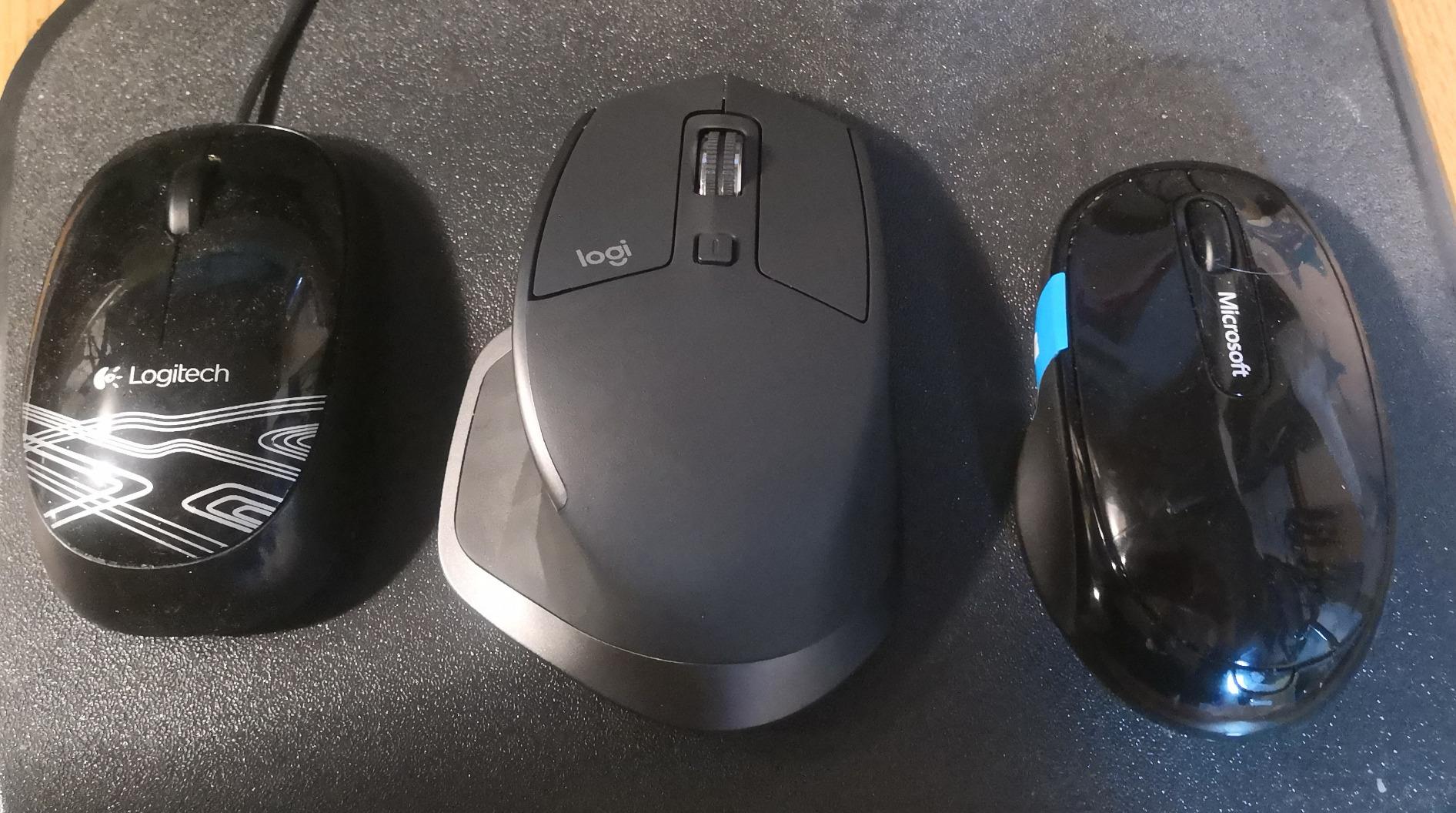
The mouse is sculpted to fit comfortably in your right hand, providing excellent palm support and reducing strain during extended use. The textured thumb rest offers additional grip and comfort.
3.2 Customizable Buttons and Scroll Wheels
- Precision Scroll Wheel: The main scroll wheel features a speed-adaptive scroll that automatically shifts between click-to-click and hyper-fast scrolling. You can also manually switch modes using the button below the scroll wheel.
- Roda jempol: Located on the side, this wheel allows for horizontal scrolling, useful for navigating wide documents or web kaca.
- Tombol Maju/Mundur: Positioned near the thumb wheel, these buttons allow for quick navigation in web panyungsi sareng aplikasi anu sanésna.
- Tombol Gesture: The thumb rest itself acts as a hidden button, enabling gesture controls when pressed and moved in different directions. These gestures can be customized for various functions like window management.
All buttons and wheels can be customized using the Logitech Options software, available for download from the Logitech website. This allows you to tailor the mouse to your specific workflow and application preferences.
3.3 Darkfield High Precision Tracking
The MX Master 2S features Darkfield High Precision tracking, allowing it to track on virtually any surface, including glass, with up to 4000 DPI sensitivity. This eliminates the need for a mouse pad on most surfaces.
4. Pangropéa
4.1 Kahirupan Batré sareng Ngecas
The MX Master 2S is equipped with a rechargeable battery that provides up to 70 days of power on a single full charge. It features USB-C quick charging, allowing for 3 hours of use from just 1 minute of charging.
- To charge, connect the included USB-A to USB-C charging cable to the front port of the mouse and to a USB power source.
- The battery indicator LEDs on the side of the mouse will show the charging status.
4.2 beberesih
To maintain optimal performance, regularly clean your mouse with a soft, damp lawon. Ulah make bahan kimia kasar atawa bahan abrasive.
5. Cara ngungkulan
5.1 Masalah konektipitas
- If experiencing lag or disconnections with Bluetooth, ensure your device's Bluetooth is enabled and the mouse is within range.
- For a more stable connection, especially in busy wireless environments, use the Logitech Unifying Receiver.
- Ensure the mouse is charged. Low battery can affect connectivity.
5.2 Battery Indicator Visibility
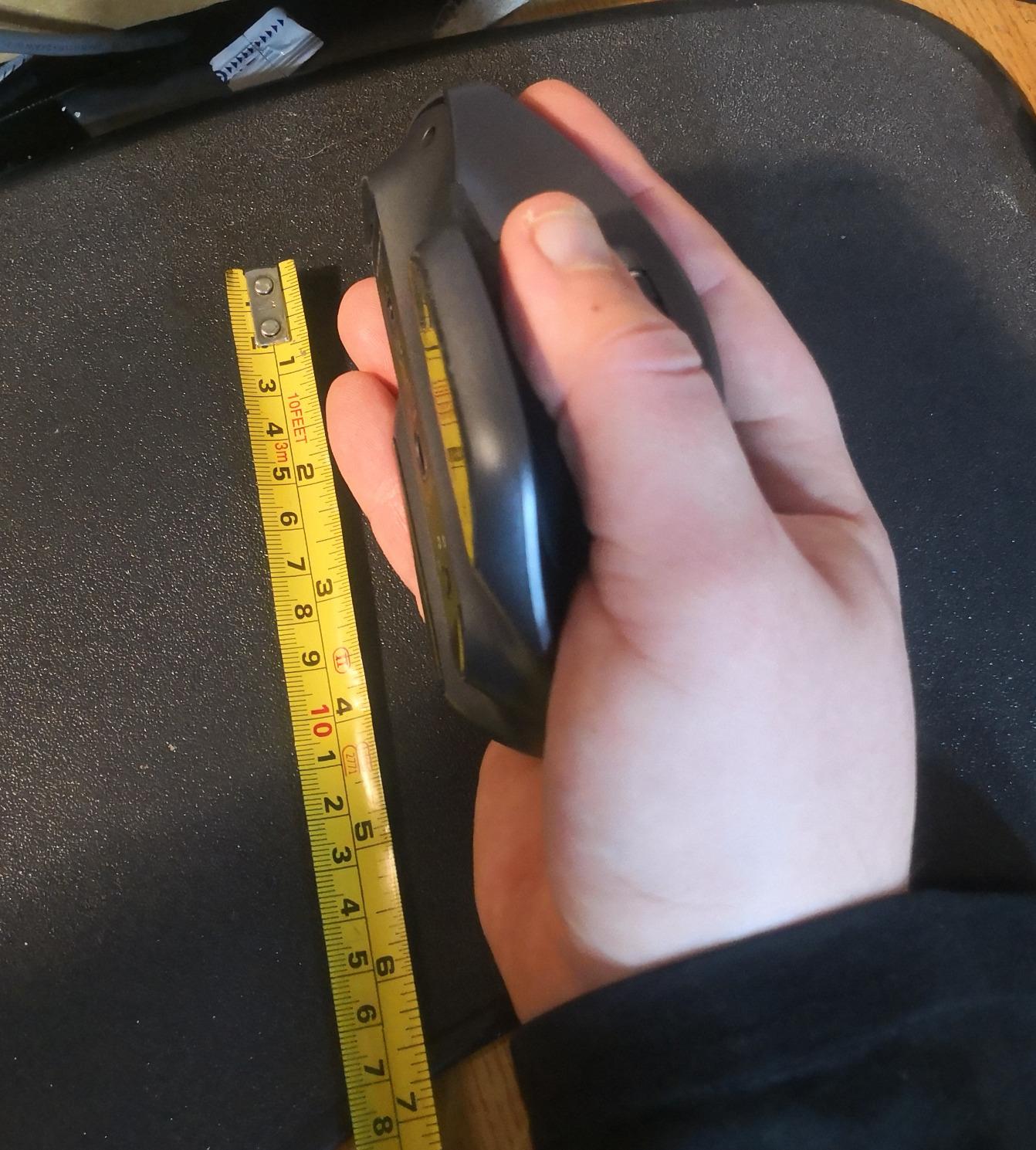
The battery indicator LEDs are located on the side of the mouse, near the thumb rest. To check the battery level without adjusting your grip, you may need to slightly lift your thumb or briefly release your grip to view lampu-lampu.
6. Spésifikasi
| Fitur | Rincian |
|---|---|
| merek | Logitech |
| Ngaran modél | MX Master 2S |
| Nomer modél | 910-005139 |
| Téhnologi konektipitas | Bluetooth, USB (Unifying Receiver) |
| Téhnologi Deteksi Gerakan | Optik (Darkfield Presisi Tinggi) |
| Rentang DPI | Nepi ka 4000 DPI |
| Kahirupan batré | Nepi ka 70 dinten kanggo sakali ngecas |
| Port ngecas | USB-C |
| Orientasi leungeun | Leres |
| Item Beurat | 0.15 kg |
| Item Ukuran (L x W) | 4.96 "L x 3.37" W |
| Alat nu cocog | Personal Computer (Windows, macOS, Linux, Chrome OS, iPadOS, Android) |
7. Garansi jeung Rojongan
The Logitech MX Master 2S comes with a Jaminan Hardware Terbatas 1 Taun. For technical support, driver downloads, and additional information, please visit the official Logitech support websitus.


