
TENVIS WH-TH661
TENVIS Home Pet Camera User Manual
Model: WH-TH661 | Brand: TENVIS
Bubuka
The TENVIS Home Pet Camera is an advanced FHD 1080P indoor video surveillance system designed to provide comprehensive monitoring for your home, pets, and family. Featuring 355° horizontal and 120° vertical rotation, two-way audio communication, automatic night vision, and sensitive motion detection, this camera offers a complete 360° coverage solution. This manual provides detailed instructions for setting up, operating, maintaining, and troubleshooting your device.
Guide Setup
1. Naon dina Box
- TENVIS Home Pet Camera
- Gunung Kits
- Manual Parentah (Dokumén ieu)
2. Instalasi fisik
The TENVIS camera is designed for indoor use and can be placed on a flat surface or mounted on a wall. Ensure the camera is positioned to provide the desired viewing angle, considering its 355° pan and 120° tilt capabilities.
For wall mounting, use the provided mount kits. Secure the mounting bracket to the desired location using screws, then attach the camera to the bracket. Ensure the power cable can reach the camera comfortably without strain.

Image: The TENVIS Home Pet Camera, showing its compact design and integrated antenna.
3. Sambungan Daya
Connect the provided DC power adapter to the camera's power input port and then plug the adapter into a standard electrical outlet. The camera will power on automatically.
4. Network Connection (Wi-Fi Setup)
The camera supports 802.11b/g/n 2.4GHz Wi-Fi bands (5GHz Wi-Fi is not supported) and Ethernet connectivity. For wireless setup, follow these steps:
- Unduh Aplikasi: Milarian pikeun the official TENVIS app on your smartphone's app store (available for iOS and Android).
- Pendaptaran Akun: Buka aplikasi sareng ngadaptarkeun akun énggal atanapi lebet upami anjeun parantos gaduh.
- Tambahkeun Alat: Follow the in-app instructions to add a new device. The camera utilizes 'Sound Wave Smart Connection' for easy Wi-Fi configuration.
- Listen for Beep: During the setup process, the camera will emit a series of beeps. Wait for a distinct, longer beep that signals the camera is ready for Wi-Fi connection. Attempting to connect before this specific beep may result in an error.
- Setup lengkep: Once the camera is connected, you can name it and begin monitoring.
For advanced users or PC setup, you can find the camera's IP address on your router's connected devices list (look for 'IPCAM'). Access the camera's web panganteur ku ngetikkeun alamat IP na kana a web browser. The default login credentials are 'admin' for both username and password. It is highly recommended to change these default credentials immediately after initial setup for security purposes.
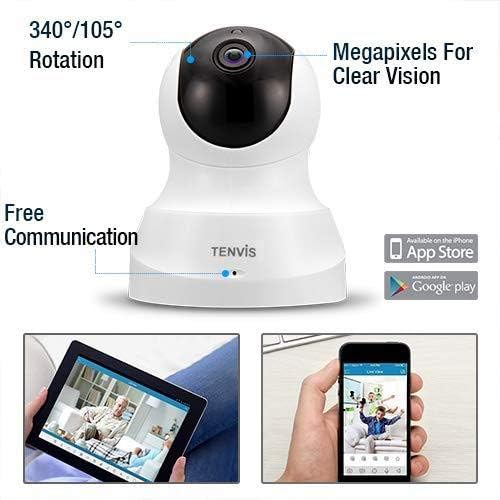
Image: Diagram illustrating the camera's rotation capabilities and showing icons for app availability on Apple App Store and Google Play.
Parentah Operasi
1. Camera Control (Pan/Tilt)
From the mobile app, you can remotely control the camera's movement. Swipe on the live view screen to pan the camera horizontally up to 355° and tilt it vertically up to 120°, providing a full 360° coverage of your space.
2. Hirup View jeung Rékam
Access the live video feed through the TENVIS app. You can initiate manual video recording directly from your smartphone at any time, saving footage to your device or the camera's storage.
3. Komunikasi Audio Dua Arah
The camera features a built-in microphone and speaker, enabling two-way audio. Tap the microphone icon in the app to speak through the camera, and listen to audio from the camera's environment. This feature is ideal for communicating with pets, family members, or deterring intruders.

Image: A user interacting with family members remotely through the camera's two-way audio feature via the smartphone app.
4. Automatic Night Vision
Equipped with 11 infrared LED lights, the camera automatically switches to night vision mode in low-light conditions. It provides clear vision up to 32 feet (10 meters) without disturbing occupants or pets, ensuring continuous monitoring around the clock.
5. Deteksi gerak sareng Tanda
The camera's sensitive motion detection system can identify potential dangers and send instant alerts to your phone and email. When triggered, it records a 15-second video, and you will receive the alarm notification in less than 3 seconds. This allows you to quickly review events and take appropriate action.

Image: The TENVIS camera positioned to monitor a child, demonstrating its use for childcare and home surveillance.
6. Posisi Praet
You can set up to 8 specific preset positions for the camera. This allows you to quickly navigate to frequently monitored areas with a single tap in the app, saving time and ensuring critical areas are easily viewsanggup.
7. Pilihan Panyimpenan
The camera supports multiple storage methods for recorded video footage, including cloud storage (subscription may be required) and local storage via a Micro SD card (not included, up to 128GB recommended for extended recording).
Pangropéa
- beberesih: Use a soft, dry cloth to clean the camera lens and body. Avoid using liquid cleaners or abrasive materials that could damage the surface or lens.
- Pembaruan firmware: Periodically check the TENVIS app for available firmware updates. Keeping your camera's firmware up-to-date ensures optimal performance, security, and access to new features.
- panempatan: Pastikeun kaméra disimpen di lokasi anu stabil, jauh tina sinar panonpoé langsung, suhu anu ekstrim, sareng kalembaban anu luhur.
Pamérésan masalah
Masalah umum sareng Solusi:
| Masalah | Mungkin Cukang lantaranana / Solusi |
|---|---|
| Kaméra teu nyambung ka Wi-Fi |
|
| No image or offline status |
|
| Kualitas gambar henteu saé |
|
| Deteksi gerak teu jalan |
|
spésifikasi
| Fitur | Rincian |
|---|---|
| Nomer modél | WH-TH661 |
| Resolusi Capture Video | 1080p (1280*720 Mega Pixels) |
| Pan / Dengdekkeun Rotasi | 355° Horizontal, 120° Vertikal |
| Wengi Sawangan Sawangan | Nepi ka 32 suku (10 méter) |
| Téhnologi konektipitas | Wireless (Wi-Fi 802.11b/g/n 2.4GHz), Ethernet |
| Audio Dua Arah | Muhun (Mikropon sareng spiker internal) |
| Deteksi gerak | Yes (Instant alerts, 15-second video recording) |
| Pilihan Panyimpenan | Cloud Storage, Micro SD Card (up to 128GB, not included) |
| Sumber Daya | DC (5 watts) |
| Ukuran (L x W x H) | 4.1 x 4.1 x 5.1 inci |
| Item Beurat | 8.8 ons (0.55 pon) |
| Pamakéan jero rohangan / outdoor | jero rohangan |
| Alat nu cocog | Smartphone |
| Laju pigura | 25 pigura per detik |
| Format Capture Video | H.264 |
Garansi sareng Rojongan
TENVIS products are manufactured to high-quality standards. For specific warranty information regarding your Home Pet Camera, please refer to the warranty card included in your product packaging or visit the official TENVIS websitus.
For technical support, troubleshooting assistance, or any inquiries not covered in this manual, please contact TENVIS customer support through the contact information provided on their official website or within the mobile application. Please have your model number (WH-TH661) and purchase details ready when contacting support.
Ask a question about this manual
Ask about setup, troubleshooting, compatibility, parts, safety, or missing instructions. Manuals+ will review the question and use this page’s manual context to help answer it.