Bubuka
This manual provides detailed instructions for the installation, operation, and maintenance of your Vivitar LB-60 Wireless Smart Multi-Colored LED Bulb. Please read this manual thoroughly before use to ensure proper functionality and safety.
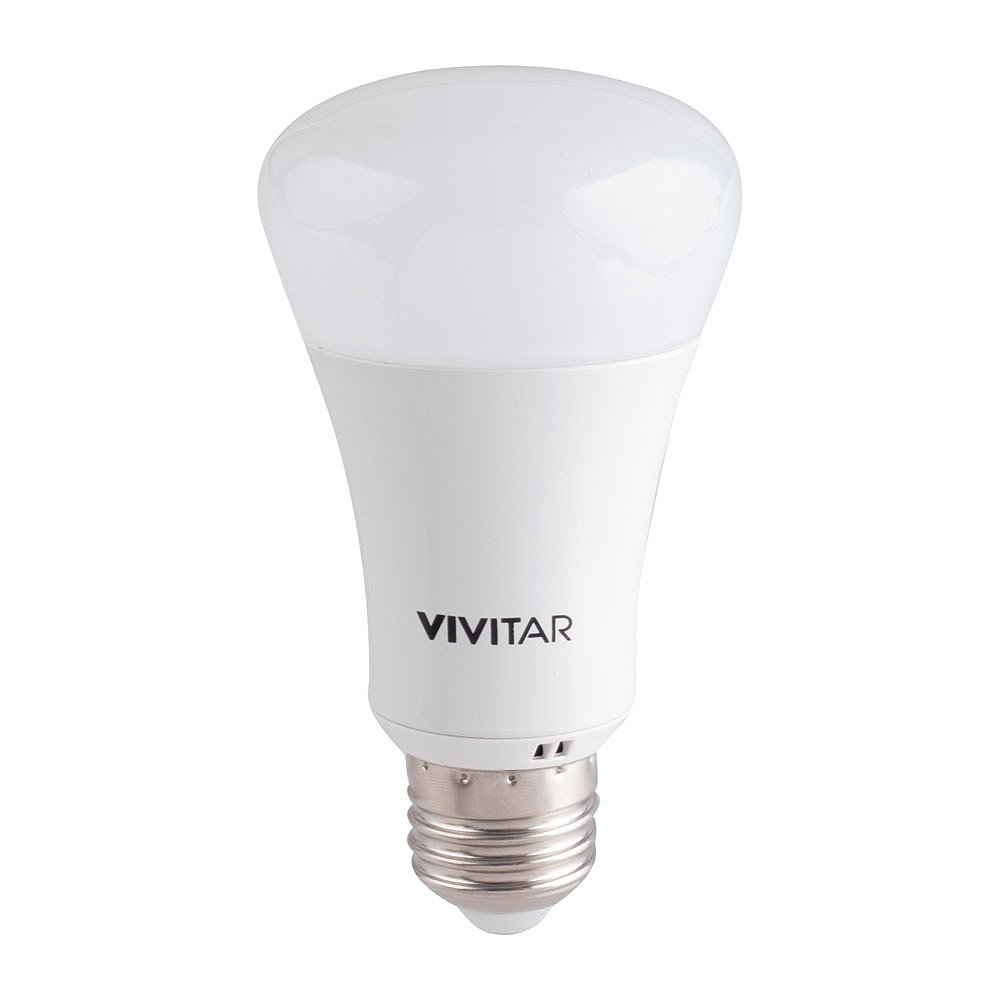
Image: Vivitar LB-60 Smart Bulb retail packaging. The box displays the bulb and a smartphone showing the control app interface.
Naon dina Box
Pastikeun yén sadaya komponén aya:
- Vivitar LB-60 Smart Multi-Colored LED Bulb
- Manual Pitunjuk (dokumén ieu)
Disetél
1. Instalasi fisik
- Pastikeun listrik ka lampu geus dihurungkeun Pareum dina saklar sateuacan dipasang.
- Carefully screw the Vivitar LB-60 Smart Bulb into a standard E26/E27 light socket. Do not overtighten.
- Hurungkeun listrik ka lampu ONBohlamna kedah hurung.

Image: The Vivitar LB-60 Smart Multi-Colored LED Bulb. This image shows the bulb's design, including the screw base and the frosted dome.
2. Unduh Aplikasi sareng Nyiptakeun Akun
- Download the "Vivitar Smart Home Security" app from the Apple App Store (for iOS devices) or Google Play Store (for Android devices).
- Buka aplikasi tur turutan parentah dina layar pikeun nyieun hiji akun pamaké anyar atawa asup lamun anjeun geus boga.
3. Ngapasangkeun Bohlam Pinter
- Ensure your smartphone is connected to a 2.4GHz Wi-Fi network. The Vivitar LB-60 bulb operates on 2.4GHz Wi-Fi.
- In the Vivitar Smart Home Security app, tap the "+" icon to add a new device.
- Select "Lighting" or "Smart Bulb" from the device list.
- Follow the in-app instructions to put the bulb into pairing mode. This usually involves turning the bulb off and on a few times until it starts blinking.
- Enter your Wi-Fi network password when prompted by the app.
- Once connected, the bulb will stop blinking and the app will confirm successful pairing. You can then rename your bulb for easier identification.
Note: If you experience difficulty connecting, ensure your Wi-Fi signal is strong in the bulb's location. Some routers may require specific settings for smart device compatibility.
Ngoperasikeun Bohlam Pinter
1. Basic Controls (Via App)
- Hurung/Pareuman: Tap the power icon next to the bulb's name in the app to turn it on or off.
- Caang: Use the dimming slider within the app to adjust the light intensity from 1% to 100%.
- Pilihan Warna: Access the color palette in the app to choose from a wide range of colors.
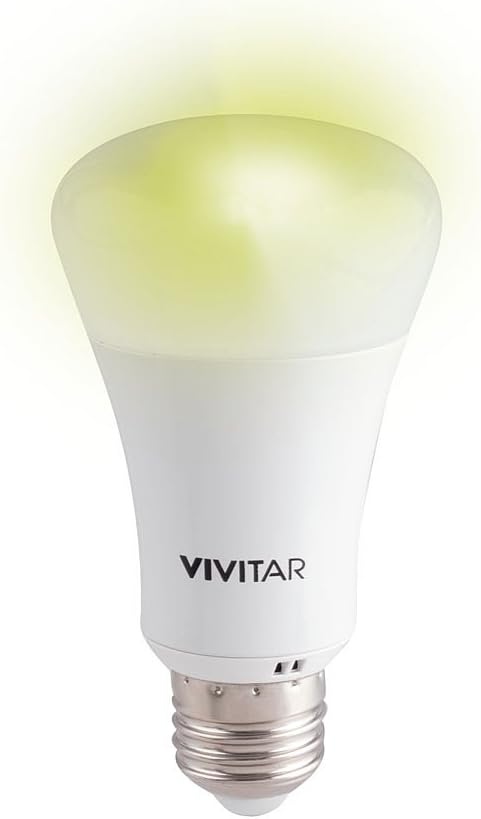
Image: The Vivitar LB-60 Smart Multi-Colored LED Bulb illuminated with a yellow-green light. This demonstrates the bulb's ability to produce various colors.
2. Setting Schedules and Timers
The Vivitar Smart Home Security app allows you to create custom schedules for your bulb:
- Navigate to the "Schedules" or "Timer" section for your bulb in the app.
- Set specific times for the bulb to turn on or off.
- Choose desired brightness and color settings for scheduled events.
- Repeat schedules for specific days of the week.
3. Pamaduan Kontrol Sora
The Vivitar LB-60 is compatible with Amazon Alexa and Google Home. To enable voice control:
- Ensure your smart speaker (Alexa or Google Home device) is set up and connected to the same Wi-Fi network as your smart bulb.
- Buka aplikasi Alexa atanapi Google Home dina smartphone Anjeun.
- Milarian pikeun and enable the "Vivitar Smart Home Security" skill/action.
- Link your Vivitar account when prompted.
- Discover devices. Your Vivitar LB-60 bulb should appear.
- You can now control your bulb with voice commands, e.g., "Alexa, turn on the living room light" or "Hey Google, set the bedroom light to blue."
Pangropéa
The Vivitar LB-60 Smart Bulb requires minimal maintenance. To ensure optimal performance and longevity:
- beberesih: Disconnect power before cleaning. Use a soft, dry cloth to wipe the bulb. Do not use liquid cleaners or abrasive materials.
- Lingkungan: Avoid installing the bulb in enclosed fixtures that may trap heat, as this can reduce its lifespan. Ensure adequate ventilation.
- Penanganan: Handle the bulb by its base, not the glass or plastic dome, to prevent damage.
Pamérésan masalah
| Masalah | Mungkin Cukang lantaranana | Solusi |
|---|---|---|
| Bohlamna teu hurung. | No power to the fixture; bulb not screwed in properly; bulb faulty. | Check the light switch and circuit breaker. Ensure the bulb is securely screwed in. Test with another bulb if possible. |
| Bulb cannot connect to Wi-Fi/app. | Incorrect Wi-Fi password; 5GHz Wi-Fi network; weak Wi-Fi signal; bulb not in pairing mode. | Verify Wi-Fi password. Ensure you are connected to a 2.4GHz network. Move the bulb closer to the router or use a Wi-Fi extender. Reset the bulb to pairing mode (turn off/on 3-5 times). |
| Kontrol sora teu jalan. | Skill/action not enabled; account not linked; device not discovered. | Ensure the "Vivitar Smart Home Security" skill/action is enabled in your Alexa/Google Home app and your Vivitar account is linked. Re-discover devices in the smart assistant app. |
| App is slow or unresponsive. | App issue; network congestion. | Close and restart the app. Check your internet connection. Ensure the app is updated to the latest version. |
spésifikasi
| Fitur | Rincian |
|---|---|
| merek | Live |
| Ngaran modél | LB-60 |
| Tipe Lampu | LED |
| Fitur husus | Multi-color, Dimmable, Wireless Wi-Fi Enabled |
| Wattage | 6.5 Watts (sarua jeung 40W Pijer) |
| Caang | 450 Lumén |
| Voltage | 120 volt |
| Métode kontrol | App (Vivitar Smart Home Security), Voice (Alexa, Google Home) |
| Kasaluyuan | iOS, Android, Amazon Alexa, Google Home, IFTTT/Nest |
| Dimensi produk | 6.5 x 3 x 9.2 inci |
| Item Beurat | 7.8 ons (220 gram) |
Garansi sareng Rojongan
Vivitar products are designed for reliability and performance. For information regarding warranty coverage, please refer to the warranty card included with your purchase or visit the official Vivitar websitus.
For technical support, troubleshooting assistance, or to inquire about replacement parts, please contact Vivitar Customer Service:
- Websitus: www.vivitar.com
- Surélék: Refer to the Vivitar websitus pikeun inpo kontak ayeuna.
- Telepon: Refer to the Vivitar websitus pikeun inpo kontak ayeuna.
Please have your product model number (LB-60) and proof of purchase ready when contacting support.


