Bubuka
Thank you for choosing the Logitech K375s Multi-Device Wireless Keyboard. This keyboard is designed for comfortable and quiet typing, offering seamless switching between multiple devices such as computers, smartphones, and tablets. This manual provides detailed instructions to help you set up, operate, and maintain your new keyboard.

Image: The Logitech K375s keyboard, showing its full layout, the included universal stand, and the USB Unifying receiver.
Eusi pakét
Pastikeun sadaya item aya dina bungkusan:
- Logitech K375s Multi-Device Wireless Keyboard
- Stand Universal
- USB Ngahijikeun Tatar Panarima
- 2 Batré AAA (parantos dipasang)
- Dokuméntasi Pangguna (manual ieu)
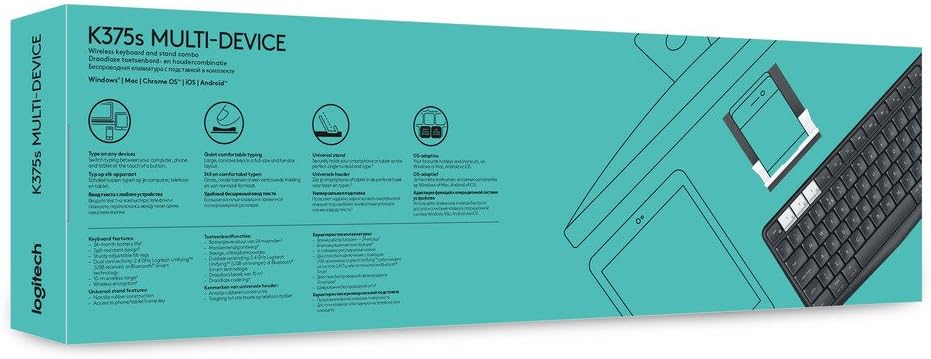
Image: Retail packaging for the Logitech K375s Multi-Device Keyboard, indicating its multi-device capabilities.
Disetél
1. Pamasangan batré
The keyboard comes with two AAA batteries pre-installed. If you need to replace them:
- Panggihan panutup wadah batré di tukangeun kibor.
- Geser panutupna.
- Pasangkeun dua batré AAA anyar, pastikeun polaritasna bener (+/-).
- Ganti panutup kompartemen batré.
2. Connecting via USB Unifying Receiver
For devices that support a USB receiver:
- Remove the USB Unifying receiver from the keyboard's battery compartment or packaging.
- Plug the USB Unifying receiver into an available USB port on your computer.
- The keyboard should automatically connect. If not, press one of the Easy-Switch keys (1, 2, or 3) to select a channel.
3. Nyambungkeun via Bluetooth
For devices with Bluetooth connectivity:
- Turn on the keyboard using the On/Off switch located on the top right side.
- Press and hold one of the Easy-Switch keys (1, 2, or 3) for three seconds until the LED light above the key starts blinking rapidly. This indicates the keyboard is in pairing mode.
- On your device (computer, smartphone, or tablet), open Bluetooth settings.
- Select "Logitech K375s" from the list of available devices.
- Follow any on-screen prompts to complete the pairing process. The LED light on the keyboard will turn solid for 5 seconds and then turn off once connected.

Image: The Logitech K375s keyboard positioned next to a smartphone securely placed in the included universal stand, demonstrating multi-device usage.
4. Fungsi Easy-Switch
The K375s keyboard allows you to connect to up to three devices simultaneously and switch between them with ease.
- The keys labeled 1, 2, jeung 3 are the Easy-Switch keys.
- To switch to a connected device, simply press the corresponding Easy-Switch key. The LED light above the key will illuminate briefly to confirm the switch.

Image: A diagram highlighting the multi-device capabilities of the K375s keyboard, showing connections to a computer, tablet, and smartphone.
Ngoperasikeun kibor
Ngetik Pangalaman
The K375s keyboard features full-size keys with a familiar layout for comfortable and quiet typing. The integrated numeric keypad and dedicated function keys enhance productivity.
Function Keys (F-keys)
The F-keys (F1-F12) have secondary functions. To use these secondary functions (e.g., media controls, volume adjustment, screen lock), press the Fn konci sakaligus jeung F-konci nu dipikahoyong.
To toggle the default behavior of the F-keys (i.e., to make the secondary functions primary without pressing Fn), you may need to use the Logitech Options software (available for download from the Logitech website) or check your operating system settings.
Pangropéa
beberesih
Pikeun ngabersihan kibor anjeun:
- Pareuman kibor.
- Make kaen nu lemes, teu aya lint rada dampdikumbah ku cai atawa solusi beberesih hampang.
- Hindarkeun kalembaban anu kaleuleuwihan sareng ulah nyemprot pembersih langsung kana kibor.
- Ulah make cleaners abrasive, pangleyur, atawa sprays aerosol.
Ngagantian batré
When the battery indicator light (if present) flashes red, or if the keyboard becomes unresponsive, it's time to replace the batteries. Refer to the "Battery Installation" section under Setup for instructions.
Pamérésan masalah
- Keyboard teu ngabales:
- Pastikeun kibor dihurungkeun.
- Pariksa tingkat batré jeung ngaganti lamun perlu.
- Verify the USB Unifying receiver is securely plugged into a working USB port, or that Bluetooth is enabled on your device and the keyboard is paired.
- Try switching to a different Easy-Switch channel (1, 2, or 3).
- Move the keyboard closer to the receiver or Bluetooth device to ensure a strong connection.
- Lag atanapi sambungan intermittent:
- Kurangi gangguan ku cara mindahkeun alat nirkabel anu sanés tina kibor sareng panarima.
- Ensure the keyboard is not too far from the connected device.
- Update your device's Bluetooth drivers or Logitech Unifying software.
- Konci teu jalan kalawan bener:
- Bersihkeun kibor pikeun miceun lebu anu tiasa ngahalangan kenop.
- If specific keys are consistently malfunctioning, contact Logitech support.
spésifikasi
| Nomer modél | 920-008168 |
| Téhnologi konektipitas | Bluetooth, RF (via USB Unifying Receiver) |
| Alat nu cocog | Komputer, Smartphone, Tablet |
| Batré | 2 batré AAA (kaasup) |
| Dimensi produk | 17.15 x 5.41 x 0.81 inci (43.56 x 13.74 x 2.06 cm) |
| Item Beurat | 15.9 ons (450.7 gram) |
| Bahan | palastik |
| Komponén Kaasup | USB Unifying Receiver, Universal Stand |

Gambar: Sisi profile view of the Logitech K375s keyboard, showcasing its slim design and key height.
Garansi sareng Rojongan
Logitech products are manufactured to high quality standards and are designed to provide years of reliable service. For detailed warranty information, please refer to the warranty card included with your product or visit the official Logitech websitus.
For technical support, frequently asked questions, or to download the latest software (such as Logitech Options for customizing your keyboard), please visit the Logitech support websitus: support.logi.com


