
Kit KBMAG10BK
Buku Panduan Pangguna Kotak Kibor Bluetooth Magnét Kit
Model: KBMAG10BK
1. Produk Langkungview
The Kit Magnetic Bluetooth Keyboard Case transforms your 9-10 inch tablet into a portable laptop, offering both protection and enhanced typing capabilities. Its sleek design features a leather-effect finish and an integrated stand for versatile use. The detachable Bluetooth keyboard ensures quick and easy pairing with a wide range of devices.
Fitur konci:
- Konektipitas Bluetooth: Seamlessly connect the wireless keyboard to your tablet.
- Kasaluyuan lega: Designed for 9-10 inch iOS, Android, and Windows tablets, including various iPad and Samsung Galaxy Tab models.
- Hirup batré anu panjang: The rechargeable battery provides approximately 65 hours of continuous typing.
- Stand terpadu: Folds into a stable stand for comfortable viewsudut dina sareng ngetik.
- Desain magnét: Securely holds the tablet and keyboard in place.

Image: The Kit Magnetic Bluetooth Keyboard Case with a tablet securely placed, illustrating its use as a portable workstation.
2. Ngamimitian
2.1 Eusi pakét
- Kit Magnetic Bluetooth Keyboard Case
- Kabel Ngecas USB
- Manual pamaké
2.2 Ngecas kibor
Before first use, fully charge the keyboard. Connect the provided USB charging cable to the keyboard's charging port and plug the other end into a USB power source (e.g., computer USB port, USB wall adapter). The charging indicator light will illuminate during charging and turn off when fully charged.
2.3 Nyelapkeun Tablet Anjeun
- Open the keyboard case flat.
- Carefully slide your 9-10 inch tablet into the designated slot or frame within the case. Ensure it is securely seated and aligned with any cutouts for buttons or ports.
- The magnetic design will help hold the tablet in place.
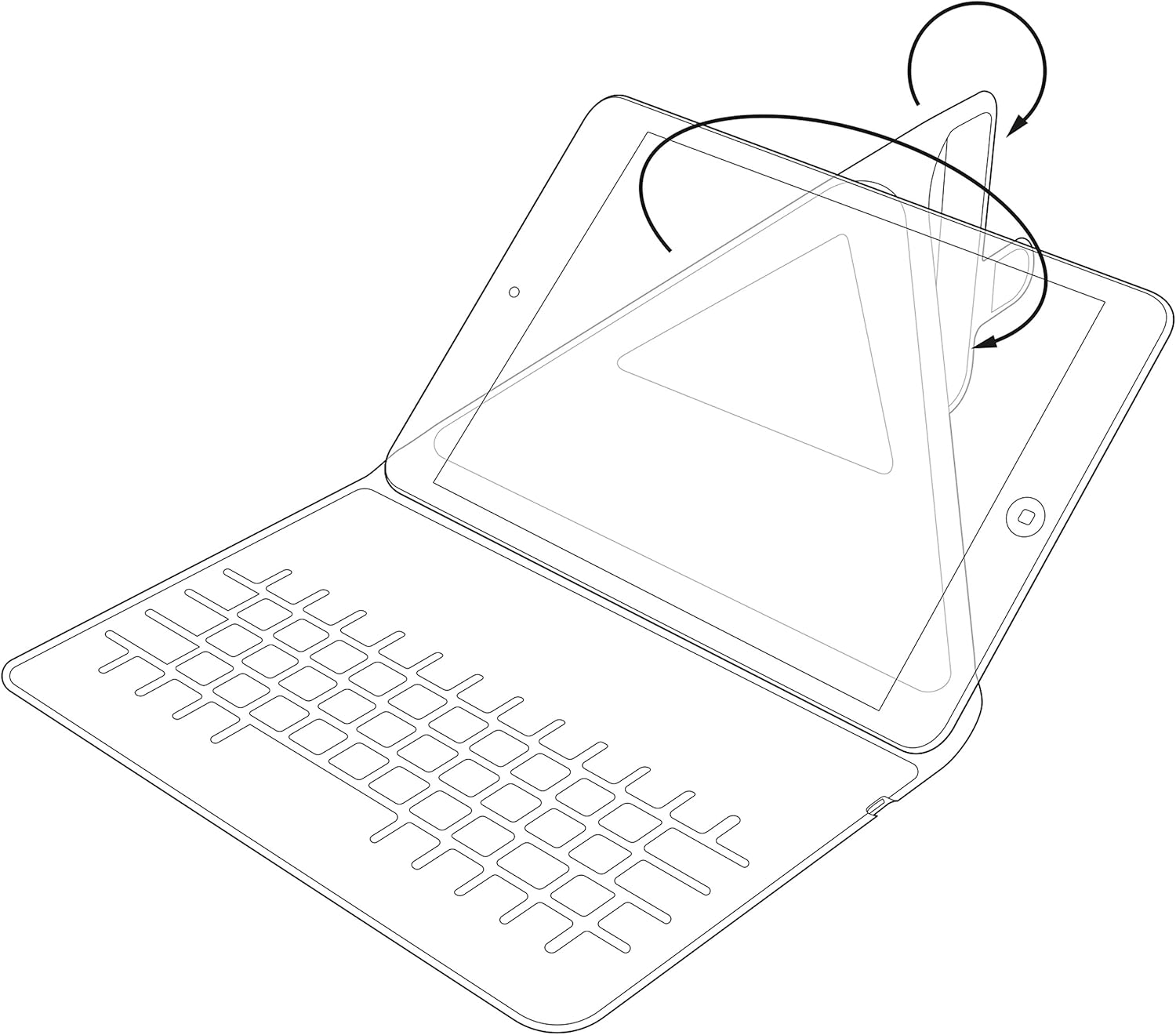
Image: Diagram showing the process of inserting a tablet into the case's holding mechanism.
2.4 Pairing the Bluetooth Keyboard
- Hurungkeun kibor ku cara ngageser saklar daya ka posisi 'ON'. Lampu indikator daya bakal hurung sakeudeung.
- Press the 'Connect' or 'Pair' button on the keyboard (refer to the keyboard layout for exact button location). The Bluetooth indicator light will start blinking, indicating it is in pairing mode.
- On your tablet, go to 'Settings' > 'Bluetooth'. Ensure Bluetooth is enabled.
- Your tablet will search for available Bluetooth devices. Select 'Kit Keyboard' or a similar name from the list of found devices.
- If prompted, enter the pairing code displayed on your tablet screen using the keyboard, then press 'Enter'.
- Once paired, the Bluetooth indicator light on the keyboard will stop blinking and remain solid or turn off, and your tablet will show the keyboard as 'Connected'.
3. Parentah Operasi
3.1 Fungsi kibor
The keyboard features a standard QWERTY layout with additional function keys (Fn) for quick access to multimedia controls, volume, and other tablet-specific functions. Refer to the key labels for their specific actions. For example, you may find keys for Home, Search, Volume Up/Down, Play/Pause, etc.

Gambar: Detil view of the keyboard layout, highlighting various function keys and standard alphanumeric keys.
3.2 Ngagunakeun Stand Terpadu
The case is designed to fold into a stable stand, allowing you to position your tablet at an optimal viewing angle for typing, watching videos, or making video calls. Simply fold the back cover of the case to create a triangular support structure.

Image: Diagram demonstrating the folding mechanism of the case to create a stable viewing stand for the tablet.
4. Perawatan sareng Pangropéa
- beberesih: Ngagunakeun lemes, damp cloth to wipe the exterior of the case. For the keyboard, use a dry, lint-free cloth. Avoid harsh chemicals or abrasive cleaners.
- Panyimpenan: Upami henteu dianggo salami lami, simpen wadah kibor di tempat anu tiis sareng garing.
- Perawatan batré: Pikeun manjangkeun umur batre, ulah sering-sering ngosongkeun batre kibor. Cas sacara rutin, sanaos teu béak total.
- Hindarkeun Cairan: Keep the keyboard case away from water and other liquids to prevent damage to electronic components.
5. Cara ngungkulan
5.1 Keyboard Not Connecting/Pairing
- Ensure the keyboard is turned ON and fully charged.
- Make sure Bluetooth is enabled on your tablet.
- Place the keyboard and tablet within close proximity (within 10 meters).
- Delete any previous pairings of the keyboard from your tablet's Bluetooth settings and attempt to pair again.
- Restart both the keyboard (turn off and on) and your tablet.
5.2 Kenop Teu Ngabales
- Pariksa tingkat batré keyboard sarta ngecas lamun perlu.
- Ensure the keyboard is properly connected via Bluetooth. Re-pair if needed.
- Bersihkeun kokotor-kokotor anu aya di sabudeureun konci.
5.3 Masalah Ngecas
- Verify that the charging cable is securely connected to both the keyboard and the power source.
- Coba port USB atawa adaptor kakuatan béda.
- Pastikeun kabel ngecas teu ruksak.
6. Spésifikasi produk
| merek | Kit |
| Nomer modél | KBMAG10BK |
| Dimensi produk | 1.6 x 20 x 24.5 cm |
| Item Beurat | 356 g |
| Warna | Hideung |
| Bahan | Kulit |
| Téhnologi konektipitas | Bluetooth |
| Jenis Batré | Litium Polimér |
| Eusi Énergi Batré | 1 Watt Jam |
| Alat nu cocog | 9-10 inch iOS, Android, Windows Tablets (e.g., iPad, Samsung Galaxy Tab) |
7. Garansi jeung Rojongan
This Kit Magnetic Bluetooth Keyboard Case comes with a full one-year warranty from the date of purchase. For any technical assistance, troubleshooting, or warranty claims, please contact Kit's experienced and friendly UK-based customer service team. Refer to your purchase documentation for specific contact details.
Ask a question about this manual
Ask about setup, troubleshooting, compatibility, parts, safety, or missing instructions. Manuals+ will review the question and use this page’s manual context to help answer it.