Produk Leuwihview
The Zoom G5n is a versatile multi-effects processor designed for guitarists, offering a wide array of digital effects, amp and cabinet emulators, and an integrated expression pedal. It features a stereo looper, tuner, and USB audio interface for direct recording to a computer. With 68 high-quality digital effects and 10 ultra-realistic amp and cabinet emulators, the G5n provides extensive tonal possibilities.
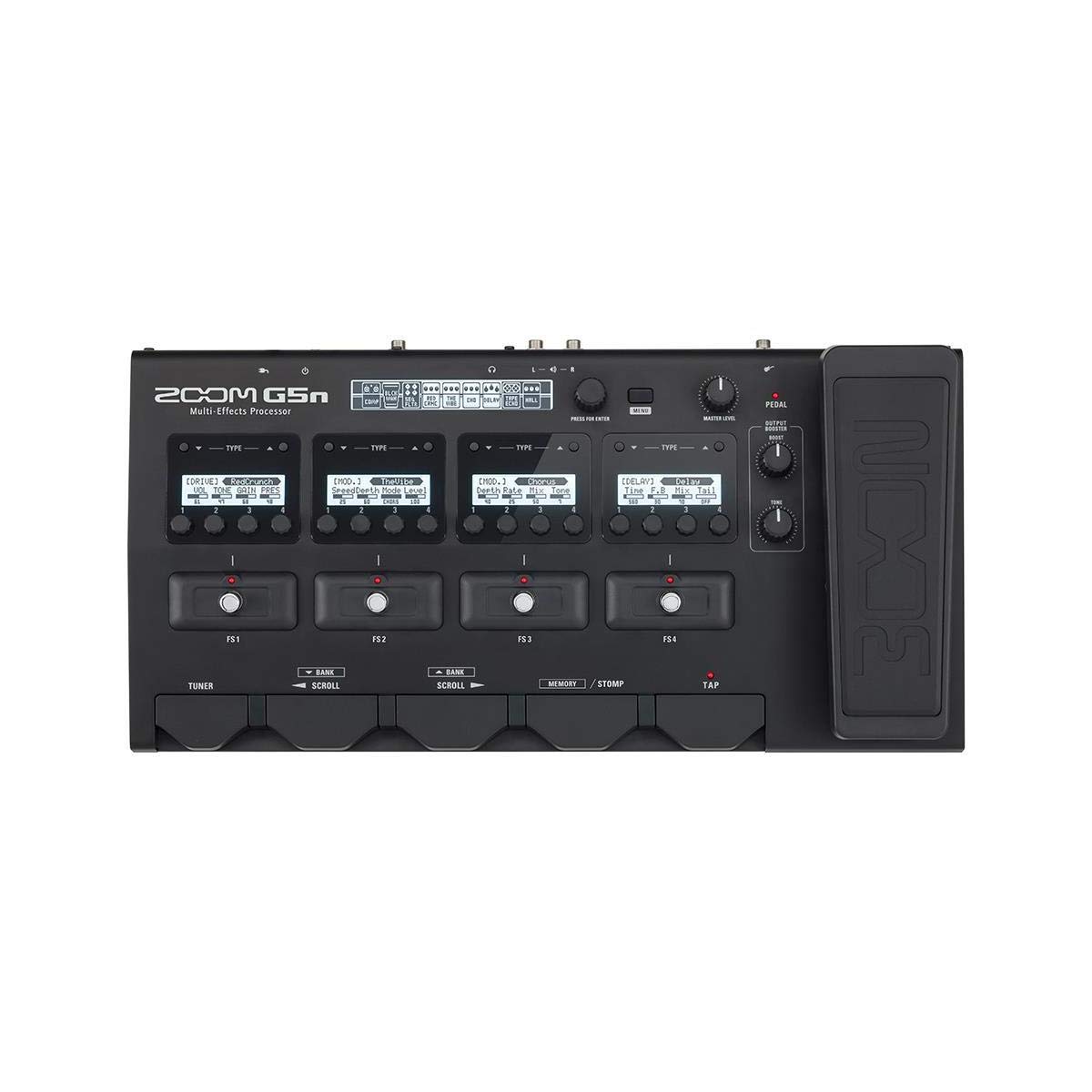
This image displays the top panel of the Zoom G5n, showing the four footswitches (FS1-FS4), four individual LCD screens with associated control knobs, the main display, and the integrated expression pedal on the right.

The rear panel of the G5n is shown, highlighting the Input, Aux In, Output (R, L/Mono), Phones, Control In, USB, Power switch, and DC In ports.
Disetél
Ngabongkar sareng Inspeksi Awal
Carefully remove the Zoom G5n from its packaging. Verify that all components listed in the 'What's in the Box' section are present and undamaged.
Sambungan Daya
Connect the supplied Zoom AD-16 9V power adapter to the DC IN port on the rear panel of the G5n. Plug the adapter into a standard AC outlet. Ensure the power switch is in the 'OFF' position before connecting, then switch to 'ON' to power on the device.
Sambungan Audio
Input Gitar: Sambungkeun gitar anjeun ka jack INPUT nganggo kabel instrumen standar 1/4 inci.
Input bantu: Use the AUX IN (1/8-inch stereo mini-jack) to connect an external audio player (e.g., smartphone, MP3 player) for playing along with music. Audio from this input will not be processed by the G5n effects.
Kaluaran: Connect the L/MONO and R OUTPUT jacks (1/4-inch phone jacks) to your amplifier, mixer, or audio interface. For mono output, use only the L/MONO jack.
Headphone: Connect headphones to the PHONES jack (1/8-inch stereo mini-jack) for private practice.
Sambungan USB
Connect the G5n to your computer using a USB cable (Type-A to Type-B) via the USB port. This allows the G5n to function as a USB audio interface for direct recording and enables communication with the Zoom Guitar Lab software for managing patches and effects.
External Control Pedal
An optional external expression pedal (e.g., Zoom FP02M) can be connected to the CONTROL IN jack (1/4-inch TRS phone jack) for additional real-time control over effects parameters.
This official product video demonstrates the various input and output connections on the Zoom G5n, including guitar input, auxiliary input, stereo outputs, headphone output, USB, and external control pedal input. It also provides an overview of the G5n's operational modes and menu navigation.
Parentah Operasi
Fungsi Tuner
Press the 'TUNER' footswitch once to activate the built-in tuner. The main display will show tuning information. Press the 'TUNER' footswitch again to exit the tuner mode.
Modes of Operation: Memory and Stomp
The G5n operates in two primary modes: Memory Mode and Stomp Mode. Press the 'MEMORY/STOMP' button to toggle between these modes.
Modeu mémori
In Memory Mode, the footswitches (FS1-FS4) are used to select different patches. Use the 'BANK SCROLL' footswitches to navigate through banks of patches. Each patch contains a pre-configured chain of effects.
Modeu Stomp
In Stomp Mode, the footswitches (FS1-FS4) act as individual stompboxes, allowing you to turn individual effects within the current patch on or off. Use the 'SCROLL' footswitches to change which individual effects are assigned to the footswitches.
Napigasi Menu sareng Setélan
Press the 'MENU' button to access the main menu, which provides options for managing effects, patches, and system settings. Use the large control knob (often labeled 'PUSH ENTER') to scroll through options and press it to make a selection.
Editing Effects and Patches
Adding Effects to a Patch
From the main menu, select 'ADD'. Use the control knob to choose where in the effect chain the new effect will be inserted. Then, use the 'TYPE' up/down buttons below the individual displays to select the desired effect type. Note: A maximum of nine effects can be used in a single patch.
Deleting Effects from a Patch
From the main menu, select 'DELETE'. Use the control knob to highlight the effect you wish to remove, then press the control knob to confirm deletion.
Reordering Effects in a Chain
From the main menu, select 'CHAIN'. Use the control knob to highlight an effect, press to select it, then turn the knob to move it to a new position in the chain. Press again to confirm its new placement.
Adjusting Effect Parameters
For each active effect displayed on the individual LCD screens, use the corresponding knobs directly below the screen to adjust its parameters (e.g., gain, tone, level, decay). The available parameters will vary depending on the effect type.
Renaming and Saving Patches
To rename a patch, go to the main menu and select 'PATCH'. You can then edit the patch name using the control knob. To save a patch, select 'SAVE' from the main menu. You can choose to overwrite the current patch, overwrite another existing patch, or save to an empty patch slot.
Pangropéa
To ensure the longevity and optimal performance of your Zoom G5n, follow these maintenance guidelines:
- beberesih: Ngusap unit ku kaén anu lembut sareng garing. Ulah make cleaners abrasive, lilin, atawa pangleyur.
- Panyimpenan: Simpen unit dina tempat anu tiis sareng garing jauh tina sinar panonpoé langsung sareng suhu anu ekstrim.
- Perlindungan: Avoid dropping the unit or subjecting it to strong impacts. Protect it from dust and moisture.
- Sasayogian tanaga: Always use the specified AC adapter (Zoom AD-16).
Pamérésan masalah
If you encounter issues with your Zoom G5n, refer to the following common troubleshooting tips:
- Henteu aya kakuatan: Ensure the AC adapter is securely connected to both the G5n and a working power outlet. Check the power switch position.
- Henteu aya sora: Verify all audio cables are correctly connected. Check the master volume level on the G5n and your amplifier/mixer. Ensure no effects are bypassed or set to zero output.
- Sora distort: Check input gain levels on the G5n and your amplifier to prevent clipping. Adjust effect parameters that might be causing distortion.
- Masalah Sambungan USB: Ensure the USB cable is properly connected. Restart your computer and the G5n. Check for updated drivers or Zoom Guitar Lab software versions.
- Unexpected Effect Behavior: Reset the unit to factory settings if custom patches are causing issues (refer to the full manual for factory reset procedures).
For more detailed troubleshooting, please consult the full user manual available on the Zoom websitus.
spésifikasi
| Fitur | Rincian |
|---|---|
| Item Beurat | 6.61 pon (3.0 kg) |
| Dimensi produk | 18 x 9.5 x 4 inci |
| ASIN | B01AZ9PANW |
| Nomer Modél Item | G5n |
| Diputuskeun ku Produsén | No |
| Tanggal Kahiji Sadia | 21 Januari 2016 |
| Bahan Awak | palastik |
| Ngaran Warna | emas |
| Tipe Panyambung | Pedal suku |
| Panganteur Hardware | USB |
| Format Sinyal | Analog |
| Jenis Bahan | palastik |
| Sumber Daya | Kabel Listrik |
| Voltage | 9 volt |
| Gaya | Multi-effects, Delay, Reverb, Filter, Distortion, Looper, Overdrive, Expression, Compression |
Naon dina Box
- Zoom G5n Guitar Effects Processor
- AD-16D Power Adapter
Garansi sareng Rojongan
For warranty information, product registration, and further technical support, please visit the official Zoom websitus atanapi ngahubungan departemén layanan palanggan maranéhna.
You can find more information and product updates on the Zoom Store dina Amazon.


