
1. Bubuka
Hatur nuhun pikeun meuliasing the PXN 6603 Bluetooth Gamepad. This MFi certified wireless game controller is designed to enhance your gaming experience on iOS devices, including iPhone, iPad, iPod, and Apple TV. Please read this manual carefully before use to ensure proper operation and to maximize the lifespan of your device.
2. Eusi Paket
Mangga parios eusi bungkusan nalika dibuka. Upami aya barang anu leungit atanapi ruksak, hubungi padagang anjeun.
- PXN 6603 Bluetooth Gamepad
- Cl adjustableamp Panyekel
- Kabel Ngecas USB
- Manual pamaké
3. Produk Langkungview
Familiarize yourself with the various components of your PXN 6603 Gamepad.
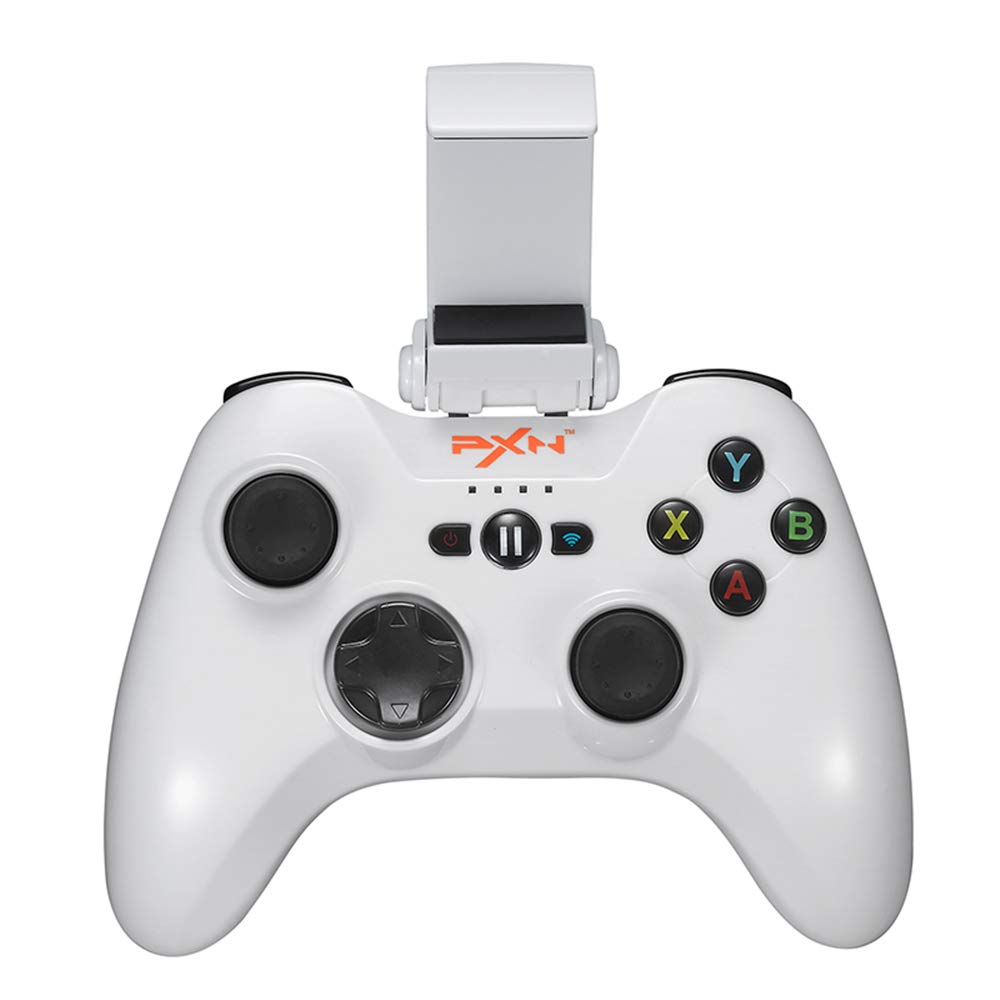
Gambar 1: PXN 6603 Bluetooth Gamepad. This image shows the front view of the orange gamepad with its dual analog sticks, D-pad, action buttons (A, B, X, Y), shoulder buttons (L1, R1, L2, R2), and the adjustable phone clamp holder attached.
3.1 Layout controller
- Stick Analog kénca: Pikeun kontrol arah.
- Tongkat Analog Kanan: For camera or additional directional control.
- D-Pad (Alas Arah): Pikeun input arah tepat.
- Tombol Aksi (A, B, X, Y): Pikeun lampah di-game.
- Kancing Taktak (L1, R1): Micu luhur.
- Trigger Buttons (L2, R2): Micu handap.
- Tombol HOME: Powers on/off the controller and returns to iOS home screen.
- Tombol PAUSE: Pauses gameplay.
- Lampu Indikator Batré: Shows battery status and connection.
- Port ngecas: Port mikro USB pikeun ngecas.
4. Setélan
4.1 Ngecas Controller
- Connect the small end of the USB charging cable to the charging port on the controller.
- Connect the large end of the USB charging cable to a USB power source (e.g., computer USB port, USB wall adapter).
- The battery indicator lights will show charging status. Once fully charged, the lights will indicate a full battery or turn off.
- Ngeusi batre pinuh biasana butuh 2-3 jam.
4.2 Attaching the Adjustable Clamp Panyekel
- Locate the slot on the top of the PXN 6603 Gamepad.
- Geser cl adjustableamp holder onto the slot until it clicks securely into place.
- Adjust the angle of the holder as needed.
- Carefully place your iOS device into the clamp, ensuring it is held firmly without obstructing any buttons or ports.
4.3 Bluetooth Pairing with iOS Devices
- Pastikeun controller dieusi.
- Dina alat iOS anjeun, buka Setélan > Bluetooth sareng hurungkeun Bluetooth.
- Pencét jeung tahan tombol RUMAH button on the PXN 6603 Gamepad for 3 seconds to power it on. The indicator lights will flash, indicating it is in pairing mode.
- On your iOS device, look for "PXN 6603" or a similar name in the list of available devices.
- Tap on "PXN 6603" to pair. The indicator lights on the controller will become solid, indicating a successful connection.
- Once paired, the controller will automatically connect to your iOS device when powered on and Bluetooth is enabled on the device.
5. Parentah Operasi
5.1 Daya Hurung/Pareuman
- Daya Hurung: Pencét jeung tahan tombol RUMAH tombol pikeun 3 detik.
- Pareum listrik: Pencét jeung tahan tombol RUMAH button for 5 seconds until the indicator lights turn off. The controller will also automatically power off after 10 minutes of inactivity to conserve battery.
5.2 Maén Kaulinan
The PXN 6603 is an MFi certified controller, meaning it is designed to work seamlessly with games that support MFi controllers on iOS. Many games in the App Store will automatically detect and utilize the controller once connected.
- Launch a compatible game on your iOS device.
- The game should recognize the controller automatically. Refer to the game's settings for controller mapping or customization options.
5.3 Indikasi Status Batré
The LED indicator lights on the controller provide information about the battery status:
- Kedip-kedip LEDs: Low battery or pairing mode.
- LED padet: Connected and sufficient battery.
- Ngecas: LEDs will cycle or show progress.
- Dicas pinuh: LEDs will turn off or show a steady full indicator.
6. Pangropéa
6.1 beberesih
- Use a soft, dry cloth to wipe the surface of the controller.
- Keur kokotor bandel, rada dampen lawon jeung cai. Ulah make bahan kimia kasar atawa cleaners abrasive.
- Avoid getting liquid into the buttons, joysticks, or charging port.
6.2 Panyimpenan
- Nyimpen controller dina tiis, tempat garing jauh ti sinar panonpoé langsung jeung hawa ekstrim.
- Ulah neundeun barang beurat dina controller.
- If storing for an extended period, charge the controller periodically (e.g., every 3 months) to maintain battery health.
6.3 Perawatan Batré
- Ulah nyobian ngaganti batré internal sorangan. Hubungi dukungan upami aya masalah batré.
- Hindarkeun sering-sering ngecas batré, sabab ieu tiasa ngirangan umur batre.
- Anggo ukur kabel ngecas USB anu disayogikeun atanapi anu sarimbag anu disertipikasi.
7. Cara ngungkulan
If you encounter issues with your PXN 6603 Gamepad, please refer to the following common solutions:
7.1 Controller Henteu Nyambungkeun / Nyapasangkeun
- Pariksa batré: Ensure the controller is sufficiently charged. Connect it to a power source.
- Bluetooth Hurung: Verify that Bluetooth is enabled on your iOS device.
- pasangan deui: Go to your iOS device's Bluetooth settings, forget "PXN 6603" if it's listed, then attempt to pair again as described in Section 4.3.
- Balikan deui Alat: Try restarting both your iOS device and the PXN 6603 controller.
- gangguan: Jauhkeun alat nirkabel anu sanés anu tiasa nyababkeun gangguan.
7.2 Buttons/Joysticks Not Responding
- Kasaluyuan kaulinan: Ensure the game you are playing supports MFi controllers. Not all games do.
- Sambungan deui: Disconnect and reconnect the controller via Bluetooth.
- Uihan deui: Power off and on the controller, then restart the game.
- Halangan fisik: Check for any debris or physical obstruction around the buttons or joysticks.
7.3 Masalah Ngecas
- Cék kabel: Ensure the USB charging cable is securely connected to both the controller and the power source. Try a different USB cable if available.
- Sumber Daya: Try a different USB power source (e.g., a different USB port on your computer or a different wall adapter).
- Kabersihan Pelabuhan: Check the controller's charging port for any dust or debris.
8. Spésifikasi
| Nomer modél | PXN-6603 |
| Konektipitas | Bluetooth |
| Kasaluyuan | iOS (iPhone, iPad, iPod, Apple TV) |
| Diménsi | 7.09 x 5.79 x 3.11 inci |
| Beurat | 1.1 pon |
| Sertifikasi | MFi Disahkeun |
| Sumber Daya | Batré anu tiasa dicas deui (via USB) |
9. Garansi jeung Rojongan
PXN products are designed for reliability and performance. For specific warranty information, please refer to the warranty card included with your product or visit the official PXN websitus. Simpen resi pameseran anjeun salaku bukti pameseran pikeun klaim garansi.
If you require technical support or have questions not covered in this manual, please contact PXN customer service through their official websitus atanapi inpormasi kontak anu disayogikeun dina bungkusan produk anjeun.