1. Bubuka
This manual provides essential information for the safe and efficient use of your InFocus IF195a Touch Pad. Please read this manual thoroughly before operating the device and retain it for future reference.
2. Émbaran Kasalametan
- Entong ngalaan alat ka suhu anu ekstrim, sinar panonpoé langsung, atanapi kalembaban anu luhur.
- Hindarkeun ragrag atanapi ngagentoskeun alat kana tabrakan anu kuat.
- Use only the charger provided or approved by InFocus.
- Ulah nyobian ngabongkar atawa ngalereskeun alat sorangan. Rujuk sadayana jasa ka tanaga anu mumpuni.
- Jauhkeun alat tina cai sareng cairan sanés.
- Buang alat sareng batréna sacara tanggung jawab nurutkeun peraturan lokal.
3. Produk Langkungview
The InFocus IF195a is a 20-inch Android-powered touch pad designed for interactive use. Familiarize yourself with its components.
3.1 Hareup View

Gambar 1: Hareupeun view of the InFocus IF195a Touch Pad. This image shows the large 20-inch display with the Android operating system interface, including various app icons and the Google search bar. The device features a sleek bezel around the screen.
- tampilan: 20-inch multi-touch screen.
- Kaméra hareup: Located at the top center bezel.
- Mikropon: Terintegrasi pikeun input sora.
3.2 Samping View jeung Palabuhan
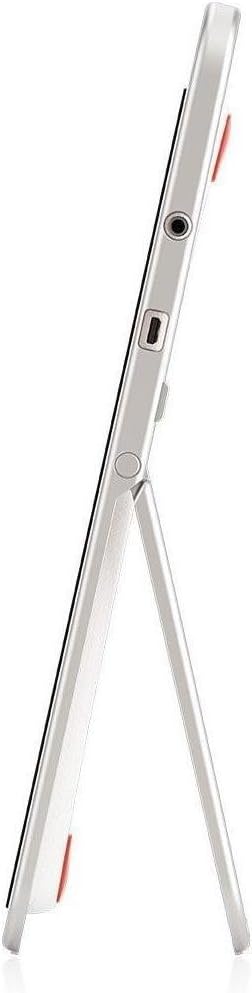
Gambar 2: Samping view of the InFocus IF195a Touch Pad. This image highlights the device's slim profile and the integrated kickstand, which allows for upright positioning. Visible ports include a headphone jack and a USB port.
- Tombol Daya: Used to turn the device on/off or put it to sleep.
- Tombol Volume: Adjust the device's audio output.
- Jack Headphone (3.5mm): Pikeun nyambungkeun alat audio éksternal.
- Port Micro-USB: Pikeun ngecas sareng mindahkeun data.
- Kickstand terpadu: Allows the device to stand upright.
4. Setélan
4.1 Unboxing jeung Muatan Awal
- Carefully remove the InFocus IF195a Touch Pad and all accessories from the packaging.
- Connect the provided power adapter to the Micro-USB port on the device and plug it into a power outlet. Allow the device to charge fully before first use. The charging indicator will typically show a full battery when complete.
4.2 Powering on / Pareum
- Pikeun Ngahurungkeun: Press and hold the Power button until the InFocus logo appears on the screen.
- Pikeun mareuman: Pencét terus tahan tombol Daya dugi ka menu pareum némbongan. Pilih "Pareuman" teras konfirmasi.
- Pikeun Saré / Hudang: Pencét sakeudeung tombol Daya pikeun ngasupkeun alat kana mode sare atanapi ngahudangkeunana.
4.3 Wizard Setup Awal
Upon first power-on, the device will guide you through an initial setup process:
- Pilihan Basa: Pilih basa anu anjeun pikaresep.
- Sambungan Wi-Fi: Select your Wi-Fi network from the list and enter the password. A stable internet connection is required for many features.
- Akun Google: Sign in with an existing Google account or create a new one. This is necessary to download apps from the Google Play Store and access Google services.
- Tanggal sareng Waktos: Set the correct date and time or allow the device to set it automatically via the network.
- Setélan Privasi: Review sareng saluyukeun setélan privasi sakumaha anu dipikahoyong.
5. Ngoperasikeun Alat
5.1 Sapuan Toél
- Ketok: Touch the screen once to select an item or open an application.
- Toel & Tahan: Press and hold an item to access contextual menus or drag items.
- Gesek: Sered jari anjeun dina layar pikeun ngagulung daptar atanapi pindah antara layar utama.
- Ciwit-pikeun-Zoom: Use two fingers to zoom in or out on images, maps, or web kaca.
5.2 Layar Utama sareng Navigasi
- Tombol imah: Mulangkeun anjeun ka layar utama.
- Tombol Balik: Mulang ka layar samemehna atawa nutup aplikasi nu ayeuna.
- Tombol Aplikasi panganyarna: Displays a list of recently used applications for quick switching.
- Panel Bewara: Gesek ka handap ti luhur layar pikeun ngakses bewara sareng setelan gancang.
5.3 Nginstal sareng Ngatur Aplikasi
- Google Play Store: Open the "Play Store" app to browse and download applications. A Google account is required.
- Masang Aplikasi: Select an app and tap "Install." Follow on-screen prompts for permissions.
- Ngahapus Aplikasi: Pindah ka Setelan > Aplikasi, select the desired app, and tap "Uninstall." Alternatively, touch and hold an app icon on the home screen and drag it to the "Uninstall" option (if available).
5.4 Nyambungkeun ka Alat Éksternal
- Headphone: Colokkeun headphone 3.5mm kana jack headphone.
- Alat USB: Connect compatible USB devices (e.g., flash drives, keyboards) to the Micro-USB port using an appropriate adapter if necessary. The device supports USB On-The-Go (OTG).
6. Pangropéa
6.1 Ngabersihan Alat
- Anggo lawon anu lemes sareng henteu lint pikeun ngabersihan layar sareng awak alat.
- Pikeun tanda nekad, rada dampen lawon kalawan cai atawa cleaner layar husus dirancang pikeun éléktronika.
- Hindarkeun ngagunakeun bahan kimia kasar, pembersih abrasive, atanapi semprot aerosol.
6.2 Perawatan Batré
- Pikeun manjangkeun umur batre, ulah miceun batre pinuh.
- Do not leave the device connected to the charger for extended periods after it is fully charged.
- Simpen alat di tempat anu tiis sareng garing upami henteu dianggo lami, kalayan batréna parantos dicas dugi ka sakitar 50%.
6.3 Apdet parangkat lunak
Pariksa périodik apdet software pikeun mastikeun kinerja optimal sarta kaamanan. Pindah ka Setélan > Ngeunaan tablet > Apdet sistem to check for and install available updates. Ensure your device is connected to Wi-Fi and has sufficient battery charge before starting an update.
7. Cara ngungkulan
| Masalah | Solusi anu mungkin |
|---|---|
| Alat moal bisa dihurungkeun. | Ensure the device is charged. Connect the charger and wait a few minutes before attempting to power on again. If unresponsive, perform a hard reset by holding the power button for 10-15 seconds. |
| Masalah sambungan Wi-Fi. | Pariksa lamun Wi-Fi diaktipkeun dina setélan. Balikan deui router Wi-Fi anjeun. Poho jaringan sarta sambungkeun deui. Pastikeun anjeun aya dina jangkauan sinyal Wi-Fi. |
| Applications are crashing or freezing. | Close and restart the application. Clear the app's cache (Setelan > Aplikasi > [Ngaran Aplikasi] > Panyimpenan > Hapus cache). Upami masalahna tetep, cabut sareng pasang deui aplikasina. |
| Layar teu ngaréspon. | Restart the device. Ensure the screen is clean and free of debris. If the issue continues, contact support. |
| kinerja lalaunan. | Close unnecessary background applications. Clear cache for frequently used apps. Check available storage (Setelan > Panyimpenan) and free up space if needed. Consider a factory reset as a last resort. |
7.1 Reset pabrik
Reset pabrik bakal ngahapus sadaya data tina alat anjeun sareng mulangkeun kana setélan pabrik aslina. Nyadangkeun sadaya data penting sateuacan neraskeun.
- Pindah ka Setélan > Cadangan & reset > Reset data pabrik.
- Read the warning message carefully.
- Tap "Reset tablet" and then "Erase everything" to confirm.
- Alat bakal balikan deui sareng ngamimitian prosés reset.
8. Spésifikasi Téknis
| Fitur | Spésifikasi |
|---|---|
| Modél | IF195a |
| merek | InFokus |
| Ukuran tampilan | 20 inci |
| Resolusi maksimum | 1600 x 900 |
| Prosesor | ARM Cortex-A15 Quad-Core 1.8 GHz |
| Kamampuh RAM | 2 GB |
| Kapasitas Panyimpenan | 16 GB |
| Sistem operasi | Android 4.4 KitKat |
| Résolusi kaméra pungkur | 5 MP |
| Ukuran (L x W x H) | 61.6 x 47 x 8.6 cm |
| Beurat | 3.7 kg |
| Warna | kulawu |
9. Garansi jeung Rojongan
For warranty information, please refer to the warranty card included with your product or visit the official InFocus website. For technical support, product registration, or service inquiries, please contact InFocus customer service through their official channels.
Please note that warranty terms may vary by region and retailer. Keep your proof of purchase for warranty claims.


