
1. Bubuka
This manual provides detailed instructions for the AUSDOM HD Webcam 1080P (Model LYSB012CK43W6). This webcam is designed for high-definition video communication and streaming, featuring a built-in microphone and manual focus capabilities. Please read this manual thoroughly before using the product to ensure proper operation and longevity.
2. Naon dina Box
- 1x AUSDOM HD Webkaméra 1080P
- 1 x Manual Pamaké
3. Fitur konci
- Video HD lengkep 1080P: Delivers superior sharpness and 1920×1080P high-definition image quality at 30 frames per second.
- Fokus Manual: Allows precise adjustment of the lens for desired clarity, supporting 3cm microspur shooting.
- Adjustable and Multi-function Design: Features 360° omni-directional and 30° adjustable movement for flexible positioning.
- Built-in Noise Reduction Microphone: Captures clear audio even in noisy environments.
- Koreksi Cahaya Rendah Otomatis: Ensures clear images in dim lighting conditions.
- Nyolok sareng Puter: Easy installation via USB 3.0/USB 2.0 connector for instant video chat.
- Kasaluyuan serbaguna: Works with various platforms including Skype, FaceTime, YouTube, Zoom, and Windows Live Messenger.
4. Setup Guide
4.1 Nyambungkeun ka Webkaméra
The AUSDOM HD Webcam is designed for plug-and-play functionality. Simply connect the USB cable from the webcam to an available USB 2.0 or USB 3.0 port on your computer.

Gambar 1: Nyambungkeun webcam to a laptop via USB.
For most operating systems (Windows 7, Windows XP2, Windows 8, Windows Vista, Mac, Linux, Android TV), the webcam will be automatically recognized and ready for use. No additional drivers are typically required for basic functionality.
4.2 Positioning the Webkaméra
The webcam features a flexible clip/stand that allows it to be securely placed on top of a monitor, laptop screen, or freestanding on a desk. Adjust the clip to fit your display or position it on a flat surface.

Gambar 2: Webcam positioned on a computer monitor.
The webcam offers 360° omni-directional and 30° adjustable movement, allowing you to find the optimal angle for your video calls or recordings.
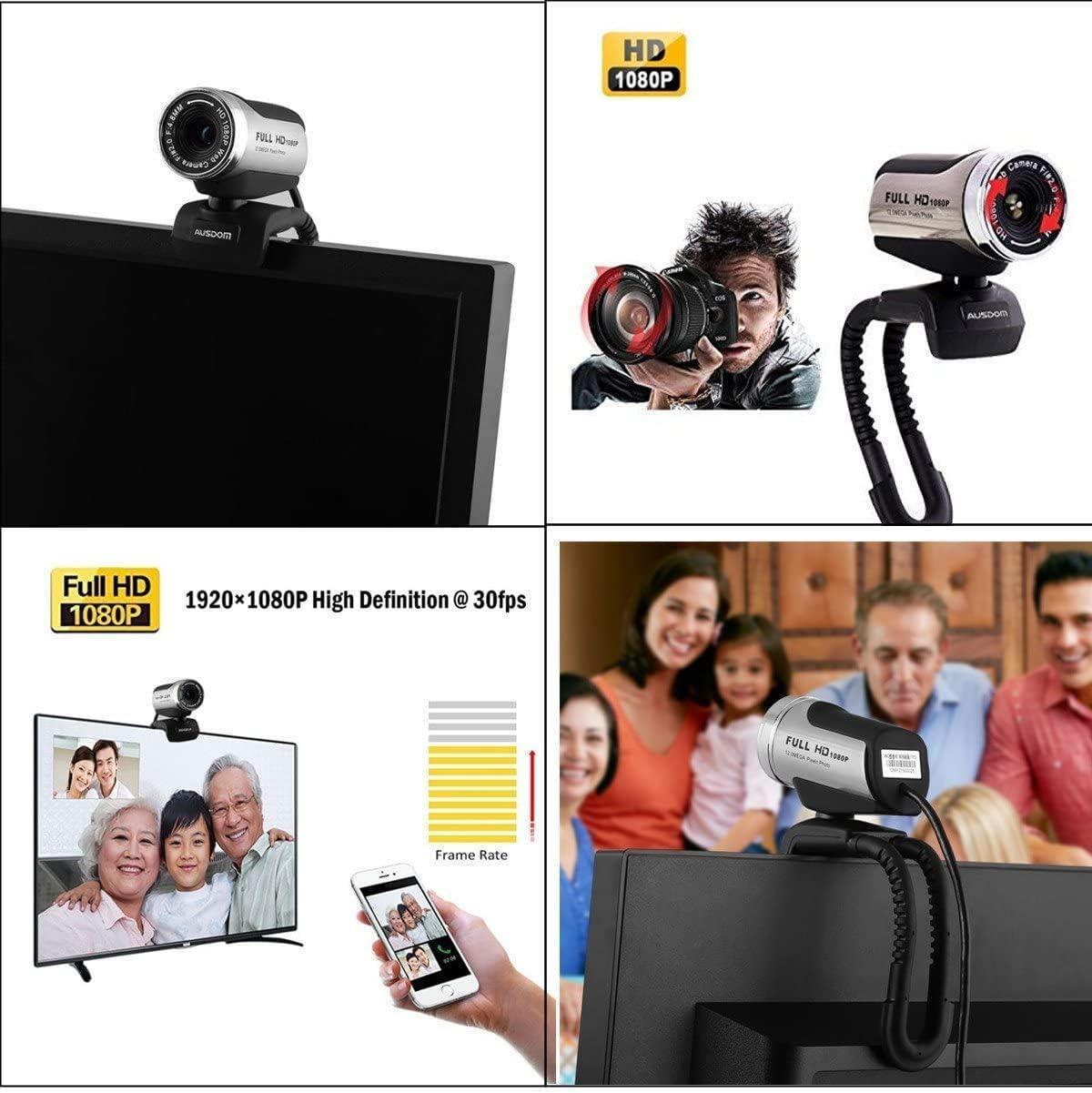
Figure 3: Adjustable angles for flexible positioning.
4.3 Initial Use and Driver Information
Sakali disambungkeun, nu webcam should be detected by your operating system. You can then open video conferencing software (e.g., Skype, Zoom, FaceTime) or recording applications to begin using the webcam. For some specific computer configurations, a driver might be necessary. If the webcam does not function immediately, please refer to the troubleshooting section.
Important Note for Mac Users: The driver is not compatible with iOS. For Mac, please use the webcam with applications like PHOTO BOOTH. FaceTime may not accept external cameras.
Video 1: Leuwihview of the AUSDOM HD 1080P Webcam with Microphone, demonstrating its features and ease of use.
5. Parentah Operasi
5.1 Manual Focus Adjustment
The AUSDOM HD Webcam features manual focus. To achieve optimal clarity, gently rotate the lens ring on the front of the webcam until the image on your screen appears sharp. This allows for precise focusing for various distances, including close-up shots (microspur shooting from 3cm).

Figure 4: Adjusting the manual focus ring on the weblénsa cam.
5.2 Using the Built-in Microphone
The webcam includes a built-in noise-reduction microphone. This microphone is designed to capture clear audio and minimize background noise, enhancing your communication experience. Ensure your operating system and application settings are configured to use the webcam's microphone as the input device.

Figure 5: Location of the noise-cancelling microphone.
5.3 Optimizing Video Quality
The webcam automatically adjusts for low-light conditions to provide a clear image. For best results, ensure adequate lighting in your environment. The 1920x1080P resolution at 30fps provides smooth and detailed video for various applications.

Gambar 6: Webcam delivering 1080P High Definition at 30fps.
Before first use, ensure to remove the lens protective film for optimal image quality.

Figure 7: Removing the lens protective film.
6. Pangropéa
- beberesih: Paké kaen lemes, garing pikeun ngabersihan webcam lens and body. Avoid using harsh chemicals or abrasive materials.
- Panyimpenan: Nalika henteu dianggo, simpen websimpen kaméra di tempat anu bersih, garing, sareng jauh tina sinar panonpoé langsung sareng suhu anu ekstrim.
- Perawatan kabel: Ulah ngabengkokkeun atawa twisting kabel USB kaleuleuwihan pikeun nyegah karuksakan.
7. Cara ngungkulan
7.1 Webcam Not Detected or Working
- Pariksa sambungan USB: Pastikeun webcam is securely plugged into a functional USB port. Try a different USB port or a different computer if available.
- Balikan deui Komputer: Ngamimitian deui komputer sacara saderhana sering tiasa ngabéréskeun masalah deteksi.
- Driver Installation (Windows): While typically plug-and-play, some Windows systems might require a driver. If the webcam is not working, check your device manager for unrecognized devices or visit the AUSDOM support website for specific drivers. Note that the webcam will not generate a shortcut icon after driver installation; you need to open it via software like Skype.
- Firewall/Antivirus: Ensure your firewall or antivirus software is not blocking the webcam's functionality.
- Kasaluyuan Mac: The driver is not compatible with iOS. On Mac, use applications like PHOTO BOOTH. FaceTime may not accept external cameras.
7.2 Gambar Burem
- Adjust Manual Focus: The webcam has manual focus. Rotate the lens ring until the image is clear. It does not feature autofocus.
- Kaayaan Pencahayaan: Ensure sufficient lighting in your environment. Poor lighting can lead to grainy or blurry images.
- Cabut pilem pelindung: Verify that the lens protective film has been removed.
7.3 Mikropon Teu Gawé
- Check System Settings: Go to your computer's sound settings and ensure the AUSDOM webcam microphone is selected as the default input device.
- Setélan Aplikasi: Verify that your video conferencing or recording application is configured to use the webcam's microphone.
8. Spésifikasi
| Fitur | Rincian |
|---|---|
| merek | AUSDOM |
| Nomer modél | LYSB012CK43W6-ELECTRNCS |
| Resolusi Capture Video | 1080 p |
| Laju Capture Gambar | 30 fps |
| Téhnologi Sénsor Poto | CMOS |
| Tipe Fokus | Fokus Manual |
| Viewdina Angle | 65 darajat |
| Téhnologi konektipitas | USB (USB3.0/USB2.0/1.1) |
| Diwangun-di Mikropon | Yes (Noise Reduction) |
| Rojongan System Operasi | Windows 7, XP2, 8, Vista, Mac OS 10.6, Android V5.0, Chrome OS |
| Item Beurat | 123 gram |
| Warna | Black-WS |
9. Garansi jeung Rojongan
For warranty information and technical support, please refer to the official AUSDOM websitus atanapi ngahubungan layanan palanggan maranéhanana langsung. Simpen resi pameseran anjeun pikeun klaim jaminan.
For any technical questions, you may also search online FAQs or contact AUSDOM support.