Bubuka
This manual provides instructions for setting up, operating, and maintaining your Mercury MW3030R Dual Band Wireless Router. Please read this manual carefully before use to ensure proper installation and optimal performance.
Émbaran Kasalametan
- Ulah ngalaan alat ka cai atawa kalembaban kaleuleuwihan.
- Ulah nyobian ngabongkar atawa ngalereskeun alat sorangan.
- Paké ngan adaptor kakuatan disadiakeun kalawan alat.
- Pastikeun ventilasi anu cekap di sakitar router pikeun nyegah panas teuing.
Eusi pakét
Pariksa yén pakét anjeun ngandung barang-barang ieu:
- Mercury MW3030R Wireless Router
- Adaptor kakuatan
- Kabel Ethernet
- Pituduh Pamasangan Gancang (manual ieu janten pituduh anu lengkep)
Produk Leuwihview
Biasakeun diri anjeun sareng komponén sareng indikator router.
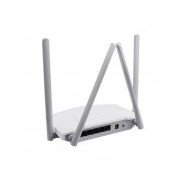
Gambar 1: Tukangeun view of the Mercury MW3030R router. This image displays the four external antennas, the WAN port (typically blue), multiple LAN ports (typically yellow), and the power input jack. The reset button and WPS button are also usually located on the rear panel.
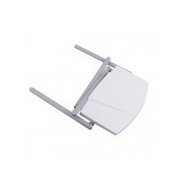
Gambar 2: Ti luhur ka handap view of the Mercury MW3030R router with its antennas folded. This perspective highlights the router's sleek, white casing and its overall compact form factor, suitable for various placements.
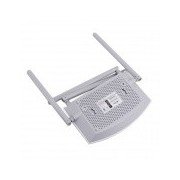
Gambar 3: Handapeun view of the Mercury MW3030R router. This image shows the ventilation holes designed for heat dissipation and the product label, which typically contains important information such as the default Wi-Fi name (SSID), password, and web management address.
Indikator LED:
- LED kakuatan: Nunjukkeun status daya router.
- Internét LED: Nunjukkeun status sambungan internét.
- LED WLAN: Nunjukkeun aktivitas nirkabel.
- LED LAN: Indicate connection status for each LAN port.
Disetél
1. Konéksi Hardware
- Daya Hurung: Connect the power adapter to the router's power port and plug it into a wall outlet. Wait for the Power LED to become stable.
- Nyambung ka Internét (WAN): Connect one end of an Ethernet cable to your modem's LAN port and the other end to the router's WAN port (usually distinctively colored, e.g., blue).
- Sambungkeun Alat (LAN): For wired connections, connect your computer or other devices to the router's LAN ports (usually yellow) using Ethernet cables.
- Anteneu: Adjust the four antennas for optimal signal coverage.
2. Konfigurasi Awal (Web Panganteur)
- Nyambung ka Router: Connect your computer to the router either via an Ethernet cable to a LAN port or wirelessly using the default Wi-Fi SSID and password printed on the router's label (refer to Figure 3).
- Aksés Web Browser: Buka a web browser (e.g., Chrome, Firefox) and type the default access address (e.g., http://192.168.1.1 or http://tplinkwifi.net) kana bilah alamat teras pencét Enter.
- Lebet: Lebetkeun nami pangguna sareng kecap konci standar (biasana admin pikeun duanana, atanapi sakumaha anu ditangtukeun dina labél router).
- Jalankeun Setup Gancang: Follow the on-screen instructions of the Quick Setup Wizard to configure your internet connection type (e.g., PPPoE, Dynamic IP, Static IP) and wireless settings (SSID, password).
- Robah Sandi Standar: For security, it is highly recommended to change the default login password for the router's web panganteur manajemén.
Parentah Operasi
Nyambungkeun ka Wi-Fi
- On your wireless device (smartphone, laptop), search for available Wi-Fi networks.
- Select your router's Wi-Fi network name (SSID) that you configured during setup.
- Enter the Wi-Fi password you set.
- Alat Anjeun ayeuna kudu disambungkeun ka internet.
Operasi Dual Band
The MW3030R supports both 2.4GHz and 5.0GHz wireless bands. The 2.4GHz band offers wider coverage, while the 5.0GHz band provides faster speeds with less interference over shorter distances. You can connect your devices to either band based on your needs.
Jaringan Tamu
Aksés ka router web interface to enable and configure a separate guest network. This allows guests to access the internet without accessing your main network resources.
Pangropéa
- Pembaruan firmware: Rutin pariksa produsén urang website for firmware updates. Updating firmware can improve performance, add new features, and fix security vulnerabilities.
- Balikan deui router: If you experience network issues, try restarting the router by unplugging the power adapter, waiting 10 seconds, and then plugging it back in.
- beberesih: Jaga router tetep bersih sareng bébas tina lebu. Anggo lawon anu lemes sareng garing. Entong nganggo pembersih cair.
- panempatan: Simpen router di lokasi anu sentral, jauh tina halangan sareng alat anu tiasa nyababkeun gangguan (contona, microwave, telepon nirkabel).
Pamérésan masalah
Taya Aksés Internét
- Check if the Internet LED on the router is lit or blinking correctly.
- Pastikeun kabel Ethernet tina modem anjeun nyambung pageuh kana port WAN router.
- Balikan deui modem sareng router anjeun.
- Pariksa setélan sambungan internét anjeun dina router web panganteur.
Laju Nirkabel Leutik
- Ensure your device is connected to the 5.0GHz band if it supports it, for faster speeds.
- Move closer to the router or adjust antenna positions.
- Pariksa gangguan ti alat éléktronik lianna.
- Reduce the number of devices connected to the network or bandwidth-intensive activities.
Teu Bisa Aksés Router urang Web Panganteur
- Pastikeun alat anjeun nyambung ka router (kabel atanapi nirkabel).
- Verify the IP address you are typing in the browser is correct (e.g., http://192.168.1.1).
- Coba mupus cache browser anjeun atanapi nganggo browser anu sanés.
- If you forgot the login password, you may need to perform a factory reset (Warning: This will erase all your settings).
spésifikasi
| Fitur | Katerangan |
|---|---|
| Modél | MW3030R |
| Standar Wireless | IEEE 802.11ac/n/g/b/a |
| Frékuénsi | 2.4GHz sareng 5.0GHz (Dual Band) |
| Laju nirkabel | Up to 600Mbps (combined) |
| anteneu | 4 anteneu éksternal |
| Antarbeungeut | 1x WAN Port, Multiple LAN Ports (typically 3 or 4) |
| Sasayogian tanaga | External Power Adapter (provided) |
Garansi sareng Rojongan
The Mercury MW3030R router comes with a standard manufacturer's warranty. For detailed warranty information, technical support, or service inquiries, please refer to the official Mercury websitus atanapi hubungi dukungan palangganna. Simpen resi pameseran anjeun kanggo klaim garansi.


