1. Bubuka
This manual provides essential instructions for the proper installation, use, and maintenance of your Brother PC201 Thermal Transfer Fax Print Cartridge. Adhering to these guidelines will ensure optimal performance and longevity of the product within compatible Brother Intellifax machines.
2. Produk Langkungview
The Brother PC201 is a thermal transfer print cartridge designed specifically for Brother plain paper fax machines. It delivers black ink for clear and reliable document printing.

Figure 2.1: Brother PC201 Fax Print Cartridge and Retail Packaging.
This image displays the Brother PC201 thermal transfer print cartridge alongside its retail packaging. The packaging indicates compatibility with various Brother Intellifax models and highlights the PC-201 model number. The cartridge itself is shown with the thermal transfer film visible.
3. Kasaluyuan
The Brother PC201 Fax Print Cartridge is compatible with the following Brother Intellifax and MFC models:
- FAX-1010
- FAX-1020
- Fax-1030e
- FAX-1170
- FAX-1270
- FAX-1570MC
- MFC-1770
- MFC-1780
- MFC-1970MC
Always verify your fax machine's model number before purchasing and installing a replacement cartridge.
4. Setup jeung Instalasi
Follow these steps to correctly install the Brother PC201 Fax Print Cartridge into your compatible Brother Intellifax machine.
- Pareum listrik: Ensure your fax machine is turned off and unplugged from the power outlet before beginning the installation process.
- Buka panutup: Open the front cover or access panel of your Brother Intellifax machine to expose the cartridge compartment. Refer to your fax machine's specific user manual for exact instructions on opening the cover.
- Cabut Cartridge Old (upami aya): If replacing an existing cartridge, carefully remove the used PC201 cartridge by lifting it out. Dispose of the old cartridge responsibly according to local regulations.
- Buka bungkus Kartrid Anyar: Remove the new Brother PC201 cartridge from its retail packaging. Avoid touching the thermal transfer film directly.
- Selapkeun Cartridge Anyar: Align the new PC201 cartridge with the guides inside the fax machine's compartment. Gently push the cartridge down until it clicks securely into place. Ensure it is seated firmly.
- Tutup panutup: Close the front cover or access panel of your fax machine.
- Daya Hurung: Plug the fax machine back into the power outlet and turn it on. The machine may perform a brief initialization cycle.
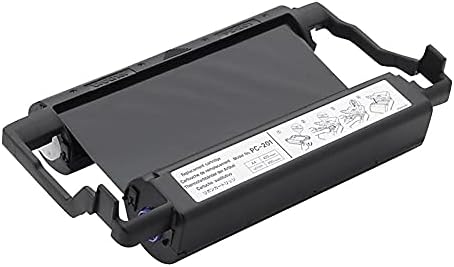
Figure 4.1: Brother PC201 Cartridge with Installation Diagrams.
Gambar ieu nyadiakeun leuwih raket view of the Brother PC201 cartridge, highlighting small diagrams printed on its label. These diagrams typically illustrate the correct orientation and steps for inserting the cartridge into the fax machine, such as aligning and pressing down until it locks.
5. Parentah Operasi
Once the PC201 cartridge is installed, your Brother Intellifax machine is ready for operation. The cartridge functions automatically during fax transmission and copying. No specific user interaction with the cartridge itself is required during normal operation.
- Fax: Load documents into your fax machine's document feeder and initiate a fax transmission as per your machine's user manual.
- Nyalin: Place documents on the scanner glass or in the document feeder and select the copy function on your machine.
The cartridge has a page yield of approximately 450 pages. Replace the cartridge when print quality deteriorates or when your fax machine indicates a low or empty cartridge status.
6. Pangropéa
Proper maintenance ensures consistent performance of your PC201 cartridge and fax machine.
- Panyimpenan: Store unused cartridges in their original sealed packaging in a cool, dry place, away from direct sunlight and extreme temperatures.
- Penanganan: Avoid touching the thermal transfer film or any electrical contacts on the cartridge to prevent damage or print quality issues.
- beberesih: Do not attempt to clean the cartridge itself. If print quality issues arise, consult your fax machine's manual for instructions on cleaning the print head or other internal components.
- pembuangan: Dispose of used cartridges responsibly. Many retailers and manufacturers offer recycling programs for printer consumables.
7. Cara ngungkulan
If you encounter issues after installing the PC201 cartridge, consider the following common solutions:
- Poor Print Quality (Faint/Streaky Prints):
- Ensure the cartridge is installed correctly and seated firmly.
- Pariksa lamun cartridge geus nearing tungtung hirupna. Ganti lamun perlu.
- Refer to your fax machine's manual for instructions on cleaning the print head or thermal elements.
- "Cartridge Error" or "No Cartridge" Message:
- Remove and re-install the cartridge, ensuring it clicks into place.
- Verify that you are using the correct PC201 cartridge for your specific Brother Intellifax model.
- Inspect the cartridge for any visible damage.
- Kertas macét:
- While not directly related to the cartridge, ensure the paper is loaded correctly and that there are no obstructions in the paper path.
- Refer to your fax machine's manual for paper jam clearing procedures.
If problems persist, consult your Brother Intellifax machine's comprehensive user manual or contact Brother customer support.
8. Spésifikasi
| Fitur | Rincian |
|---|---|
| Jenis produk | Thermal Transfer Print Cartridge |
| Nomer modél | PC201 |
| Warna | Hideung |
| Ngahasilkeun Kaca | Kurang leuwih 450 kaca |
| Tipe Alat | Fax Machines (Brother Intellifax series) |
| Dimensi produk | 12.5 x 7.7 x 3.3 inci (31.75 x 19.56 x 8.38 cm) |
| Item Beurat | 2.71 pon (1.23 kg) |
9. Garansi jeung Rojongan
For specific warranty information regarding your Brother PC201 Fax Print Cartridge, please refer to the documentation included with your purchase or visit the official Brother website. Brother provides customer support for their products.
Dukungan Palanggan Brother: For technical assistance, troubleshooting, or warranty claims, please contact Brother customer support directly. Contact details can typically be found on the Brother official website or in your fax machine's user manual.


