1. Émbaran Kasalametan penting
Please read these instructions carefully before using your TECKNET Bluetooth Ultra-Slim Wireless Keyboard. Keep this manual for future reference.
- Do not expose the keyboard to liquids, humidity, or extreme temperatures.
- Hindarkeun leupaskeun atanapi tunduk kana keyboard kana tabrakan anu kuat.
- Entong nyobian ngabongkar atanapi ngarobih kibor. Ieu bakal ngabatalkeun jaminan.
- Use only the provided USB charging cable or a certified equivalent for charging.
- Jauhkeun tina jangkauan barudak.
2. Eusi Paket
Pastikeun yén sadaya item aya dina pakét anjeun:
- 1 x TECKNET Bluetooth Ultra-Slim Wireless Keyboard
- 1 x Kabel Ngecas USB
- 1 x Manual Pamaké (dokumén ieu)
- 1 x Kartu Garansi
3. Produk Langkungview
The TECKNET Bluetooth Ultra-Slim Wireless Keyboard is designed for convenience and portability, offering a comfortable typing experience across various operating systems.
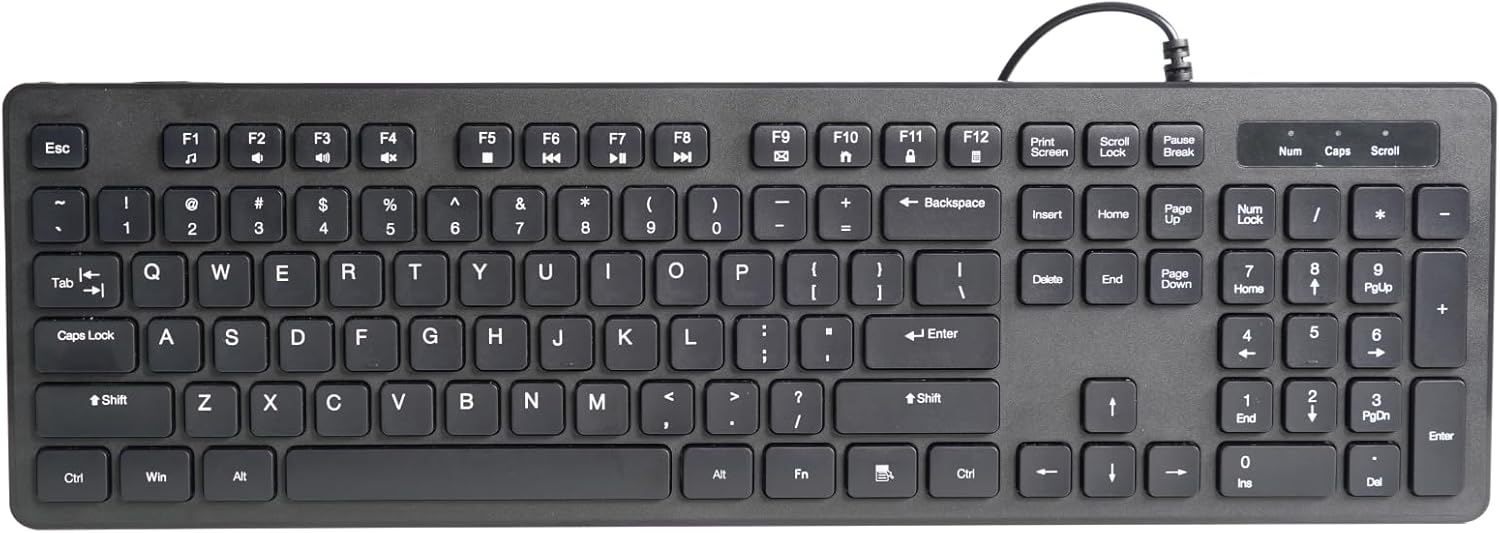
Gambar 3.1: Hareupeun view of the TECKNET Bluetooth Ultra-Slim Wireless Keyboard.
This keyboard features a compact design with a QWERTY UK layout, making it suitable for various environments from office to home. Its scissor switch construction ensures a comfortable and quiet typing experience, with keys designed to withstand up to 5 million keystrokes.

Figure 3.2: The keyboard features a standard QWERTY UK layout with integrated multimedia keys.

Figure 3.3: Detail of the scissor switch construction, providing comfortable and durable key presses.
4. Setélan
4.1. Ngecas kibor
The keyboard is equipped with a built-in rechargeable Li-polymer battery. Before first use, or when the battery indicator flashes, charge the keyboard using the provided USB cable.
- Sambungkeun tungtung leutik kabel ngecas USB kana port ngecas dina kibor.
- Sambungkeun ujung kabel USB nu leuwih gede ka sumber daya USB (contona, port USB komputer, adaptor témbok USB).
- The charging indicator light will illuminate during charging and turn off when fully charged. A full charge typically takes approximately 2 hours.
A full charge provides up to 200 hours of continuous working time and a standby time of up to 200 days.

Figure 4.1: The keyboard features a rechargeable battery and is charged via a USB cable.
4.2. Nyapasangkeun sareng Alat Anjeun
The TECKNET keyboard uses Bluetooth 3.0 for wireless connection and is compatible with iOS, Android, Mac OS, and Windows operating systems.
- Pastikeun keyboard dieusi.
- Turn on the keyboard by sliding the power switch to the "ON" position.
- Pencét éta Nyambung button on the keyboard. The Bluetooth indicator light will start blinking, indicating it is in pairing mode.
- Dina alat anjeun (tablet, smartphone, komputer), buka setélan Bluetooth.
- Milarian pikeun available Bluetooth devices. The keyboard will appear as "TECKNET Keyboard" or similar.
- Select the keyboard from the list. Your device may prompt you to enter a pairing code displayed on the screen. Type this code on the TECKNET keyboard and press Lebetkeun.
- Once paired, the Bluetooth indicator light on the keyboard will stop blinking and remain solid or turn off, indicating a successful connection.
The operating distance for the Bluetooth connection is up to 10 meters.

Figure 4.2: The keyboard is compatible with Android, iOS, and Windows devices.

Figure 4.3: The keyboard offers a remote connection range of up to 10 meters.
5. Parentah Operasi
5.1. Ngetik Dasar
Once paired, you can use the keyboard for standard text input on your connected device. The keys provide a responsive and comfortable typing experience.
5.2. Function Keys and Multimedia Controls
The top row of keys (F1-F12) on the keyboard serves dual functions. To access the multimedia or special functions, press and hold the Fn konci, teras pencét tombol fungsi anu dipikahoyong.
| Kombinasi konci | Fungsi |
|---|---|
| Fn + F1 | Saluran 1 |
| Fn + F2 | Saluran 2 |
| Fn + F3 | Saluran 3 |
| Fn + F4 | Imah |
| Fn + F5 | ménu |
| Fn + F6 | Balik / Saméméhna |
| Fn + F7 | Lagu Mundur |
| Fn + F8 | Play / Reureuh |
| Fn + F9 | Lagu salajengna |
| Fn + F10 | Ngajempékeun |
| Fn + F11 | Volume Turun |
| Fn + F12 | Volume Up |

Figure 5.1: The keyboard features 12 convenient multimedia keys accessible via the Fn key.
5.3. Operating System Mode Switching
To optimize keyboard functions for your specific operating system, you can switch modes:
- Pencét Fn + Q for Android OS.
- Pencét Fn + W for Windows OS.
- Pencét Fn + E for iOS/Mac OS.
5.4. Keyboard Illumination (If Applicable)
Some versions of this keyboard feature backlighting. If your keyboard is illuminated, you can control the lighting as follows:
- Press the dedicated illumination key (often marked with a light bulb icon) to cycle through brightness levels or turn the illumination on/off.
- To change the backlight color (if supported), hold down the illumination button and press Page Up or Kaca Turun. Available colors may include Blue, Red, Green, Purple, Yellow, Sapphire, and Cyan.
6. Pangropéa sarta perawatan
6.1. Ngabersihan kibor
- Pareuman kibor sateuacan beberesih.
- Make kaen nu lemes, teu aya lint rada dampdikumbah ku cai atawa solusi beberesih hampang.
- Ulah menyemprot cleaners langsung kana kibor.
- Avoid using abrasive cleaners, alcohol, or solvents.
6.2. Panyimpenan
- Simpen kibor di tempat anu tiis sareng garing jauh tina sinar panonpoé langsung sareng suhu anu ekstrim.
- If storing for an extended period, ensure the keyboard is fully charged before storage and recharge it periodically to maintain battery health.
7. Cara ngungkulan
7.1. Keyboard Not Connecting/Pairing
- Pariksa batré: Pastikeun kibor tos dicas pinuh.
- Siklus kakuatan: Pareuman kibor teras hurungkeun deui.
- pasangan deui: Delete the keyboard from your device's Bluetooth list and attempt to pair again.
- Alat Bluetooth: Pastikeun Bluetooth diaktipkeun dina alat anjeun sareng tiasa kapanggih.
- Jarak: Make sure the keyboard is within the 10-meter operating range of your device.
- gangguan: Jauhkeun alat nirkabel anu sanés anu tiasa nyababkeun gangguan.
7.2. Konci Teu Ngarespon
- Sambungan deui: The Bluetooth connection might have dropped. Try turning the keyboard off and on, or re-pairing.
- Tingkat batré: Low battery can cause intermittent key response. Recharge the keyboard.
- Modeu Sistem Operasi: Ensure the keyboard is set to the correct OS mode (Fn+Q/W/E).
7.3. Hirup batré pondok
- muatan pinuh: Ensure the keyboard is fully charged each time.
- Iluminasi: If your keyboard has backlighting, turning it off or reducing brightness will extend battery life.
- Saré Otomatis: The keyboard has an auto-sleep feature to save power. If it's not sleeping, ensure it's not constantly being used or moved.
8. Spésifikasi produk
| Fitur | Rincian |
|---|---|
| merek | TAKEUN |
| Nomer modél | 78863 |
| Téhnologi konektipitas | Bluetooth 3.0 |
| Sistem Operasi | iOS, Android, Mac OS, Windows |
| Sumber Daya | Rechargeable Li-polimér Batré |
| Hirup Batré (Pamakéan Kontinyu) | Nepi ka 200 jam |
| Waktu sayaga | Nepi ka 200 dinten |
| Jarak Operasi | Nepi ka 10 méter |
| Diménsi | 245 x 150 x 5.5 mm |
| Beurat | 215g |
| Umur konci | 5 juta keystrokes |
| Jumlah konci | 78 |
| Warna | Hideung |
Figure 8.1: Approximate dimensions of the keyboard: 245mm length, 150mm width, and 5.5mm thickness.
9. Garansi jeung Rojongan
TECKNET provides an 18-month warranty for this product, covering manufacturing defects from the date of purchase. Additionally, lifetime technical support is available.
For warranty claims, technical assistance, or general inquiries, please contact TECKNET customer support through their official websitus atanapi pangecér tempat produk éta dipésér. Mangga siapkeun bukti pameseran sareng nomer modél produk anjeun.
For more information, visit the official TECKNET websitus: www.tecknet.co.uk


