
1. Bubuka
This manual provides detailed instructions for the installation, operation, and maintenance of your TENVIS JPT3815W-HD Wireless IP Camera. Please read this manual carefully before using the product to ensure proper setup and functionality. This camera is designed for surveillance and home security, offering high-definition video, two-way audio, and remote monitoring capabilities.
2. Produk Langkungview
Familiarize yourself with the components and ports of your TENVIS JPT3815W-HD camera.
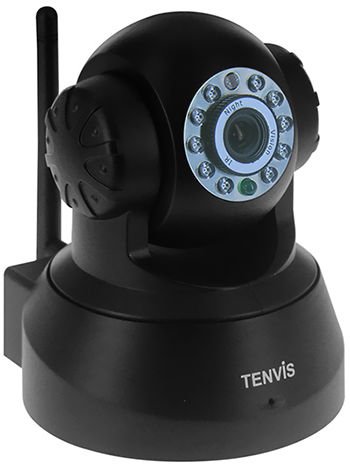
Gambar 2.1: Hareup jeung pungkur view of the TENVIS JPT3815W-HD camera. The front features the HD 720P lens, IR LEDs for night vision, and a microphone. The rear includes the power input, Ethernet port, MicroSD card slot (supports up to 32GB), and a reset button. A Wi-Fi antenna is visible on the side.
Fitur konci:
- Résolusi HD 720P: Captures video at 1280 x 720 pixels.
- Fungsi Pan/Dengdekkeun: Horizontal rotation of 340° and vertical tilt of 110° for wide area coverage.
- Visi Peuting: Equipped with 10 IR-LEDs for clear visibility up to 10 meters in low light conditions.
- Audio Dua Arah: Diwangun-di mikropon jeung spiker pikeun komunikasi.
- Deteksi gerak: Configurable alerts via email and snapshot uploads to FTP.
- Konéktipitas nirkabel: Supports IEEE802.11b/g/n Wi-Fi standards.
- Rojongan Kartu MicroSD: Slot for local storage up to 32GB.
- P2P and ONVIF 2.2 Protocol: Ensures broad compatibility and easy setup.
3. Setélan
3.1 Mimiti Power-Up
- Connect the power adapter (DC 5V/2.0A) to the camera's power input port.
- Plug the power adapter into a wall outlet. The camera will power on and begin its self-test sequence.
3.2 Sambungan Jaringan
The camera supports both wired (Ethernet) and wireless (Wi-Fi) connections.
Sambungan kabel:
- Sambungkeun hiji tungtung kabel Ethernet kana port Ethernet kaméra.
- Connect the other end of the Ethernet cable to your router or network switch.
Sambungan nirkabel:
- Pastikeun kaméra diaktipkeun.
- Install the TENVIS mobile application on your iOS or Android device.
- Follow the in-app instructions to add the camera and configure its Wi-Fi settings. This typically involves scanning a QR code on the camera or entering the camera's UID.
- Select your Wi-Fi network and enter the password. The camera will connect to the wireless network.
3.3 Pamasangan Kartu MicroSD
- Locate the MicroSD card slot on the camera (refer to Image 2.1).
- Gently insert a MicroSD card (up to 32GB) into the slot until it clicks into place.
- Format the MicroSD card through the camera's settings in the mobile application or web panganteur pikeun kinerja optimal.
4. Parentah Operasi
4.1 Hirup View jeung Control
Access the live video feed through the TENVIS mobile application or a compatible web browser (Microsoft IE7+, Mozilla Firefox, Google Chrome, Apple Safari).
- Pan/Dengdekkeun: Use the controls in the app or web interface to remotely adjust the camera's horizontal (340°) and vertical (110°) viewdina sudut.
- Ngazum Digital: Utilize the 5x digital zoom feature to magnify specific areas of the live feed.
- Audio Dua Arah: Tap the microphone icon in the app to speak through the camera's speaker, and listen to audio from the camera's built-in microphone.
4.2 Ngarekam jeung Panyimpenan
The camera supports continuous recording, scheduled recording, and motion-triggered recording to a MicroSD card.
- Configure recording settings within the camera's interface.
- Dirékam footage tiasa deuiviewed and downloaded via the mobile application or web panganteur.
4.3 Deteksi Gerak sareng Siaga
The camera can detect motion and trigger alerts.
- Enable motion detection in the camera settings.
- Configure alert actions, such as sending email notifications with snapshots or uploading alarm snapshots to an FTP server.
- Adjust motion detection sensitivity to minimize false alarms.
4.4 Visi Peuting
The camera automatically switches to night vision mode in low light conditions, utilizing its infrared LEDs to provide clear black and white video up to 10 meters.
5. Pangropéa
5.1 beberesih
- Pastikeun kaméra pareum sateuacan dibersihkeun.
- Anggo kaén anu lembut sareng garing pikeun ngusap awak kaméra.
- For the lens, use a lens cleaning cloth and specialized lens cleaning solution to avoid scratches.
- Entong nganggo bahan kimia kasar atanapi beberesih kasar.
5.2 Apdet firmware
Periodically check the TENVIS official website or your mobile application for available firmware updates. Keeping your camera's firmware updated ensures optimal performance, security, and access to new features. Follow the provided instructions carefully when performing updates.
5.3 Manajemén Panyimpenan
- Regularly back up important recordings from the MicroSD card to another storage device.
- Format the MicroSD card periodically to maintain performance and free up space.
6. Cara ngungkulan
6.1 Taya Daya
- Pariksa lamun adaptor kakuatan disambungkeun aman ka kaméra jeung stop kontak kakuatan.
- Pariksa yén stop kontak listrik geus fungsi.
- Ensure you are using the correct DC 5V/2.0A power adapter.
6.2 Cannot Connect to Network
- Maké kabel: Ensure the Ethernet cable is properly connected to both the camera and the router. Check router status.
- Nirkabel: Verify your Wi-Fi password is correct. Ensure the camera is within range of your Wi-Fi router. Restart the camera and router.
- If using P2P, ensure your internet connection is stable.
6.3 Kualitas Pidéo Goréng
- Check your network bandwidth. Insufficient bandwidth can cause choppy or low-resolution video.
- Clean the camera lens if it appears dirty.
- Ensure adequate lighting for optimal image quality during the day.
6.4 Deteksi Gerakan Teu Jalan
- Pariksa yén deteksi gerakan diaktipkeun dina setélan kaméra.
- Atur setélan sensitivitas.
- Check the configured alert actions (email, FTP) and ensure their settings are correct.
6.5 Reset Kaméra
If the camera is unresponsive or you need to restore factory settings, locate the reset button (refer to Image 2.1). With the camera powered on, press and hold the reset button for approximately 10-15 seconds until the camera reboots. This will revert all settings to their default values.
7. Spésifikasi
| Kategori | Spésifikasi |
|---|---|
| Ngaran modél | JPT3815W-HD |
| Sénsor Gambar | Omnivision9712/100W CMOS |
| Resolusi tampilan | 1280 x 720 (720P) |
| Min. Paneangan | 0.1 Lux |
| Lensa Focal Length | f:3.6mm |
| aperture | F2.5 |
| Sudut tina View | 80° |
| Komprési Video | H.264 |
| Laju pigura | 25fps (maximum) |
| Resolusi Dirojong | 720P(1280x720), VGA(640x360), QVGA(320x180) |
| Sudut Pan / Dengdekkeun | Horizontal: 340°, Vertikal: 110° |
| LEDs Infrabeureum | 10 buah |
| Jarak Visi Peuting | 10 méter |
| Zum Digital | 5x |
| Audio | Two-way Audio, Built-in Mic & Speaker, G.711/G.726 |
| Ethernet | 10/100Mbps |
| Tanpa kabel | IEEE802.11b/g/n |
| Kaamanan nirkabel | WEP, WPA, WPA2 |
| Protokol Jaringan | IP, TCP, UDP, HTTP, SMTP, FTP, DHCP, DDNS, RTSP, ICMP, NTP, UPNP, RTP, P2P, ONVIF, WPS |
| Rojongan System Operasi | Microsoft Windows XP/7, Mac OS, iOS, Android |
| Rojongan Browser | IE7+, Mozilla Firefox, Google Chrome, Apple Safari |
| Panyimpenan | MicroSD card, up to 32GB |
| Sasayogian tanaga | DC 5V / 2.0A |
| Konsumsi Daya | 4W / 6W |
| Suhu Operasi | -10 ° C ~ + 50 ° C (14 ° F ~ 124 ° F) |
| Kalembaban Operasi | 10% ~ 80% non-condensing |
| Tingkat Résistansi Cai | Not Water Resistant (Indoor/Outdoor usage refers to general application, but not direct exposure to elements without protection) |
| Faktor Bentuk | Kubah |
| Warna | Hideung |
8. Émbaran jaminan
The TENVIS JPT3815W-HD Wireless IP Camera comes with a Limited 1-year warranty from the date of purchase. This warranty covers manufacturing defects and malfunctions under normal use. It does not cover damage caused by misuse, accidents, unauthorized modifications, or improper installation. Please retain your proof of purchase for warranty claims.
9. Rojongan
For further assistance, technical support, or inquiries regarding your TENVIS JPT3815W-HD camera, please refer to the official TENVIS website or contact their customer service. Ensure you have your product model number and purchase details ready when seeking support.