
BenQ XL2730Z
BenQ XL2730Z 27-inch LED-Lit Monitor User Manual
Model: XL2730Z
Bubuka
This manual provides detailed instructions for the setup, operation, maintenance, and troubleshooting of your BenQ XL2730Z 27-inch LED-Lit Monitor. Please read this manual thoroughly before using the monitor to ensure proper functionality and to maximize your viewpangalaman.
The BenQ XL2730Z is designed for high-performance use, featuring a QHD resolution, 144Hz refresh rate, and 1ms GTG response time, along with VESA Standard Adaptive-Sync technology for smooth visuals.
Émbaran Kasalametan penting
- Salawasna simpen monitor dina permukaan anu stabil sareng rata.
- Entong meungpeung lawang angin.
- Paké ngan adaptor kakuatan jeung kabel disadiakeun ku BenQ.
- Jauhkeun monitor tina cai sareng kalembaban anu kaleuleuwihan.
- Avoid exposing the monitor to direct sunlight or high temperatures.
- Disconnect the power cable before cleaning or if the monitor will not be used for an extended period.
Naon dina Box
Pastikeun yén sadaya barang aya dina bungkusan:
- BenQ XL2730Z LED-backlit LCD monitor - 27"
- Stand Monitor (Dasar sareng Beuheung)
- Kabel DVI
- Kabel USB SuperSpeed
- Kabel DisplayPort
- Kabel kakuatan
- S Switch remote control
- Manual pangguna (dokumén ieu)

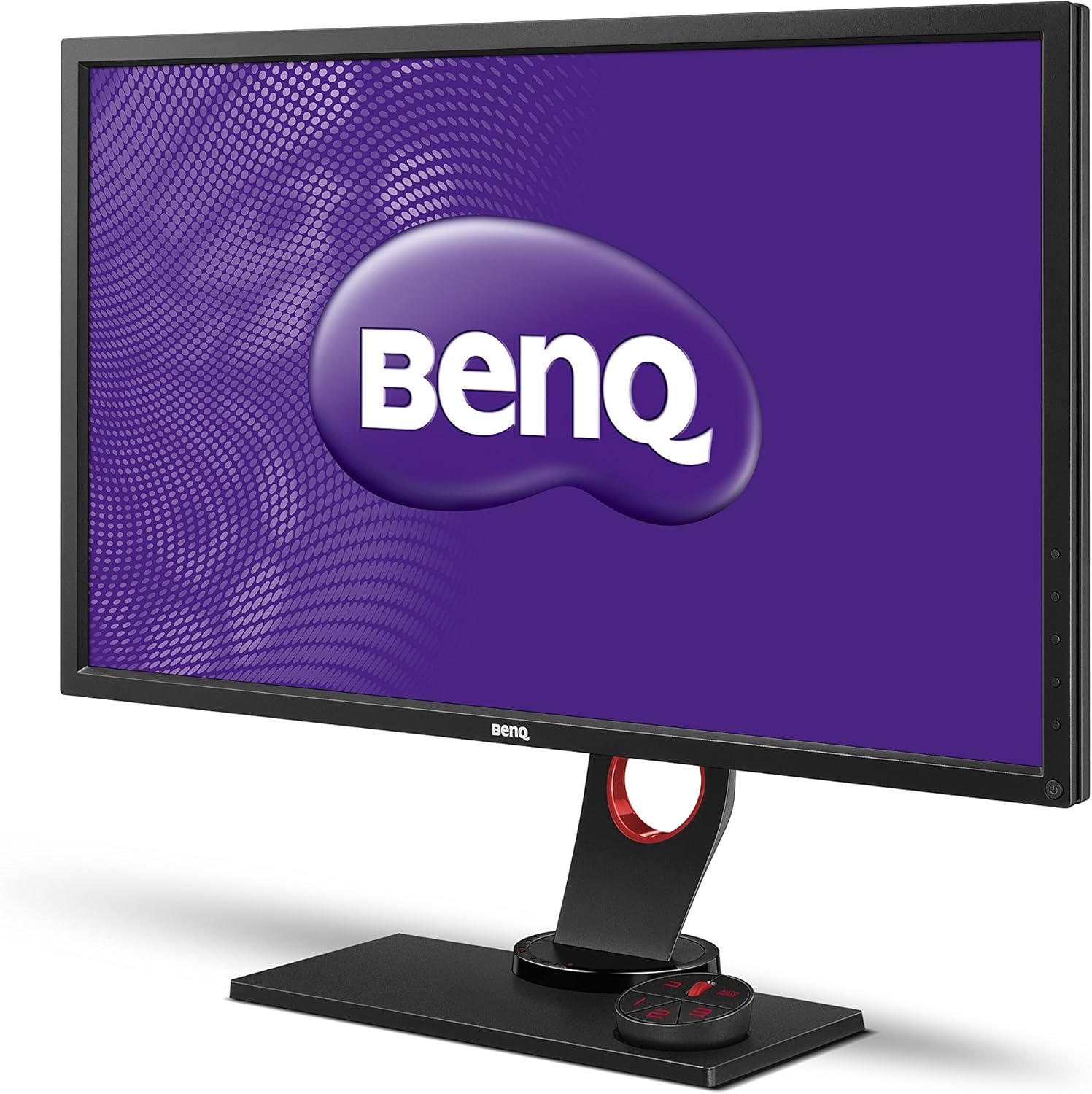
Gambar: Hareupeun view of the BenQ XL2730Z monitor, showcasing its design and the BenQ logo on the screen.
Parentah Setup
1. Ngarakit Monitor Stand
- Taliti cabut monitor jeung nangtung komponén tina bungkusan.
- Pasang beuheung nangtung ka panel monitor. Pastikeun éta ngaklik aman kana tempatna.
- Gantelkeun dasar nangtung kana beuheung nangtung. Tighten screw di handapeun dasarna pikeun ngamankeun eta.
Gambar: Angled view of the BenQ XL2730Z monitor, showing the assembled stand and the S Switch Arc controller.
2. Nyambungkeun Monitor
Sambungkeun kabel anu diperyogikeun kana port anu saluyu dina monitor sareng komputer anjeun.
- Kakuatan Kabel: Sambungkeun hiji tungtung kabel daya kana input daya monitor sareng tungtung anu sanésna kana stop kontak.
- Kabel Video:
- For optimal performance, use the provided DisplayPort cable to connect to your computer's DisplayPort output.
- Alternatively, use an HDMI or DVI cable. The monitor has 2 HDMI ports.
- Kabel USB: Connect the SuperSpeed USB cable from your computer to the monitor's upstream USB port to enable the monitor's USB hub functionality (4 USB ports available, 2 of which are USB 2.0).
- S Switch Arc: Connect the S Switch Arc remote control to its dedicated port on the monitor base for easy access to settings.
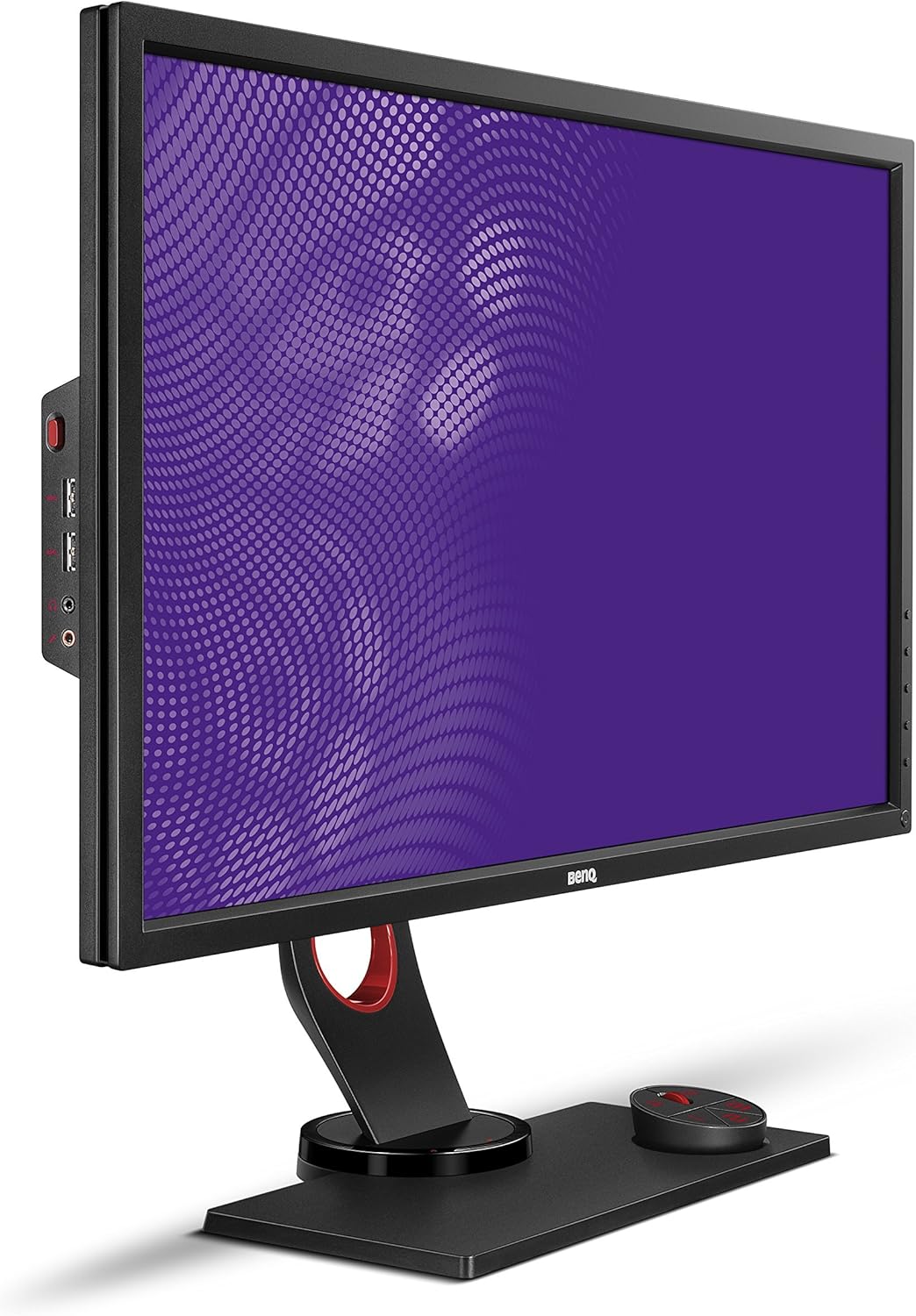
Gambar: Sisi view of the BenQ XL2730Z monitor, highlighting the input ports for power, video, and USB connections.
3. Daya Awal Hurung
Press the power button on the monitor. The power indicator will light up, and the BenQ logo will appear on the screen. If no image appears, ensure all cables are securely connected and your computer is powered on.
Parentah Operasi
1. Nyaluyukeun Setélan Témbongkeun
The BenQ XL2730Z offers various settings to optimize your viewing experience. Access the On-Screen Display (OSD) menu using the buttons on the monitor or the S Switch Arc.
- Resolusi & Laju Refresh: The monitor supports QHD (2560x1440) resolution and a 144Hz refresh rate. Ensure your graphics card settings are configured to utilize these capabilities for the smoothest performance.
- Color Vibrancy: Adjust the 20-level Color Vibrancy setting to fine-tune color saturation and hue to your preference.
- Ékualiser Hideung: This feature enhances visibility in dark scenes by automatically adjusting brightness without overexposing bright areas.
- Pangurangan Blur Gerak: Activate this setting to reduce motion blur, especially beneficial in fast-paced gaming scenarios.
- Adaptive-Sync (FreeSync): When connected via DisplayPort to a compatible graphics card, Adaptive-Sync technology synchronizes the monitor's refresh rate with the GPU's frame rate to eliminate screen tearing and stuttering.
- Low Blue Light & Zero Flicker: These technologies are integrated to reduce eye strain during extended use.
2. Using the S Switch Arc
The S Switch Arc is an external controller designed for quick access and customization of display settings. It features preset buttons that can be configured for different usage scenarios (e.g., gaming, work, entertainment).
- Kustomisasi: Assign your preferred display settings to the preset buttons for instant recall.
- Napigasi: Use the dial and buttons to navigate the OSD menu efficiently.
3. Auto Game Mode
The Auto Game Mode feature allows the XL2730Z to detect the genre of the game being played and automatically switch to the corresponding game mode, optimizing display settings for that specific game type.
Pangropéa
Ngabersihan Monitor
- Salawasna pareumkeun monitor sareng cabut kabel listrik sateuacan beberesih.
- Make kaen nu lemes, teu aya lint rada dampDieusian ku cai atanapi pembersih layar anu hampang sareng henteu abrasive.
- Ulah menyemprot cleaner langsung kana layar. Larapkeun heula kana lawon.
- Hindarkeun ngagunakeun bahan kimia kasar, pangleyur, atawa bahan abrasive, sabab ieu bisa ngaruksak layar atawa c.asing.
- Ngusap layar gently pikeun miceun lebu jeung smudges.
Pamérésan masalah
If you encounter issues with your BenQ XL2730Z monitor, refer to the following common problems and solutions:
| Masalah | Mungkin Cukang lantaranana / Solusi |
|---|---|
| Henteu aya gambar dina layar |
|
| Gambar buram atanapi menyimpang |
|
| Layar kedip-kedip |
|
| Warna némbongan lepat |
|
Lamun masalah persists sanggeus nyobian solusi ieu, mangga ngahubungan rojongan customer BenQ pikeun pitulung salajengna.
Spésifikasi teknis
| Fitur | Spésifikasi |
|---|---|
| merek | BenQ |
| Nomer modél | XL2730Z |
| Ukuran layar | 27 inci |
| Resolusi | QHD Wide 1440p (2560x1440) |
| Refresh Laju | 144 Hz |
| Waktu Tanggapan | 1 Milidetik (GTG) |
| Tipe tampilan | LCD LED-backlit |
| Rasio Aspék | 1.78:1 |
| Viewdina Angle | 178 darajat |
| Téhnologi konektipitas | DVI, HDMI (x2), DisplayPort, VGA |
| palabuhan USB | 4 (including 2 USB 2.0 ports) |
| Sync adaptif | FreeSync |
| Fitur tambahan | Black Equalizer, Motion Blur Reduction, 20-Level Color Vibrancy, Zero Flicker, Low Blue Light |
| Tipe Pamasangan | VESA Cocog |
| Item Beurat | 16.5 pon |
Garansi sareng Rojongan
Your BenQ XL2730Z monitor is covered by a limited warranty. For detailed warranty terms and conditions, please refer to the warranty card included with your product or visit the official BenQ websitus.
For technical support, service, or inquiries regarding your product, please contact BenQ customer support. Contact information can typically be found on the BenQ websitus atanapi dina dokuméntasi produk Anjeun.
BenQ Resmi Websitus: www.benq.com
Ask a question about this manual
Ask about setup, troubleshooting, compatibility, parts, safety, or missing instructions. Manuals+ will review the question and use this page’s manual context to help answer it.