1. Bubuka
This manual provides essential information for the safe and efficient use of your Acer B326HK 32-inch UHD 4K monitor. Please read this manual thoroughly before operating the device and retain it for future reference.
The Acer B326HK monitor features a 32-inch Ultra HD (4K2K) display with a resolution of 3840 x 2160 pixels, offering detailed imagery. It includes an ergonomic stand and supports VESA mounting for flexible placement. Connectivity options include DVI, MHL, DisplayPort, Mini DisplayPort, and a 5-port USB 3.0 hub.
2. Émbaran Kasalametan
- Salawasna simpen monitor dina permukaan anu stabil sareng rata supados henteu murag.
- Pastikeun ventilasi ditangtoskeun sabudeureun monitor. Ulah meungpeuk bukaan ventilasi.
- Paké ngan adaptor kakuatan jeung kabel disadiakeun ku produsén.
- Hindarkeun ngalaan monitor ka lembab, hujan, atanapi suhu anu ekstrim.
- Ulah nyobian ngalayanan monitor sorangan. Rujuk sadayana jasa ka tanaga anu mumpuni.
- Cabut monitor tina stop kontak sateuacan beberesih.
- Jauhkeun monitor tina médan magnét anu kuat.
3. Eusi Paket
Pastikeun yén sadaya item aya dina bungkusan:
- Acer B326HK LED-backlit LCD monitor - 32"
- Kabel DisplayPort
- Kabel DVI
- Kabel USB SuperSpeed
- Kabel listrik
- Manual pangguna (dokumén ieu)
4. Setélan
4.1 Ngarakit Stand Monitor
Carefully remove the monitor and stand components from the packaging. Follow the instructions below to attach the stand to the monitor panel.

Gambar 4.1: Hareupeun view of the Acer B326HK monitor with its ergonomic stand.
- Simpen panel monitor nyanghareup ka handap dina lawon anu lemes sareng bersih pikeun nyegah goresan.
- Sejajarkeun leungeun penyangga sareng slot pemasangan di bagian tukang monitor.
- Secure the stand arm to the monitor using the provided screws.
- Attach the base to the stand arm and tighten the thumb screw or screws from the bottom.
- Carefully lift the assembled monitor and place it on your desired surface.
The monitor also supports VESA compatible mounting (100x100mm) for wall mounts or alternative stands. Refer to your VESA mount's instructions for installation.
4.2 Nyambungkeun Kabel
Sambungkeun kabel anu diperyogikeun kana port anu saluyu di tukang monitor sareng komputer anjeun.
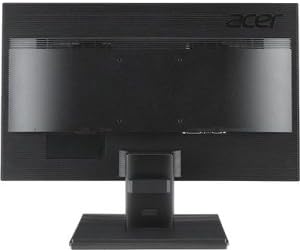
Gambar 4.2: Tukangeun view of the Acer B326HK monitor, highlighting the various input ports.
- Video Input: Connect one of the following video cables from your computer's graphics card to the monitor:
- DisplayPort cable (recommended for 4K resolution at 60Hz)
- Mini DisplayPort cable
- DVI cable (supports HDCP)
- MHL cable (for compatible mobile devices)
- USB Hulu: Connect the SuperSpeed USB cable from your computer to the monitor's USB upstream port to enable the monitor's USB 3.0 hub.
- USB Hilir: Use the 5 high-speed USB 3.0 ports on the monitor to connect peripherals like a mouse, keyboard, or for charging mobile devices.
- kakuatan: Sambungkeun kabel daya kana input daya monitor, teras colokkeun tungtung anu sanésna kana stop kontak anu di-ground.
5. Ngoperasikeun Monitor
5.1 Daya Hurung/Pareuman
Press the power button, usually located on the bottom right bezel, to turn the monitor on or off. The power indicator light will illuminate when the monitor is on.
5.2 Adjusting the Display (OSD Menu)
The On-Screen Display (OSD) menu allows you to adjust various monitor settings such as brightness, contrast, color, input source, and more. Use the control buttons located on the monitor's bezel to navigate the OSD menu.
- Pencét tombol OSD naon waé pikeun ngaktipkeun menu OSD.
- Anggo tombol navigasi (biasana panah) pikeun ngaléngkah dina pilihan ménu.
- Pencét tombol pilih pikeun asup ka sub-menu atanapi mastikeun setélan.
- Use the navigation buttons to adjust values or select options.
- Press the exit button to leave the OSD menu.
5.3 Pilihan Sumber Input
The monitor can automatically detect an active input source. If multiple sources are connected, you may need to manually select the desired input via the OSD menu. Navigate to the "Input" or "Source" section in the OSD and select your preferred input (e.g., DisplayPort, DVI, MHL).
5.4 Pangaluyuan ergonomic
The ergonomic stand ngamungkinkeun pikeun sagala rupa pangaluyuan pikeun ngaoptimalkeun Anjeun viewkanyamanan:
- Penyesuaian Jangkungna: Dorong atanapi tarik panel monitor ka luhur atanapi ka handap lalaunan.
- Penyesuaian Dengdekkeun: Tilt the monitor panel forward or backward to find the optimal viewsudut ing.
- Penyesuaian puteran: Puterkeun monitor ka kenca atawa ka katuhu dina dasarna.
- Penyesuaian pangsi: Rotate the monitor 90 degrees for portrait mode (ensure sufficient clearance).
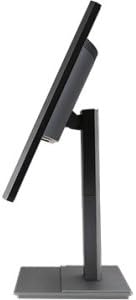
Gambar 5.1: Sisi view of the Acer B326HK monitor, demonstrating its tilt capability.
6. Pangropéa
Proper care ensures the longevity of your monitor.
- Ngabersihan layar:
- Pareuman monitor sareng cabut kabel listrik.
- Use a soft, lint-free cloth (e.g., microfiber) slightly dampdieusi cai atawa non-amonia, non-alkohol dumasar cleaner layar.
- Wipe the screen gently. Do not spray cleaner directly onto the screen.
- Ngabersihan Casing:
- Make kaen nu lemes tur garing pikeun ngusap monitor casing.
- Ulah make cleaners abrasive atawa pangleyur.
- Ventilasi: Ensure the ventilation openings on the monitor are clear of dust and debris.
7. Cara ngungkulan
Upami anjeun mendakan masalah sareng monitor anjeun, tingal solusi umum ieu:
| Masalah | Solusi anu mungkin |
|---|---|
| Taya kakuatan |
|
| No image / "No Signal" message |
|
| Gambar buram atanapi menyimpang |
|
| Color issues or incorrect display |
|
| Teu aya sora ti panyatur |
|
8. Spésifikasi
Key technical specifications for the Acer B326HK monitor:
| Fitur | Rincian |
|---|---|
| Nomer modél | B326HK ymjdpphz |
| Ukuran layar | 32 inci |
| Resolusi layar Max | 3840 x 2160 piksel (4K UHD 2160p) |
| Rasio Aspék | 16:9 |
| Waktu Tanggapan | 6 ms |
| Babandingan Kontras | 100,000,000: 1 (Dinamis) |
| Input Sinyal | 1 x DVI (w/HDCP), 1 x MHL, 1 x Display Port, 1 x Mini Display Port |
| palabuhan USB | 5 x USB 3.0 (1 upstream, 4 downstream) |
| VESA Gunung Cocog | Sumuhun |
| Item Beurat | 26.4 pon |
| Ukuran produk (L x W x H) | 10.49 x 29.05 x 18.63 inci |
| Produsén | Komputer Acer |
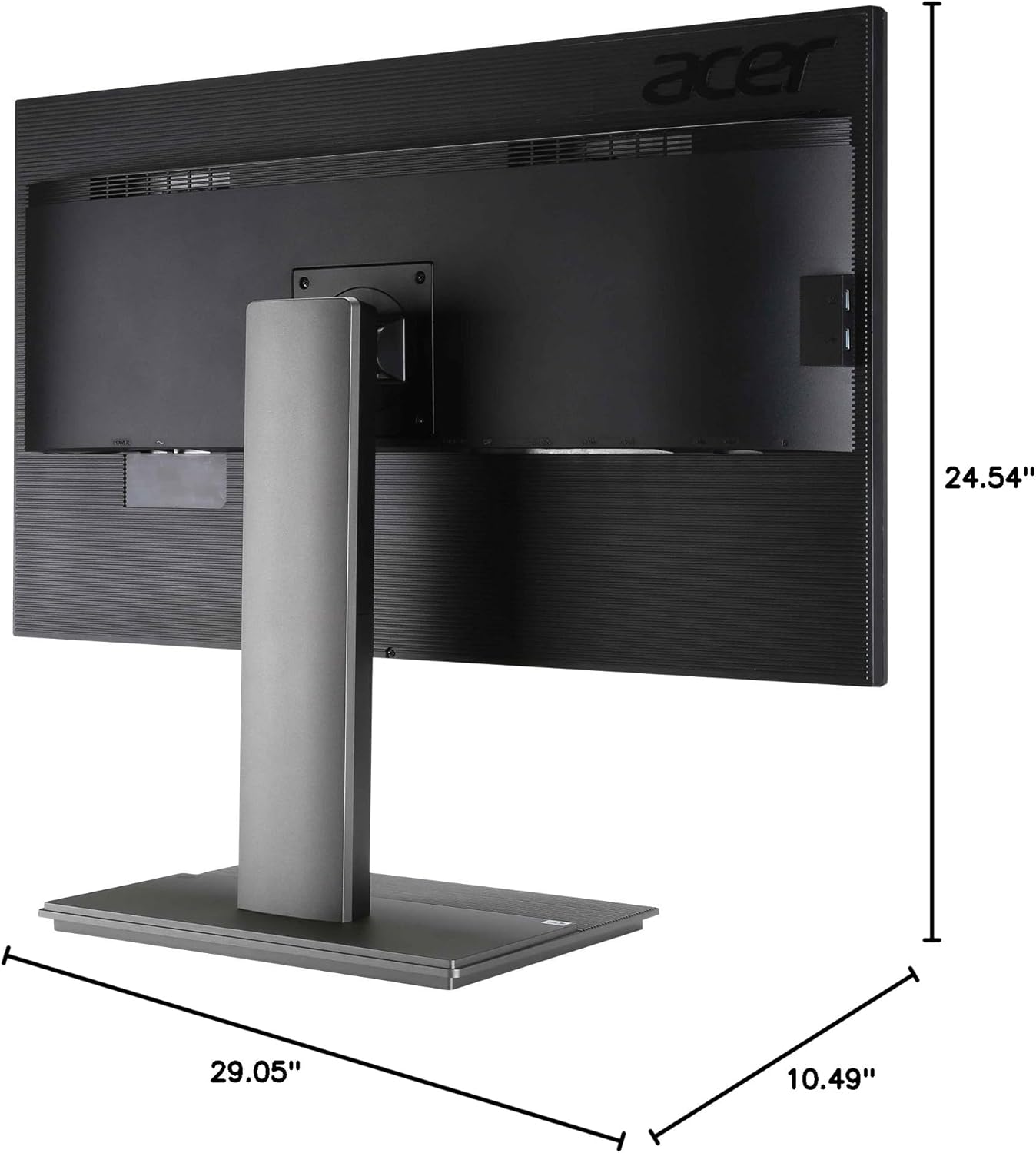
Gambar 8.1: Diménsi view of the Acer B326HK monitor.
9. Garansi jeung Rojongan
Kanggo inpormasi garansi sareng dukungan téknis, mangga tingal kartu garansi anu kalebet dina produk anjeun atanapi kunjungan dukungan resmi Acer website. You may need your monitor's serial number, which is typically located on a label on the back of the monitor.
Acer Resmi Websitus: https://www.acer.com/support


