Bubuka
The Argox AS-8000URG is a lightweight and easy-to-handle barcode scanner designed for retail applications. It offers intuitive operation, allowing users to simply point and scan without warm-up time. This scanner is capable of reading all commonly used barcode symbologies from contact up to a distance of 125mm. Its plug-and-play installation ensures quick setup for various retail and similar environments.

Figure 1: Argox AS-8000URG Barcode Scanner, showing its ergonomic design and cable connection.
Eusi pakét
Punten parios yén sadaya barang aya sareng dina kaayaan anu saé nalika muka bungkusan:
- Argox AS-8000URG Barcode Scanner
- Kabel Sambungan USB
- Manual pangguna (dokumén ieu)
Émbaran Kasalametan
To ensure safe operation and prolong the life of your scanner, please observe the following:
- Ulah ngantepkeun scanner ka suhu anu ekstrim, kalembaban, atanapi sinar panonpoé langsung.
- Ulah ngaleupaskeun scanner atawa ngabalukarkeun dampak anu kuat.
- Ulah nyobian ngabongkar atawa ngaropéa scanner teh. Ieu bakal ngabatalkeun jaminan.
- Jauhkeun scanner tina medan magnet anu kuat.
- Paké ngan kabel USB disadiakeun pikeun sambungan.
Disetél
The Argox AS-8000URG is designed for easy plug-and-play installation. Follow these steps to set up your scanner:
- Sambungkeun kabel USB: Locate the USB port on the scanner and firmly insert one end of the provided USB cable.
- Nyambung ka Komputer: Insert the other end of the USB cable into an available USB port on your computer (Laptop or Desktop).
- Pamasangan supir: For most operating systems (Windows, macOS, Linux), the scanner will be automatically detected and the necessary drivers installed. No manual driver installation is typically required.
- Siap dianggo: Once the operating system confirms the device is ready, the scanner is prepared for operation.
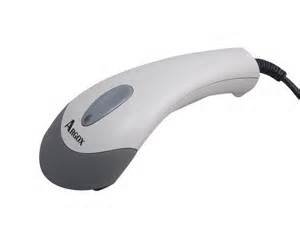
Gambar 2: Top view of the Argox AS-8000URG Barcode Scanner, highlighting the scanning window and brand logo.
Parentah Operasi
Using the Argox AS-8000URG Barcode Scanner is straightforward:
- Daya Hurung: The scanner receives power directly from the USB connection. There is no separate power button.
- Posisi: Tahan pamindai kalayan jandela pamindai ngahadap ka barkod.
- Nyeken: Press the trigger button located on the top of the scanner. A red scanning line will project from the window. Aim this line across the entire barcode.
- Konfirmasi: Upon successful scan, the scanner will typically emit an audible beep and/or a visual indicator (e.g., LED light change). The scanned data will be transmitted to your connected computer as if typed from a keyboard.
The scanning width of the AS-8000URG is approximately 95mm wide at a distance of 55mm, and 50mm wide at a distance of 10mm. This allows for efficient scanning of various barcode sizes.
Pangropéa
Pangropéa anu leres mastikeun umur panjang sareng kinerja optimal tina scanner barkod anjeun:
- Ngabersihkeun Jandela Scanning: Anggo kaén anu lemes sareng teu aya serat anu hampang dampened with water or a mild, non-abrasive cleaner. Do not use harsh chemicals or abrasive materials, as they can scratch the window and impair scanning performance.
- beberesih umum: Ngusap bagian luar alat panyeken nganggo kaén anu garing sareng lemes pikeun ngaleungitkeun lebu sareng kokotor.
- Panyimpenan: Nalika henteu dianggo, simpen scanner dina lingkungan anu bersih, garing, jauh tina sinar panonpoé langsung sareng suhu anu ekstrim.
- Perawatan kabel: Hindarkeun ngabengkokkeun atanapi ngabengkokkeun kabel USB kaleuleuwihi, sabab ieu tiasa ngaruksak kabel internal.
Pamérésan masalah
If you encounter issues with your Argox AS-8000URG scanner, refer to the following common problems and solutions:
| Masalah | Mungkin Cukang lantaranana | Solusi |
|---|---|---|
| Scanner does not power on / No light | kabel USB teu bener disambungkeun atawa faulty port USB. | Ensure the USB cable is securely connected to both the scanner and the computer. Try a different USB port on your computer. |
| Scanner does not read barcodes | Barcode damaged, scanning window dirty, incorrect aiming, or unsupported barcode symbology. | Ensure the barcode is clear and undamaged. Clean the scanning window. Aim the red line directly across the entire barcode. Verify the barcode type is supported. |
| Scanned data is incorrect or incomplete | Partial scan, software configuration issue. | Ensure the entire barcode is covered by the scanning line. Check your application or software settings for correct input. |
| Scanner beeps continuously | Indicates an error or configuration mode. | Disconnect and reconnect the USB cable. Refer to advanced programming guides (if available) for specific beep codes. |
spésifikasi
Key technical specifications for the Argox AS-8000URG Barcode Scanner:
| Fitur | Rincian |
|---|---|
| merek | Argox |
| Nomer modél | AS8000 |
| Téhnologi konektipitas | Kabel USB |
| Sumber Daya | Kabel Listrik |
| Alat nu cocog | Laptop, Desktop |
| Item Beurat | 310 g |
| Ukuran produk (L x W x H) | 15 x 5 x 4 cm |
| Nyeken Lebar | 95mm wide @ 55mm distance, 50mm wide @ 10mm |
| Warna | SHITE GREY |
Garansi sareng Rojongan
For warranty information or technical support, please contact your local Argox distributor or visit the official Argox websitus. Simpen resi pameseran anjeun salaku bukti pameseran pikeun klaim garansi.
Pikeun pitulung salajengna, anjeun ogé tiasa ngarujuk kana product page on Amazon.in.


