1. Bubuka
This manual provides comprehensive instructions for the installation, operation, and maintenance of the Juniper Networks EX4200-48PX Ethernet Switch. The EX4200-48PX is a high-performance, managed, stackable switch designed for enterprise access and aggregation deployments. It features 48 Gigabit Ethernet ports with Power over Ethernet Plus (PoE+) capabilities, ensuring reliable connectivity and power delivery for various network devices.
Key features include Layer 2 and Layer 3 switching, support for various data transfer protocols, and advanced security and management capabilities. Please read this manual thoroughly before operating the device to ensure proper setup and safe usage.
2. Émbaran Kasalametan
Perhatikeun pancegahan kaamanan di handap ieu pikeun nyegah tatu sareng karusakan alat:
- Kasalametan listrik: Ensure the power source matches the switch's voltage requirements (100-240V~50-60 Hz 12A). Use only the provided power cord or an approved replacement.
- Grounding: Always ensure the switch is properly grounded to prevent electrical shock.
- Ventilasi: Do not block ventilation openings. Ensure adequate airflow around the device to prevent overheating.
- Lingkungan: Operate the switch in a clean, dry environment within specified temperature and humidity ranges. Avoid exposure to moisture or extreme temperatures.
- Penanganan: The switch is heavy (approximately 25 pounds). Use proper lifting techniques or assistance when moving it.
3. Eusi Paket
Carefully unpack the box and verify that all items are present and in good condition. If any item is missing or damaged, contact your vendor immediately.

Gambar 3.1: Juniper EX4200-48PX switch as received in its packaging, including the switch unit, a power cable, and a network cable.
- Juniper EX4200-48PX Switch Unit
- Kabel listrik
- Kabel Ethernet
- Rack-mount Kit (typically includes brackets and screws)
- Dokuméntasi (Panduan Mimitian Gancang, Inpormasi Kasalametan)
4. Pedaran Fisik
4.1. Panel Hareup
The front panel of the EX4200-48PX switch features 48 Gigabit Ethernet ports, status indicators, and a small LCD display for local management and status monitoring.

Gambar 4.1: Hareupeun view of the Juniper EX4200-48PX switch, highlighting the 48 Gigabit Ethernet ports.

Gambar 4.2: Detail of the front panel showing the LCD display and status indicators: ALM (Alarm), SYS (System), and MST (Master). These LEDs provide quick visual status of the device's operational state.
4.2. Label produk
The product label, typically located on the chassis, provides essential identification details for the switch.
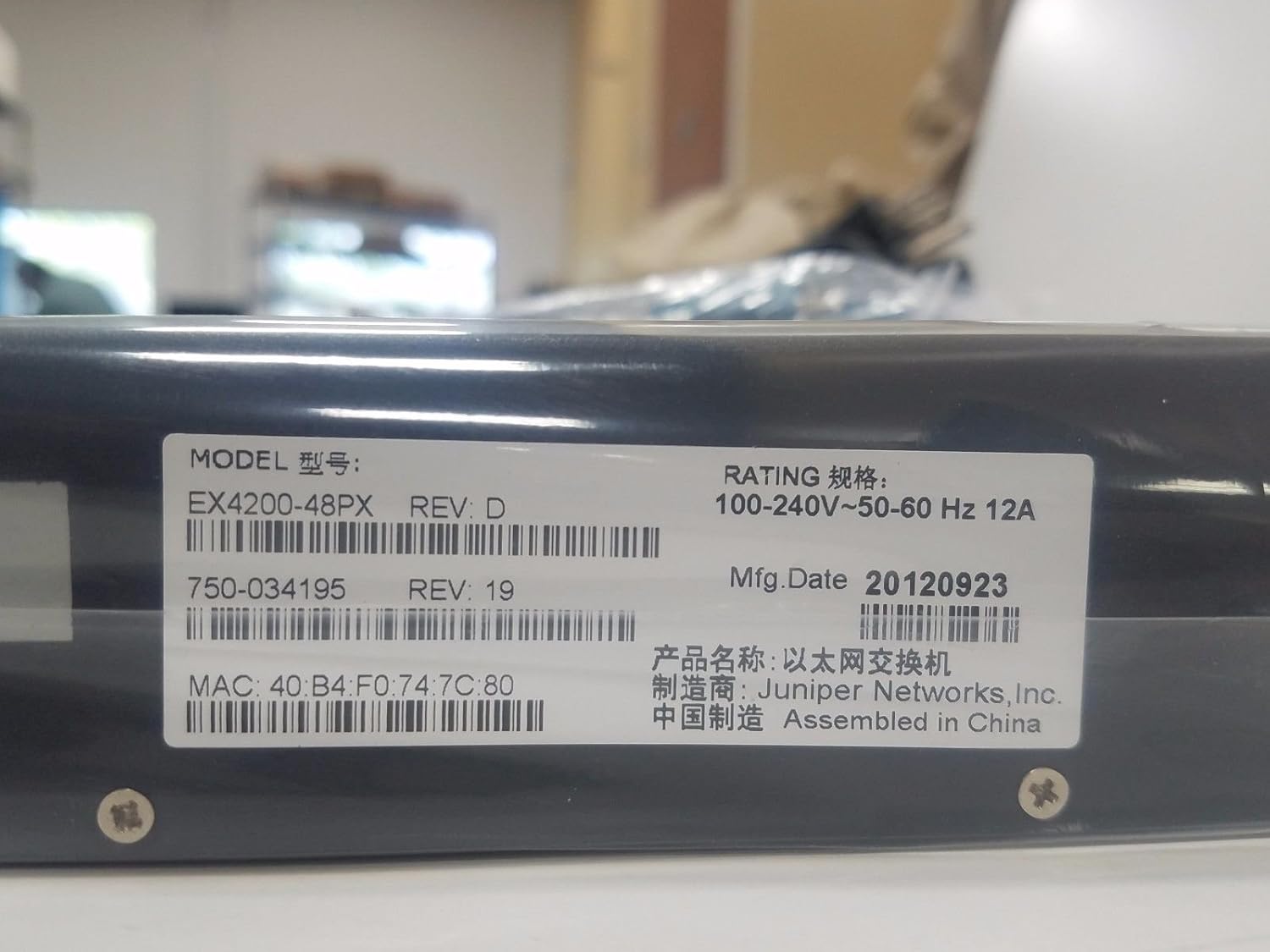
Gambar 4.3: Product label displaying the Model: EX4200-48PX REV: D, Rating: 100-240V~50-60 Hz 12A. Key identifiers include the MAC address: 40:B4:F0:74:7C:80, Part Number: 750-034195 REV: 19, and Manufacturing Date: 20120923. The device is manufactured by Juniper Networks, Inc. and assembled in China.
4.3. Rack Mounting Brackets
The switch is designed for rack installation, utilizing standard rack-mount ears.

Gambar 4.4: A nutup-up view of a rack mount ear, demonstrating the attachment point for securing the switch within a standard equipment rack.
5. Setélan
5.1. Pamasangan rak
- Attach the provided rack-mount brackets to the sides of the switch using the screws supplied in the rack-mount kit.
- Align the switch with the rack posts and secure it using appropriate rack screws. Ensure the switch is level and firmly seated.
5.2. Nyambungkeun Power
- Sambungkeun hiji tungtung kabel daya kana saluran masuk daya AC dina panel tukang saklar.
- Sambungkeun tungtung kabel daya anu sanésna kana stop kontak AC anu di-ground.
- The switch features a redundant internal power supply for enhanced reliability.
5.3. Connecting Network Devices
- Connect Ethernet cables from your network devices (computers, IP phones, wireless access points) to the 48 Gigabit Ethernet ports on the front panel.
- For devices requiring Power over Ethernet (PoE+), ensure they are compatible and connect them to any of the 48 ports. The switch will automatically detect and provide power.
- For uplink connections to other switches or routers, use appropriate Ethernet cables.
5.4. Konfigurasi Awal (Opsional)
For initial configuration or advanced management, connect a console cable (not typically included) to the console port (usually RJ-45) on the front or rear panel and connect it to a computer. Use a terminal emulation program to access the command-line interface (CLI).
6. Ngoperasikeun Switch
6.1. Powering on / Pareum
- Daya Hurung: Once the power cord is connected, the switch will typically power on automatically. Observe the system LEDs.
- Pareum listrik: To power off, disconnect the power cord from the AC outlet. For controlled shutdown, it is recommended to gracefully shut down the operating system via the CLI if possible, before disconnecting power.
6.2. Ngartos Indikator LED
The front panel LEDs provide critical status information:
- ALM (Alarm): Indicates system alarms or critical errors. Refer to the CLI or system logs for details.
- SYS (Sistem): Indicates the overall system status. Typically solid green for normal operation.
- MST (Master): Indicates if the switch is operating as the master in a Virtual Chassis configuration.
- Port LEDs: Unggal port Ethernet gaduh LED anu nunjukkeun status sareng aktivitas tautan.
7. Pangropéa
- beberesih: Periodically clean the exterior of the switch with a soft, dry cloth. Do not use liquid or aerosol cleaners. Ensure ventilation openings are free of dust and debris.
- Pembaruan firmware: Rutin pariksa dukungan Juniper Networks website for firmware updates. Applying updates can improve performance, add features, and address security vulnerabilities. Follow the manufacturer's instructions for firmware upgrade procedures.
- Pengawasan Lingkungan: Pastikeun lingkungan operasi tetep aya dina kisaran suhu sareng kalembaban anu ditangtukeun pikeun manjangkeun umur alat.
8. Cara ngungkulan
Bagian ieu nyadiakeun léngkah ngungkulan dasar pikeun masalah umum.
8.1. Taya Daya
- Pastikeun kabel listrik disambungkeun sacara aman ka saklar sareng stop kontak AC.
- Check if the AC outlet is functional by plugging in another device.
- Ensure the power supply is receiving power (check for any power supply LEDs if available).
8.2. Taya Tumbu on Port
- Check the Ethernet cable for damage and ensure it is properly seated at both ends.
- Pastikeun alat nu disambungkeun dihurungkeun tur fungsina leres.
- Check the port configuration on the switch (e.g., speed, duplex settings) via the CLI.
8.3. Masalah Konektipitas Jaringan
- Check the SYS LED for any alarm indications.
- Verify IP addressing and subnet mask configurations on connected devices and the switch.
- Pastikeun routing dikonpigurasi leres upami alat aya dina subnet anu béda.
- Consult the Juniper Networks documentation for advanced troubleshooting or contact technical support.
9. Spésifikasi
The following table outlines the key specifications for the Juniper EX4200-48PX switch:
| Fitur | Katerangan |
|---|---|
| Modél | EX4200-48PX |
| merek | Jaringan Juniper |
| Jumlah Palabuhan | 48 |
| Tipe panganteur | PoE+ (Power over Ethernet Plus) |
| Laju Mindahkeun Data | 1000 Megabit Per Detik (Gigabit Ethernet) |
| Ngalihkeun Kamampuh | Lapisan 2, Lapisan 3 |
| Sasayogian tanaga | Redundant - Internal |
| Fitur | 256-bit encryption, ARP support, Auto-uplink (auto MDI/MDI-X), DHCP proxy/server/snooping/support, DoS attack prevention, Dynamic ARP Inspection (DAI), Graceful Route Engine Switchover (GRES), High Availability, Hot swap module replacement, IGMP snooping, IPv6 support, Jumbo Frames support, MPLS support, Non-Stop Bridging (NSB), Non-Stop Routing (NSR), Quality of Service (QoS), RADIUS support, Redundant trunk group (RTG), Routing, Store and forward, Syslog support, Temperature sensor, Time Domain Reflectometry (TDR), Virtual Chassis technology, VLAN support. |
| Bahan | logam |
| Item Beurat | 25 pon |
| UPC | 695087049426 |
| Produsén | Juniper |
| Tanggal Sadia munggaran | 10 April 2017 |
10. Garansi jeung Rojongan
The Juniper EX4200-48PX switch is covered by a manufacturer's warranty. For specific warranty terms and conditions, please refer to the documentation provided with your purchase or visit the official Juniper Networks websitus.
For technical support, product documentation, and software downloads, please visit the Juniper Networks support portal. Ensure you have your product model and serial number available when contacting support.


