1. Bubuka
This manual provides comprehensive instructions for the Baseus A05 Wireless Bluetooth 5.0 Headset and its accompanying USB Docking Station. Please read this manual carefully before using the product to ensure proper operation and to maximize its lifespan. Keep this manual for future reference.
2. Produk Langkungview
The Baseus A05 is a wireless Bluetooth headset designed for convenient communication and audio playback. It features Bluetooth 5.0 connectivity and comes with a unique USB docking station for charging and storage.
2.1. Eusi Paket
- Baseus A05 Wireless Bluetooth Headset
- USB Docking Station (integrated with headset)
- Interchangeable Ear Tips (various sizes)
- Ceuli Hook
- Adaptor USB-C
- Manual pangguna (dokumén ieu)
2.2. Idéntifikasi komponén
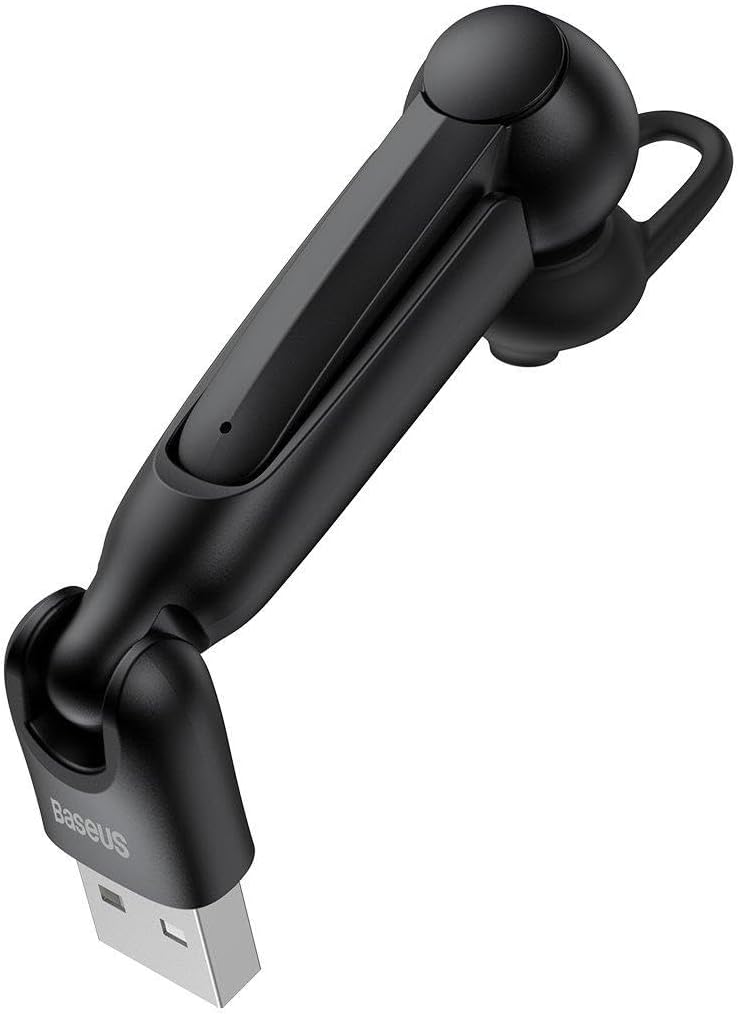
Gambar 1: Baseus A05 Wireless Bluetooth Headset with its integrated USB connector. This image shows the headset in its extended form, ready for use or charging via the USB-A plug.

Gambar 2: All components included with the Baseus A05 headset. This includes the main headset unit, two sizes of ear tips, an ear hook for secure fit, and a USB-C adapter for broader compatibility.

Gambar 3: A detailed close-up of the Baseus A05 earpiece, showing the ergonomic design and the ear tip in place. This view highlights the part that fits into the ear canal.

Gambar 4: The Baseus A05 headset magnetically docked into its USB charging station. This illustrates how the headset connects to the USB-A plug for power, showing the magnetic connection points.
3. Setélan
3.1. Ngecas Headsét
- Locate the USB connector integrated into the headset.
- Plug the USB connector directly into a powered USB port (e.g., computer, wall adapter, car charger). If your device has a USB-C port, use the provided USB-C adapter.
- The indicator light on the headset will illuminate during charging and change color or turn off when fully charged.
- Ngeusi batre pinuh biasana nyandak kirang langkung 1.5 jam.
Note: Ensure the headset is fully charged before first use.
3.2. Nyocogkeun Headsét
- Select the appropriate ear tip size for a comfortable and secure fit. Gently pull off the pre-installed ear tip and replace it with your preferred size.
- If desired, attach the ear hook for added stability. The ear hook can be rotated to fit either the left or right ear.
- Insert the earpiece into your ear canal and adjust the headset until it feels secure and comfortable.
4. Parentah Operasi
4.1. Daya Hurung / Pareum
- Daya Hurung: Press and hold the Multi-function Button (MFB) for approximately 3 seconds until the indicator light flashes blue.
- Pareum listrik: Press and hold the MFB for approximately 5 seconds until the indicator light flashes red and then turns off.
4.2. Papasangan Bluetooth
- Pastikeun headset pareum.
- Press and hold the MFB for approximately 5-7 seconds until the indicator light flashes red and blue alternately. This indicates pairing mode.
- Dina alat anjeun (smartphone, tablet, komputer), aktipkeun Bluetooth sareng milarian alat anu sayogi.
- Select "Baseus A05" from the list of found devices.
- Once paired, the indicator light on the headset will flash blue slowly.
- Upami peryogi kecap akses, lebetkeun "0000".
Note: The headset will automatically attempt to reconnect to the last paired device when powered on.
4.3. Manajemén nelepon
- Ngajawab / mungkas Telepon: Pencét pondok MFB.
- Nolak Telepon: Pencét terus tahan MFB salila kurang leuwih 2 detik.
- Telepon deui Nomer Panungtungan: Pencét dua kali MFB.
4.4. Puterkeun Musik
- Puter / Reureuh: Pencét pondok MFB.
- Lagu salajengna: Press and hold the Volume Up button (if available, otherwise use device controls).
- Lagu Sateuacanna: Press and hold the Volume Down button (if available, otherwise use device controls).
Note: Specific button functions may vary slightly depending on your connected device.
5. Pangropéa
- beberesih: Anggo lawon anu lemes sareng garing pikeun ngabersihkeun headset. Entong nganggo pembersih atanapi pelarut anu abrasif.
- Panyimpenan: Nalika henteu dianggo, simpen headset di tempat anu tiis, garing, jauh tina sinar panonpoé langsung sareng suhu anu ekstrim.
- Perawatan batré: Pikeun manjangkeun umur batréna, ulah sering ngecas headset nepi ka béak. Cas sacara rutin, sanajan teu dianggo lila.
- Tahan cai: This headset is not waterproof. Avoid exposure to liquids.
6. Cara ngungkulan
| Masalah | Mungkin Cukang lantaranana | Solusi |
|---|---|---|
| Headset teu hurung. | batré lemah. | Cas headset nepi ka pinuh. |
| Teu tiasa dipasangkeun sareng alat. | Headset not in pairing mode; Bluetooth off on device; device too far. | Ensure headset is in pairing mode (flashing red/blue). Turn on Bluetooth on your device. Move headset closer to device (within 10 meters). |
| Taya sora atawa kualitas audio goréng. | Volume too low; headset not properly connected; interference. | Increase volume on both headset and device. Re-pair the headset. Move away from sources of interference. |
| Microphone not working (as per user review). | Microphone obstruction; software issue; hardware defect. | Ensure microphone is not covered. Check device settings for microphone input. If issue persists, contact customer support. |
7. Spésifikasi
- merek: Baseus
- Ngaran modél: A05
- Jumlah modél: A0002011
- Téknologi konektipitas: Nirkabel (Bluetooth 5.0)
- Batré: Léci-ion tiasa diisi ulang
- Total palabuhan USB: 1 (integrated for charging)
- Fitur husus: Magnetic docking for charging
- Beurat barang: 50 gram
- Alat anu cocog: Auriculares (Headphones/Earphones) - Note: This likely refers to the headset itself being an earphone device.
- Fitur kabel: Tangle-free (as it's wireless)
- Katerangan rentang umur: Dewasa
8. Garansi jeung Rojongan
Specific warranty information for the Baseus A05 headset is not provided in this document. For details regarding warranty coverage, technical support, or service, please refer to the official Baseus websitus atanapi ngahubungan pangecér Anjeun.
Pikeun pitulung salajengna, mangga buka: www.baseus.com (This is a placeholder link, please verify the official support websitus).


