1. Bubuka jeung Leuwihview
This manual provides comprehensive instructions for the setup, operation, maintenance, and troubleshooting of your InFocus IN3124 Projector. Designed for clarity and ease of use, this guide will help you maximize your projector's performance and longevity.
The InFocus IN3124 is a high-performance projector featuring XGA (1024 x 868) native resolution, 4800 lumens of brightness, and a 3000:1 contrast ratio, making it suitable for various presentation environments. Its portable design allows for flexible placement and usage.
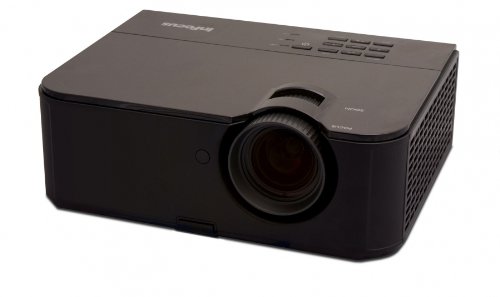
Gambar 1: Pahareup-hareup view of the InFocus IN3124 Projector, highlighting the main lens and the top-mounted control panel.
2. Setélan
2.1 Ngabongkar bungkusan
Cabut proyektor sareng sadaya asesoris sacara saksama tina bungkusan. Pastikeun yén sadaya komponén anu didaptarkeun dina daptar bungkusan aya. Simpen bungkusan aslina pikeun transportasi atanapi neundeun ka hareup.
2.2 Nempatkeun
Position the projector on a stable, level surface. Ensure adequate ventilation around the unit to prevent overheating. Maintain a clear path between the projector lens and the projection screen or surface. The optimal projection distance will vary based on the desired screen size.
2.3 Nyambungkeun Daya
- Sambungkeun kabel listrik kana input kakuatan proyektor.
- Colokkeun tungtung kabel listrik anu sanés kana stop kontak listrik anu dibumikeun.
2.4 Nyambungkeun Sumber Input
The IN3124 projector supports various input sources. Connect your video source (e.g., computer, DVD player) to the appropriate input port on the projector. Common ports include VGA and HDMI (if available on your specific model).
- VGA: Use a VGA cable to connect to a computer's video output.
- HDMI: Use an HDMI cable for digital video and audio (check projector for HDMI port availability).
3. Parentah Operasi
3.1 Powering on / Pareum
- Pikeun Ngahurungkeun: Press the power button on the projector's control panel or the remote control. The power indicator light will illuminate.
- Pikeun mareuman: Press the power button twice. The projector will enter a cooling cycle before shutting down completely. Do not unplug the projector during the cooling cycle.
3.2 Nyaluyukeun Fokus sareng Zoom
Rotate the focus ring on the projector lens until the image appears sharp and clear. Use the zoom ring (if present) to adjust the image size to fit your screen.
3.3 Milih Sumber Input
Press the "Source" or "Input" button on the projector's control panel or remote control to cycle through available input sources (e.g., VGA, HDMI). Select the input corresponding to your connected device.
3.4 Menu Navigation and Keystone Correction
Use the menu buttons on the projector or remote to access the On-Screen Display (OSD). Navigate through the menu options to adjust settings such as brightness, contrast, color, and keystone correction. Keystone correction helps to square the image if the projector is not perfectly perpendicular to the screen.
4. Pangropéa
4.1 Ngabersihan Lensa
Lap lénsa proyéktor sacara saksama nganggo lawon lemes anu henteu ngaganggu anu khusus dirancang pikeun permukaan optik. Entong nganggo pembersih anu kasar atanapi kakuatan anu kaleuleuwihi, sabab ieu tiasa ngagores lénsa.
4.2 Ngabersihkeun Saringan Udara
Regularly check and clean the projector's air filters to ensure proper airflow and prevent overheating. Refer to the projector's specific filter access instructions. Use a soft brush or vacuum cleaner to remove dust accumulation.
4.3 Lamp Panggantian
Proyéktor lamp boga umur nu tangtu. Nalika lamp life indicator appears or the image becomes dim, the lamp may need replacement. Consult the full service manual or manufacturer's websitus pikeun l lengkepamp replacement procedures and compatible lamp models. Always allow the projector to cool down completely before attempting lamp ngagantian.
4.4 Panyimpenan
Lamun teu dipake keur lila, nyimpen projector dina tiis, tempat garing, jauh tina sinar panonpoé langsung jeung hawa ekstrim. Anggo bungkusan asli atanapi wadah pelindung pikeun nyegah lebu sareng karusakan.
5. Cara ngungkulan
This section addresses common issues you might encounter with your InFocus IN3124 Projector. For more complex problems, contact customer support.
- Teu aya gambar anu ditampilkeun:
- Ensure the projector is powered on and the power indicator is solid.
- Verify that the input source cable (VGA, HDMI) is securely connected to both the projector and the source device.
- Pilih sumber input anu leres nganggo tombol "Sumber".
- Pariksa naha alat sumber ngaluarkeun sinyal.
- Dim or Faded Image:
- Atur setélan kacaangan sareng kontras dina menu OSD.
- Pastikeun lamp is not nearing the end of its lifespan.
- Clean the projector lens and air filters.
- Check the projection mode (e.g., Eco mode might reduce brightness).
- Gambar kabur:
- Saluyukeun ring pokus dina lensa proyektor.
- Pastikeun beungeut proyéksi datar tur projector stabil.
- Check the resolution settings of your source device to match the projector's native resolution.
- Remote Control Teu Gawé:
- Ganti batré dina kadali jauh.
- Pastikeun teu aya halangan antara remot sareng panarima IR proyéktor.
- Arahkeun remot langsung ka proyéktor.
6. Spésifikasi
The following table outlines the key technical specifications for the InFocus IN3124 Projector:
| Fitur | Spésifikasi |
|---|---|
| Nomer modél | IN3124 |
| Résolusi Tampilan (Asli) | XGA (1024 x 868) |
| Caang | 4800 lumén |
| Babandingan Kontras | 3000:1 |
| Tipe tampilan | LCD, LCoS |
| Item Beurat | 8.16 pon (3.7 kg) |
| Ukuran produk (L x W x H) | 12.83 x 10.43 x 4.8 inci (32.59 x 26.49 x 12.19 cm) |
| Fitur husus | Portabel |
7. Garansi jeung Rojongan
For detailed warranty information, please refer to the warranty card included with your product packaging or visit the official InFocus websitus. Garansi biasana nyertakeun cacad manufaktur pikeun période anu ditangtukeun ti tanggal pameseran.
If you encounter issues that cannot be resolved using the troubleshooting guide, or require technical assistance, please contact InFocus customer support. Contact details can usually be found on the manufacturer's websitus atanapi dina dokuméntasi produk Anjeun.


