1. Produk Langkungview
The DUALSHOCK 4 Wireless Controller is designed for the PlayStation 4 system, offering an enhanced gaming experience with precise controls and innovative features.
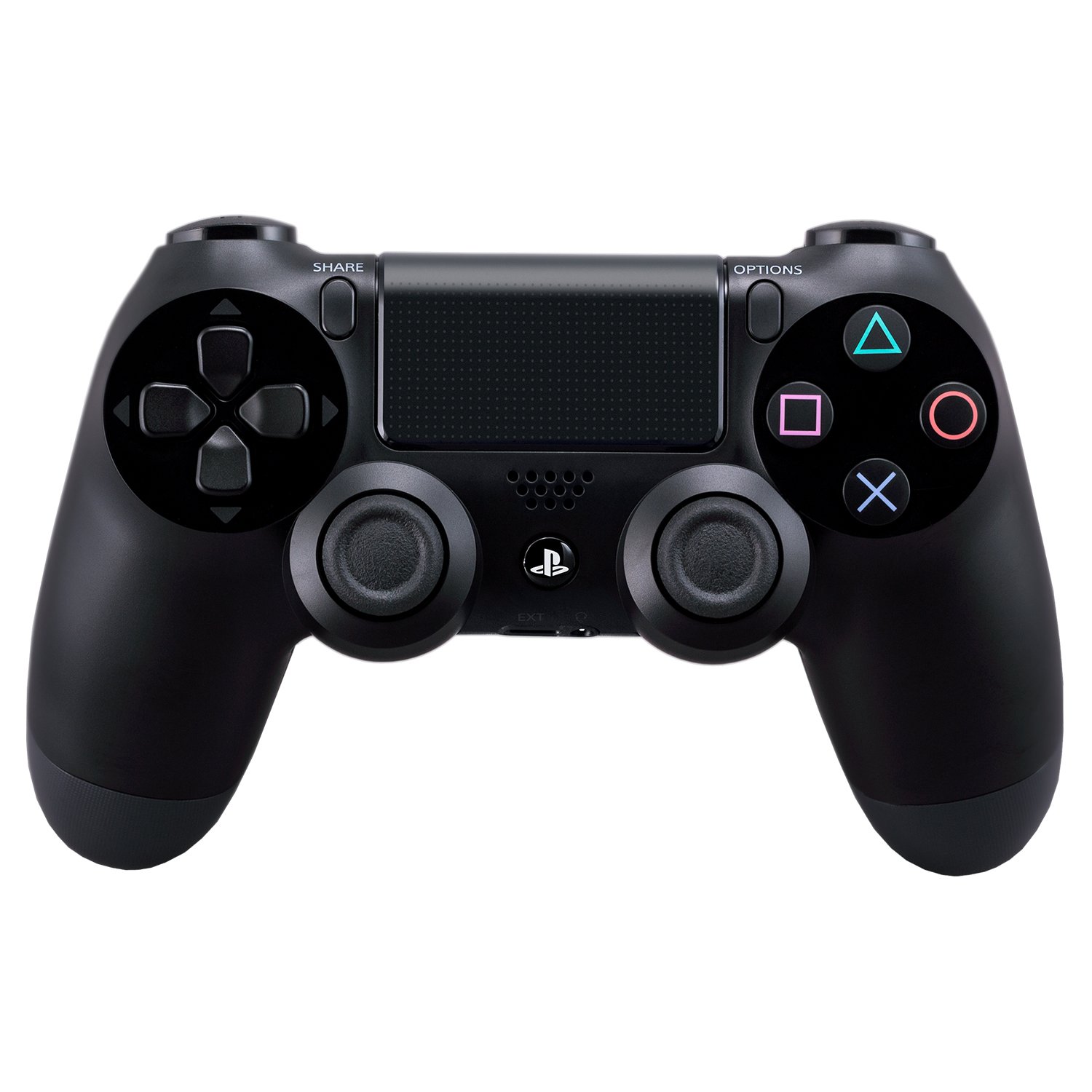
Hareupeun view of the DUALSHOCK 4 Wireless Controller, showcasing the analog sticks, D-pad, action buttons, touch pad, and PlayStation button.
Fitur konci:
- Kontrol Precision: Enhanced analog sticks and trigger buttons provide absolute control for all games.
- Kamampuhan ngabagi: The Share button allows for easy uploading of gameplay videos and screenshots, or live-streaming.
- Cara anyar maén: Features like the touch pad, integrated light bar, and built-in speaker offer immersive interaction.
- Audio Pribadi: A 3.5mm audio jack provides a private audio solution for gamers.
- Ngecas efisien: Rechargeable via the PlayStation 4 system (even on standby) or any standard micro-USB charger.
2. Setélan
Initial Pairing with PlayStation 4:
- Connect the DUALSHOCK 4 controller to your PlayStation 4 system using a micro-USB cable.
- Press the PlayStation button (PS button) located in the center of the controller.
- The controller will automatically pair with your system. Once paired, you can disconnect the USB cable for wireless use.
Ngecas Controller:
The DUALSHOCK 4 controller contains a built-in rechargeable battery. To charge:
- Connect the controller to your PlayStation 4 system using a micro-USB cable. The system can charge the controller even when in standby mode.
- Alternatively, use a standard micro-USB charger (not included with all models) to charge the controller via a wall outlet.
The light bar on the controller will slowly blink orange while charging and turn off when fully charged.
3. Parentah Operasi
Kontrol dasar:
- Tongkat analog: Use for precise movement and camera control.
- D-Pad (Alas Arah): For menu navigation and specific in-game actions.
- Tombol Aksi (Segitiga, Bunderan, Palang, Kotak): Perform various in-game actions.
- Shoulder Buttons (L1, R1) & Trigger Buttons (L2, R2): Used for aiming, firing, and other contextual actions.

Angled view of the DUALSHOCK 4 Wireless Controller, highlighting the shoulder buttons (L1, R1, L2, R2) and the light bar.
Fitur husus:
- Tombol Bagikeun: Press to access sharing options, including uploading screenshots and video clips, or starting a live broadcast.
- Toél Pad: A multi-touch, clickable surface that offers new gameplay possibilities and navigation.
- Integrated Light Bar: Changes color to reflect in-game actions, player health, or to identify players in multiplayer.
- Speaker Diwangun-di: Provides additional audio cues directly from the controller, enhancing immersion.
- 3.5mm Audio Jack: Connect a headset for private audio and voice chat.
Video Produk Resmi:
PS4 Dualshock 4 Controller Tech
video ieu nyadiakeun leuwihview of the technical aspects and features of the DUALSHOCK 4 Controller.
DualShock 4 Controllers
This video demonstrates various DUALSHOCK 4 Controllers, highlighting their design and functionality.
4. Pangropéa
Perawatan batré:
- Ulah sering-sering nyedot batréna nepi ka béak sangkan umurna leuwih lila.
- Charge the controller regularly, even if not in constant use.
- The controller uses a lithium-ion battery. Do not attempt to replace it yourself. Contact PlayStation support for battery service.
beberesih:
- Use a soft, dry cloth to clean the controller.
- Hindarkeun ngagunakeun bahan kimia anu kasar atanapi bahan abrasive.
5. Cara ngungkulan
Kontroler Teu Nyambung/Ngapasangkeun:
- Pastikeun controller dieusi.
- Connect the controller directly to the PS4 with a USB cable and press the PS button to re-establish connection.
- If issues persist, try resetting the controller: Locate the small reset button on the back of the controller (near the L2 shoulder button). Use a thin object (like a straightened paperclip) to press and hold the button for 3-5 seconds. Then, reconnect the controller via USB.
Kahirupan batré pondok:
- Reduce the brightness of the light bar in the PS4 settings.
- Disable the built-in speaker if not needed.
- Pastikeun pangontrol dicas pinuh sateuacan dianggo.
6. Spésifikasi
| Fitur | Rincian |
|---|---|
| Nomer modél | 10037 |
| ASIN | B00BGA9X9W |
| Dimensi produk | 2.5 x 6.75 x 7.25 inci |
| Item Beurat | 11.8 ons |
| Produsén | Sony PlayStation |
| Batré | 2 AAA batteries required (internal rechargeable battery, likely refers to initial setup or older model info) |
| Konektipitas | Wireless (Bluetooth), Micro-USB |
| Kaluaran Audio | Built-in speaker, 3.5mm stereo headset jack |
7. Garansi jeung Rojongan
Inpormasi Garansi:
This PlayStation DUALSHOCK 4 Wireless Controller comes with a standard manufacturer's warranty. Please refer to the warranty card included in the original packaging or visit the official PlayStation websitus pikeun istilah jeung kaayaan lengkep.
Rojongan Palanggan:
For technical assistance, troubleshooting, or service inquiries, please contact PlayStation Customer Support:
- Websitus: Nganjang playstation.com/support
- Telepon: Check the PlayStation support websitus pikeun nomer kontak régional.


