1. Bubuka
The Marantz UD7007 is a universal disc player designed for high-quality video and audio playback. It supports Blu-ray discs, DVDs, and CDs, as well as high-resolution audio formats like Super Audio CDs and DVD-Audio. This player also offers internet entertainment streaming capabilities through its network connection.
The UD7007 incorporates Marantz's HDAM SA2 (Hyper Dynamic Amplifier Modules) in its analog audio circuitry and features balanced output terminals for enhanced sound quality. The unit's construction is engineered to minimize interference and vibrations, contributing to its performance.
2. Fitur konci
- Universal Disc Playability: Supports Blu-ray, DVD Audio, DVD Video, Super Audio CD, and CD formats.
- Dual HDMI Outputs: Two HDMI outputs with separated audio and video signal transport (Pure AV Direct mode).
- High-Performance 2-Channel Audio: Features HDAM via balanced and RCA outputs.
- Network Streaming: Access to various online video and music services including YouTube, Netflix, Vudu, and Hulu Plus.
- Quick Response: Fast disc loading and playback, with a Quick Start Mode for even quicker operation.
- DLNA 1.5 Support: For photo, video, and music streaming from a networked PC.
- USB Port: For content streaming from USB drives and other removable storage media.
- Supported Digital Formats: MP3, WMA, AAC, WAV, FLAC, JPEG, PNG, DivX, MPEG, WMV, and AVI.
3. Setup jeung Sambungan
3.1 Ngabongkar bungkusan
Carefully remove the UD7007 player and all accessories from the packaging. Retain the packaging for future transport or storage.
3.2 Panel hareup Leuwihview
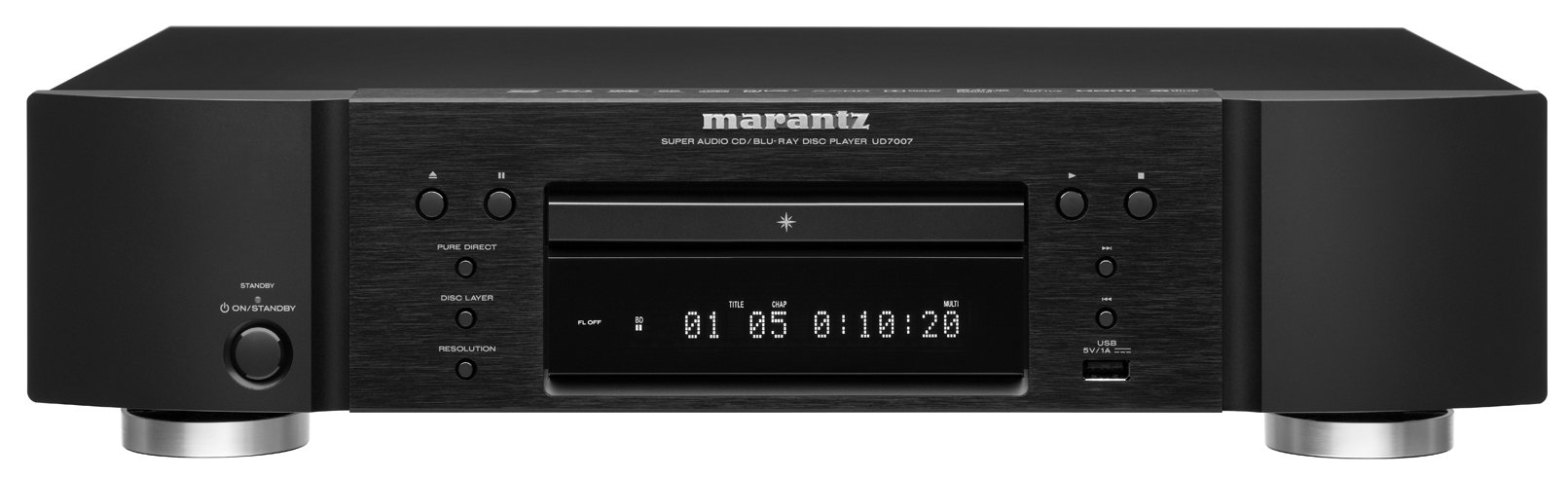
Gambar 3.2.1: Hareupeun view of the Marantz UD7007 Universal Disc Player. This image shows the disc tray, display, control buttons, and power button on the front panel.
3.3 Sambungan Panel Rear
Before making any connections, ensure the player and all connected devices are powered off.

Gambar 3.3.1: Rear panel of the Marantz UD7007, displaying various input and output ports including HDMI, analog audio, digital audio, Ethernet, and remote control jacks.
3.3.1 Video Connections (HDMI)
- Connect an HDMI cable from one of the player's HDMI OUT ports to an HDMI input on your TV or AV receiver.
- The UD7007 features two HDMI outputs, allowing for separate audio and video signal routing if desired.
3.3.2 Panyambung Audio
- Audio Analog: For stereo audio, connect RCA cables from the player's ANALOG AUDIO OUT (L/R) to the corresponding inputs on your amplifier or receiver. For balanced audio, use XLR cables from the BALANCED OUT (L/R).
- Audio Digital: Connect an optical or coaxial digital cable from the player's DIGITAL AUDIO OUT to your AV receiver or DAC for multi-channel audio.
3.3.3 Sambungan Jaringan
- Connect an Ethernet cable from the player's NETWORK port to your home router or network switch. This enables access to online streaming services and DLNA features.
3.3.4 Sambungan USB
- A USB port is located on the front panel for connecting USB storage devices.
3.4 Sambungan Daya
After all other connections are made, connect the supplied power cord to the AC IN terminal on the rear of the player and then to a wall outlet.
4. Operasi dasar
4.1 Powering on / Pareum
Pencét éta sayaga / ON button on the front panel or the remote control to power the unit on or off.
4.2 Putereun Disk
- Pencét éta BUKA/TUTUP tombol pikeun muka baki disk.
- Place a disc gently onto the disc tray with the label side facing up.
- Pencét éta BUKA/TUTUP tombol deui pikeun nutup baki.
- Playback will typically start automatically. If not, press the ulin kancing.
4.3 Fungsi Remote Control

Gambar 4.3.1: The remote control for the Marantz UD7007, featuring glowing keys for easier operation in low light conditions.
The remote control provides access to all player functions. Key buttons include:
- Power (Standby/On): Ngahurungkeun atanapi mareuman pamuter.
- Disc Tray (Open/Close): Muka jeung nutup baki disc.
- Kadali Puteran: Maénkeun, Pareum, Eureun, Maju Gancang, Mundur, Luncat.
- Napigasi: Arrow keys and ENTER for menu navigation.
- DISETÉL: Ngaksés ménu setélan utama.
- BANDUNG: Returns to the main home menu for streaming services.
- RESOLUSI: Adjusts video output resolution.
- Dedicated buttons for streaming services like Netflix, YouTube, Hulu, and Vudu.
4.4 Jaringan Streaming
Ensure the player is connected to your network via Ethernet. From the Home Menu, select the desired streaming service.
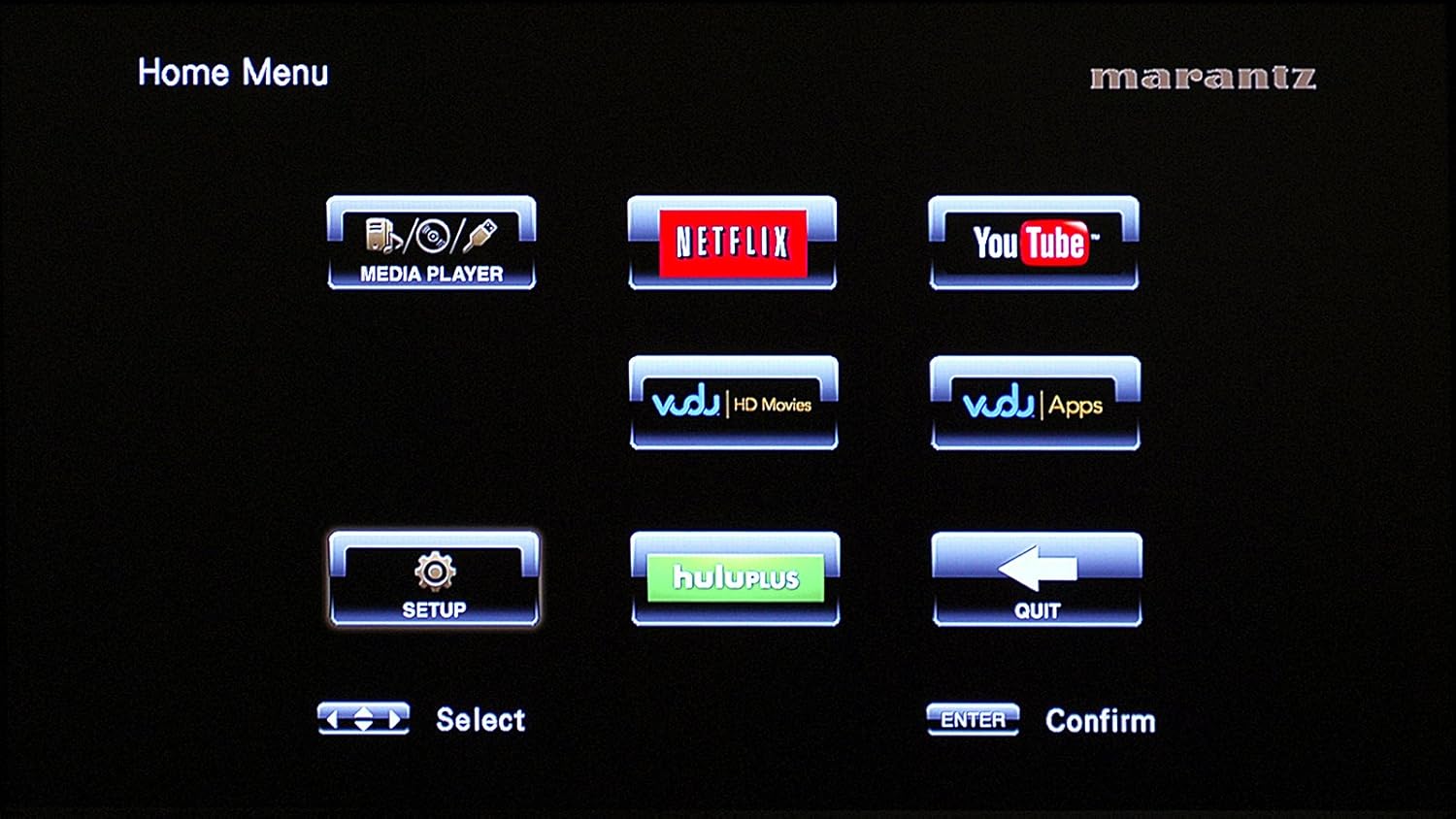
Gambar 4.4.1: The Home Menu interface of the UD7007, showing options for Media Player, Netflix, YouTube, Vudu, Hulu Plus, and Setup.
5. Settings Menu Navigation
Pencét éta DISETÉL button on the remote control to access the main settings menu.
5.1 Setélan Umum

Gambar 5.1.1: The General Settings menu, providing options for System, Language, Parental Control, Network, and Others.
This section allows you to configure system-wide options, language preferences, parental controls, and network settings.
5.2 Setélan Pidéo

Gambar 5.2.1: The Video Settings menu, offering adjustments for TV, HDMI, and 3D display options.
Adjust video output parameters, HDMI settings, and 3D display options here. The HDMI source-direct mode allows content to be displayed in its native resolution.
5.3 Setélan Audio

Gambar 5.3.1: The Audio Settings menu, where users can configure Audio Output (HDMI, Bitstream) and Dynamic Range Control.
Configure audio output settings, including HDMI audio format (e.g., Bitstream) and dynamic range control.
6. Pangropéa
6.1 Ngabersihan Unit
- Ngusap exterior pamuter jeung lemes, lawon garing.
- Ulah make cleaners abrasive, lilin, atawa pangleyur sabab bisa ngaruksak finish.
- Pastikeun unit geus cabut colokan saméméh beberesih.
6.2 Kamanusaan sarta Studi Disc
- Nanganan cakram dina sisina pikeun ngahindarkeun sidik.
- Simpen cakram dina wadahna nalika teu dianggo pikeun nyegah goresan sareng ngumpulna lebu.
- Bersihkeun cakram anu kotor nganggo lawon anu lemes, teu aya serat, usap ti tengah ka luar.
7. Cara ngungkulan
7.1 Taya Daya
- Check if the power cord is securely connected to both the player and the wall outlet.
- Pariksa yén stop kontak témbok fungsina ku cara nyolok kana alat anu sanés.
7.2 Taya Gambar
- Ensure the HDMI cable is correctly connected to both the player and the TV/receiver.
- Select the correct input source on your TV or AV receiver.
- Check the video output settings in the player's setup menu.
7.3 Taya Sora
- Verify all audio cables (HDMI, RCA, optical, coaxial) are securely connected.
- Ensure the correct audio input is selected on your amplifier atawa panarima.
- Check the audio output settings in the player's setup menu.
- Pastikeun yén volume dina anjeun amplifier/receiver is not muted or set too low.
7.4 Disc Not Playing / Disc Tray Issues
- Pastikeun piringan beresih sareng teu aya goresan.
- Verify the disc is inserted correctly with the label side up.
- Check if the disc format is supported by the player.
- If the disc tray does not open or close, ensure no obstructions are present.
7.5 Masalah Sambungan Jaringan
- Pastikeun kabel Ethernet parantos nyambung kalayan pageuh.
- Balikan deui router sareng modem anjeun.
- Check network settings in the player's setup menu to ensure proper configuration (e.g., IP address, DNS).
8. Spésifikasi
| Ngaran modél | UD7007 |
| Diménsi Produk (W x H x D) | 17.32 x 4.31 x 12.11 inci (440 x 109.5 x 307.5 mm) |
| Item Beurat | 15.9 pon (7.2 kg) |
| Jenis Média | Blu-Ray Disc, CD, DVD, Super Audio CD, DVD-Audio |
| Resolusi | Nepi ka 1080p (1920x1080) |
| Tipe Panyambung | HDMI, RCA, XLR, Optical, Coaxial, Ethernet, USB |
| Téhnologi konektipitas | Ethernet, HDMI, RCA, USB |
| Mode Kaluaran Audio | Surround, Stereo (Analog, Balanced) |
| Produsén | Marantz |
| Tanggal Kahiji Sadia | 5 Séptémber 2012 |
9. Émbaran jaminan
The Marantz UD7007 Universal Disc Player is backed by a 3-year limited warranty. For detailed terms and conditions, please refer to the warranty card included with your product or contact Marantz customer support.
10. Rojongan Palanggan
For further assistance, technical support, or service inquiries, please visit the official Marantz website or contact their customer service department. Contact information can typically be found in the product packaging or on the Marantz websitus.


