Bubuka
This manual provides instructions for the setup, operation, maintenance, and troubleshooting of your ASUS VG23AH 23-inch 3D IPS LED Monitor. The VG23AH monitor features a 23-inch Full HD 1080p IPS panel with 3D capabilities, designed to deliver high-quality visuals and an immersive viewing experience. It includes ASUS All-in 3D Technology for converting 2D content to 3D via a dedicated button.
Disetél
1. Ngabongkar Monitor
Carefully remove the monitor and all components from the packaging. Ensure all items listed in the packing contents are present. Retain the packaging for future transport or service needs.
2. Ngarakit Stand
- Teundeun panel monitor ka handap dina permukaan anu lemes sareng bersih pikeun nyegah goresan.
- Pasangkeun dasar penyangga kana beuheung penyangga. Amankeun nganggo sekrup anu disayogikeun.
- Align the assembled stand with the mounting holes on the back of the monitor panel. Insert and tighten the screws to secure the stand to the monitor.

Gambar: Hareupeun view of the ASUS VG23AH monitor with its stand assembled.
3. Nyambungkeun Kabel
Connect the necessary cables to the monitor and your computer or other devices. The monitor supports dual HDMI 1.4, single-link DVI, and D-sub inputs.
- Kakuatan Kabel: Sambungkeun kabel daya ka input daya monitor terus ka stopkontak.
- Kabel Video: Pilih salah sahiji sambungan di handap ieu:
- HDMI: Connect an HDMI cable from your device to one of the HDMI ports on the monitor.
- DVI: Connect a DVI cable from your device to the DVI port on the monitor.
- D-sub (VGA): Connect a D-sub cable from your device to the D-sub port on the monitor.
- Audio Cable (Optional): If using D-sub or DVI for video and wish to use the monitor's speakers, connect an audio cable from your device's audio output to the monitor's audio input. HDMI connections transmit audio digitally.

Gambar: Tukangeun view of the ASUS VG23AH monitor, highlighting the power, HDMI, DVI, D-sub, and audio input ports.
4. Daya Awal Hurung
After connecting all cables, press the power button on the monitor. Ensure your connected device is also powered on. The monitor should automatically detect the input signal. If not, use the OSD (On-Screen Display) menu to manually select the input source.
Operasi Monitor
1. Menu dina Layar (OSD).
The OSD menu allows you to adjust various monitor settings. Use the buttons located on the front or bottom bezel of the monitor to navigate the menu.
- Tombol Menu: Muka menu OSD.
- Tombol Napigasi: Dipaké pikeun mindahkeun ngaliwatan pilihan menu tur ngaluyukeun nilai.
- Tombol Pilih/Asupkeun: Konfirmasi pilihan atawa asup ka sub-menu.
- Tombol Kaluar: Kaluar tina menu atanapi OSD ayeuna.
2. Display Modes and 3D Functionality
The VG23AH supports both 2D and 3D display modes. The monitor utilizes passive 3D technology.
- Modeu 2D: Standard display for everyday computing, gaming, and video viewing.
- Modeu 3D: Pikeun viewing stereoscopic 3D content.
- Konvérsi 2D ka 3D: The monitor features a dedicated 3D button on the front bezel. Pressing this button instantly converts 2D content to simulated 3D. The effectiveness of this conversion may vary depending on the source content.
- 3D Glasses: Passive 3D glasses are required to experience the 3D effect.
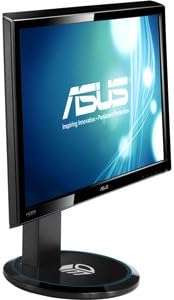
Gambar: Sisi view of the ASUS VG23AH monitor, illustrating its design and the location of control buttons on the bezel.
3. Fitur Audio
The monitor includes built-in 3W stereo speakers. Audio can be received via HDMI (digital) or through the 3.5mm audio input jack (analog).
Pangropéa
1. Ngabersihan Monitor
- Salawasna pareumkeun monitor sareng cabut kabel listrik sateuacan beberesih.
- Make kaen nu lemes, teu aya lint rada dampDieusian ku cai atanapi pembersih layar anu hampang sareng henteu abrasive.
- Ulah menyemprot cleaner langsung kana layar. Larapkeun heula kana lawon.
- Hindarkeun ngagunakeun bahan kimia kasar, pangleyur, atawa bahan abrasive, sabab ieu bisa ngaruksak layar atawa c.asing.
2. Kaperawatan Umum
- Keep the monitor away from direct sunlight, excessive heat, and humidity.
- Pastikeun ventilasi nyukupan sabudeureun monitor pikeun nyegah overheating.
- Hindarkeun nempatkeun barang beurat dina monitor atanapi kabelna.
- If moving the monitor, disassemble the stand and pack it in its original packaging for protection.
Pamérésan masalah
Upami anjeun mendakan masalah sareng monitor anjeun, tingal masalah sareng solusi umum ieu:
| Masalah | Solusi anu mungkin |
|---|---|
| Henteu aya gambar dina layar |
|
| Gambar buram atanapi menyimpang |
|
| 3D effect is not working or appears incorrect |
|
| Teu aya audio tina speaker |
|
spésifikasi
Key technical specifications for the ASUS VG23AH monitor:
| Fitur | Spésifikasi |
|---|---|
| Ukuran layar | 23 inci |
| Tipe Panel | IPS LEDs |
| Resolusi pribumi | 1920 x 1080 (HD lengkep 1080p) |
| Rasio Aspék | 1.33:1 |
| Viewdina Angle | 178° Ultra-wide |
| Téhnologi 3D | Passive 3D, ASUS All-in 3D Technology |
| Konektipitas | Dual HDMI 1.4, Single-link DVI, D-sub |
| Diwangun-di Speaker | 3W Spiker Stereo |
| Ukuran produk (L x W x H) | 24.61 x 9.14 x 19.02 inci |
| Item Beurat | 13 pon |
| Produsén | ASUS Computer International Direct |
Émbaran jaminan
ASUS products are manufactured to the highest quality standards. For detailed warranty terms and conditions, please refer to the warranty card included with your product or visit the official ASUS support website. Keep your proof of purchase for warranty service.
Ngarojong
For further assistance, technical support, or service inquiries, please visit the official ASUS support website or contact ASUS customer service. You can find contact information and frequently asked questions on the ASUS support portal.
Rojongan ASUS Websitus: www.asus.com/support/


