1. Bubuka
The SIIG USB to VGA Multi Monitor Video Adapter (Model JU-VG0111-S1) allows you to easily connect an additional VGA display to your computer via a USB 2.0 port. This adapter is designed to expand your desktop workspace or mirror your primary display, supporting resolutions up to 1920 x 1200 at 32-bit color. It operates without an external power adapter, drawing power directly from the USB bus. The device is compliant with USB 2.0 specifications and various regulatory standards.
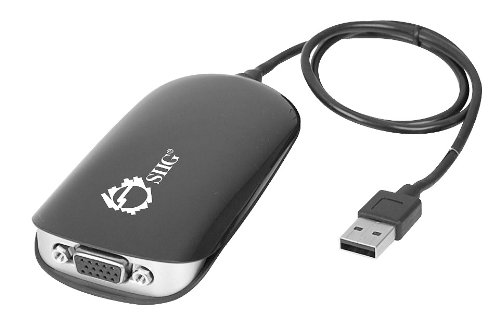
Image 1.1: The SIIG USB to VGA Multi Monitor Video Adapter (Model JU-VG0111-S1).
2. Eusi Paket
Pariksa yén pakét anjeun ngandung barang-barang ieu:
- External video adapter
- kabel USB
- Drivers & Utilities CD
3. Fitur konci
- Supports standard, 16:9, and 16:10 widescreen display formats.
- Utilizes Hi-Speed USB 2.0 with a 480 Mb/s data rate.
- Allows connection of up to 6 adapters in a single system for multiple displays.
- Compliant with Universal Serial Bus 2.0 Specification.
- Features the MCT Trigger T2-285A chipset.
- Supports multiple display modes: Primary, Extended, and Mirror.
- Compatible with 60Hz and 75Hz monitor refresh frequencies.
- Includes user-friendly display configuration software.
4. Parentah Setup
- Pasang Supir: Insert the provided Drivers & Utilities CD into your computer's optical drive. Follow the on-screen instructions to install the necessary drivers. If an updated driver is required or the CD is unavailable, visit the SIIG official websitus pikeun unduhan driver panganyarna.
- Sambungkeun adaptor: Connect one end of the included USB cable to the USB port on the SIIG adapter and the other end to an available USB 2.0 port on your computer. The adapter is bus-powered and does not require an external power source.
- Connect the Display: Connect a VGA cable from your external monitor to the VGA port on the SIIG adapter.
- Konpigurasikeun Setélan Tampilan: Once connected, your operating system should detect the new display. You may need to adjust display settings (resolution, orientation, display mode) through your computer's display control panel.

Image 4.1: Typical connection diagram for the USB to VGA adapter.
5. Parentah Operasi
After successful driver installation and hardware connection, you can configure your display settings to utilize the additional monitor.
5.1 Modeu Paparan
- Mode primér: The external display functions as your main monitor.
- Mode ngalegaan: The external display extends your desktop, providing more screen space. This is ideal for multitasking.
- Modeu eunteung: The external display duplicates the content of your primary display. Useful for presentations or sharing content.
These modes can be configured through your operating system's display settings (e.g., Windows Display Settings or macOS System Preferences > Displays).
5.2 Multiple Adapters
You can connect up to six SIIG USB to VGA Multi Monitor Video Adapters to a single computer system to support multiple external displays simultaneously. Each adapter will require a separate USB port and a separate VGA monitor.
6. Pangropéa
The SIIG USB to VGA Multi Monitor Video Adapter requires minimal maintenance. Follow these guidelines to ensure optimal performance and longevity:
- Keep the adapter in a clean, dry environment, away from extreme temperatures and direct sunlight.
- Avoid exposing the device to liquids or excessive moisture.
- Do not attempt to open or modify the adapter, as this will void the warranty and may cause damage.
- Bersihkeun bagian luar ku kaén anu lembut sareng garing. Ulah make bahan kimia kasar atawa cleaners abrasive.
7. Cara ngungkulan
If you encounter issues with your SIIG USB to VGA Multi Monitor Video Adapter, refer to the following common problems and solutions:
- Teu aya tampilan dina monitor éksternal:
- Ensure the adapter is securely connected to both the computer's USB port and the monitor's VGA port.
- Verify that the monitor is powered on and set to the correct input source (VGA).
- Check your computer's display settings to ensure the external monitor is detected and configured for the desired display mode (Extended or Mirror).
- Reinstall or update the display drivers from the SIIG official websitus.
- Slow Performance or System Lag:
- Ensure your computer meets the minimum system requirements for using an external display adapter.
- Update the display drivers to the latest version from the SIIG official website. Outdated drivers can sometimes cause performance issues.
- Close unnecessary applications to free up system resources, especially if running memory-intensive applications.
- Masalah Instalasi Supir:
- If the provided CD driver is outdated or fails to install, download the latest drivers directly from the SIIG support websitus.
- Ensure your operating system is compatible with the adapter's drivers.
- Adaptor Teu Dideteksi:
- Coba sambungkeun adaptor ka port USB anu béda dina komputer anjeun.
- Balikan deui komputer saatos nyambungkeun adaptor.
8. Spésifikasi
| Nomer modél | JU-VG0111-S1 |
| Platform hardware | PC |
| Panganteur | USB 2.0 (Input), VGA (Output) |
| Resolusi Max | 1920 x 1200 (32-bit color) |
| Refresh Rates | 60Hz, 75Hz |
| Chipset | MCT Trigger T2-285A |
| Sumber Daya | USB Bus-Powered |
| Ukuran (L x W x H) | 0.79 x 4.12 x 2.16 inci |
| Item Beurat | 2.4 ons |
| Sistem Operasi | Windows (various versions), macOS (with specific drivers) |
| Sertifikasi | FCC, CE, RoHS patuh |
9. Garansi jeung Rojongan
The SIIG USB to VGA Multi Monitor Video Adapter (JU-VG0111-S1) is backed by SIIG's limited 5-year warranty. For detailed warranty terms and conditions, please refer to the documentation included with your product or visit the official SIIG websitus.
For technical support, driver downloads, or further assistance, please visit the SIIG support section on their official websitus atanapi ngahubungan departemén layanan palanggan maranéhna.
SIIG Official Websitus: www.siig.com


