Bubuka
This manual provides essential information for the proper setup, operation, and maintenance of your Hitachi Touro Desk Dx3 2TB External Hard Drive. Please read these instructions carefully before using the device to ensure optimal performance and longevity.
Eusi pakét
Pastikeun yén sadaya item aya dina bungkusan:
- Hitachi Touro Desk Dx3 2TB External Hard Drive
- Kabel Data USB 3.0
- AC Power Adapter (EURO plug)
- Pituduh Mimitian Gancang (upami kalebet)
Produk Leuwihview
The Hitachi Touro Desk Dx3 is a 2TB external desktop hard drive designed for reliable data storage and backup. It features a stylish, stackable design and SuperSpeed USB 3.0 connectivity for fast data transfers, while also being backwards compatible with USB 2.0.

Gambar 1: Hareupeun view of the Hitachi Touro Desk Dx3. This image displays the sleek, black, vertically ribbed casing of the external hard drive. A small, rectangular indicator light is visible towards the bottom center of the front panel, signifying power or activity status.
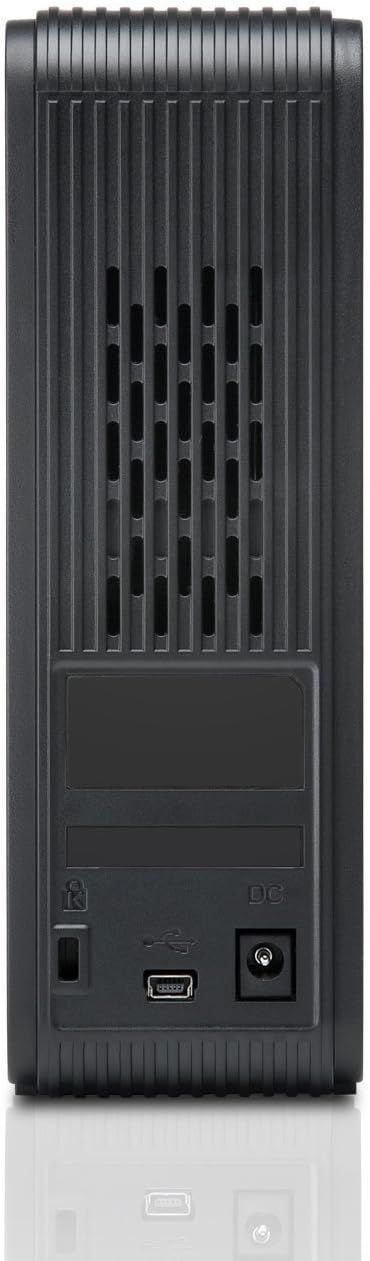
Gambar 2: Balik deui view of the Hitachi Touro Desk Dx3. This image shows the rear panel of the hard drive, which includes the DC power input port on the right, the USB 3.0 data port in the center, and a security lock slot on the left. Ventilation grilles are visible across the top portion of the back panel.
Disetél
Follow these steps to set up your external hard drive:
- Sambungkeun Adaptor Daya: Plug the AC power adapter into the DC power input port on the back of the Touro Desk Dx3. Then, plug the other end of the power adapter into a wall outlet. The drive will power on automatically.
- Sambungkeun kabel USB: Connect one end of the supplied USB 3.0 data cable to the USB port on the back of the Touro Desk Dx3. Connect the other end of the USB cable to an available USB port on your computer. For optimal performance, use a USB 3.0 port.
- Pangenal Sistem Operasi: Your computer's operating system (Windows or macOS) should automatically detect and install the necessary drivers for the hard drive. The drive will appear as a new storage device in 'My Computer' (Windows) or 'Finder' (macOS).
- Format Awal (Opsional): The drive comes pre-formatted. If you wish to reformat the drive or partition it, refer to your operating system's disk management tools. Note: Reformatting will erase all data on the drive.
Ngoperasikeun
Once connected, your Touro Desk Dx3 is ready for use.
- Mindahkeun Data: Séred jeung leupaskeun files or folders to and from the Touro Desk Dx3 icon on your desktop or in your file explorer. The USB 3.0 interface allows for rapid data transfer speeds.
- Nyadangkeun: Use your operating system's built-in backup utilities or third-party software to create backups of your important files on the external drive.
- Ngahapus Aman: Always safely eject the hard drive before disconnecting it from your computer. In Windows, right-click the drive icon in the system tray and select 'Eject'. In macOS, drag the drive icon to the Trash or click the Eject button next to the drive in Finder. This prevents data corruption.
Pangropéa
Pangropéa anu leres mastikeun umur panjang alat anjeun.
- beberesih: Anggo lawon anu lemes, garing, sareng henteu aya bulu pikeun ngabersihkeun bagian luar drive. Entong nganggo pembersih cair atanapi aerosol.
- Kaayaan Lingkungan: Store and operate the drive in a cool, dry environment, away from direct sunlight, extreme temperatures, and high humidity. Avoid placing the drive near strong magnetic fields.
- Penanganan fisik: Handle the drive with care. Avoid dropping it or subjecting it to strong impacts, as this can damage the internal components.
Pamérésan masalah
Upami anjeun mendakan masalah, tingal solusi umum ieu:
- Drive Teu Dipikawanoh:
- Pastikeun adaptor kakuatan disambungkeun aman ka duanana drive na stop kontak kakuatan jalan.
- Verify the USB cable is firmly connected to both the drive and your computer. Try a different USB port or cable.
- Balikan deui komputer anjeun.
- Check Disk Management (Windows) or Disk Utility (macOS) to see if the drive is detected but not assigned a drive letter or mounted.
- Laju Transfer Lambat:
- Ensure you are connected to a USB 3.0 port on your computer for SuperSpeed performance. USB 2.0 ports will operate at slower speeds.
- Ulah mindahkeun loba leutik files simultaneously; large files transfer more efficiently.
- Close other applications that might be using system resources or the USB bus.
- Lampu Mobil Teu Nyala:
- Pariksa sambungan adaptor daya kana drive sareng stop kontak dina témbok.
- Coba colokan listrik anu béda.
spésifikasi
| Kapasitas Panyimpenan Digital | 2 TB |
| Interface hard disk | USB 3.0 |
| Téhnologi konektipitas | USB |
| merek | Hitachi |
| Faktor Bentuk Hard Disk | 3.5 inci |
| Alat nu cocog | Komputer Desktop |
| Tipe Pamasangan | Tabletop |
| Warna | Hideung |
Émbaran jaminan
This product is covered by a limited warranty. For detailed information regarding warranty terms, conditions, and duration, please refer to the warranty card included in your product packaging or visit the official Hitachi support websitus. Simpen bukti pameseran anjeun pikeun klaim garansi.
Rojongan Palanggan
For further assistance, technical support, or to inquire about service, please visit the official Hitachi support websitus atanapi ngahubungan departemén layanan palanggan maranéhna. Inpormasi kontak biasana tiasa dipendakan dina produsén websitus atanapi dina dokuméntasi produk.


