1. Produk Langkungview
The Verbatim Acclaim 1TB USB 2.0 Portable External Hard Drive (Model 97393) is a compact and high-capacity storage solution designed for convenient data backup and transfer. This device offers 1 terabyte of storage and connects via a standard USB 2.0 interface, ensuring broad compatibility with various computer systems.
Fitur konci:
- 1 TB storage capacity.
- USB 2.0 High-Speed connectivity (up to 480 Mb/s), backward compatible with USB 1.1.
- Desain kompak sareng portabel.
- Cocog sareng sistem operasi Windows sareng Mac.
- Includes Nero BackItUp & Burn Essentials software for backup and restore functions.
- Includes a bonus Norton Online Backup (5GB) offer.
- Backed by a 7-year limited warranty.

Gambar 1.1: Puncak view of the Verbatim Acclaim 1TB portable hard drive. This image displays the device's sleek piano black finish and the prominent Verbatim logo, highlighting its compact and minimalist design.
2. Setup jeung Instalasi
2.1. Connecting the Hard Drive
- Locate an available USB port on your computer. The Verbatim Acclaim drive is compatible with both USB 2.0 and USB 1.1 ports. For optimal performance, use a USB 2.0 port.
- Connect the small end of the provided USB cable to the USB port on the Verbatim Acclaim hard drive.
- Sambungkeun ujung kabel USB nu leuwih gede ka port USB nu sadia dina komputer Anjeun.
- The drive will automatically power on and be detected by your operating system. For Windows, drivers will typically install automatically. For Mac, the drive should appear on your desktop or in Finder.

Gambar 2.1: Samping view of the Verbatim Acclaim hard drive. This image highlights the USB port located on the side of the device, indicating where the USB cable should be connected for power and data transfer.
2.2. Initial Formatting (Optional)
The drive comes pre-formatted, typically in FAT32, which is compatible with both Windows and Mac. However, FAT32 has a limitation on individual file size (maximum 4GB). If you plan to store files larger than 4GB (e.g., high-definition video files), it is recommended to reformat the drive to NTFS (for Windows) or HFS+ (for Mac).
Awas: Reformatting the drive will erase all existing data. Ensure you back up any important files sateuacan neraskeun.
Pikeun Windows:
- Open "Disk Management" (Right-click "My Computer" or "This PC" > "Manage" > "Disk Management").
- Locate the Verbatim Acclaim drive (it will be listed as a removable disk).
- Right-click on the drive's partition and select "Format".
- Choose "NTFS" as the file system and click "OK".
Pikeun Mac:
- Open "Disk Utility" (Applications > Utilities > Disk Utility).
- Select the Verbatim Acclaim drive from the sidebar.
- Click the "Erase" tab.
- Choose "Mac OS Extended (Journaled)" (HFS+) as the format and click "Erase".
2.3. Pamasangan parangkat lunak
The Verbatim Acclaim drive includes Nero BackItUp & Burn Essentials software and a bonus offer for Norton Online Backup. These software packages are typically located on the drive itself or can be downloaded from the Verbatim support websitus.
- Access the drive's contents via "My Computer" / "This PC" (Windows) or Finder (Mac).
- Locate the installer files for Nero BackItUp & Burn Essentials. Follow the on-screen instructions to complete the installation.
- Refer to the included documentation or the Verbatim website for details on activating the Norton Online Backup offer.
3. Ngoperasikeun Hard Drive
3.1. Mindahkeun Files
Once connected, the Verbatim Acclaim drive functions like any other external storage device.
- Séred jeung Leupaskeun: Kantun nyéréd files or folders from your computer to the drive's icon or an open folder on the drive.
- Salin sareng Témpél: Klik-katuhu dina files/folders on your computer, select "Copy," then navigate to the external drive, right-click in an empty area, and select "Paste."
- Parangkat Lunak Cadangan: Utilize the included Nero BackItUp & Burn Essentials software for automated backups and system recovery.
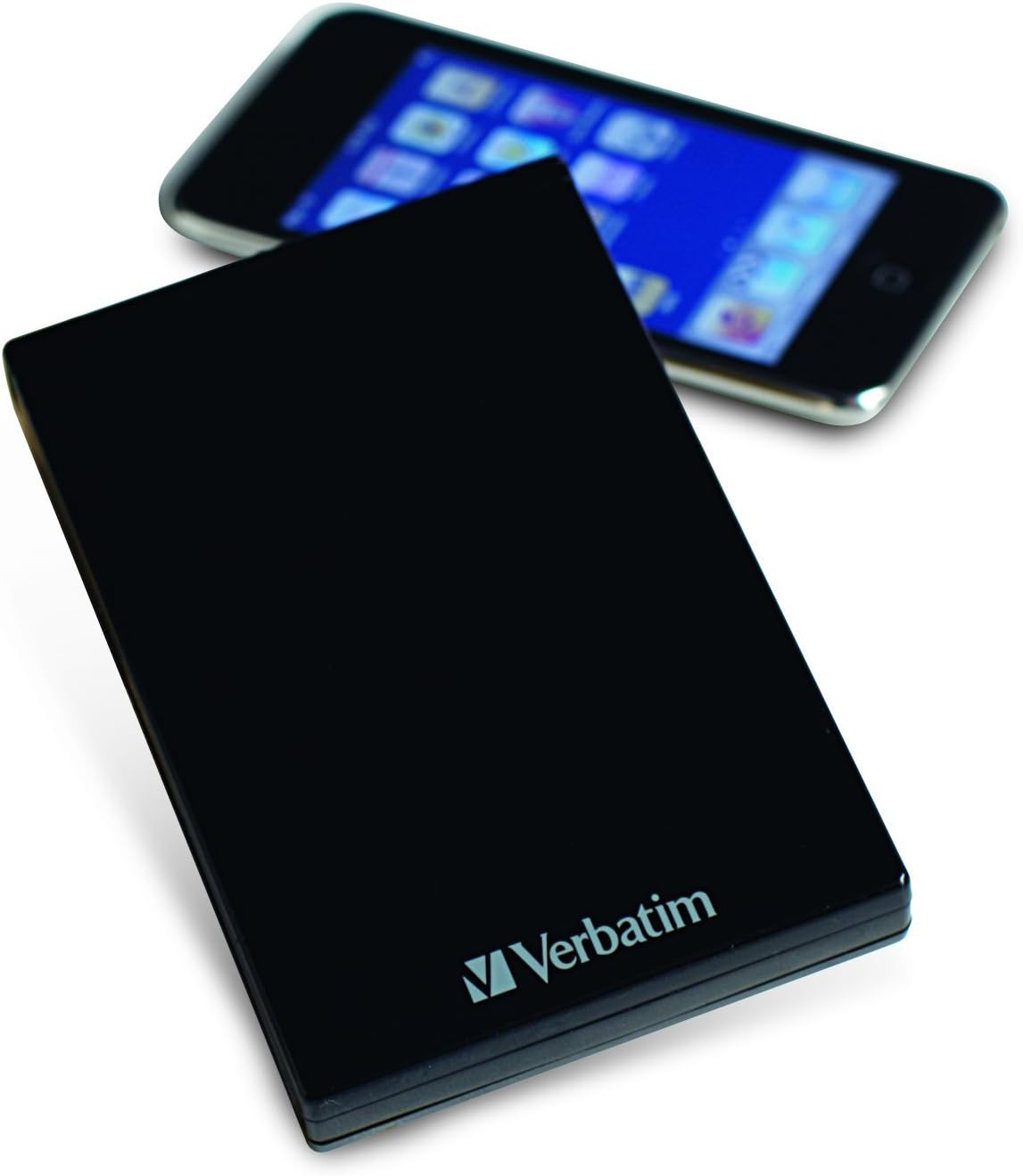
Gambar 3.1: The Verbatim Acclaim hard drive shown next to a smartphone. This image provides a visual reference for the drive's compact and portable dimensions, making it easy to carry.
3.2. Nyabut Drive Kalayan Aman
To prevent data corruption, always safely eject the hard drive before disconnecting it from your computer.
Pikeun Windows:
- Click the "Safely Remove Hardware and Eject Media" icon in the system tray (bottom-right corner).
- Select the Verbatim Acclaim drive from the list.
- Wait for the "Safe to Remove Hardware" notification before disconnecting the USB cable.
Pikeun Mac:
- Drag the drive's icon from your desktop to the Trash icon in the Dock (the Trash icon will change to an Eject icon).
- Alternatively, right-click (or Control-click) the drive icon on the desktop and select "Eject [Drive Name]".
- Wait for the drive icon to disappear from your desktop before disconnecting the USB cable.
4. Pangropéa
Proper maintenance ensures the longevity and reliable performance of your Verbatim Acclaim hard drive.
- Perawatan fisik: Handle the drive with care. Avoid dropping it or exposing it to excessive shock, as this can damage the internal components.
- beberesih: Use a soft, dry, lint-free cloth to clean the exterior of the drive. Avoid using liquid cleaners or abrasive materials.
- Suhu sareng Lingkungan: Simpen sareng operasikeun drive dina lingkungan anu tiis sareng garing, jauh tina sinar panonpoé langsung, suhu anu ekstrim, sareng kalembaban anu luhur.
- Nyadangkeun biasa: While the Acclaim drive is excellent for storing data, it is crucial to maintain multiple copies of important files. No single storage device is infallible.
- Ejection aman: Always follow the safe removal procedures outlined in Section 3.2 to prevent data corruption.
5. Cara ngungkulan
If you encounter issues with your Verbatim Acclaim hard drive, try the following troubleshooting steps:
- Drive Teu Dideteksi:
- Pastikeun kabel USB disambungkeun aman ka duanana drive jeung komputer.
- Coba sambungkeun drive ka port USB béda dina komputer Anjeun.
- Tés drive-na nganggo kabel USB anu béda, upami sayogi.
- Pareuman terus hurungkeun deui komputer anjeun teras cobian sambungkeun deui drive.
- Mindahkeun Data Lambat:
- Ensure you are connected to a USB 2.0 port for optimal speed. USB 1.1 ports will result in significantly slower transfers.
- Tutup aplikasi anu teu dipikabutuh anu ngajalankeun di latar tukang anu tiasa ngonsumsi sumber daya sistem.
- Check your computer's disk for errors or fragmentation.
- File System Errors / Drive Unresponsive:
- Always safely eject the drive before disconnecting. Abrupt disconnection can lead to file korupsi sistem.
- Run a disk check utility (e.g., "Error Checking" in Windows or "First Aid" in Disk Utility on Mac) to scan and repair minor file kasalahan sistem.
- If errors persist and data is backed up, consider reformatting the drive as described in Section 2.2.
- Drive Gets Warm:
It is normal for the drive to generate some heat during operation, especially during prolonged data transfers. Ensure adequate airflow around the device.
6. Spésifikasi
| Fitur | Rincian |
|---|---|
| Nomer modél | 97393 |
| Kapasitas Panyimpenan Digital | 1 TB |
| Interface hard disk | USB 2.0 (High-Speed), USB 1.1 (Full Speed) |
| Téhnologi konektipitas | USB |
| merek | Verbatim |
| Faktor Bentuk Hard Disk | 2.5 inci |
| Katerangan hard disk | Portabel |
| Alat nu cocog | Desktop (Windows & Mac) |
| Tipe Pamasangan | Hard Drive éksternal |
| Warna | Piano Hideung |
| Dimensi produk | 5.51 x 1.89 x 7.09 inci |
| Item Beurat | 10.8 ons |
| Produsén | Verbatim |
| Tanggal Kahiji Sadia | 25 Juli 2010 |
7. Garansi jeung Rojongan
7.1. Jaminan kawates
The Verbatim Acclaim 1TB USB 2.0 Portable External Hard Drive is backed by a 7-taun jaminan kawates. This warranty covers defects in materials and workmanship under normal use. Please retain your proof of purchase for warranty claims. For full terms and conditions of the warranty, please refer to the documentation included with your product or visit the official Verbatim websitus.
7.2. Rojongan Téknis
For technical assistance, troubleshooting beyond the scope of this manual, or warranty inquiries, please contact Verbatim customer support.
- Nganjang ka Verbatim resmi websitus pikeun sumber rojongan, FAQs, sarta informasi kontak.
- Siapkeun nomer modél produk anjeun (97393) sareng bukti pameseran nalika ngahubungi dukungan.


