Bubuka
This manual provides instructions for the setup, operation, maintenance, and troubleshooting of your Microsoft Wireless Optical Mouse Blue, Model K80-00004. Please read this manual thoroughly before using your device.
Naon dina Box
Pastikeun yén sadaya item aya dina bungkusan:
- Microsoft Wireless Optical Mouse
- Panarima nirkabel
- 2 Batré AA (parantos dipasang atanapi kalebet nyalira)
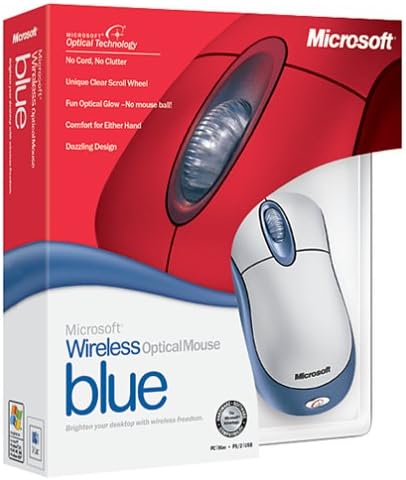
Image: Retail packaging of the Microsoft Wireless Optical Mouse Blue, showing the mouse and receiver.
Disetél
1. Masang Batre
- Panggihan kompartemen batré dina underside beurit.
- Buka panutup kompartemen batré.
- Selapkeun dua batré AA, mastikeun polaritasna bener (+/-).
- Tutup panutup kompartemen batré.

Gambar: Hareupeun view of the Microsoft Wireless Optical Mouse Blue, showing the top buttons and scroll wheel. The battery compartment is on the underside.
2. Connect the Wireless Receiver
- Colokkeun panarima nirkabel USB ka port USB nu sadia dina komputer Anjeun.
- Allow your operating system to detect and install the necessary drivers. This process is usually automatic.
- For optimal performance, ensure the receiver is placed at least 12 inches away from other wireless devices or large metal objects.
3. Optional Software Installation (IntelliPoint)
- While not required for basic functionality, installing Microsoft IntelliPoint software provides advanced customization options for your mouse buttons and scroll wheel.
- Refer to the Microsoft support website for the latest IntelliPoint software compatible with your operating system.
4. Set Orientation (Calibration)
- After initial setup, it is recommended to perform an "Orientation Set" or calibration if available through the IntelliPoint software or your operating system's mouse settings. This helps optimize tracking performance.
Parentah Operasi
The Microsoft Wireless Optical Mouse Blue is designed for comfortable and precise navigation.
Fungsi Dasar
- Klik Kénca: Tombol primér pikeun milih barang, muka files, sarta interacting jeung software.
- Klik katuhu: Tombol sekundér pikeun ngaksés ménu kontéks sareng pilihan tambahan.
- Gulung kabayang: Gulung roda ka luhur atanapi ka handap pikeun ngagulung dokumén sareng web pages. The scroll wheel may also function as a clickable button for additional commands, depending on software configuration.
Operasi nirkabel
- The mouse operates wirelessly up to 6 feet (approximately 1.8 meters) from its receiver.
- Optical technology scans the desktop surface for precise cursor movement without the need for a mouse pad on most surfaces.
- The mouse is designed for comfortable use with either the right or left hand.

Gambar: Angled view of the Microsoft Wireless Optical Mouse Blue, highlighting its ergonomic shape and blue/silver design.
Pangropéa
Ngagantian batré
- The mouse requires two AA batteries.
- When battery power is low, your computer may display a notification (if IntelliPoint software is installed) or mouse performance may degrade.
- Replace batteries as described in the "Install Batteries" section under Setup.
- Salawasna anggo batré anu seger sareng kualitas luhur pikeun kinerja anu optimal.
beberesih
- To clean the mouse, gently wipe the surface with a soft, damp lawon.
- Ulah make bahan kimia kasar atawa cleaners abrasive, sabab ieu bisa ngaruksak finish.
- Pastikeun teu aya cairan anu asup kana komponén internal beurit.
Travel Considerations
- The Microsoft Wireless Optical Mouse is a transmitting device. When traveling by air, it is recommended to remove the batteries from the mouse before boarding to comply with airline regulations regarding electronic devices.
Pamérésan masalah
Mouse Not Responding or Lagging
- Pariksa batré: Pastikeun batré dipasang leres sareng gaduh muatan anu cekap. Ganti lamun perlu.
- Pariksa Sambungan Receiver: Ensure the wireless receiver is securely plugged into a functioning USB port. Try a different USB port.
- Deukeutna: Ensure the mouse is within 6 feet of the receiver. Reduce obstacles between the mouse and receiver.
- gangguan: Other wireless devices (e.g., Wi-Fi routers, cordless phones) can cause interference. Move the receiver away from such devices.
- Beungeut: Ensure the mouse is used on a suitable surface. Highly reflective or transparent surfaces may affect optical tracking.
- Re-sync: Some wireless mice have a re-sync button on both the mouse and receiver. Consult the full product manual or Microsoft support for specific re-sync procedures for this model if issues persist.
Clicking Issues
- If clicks are not registering or require multiple presses, check for physical obstructions or debris around the buttons.
- Pastikeun mouse dihurungkeun tur disambungkeun.
Kasaluyuan software
- The IntelliPoint software may have specific operating system requirements. For example, older versions may not be compatible with newer operating systems like Windows Vista or later.
- Always download the latest software from the official Microsoft support websitus pikeun sistem operasi khusus anjeun.
spésifikasi
| Fitur | Rincian |
|---|---|
| Nomer modél | K80-00004 |
| merek | Microsoft |
| Téhnologi konektipitas | Nirkabel |
| Detéksi Gerakan | Optik |
| Warna | Blue / Silver |
| Batré | 2 batré AA (kaasup) |
| Item Beurat | 13.6 ons (kira-kira 385.5 gram) |
| Dimensi produk | 9.3 x 8.9 x 2.1 inci (kira-kira 23.6 x 22.6 x 5.3 cm) |
| Tanggal Sadia munggaran | 1 Agustus 2002 |
Émbaran jaminan
According to the legal disclaimer, this product is sold without a warranty. Please refer to your point of purchase for any return or exchange policies.
Ngarojong
For further assistance, driver downloads, or updated information regarding your Microsoft Wireless Optical Mouse Blue, please visit the official Microsoft support websitus.
You can typically find support resources by searching for "Microsoft support" and your product model number (K80-00004).


