1. ഉൽപ്പന്നം കഴിഞ്ഞുview
The TP-Link BE3600 WiFi 7 Range Extender (RE235BE) is designed to expand your existing Wi-Fi network, eliminating dead zones and providing reliable, high-speed internet access throughout your home or office. This device supports the latest Wi-Fi 7 standard, offering enhanced performance and efficiency.

Image 1.1: TP-Link BE3600 WiFi 7 Range Extender (RE235BE) with its retail packaging.
പ്രധാന സവിശേഷതകൾ:
- Next-Gen Wi-Fi 7 Speeds: Experience ultra-fast dual-band Wi-Fi with up to 3.6 Gbps (688 Mbps on 2.4GHz + 2882 Mbps on 5GHz), powered by 4K-QAM and Multi-Link Operation (MLO) for enhanced bandwidth and lower latency.
- 2.5G Multi-Gig Port: Achieve blazing wired speeds for gaming consoles, PCs, or smart TVs through the 2.5 Gigabit Ethernet port; also functions as an Access Point when connected via Ethernet.
- Extended Coverage with Smart Roaming: Eliminate Wi-Fi dead zones and enjoy seamless streaming and gaming with two external high-gain antennas and adaptive path selection for the most stable connection.
- Flexible Mesh Compatibility: Works as a mesh node when paired with TP-Link EasyMesh-compatible routers, or as a universal extender with any standard Wi-Fi router.
- Secure and Simple Setup: WPA3 encryption ensures strong network protection. Quick setup via WPS or TP-Link Tether App (iOS/Android) with online upgrade support.
2. സജ്ജീകരണവും ഇൻസ്റ്റാളേഷനും
Follow these steps to set up your TP-Link RE235BE Range Extender.
2.1 Powering On the Device
- Unpack the RE235BE from its packaging.
- Plug the RE235BE into an electrical outlet near your main router. Ensure the outlet is easily accessible.

Image 2.1: The RE235BE plugged into a standard wall outlet.
2.2 Connecting to Your Router (WPS Method)
The WPS (Wi-Fi Protected Setup) method is the quickest way to connect your extender to your router.
- അമർത്തുക WPS ബട്ടൺ on your main router.
- രണ്ട് മിനിറ്റിനുള്ളിൽ, അമർത്തുക WPS ബട്ടൺ on the RE235BE. The Signal LED on the extender should turn solid blue, indicating a successful connection.
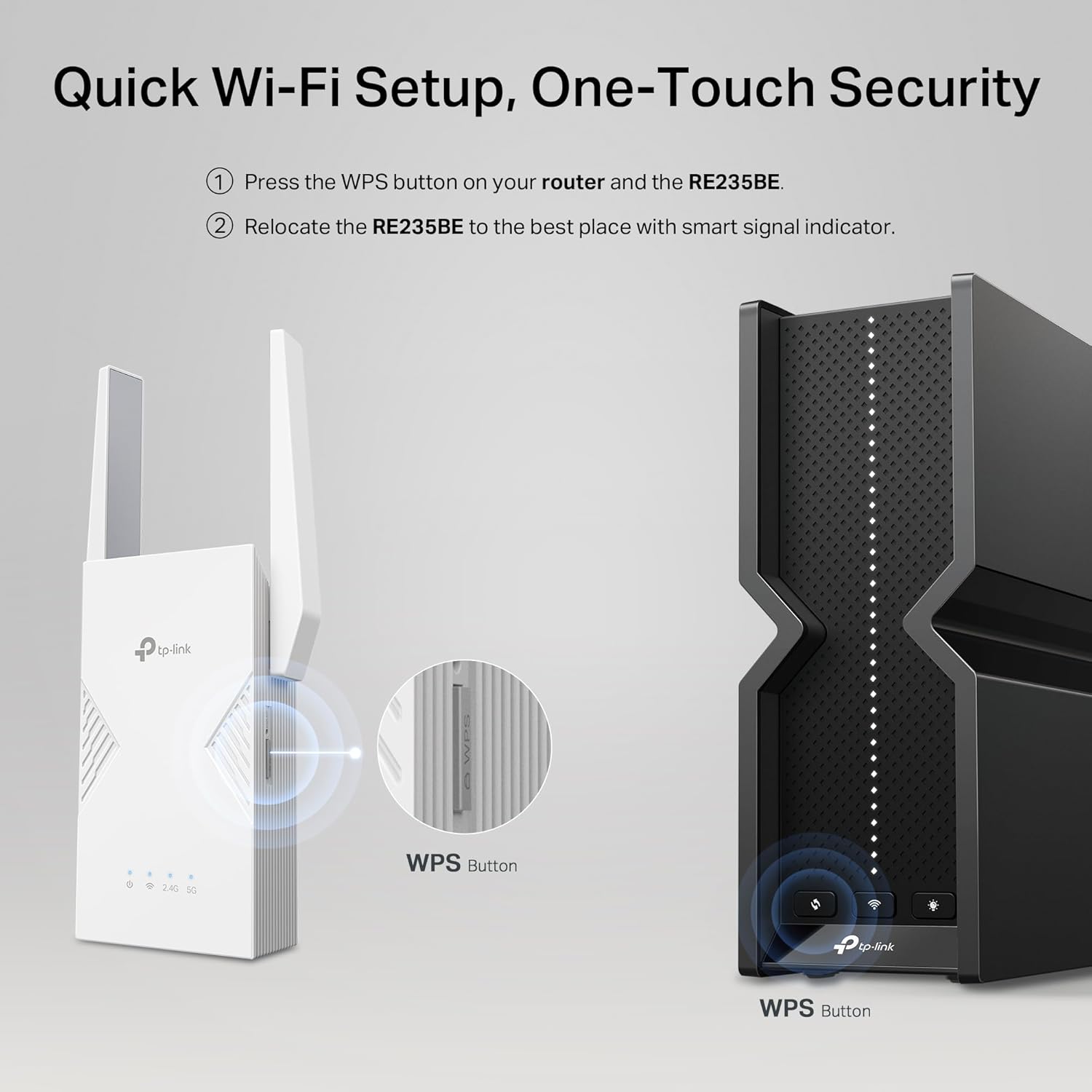
Image 2.2: Illustration of pressing the WPS button on both the router and the RE235BE.
2.3 Connecting to Your Router (TP-Link Tether App Method)
For more control and detailed setup, use the TP-Link Tether app.
- ഡൗൺലോഡ് ചെയ്യുക ടിപി-ലിങ്ക് ടെതർ ആപ്പ് from the App Store (iOS) or Google Play (Android).
- Connect your smartphone or tablet to the RE235BE's default Wi-Fi network (e.g., "TP-Link_Extender").
- Open the Tether app and follow the on-screen instructions to set up the extender.
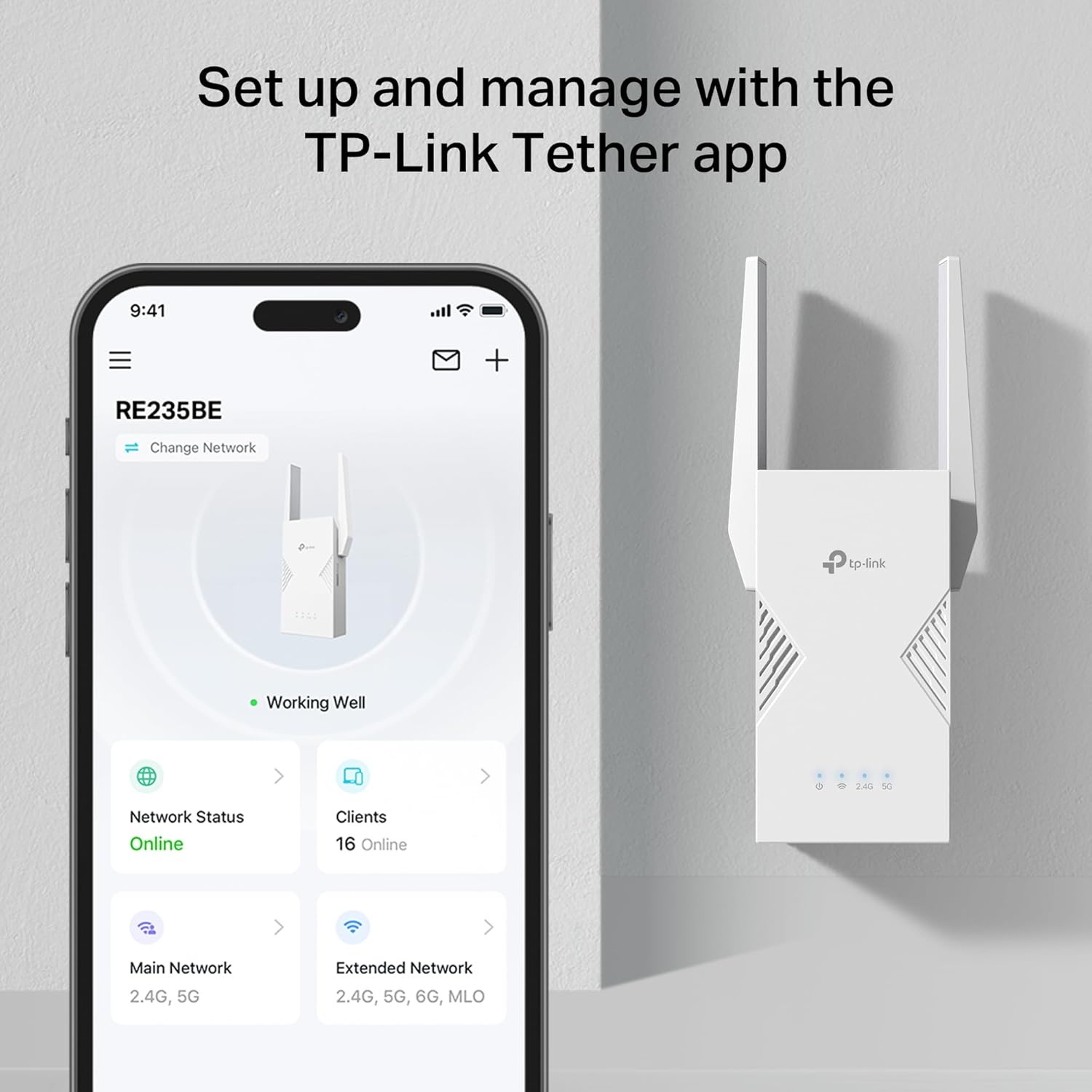
Image 2.3: The TP-Link Tether app displaying the RE235BE's network status.
You can download the Tether app by scanning this QR code: ടിപി-ലിങ്ക് ടെതർ ആപ്പ്
2.4 ഒപ്റ്റിമൽ പ്ലേസ്മെന്റ്
After initial setup, relocate the RE235BE to a location between your router and the Wi-Fi dead zone. The smart signal indicator LEDs on the extender will help you find the best spot for optimal coverage. A solid blue light indicates a good connection.

Image 2.4: Illustration of placing the RE235BE to extend Wi-Fi coverage throughout a home.
3 ഓപ്പറേറ്റിംഗ് മോഡുകൾ
The RE235BE can operate in two primary modes:
3.1 Range Extender Mode
In this mode, the RE235BE wirelessly connects to your existing router and extends its Wi-Fi signal to areas with weak or no coverage. This is the default and most common mode of operation.
3.2 ആക്സസ് പോയിന്റ് മോഡ്
The RE235BE can also function as an Access Point. Connect the extender to your router via an Ethernet cable, and it will transform your wired network connection into a wireless access point, creating a new Wi-Fi network.

Image 3.1: Visual representation of the RE235BE operating in Range Extender Mode and Access Point Mode.
3.3 EasyMesh/OneMesh Compatibility
The RE235BE supports TP-Link EasyMesh/OneMesh, allowing it to seamlessly integrate with compatible TP-Link routers to form a unified mesh Wi-Fi network. This provides a single Wi-Fi name and seamless roaming throughout your home.
4. പരിപാലനം
To ensure optimal performance and longevity of your RE235BE, consider the following maintenance tips:
- ഫേംവെയർ അപ്ഡേറ്റുകൾ: Regularly check for and install firmware updates through the TP-Link Tether app or the web management interface. Updates often include performance improvements, security patches, and new features.
- വൃത്തിയാക്കൽ: Keep the device clean and free from dust. Use a soft, dry cloth to wipe the exterior. Avoid using liquid cleaners or abrasive materials.
- വെൻ്റിലേഷൻ: Ensure the extender is placed in a location with adequate ventilation to prevent overheating. Do not block the ventilation slots.
- സ്ഥലംമാറ്റം: If you experience a drop in signal quality, re-evaluate the extender's placement using the smart signal indicator.
5. പ്രശ്നപരിഹാരം
If you encounter issues with your RE235BE, try the following troubleshooting steps:
- ഇൻ്റർനെറ്റ് ആക്സസ് ഇല്ല:
- Check if your main router has internet access.
- Ensure the RE235BE is within range of your main router and the Signal LED is solid blue.
- Try restarting both your router and the extender.
- Weak Signal or Frequent Disconnections:
- Relocate the extender closer to your main router. Use the smart signal indicator to find an optimal spot.
- Ensure there are no major obstructions (thick walls, metal objects) between the extender and your devices, or between the extender and the router.
- Update the extender's firmware to the latest version.
- Extender Settings Lost:
- This can sometimes occur after power outages or unexpected restarts. Reconfigure the extender using the Tether app or web ഇൻ്റർഫേസ്.
- If issues persist, perform a factory reset (refer to the device's physical reset button instructions, usually a small pinhole button).
- അമിത ചൂടാക്കൽ:
- Ensure the device has proper ventilation and is not covered.
- If the device feels excessively hot, unplug it, allow it to cool, and then plug it back into a well-ventilated area.
For further assistance, refer to the TP-Link support resources mentioned in Section 7.
6 സ്പെസിഫിക്കേഷനുകൾ
| ഫീച്ചർ | വിശദാംശങ്ങൾ |
|---|---|
| മോഡൽ നമ്പർ | RE235BE |
| വയർലെസ് സ്റ്റാൻഡേർഡ് | 802.11be (വൈ-ഫൈ 7) |
| ഡാറ്റ കൈമാറ്റ നിരക്ക് | Up to 3.6 Gbps (688 Mbps on 2.4GHz + 2882 Mbps on 5GHz) |
| ഫ്രീക്വൻസി ബാൻഡ് ക്ലാസ് | ഡ്യുവൽ-ബാൻഡ് (2.4 GHz, 5 GHz) |
| ഇഥർനെറ്റ് പോർട്ട് | 1x 2.5 ജിഗാബൈറ്റ് ഇഥർനെറ്റ് പോർട്ട് |
| പ്രത്യേക സവിശേഷതകൾ | Access Point Mode, EasyMesh Support, 2.5G Multi-Gig Port, Secure and Simple Setup (WPS, Tether App) |
| ഉൾപ്പെടുത്തിയ ഘടകങ്ങൾ | Wi-Fi 7 Range Extender RE235BE, Quick Installation Guide |
| അനുയോജ്യമായ ഉപകരണങ്ങൾ | Gaming Console, Laptop, Personal Computer, Smart Television, Smartphone, Tablet |
| യു.പി.സി | 840460600743 |
| അളവുകൾ (ഏകദേശം) | 20.4 x 12.7 x 9.7 സെ.മീ |
| ഭാരം (ഏകദേശം) | 490 ഗ്രാം |
7. വാറൻ്റിയും പിന്തുണയും
ടിപി-ലിങ്ക് അതിന്റെ ഉൽപ്പന്നങ്ങൾക്ക് സമഗ്രമായ പിന്തുണ നൽകുന്നു.
- വാറൻ്റി: The TP-Link BE3600 WiFi 7 Range Extender (RE235BE) comes with a 2 വർഷത്തെ വാറൻ്റി.
- സാങ്കേതിക സഹായം: സൗജന്യം 24/7 സാങ്കേതിക പിന്തുണ is available. For assistance, please visit the official TP-Link support webസൈറ്റ് അല്ലെങ്കിൽ അവരുടെ ഉപഭോക്തൃ സേവനവുമായി ബന്ധപ്പെടുക.
- ഓൺലൈൻ ഉറവിടങ്ങൾ: For the latest drivers, firmware, and additional support documentation, visit the official TP-Link website. The TP-Link Tether app also provides in-app support and management features.


