1. Вовед
This manual provides essential information for the setup, operation, and maintenance of your HP Z2 G1i Workstation. Designed for technical and creative professionals, this workstation delivers high performance for demanding workloads. Please read this manual thoroughly before using your device.
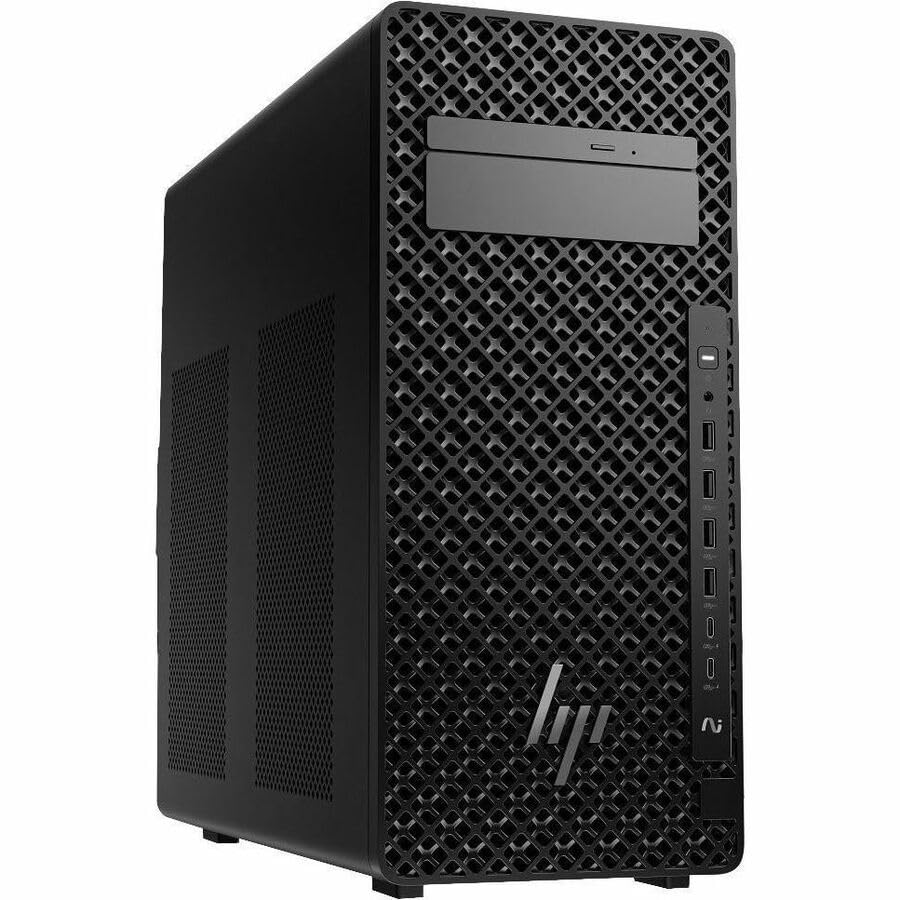
Figure 1.1: HP Z2 G1i Workstation in a professional setting, demonstrating its use for demanding tasks.
2. Што има во кутијата
Проверете дали сите компоненти се присутни во пакувањето:
- Z2 Tower G1i Workstation Desktop PC Wolf Pro Security Edition
- HP 320K Wired Keyboard
- HP Wired 320M глушец
3. Упатства за поставување
3.1 Отпакување и поставување
Carefully remove the workstation and its accessories from the packaging. Place the workstation on a stable, flat surface with adequate ventilation to prevent overheating. Ensure no vents are obstructed.
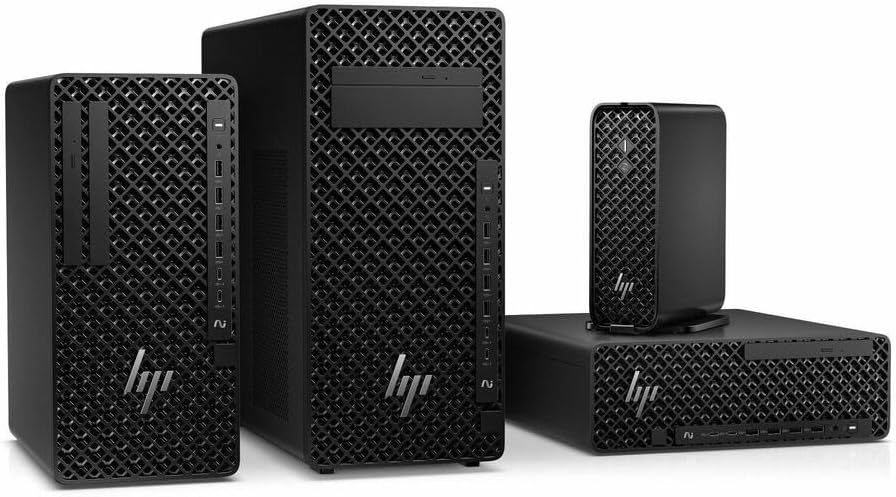
Слика 3.1: Предна страна view of the HP Z2 G1i Workstation tower, showing its design and front panel ports.
3.2 Поврзување на периферни уреди
- Монитор: Connect your monitor(s) to the appropriate video output ports (e.g., DisplayPort, HDMI) on the rear of the workstation.
- Тастатура и глушец: Connect the supplied HP 320K Wired Keyboard and HP Wired 320M Mouse to the available USB ports.
- Мрежа: Connect an Ethernet cable to the RJ-45 port for wired network access, or configure Wi-Fi after initial setup.
- Моќност: Connect the power cord to the workstation's power input and then to a grounded electrical outlet.

Слика 3.2: Заден дел view of the workstation, highlighting the various connectivity ports for peripherals and power.
3.3 Почетно вклучување
Press the power button on the front of the workstation. The system will boot into Windows 11 Pro. Follow the on-screen instructions to complete the initial operating system setup, including user account creation and network configuration.
4. Ракување со работната станица
4.1 Основно работење
Your HP Z2 G1i Workstation comes pre-installed with Windows 11 Pro. Utilize the familiar Windows interface for launching applications, managing files, and accessing system settings. The Intel Core Ultra 5 processor and NVIDIA RTX A400 graphics card provide robust performance for demanding software.
4.2 Инсталација на софтвер
Install necessary software applications for your professional tasks. Ensure that all software is compatible with Windows 11 Pro and meets the system requirements for optimal performance. Always download software from trusted sources.
4.3 Изведба на системот
For optimal performance, regularly check for and install updates for Windows, drivers (especially graphics drivers), and your professional applications. Close unnecessary programs to free up system resources when running intensive tasks.
5. Одржување
5.1 Чистење
To maintain proper airflow and prevent dust buildup, regularly clean the exterior of the workstation with a soft, dry cloth. Use compressed air to gently clear dust from vents and fan openings. Немојте use liquid cleaners directly on the components.
5.2 Ажурирања на софтверот
Keep your operating system and all installed software up to date. This ensures security patches, performance improvements, and compatibility with new applications. Windows Update can be accessed via the Settings menu.
5.3 Бекап на податоци
Regularly back up your important data to an external drive or cloud storage. This protects against data loss due to hardware failure, software corruption, or other unforeseen events.
6 Смена на проблеми
This section addresses common issues you might encounter with your HP Z2 G1i Workstation.
6.1 Нема струја
- Осигурајте се дека кабелот за напојување е безбедно поврзан и со работната станица и со функционален електричен штекер.
- Проверете дали штекерот е функционален со вклучување на друг уред.
- Check the power supply unit (PSU) indicator light, if available.
6.2 Нема приказ на мониторот
- Confirm the monitor is powered on and its video cable is securely connected to the workstation.
- Try connecting the monitor to a different video port on the workstation, if available.
- Тестирајте го мониторот со друг компјутер или уред за да исклучите проблеми со мониторот.
6.3 Забавување на системот
- Затворете ги непотребните апликации што работат во позадина.
- Проверете го менаџерот на задачи (Ctrl+Shift+Esc) за процеси што трошат многу ресурси на процесорот, RAM меморијата или дискот.
- Осигурајте се дека вашиот оперативен систем и драјверите се ажурирани.
- Извршете системско скенирање за малициозен софтвер или вируси.
За посложени проблеми, погледнете ја поддршката на HP. webсајт или контактирајте со службата за корисници.
7. Спецификации
Detailed technical specifications for the HP Z2 G1i Workstation (Model: BN5J2UT#ABA).
| Карактеристика | Спецификација |
|---|---|
| Производител на процесори | Интел |
| Тип на процесор | Core Ultra 5 |
| Модел на процесор | 235 |
| Јадро на процесорот | Tetradeca-core (14 Core) |
| Брзина на процесорот | 4.4 GHz |
| RAM меморија | 16 GB DDR5 |
| Хард диск | 512 GB SSD |
| Графички копроцесор | NVIDIA RTX A400 |
| Големина на рам на графичка картичка | 4 GB |
| Оперативен систем | Windows 11 Pro |
| Тежина на ставката | 15 фунти |
| Димензии на производот (ДxШxВ) | 12 x 23.23 x 20 инчи |
| Боја | Црното |
| Напојувана со вештачка интелигенција | Да |
8. Гаранција и поддршка
8.1 Гаранција за производот
Your HP Z2 G1i Workstation is covered by a standard manufacturer's warranty. For specific terms and conditions, please refer to the warranty documentation included with your product or visit the official HP support webстраница. Зачувајте го доказот за купување за гаранциски побарувања.
8.2 Техничка поддршка
For technical assistance, driver downloads, and additional resources, please visit the official Поддршка на HP Webсајт. You can also find contact information for customer service and support channels there.