
1. Вовед
The ASUS DC300 Docking Station is a compact device designed to streamline laptop connectivity and enhance productivity. It allows users to connect multiple peripherals, external displays, and power their laptop through a single USB-C cable. This manual provides detailed instructions for setting up, operating, and maintaining your docking station.
2. Производот завршиview
The ASUS DC300 Docking Station offers extensive connectivity options in a sleek, durable design. Its metal construction ensures longevity and a sophisticated appearance that blends seamlessly into any workspace. Key features include support for multiple displays, high-speed data transfer ports, and pass-through charging capabilities.
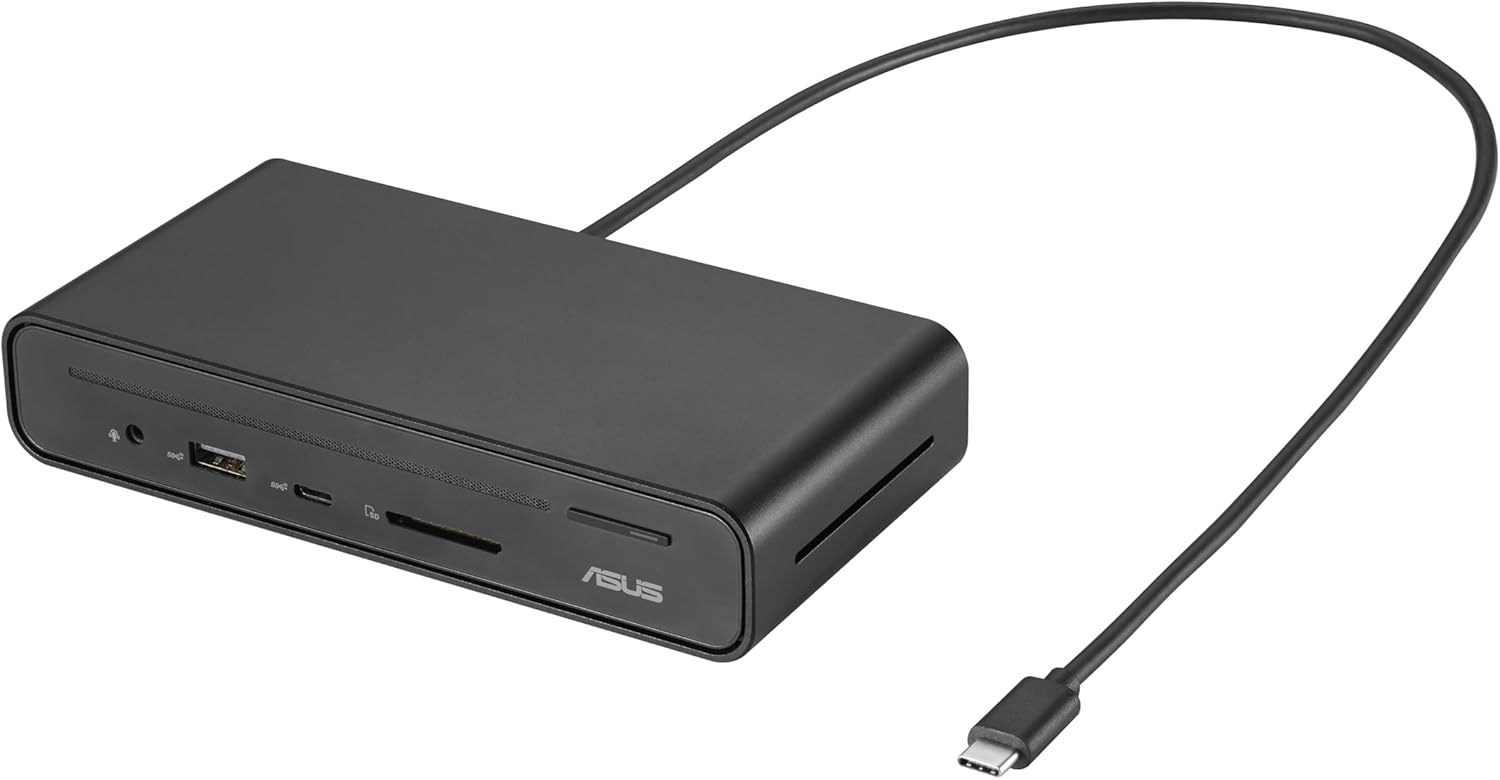
Figure 2.1: ASUS DC300 Docking Station with attached USB-C cable.
3. Содржина на пакетот
Проверете дали сите предмети се присутни во пакувањето:
- ASUS DC300 Docking Station
- USB Type-C Cable (braided)
- Magnetic Base with Adhesive
- Упатство за употреба (овој документ)
4. Physical Components and Port Layout
The docking station features a variety of ports for comprehensive connectivity. Familiarize yourself with the port layout for optimal use.
4.1 Порти на предниот панел
- 1x USB Type-C Port (10 Gbps): За брз пренос на податоци.
- 1x USB Type-A Port (10 Gbps): За брз пренос на податоци.
- Читач на SD картички: За читање на стандардни SD мемориски картички.
- Читач на MicroSD картички: For reading MicroSD memory cards.
- Аудио приклучок од 3.5 мм: За поврзување на слушалки или надворешни аудио уреди.
- Копче за вклучување: За вклучување/исклучување на приклучната станица.

Слика 4.1: Предна страна view of the docking station with accessible high-speed data and media card ports.
4.2 Порти на задниот панел
- 2x HDMI Ports (4K@60Hz): За поврзување на надворешни дисплеи.
- 2x DisplayPort (4K@60Hz): За поврзување на надворешни дисплеи.
- 1x USB Type-C PD Port (100W): For power delivery to your laptop and pass-through charging.
- 1x USB Type-A Port (10 Gbps): За брз пренос на податоци.
- 1x USB Type-A Port (480 Mbps): For connecting peripherals like keyboard/mouse dongles.
- 1x Гигабитен етернет порт: За стабилна жична мрежна врска.

Слика 4.2: Заден дел view of the docking station with various display, power, and network ports.
5. Водич за поставување
Follow these steps to set up your ASUS DC300 Docking Station:
- Поставете го пристаништето: Place the docking station on a flat, stable surface. You may use the included magnetic base to secure it to your desk. Ensure the adhesive is applied to a suitable surface if you intend to use it permanently.
- Поврзување со лаптоп: Connect the braided USB Type-C cable from the docking station's "To Laptop" port (rear panel) to your laptop's USB Type-C port.
- Поврзување на напојување (опционално, но препорачливо): For optimal performance, especially with multiple displays and charging, connect your laptop's USB Type-C power adapter to the docking station's "USB Type-C PD" port (rear panel). This enables pass-through charging for your laptop.
- Поврзување на дисплеи: Use HDMI or DisplayPort cables to connect your external monitors to the corresponding ports on the rear panel of the docking station.
- Поврзете периферни уреди: Plug in your mouse, keyboard, external drives, or other USB devices to the available USB Type-A or USB Type-C ports on the front or rear panels.
- Поврзување со мрежа (опционално): For a stable wired internet connection, connect an Ethernet cable to the Gigabit Ethernet port on the rear panel.
- Вклучување: Press the power button on the front panel to turn on the docking station. The digital LED display will illuminate, showing the status of connected ports.
6. Упатства за работа
6.1 Режими на прикажување
Докинг станицата поддржува различни конфигурации на екранот:
- Windows системи: Supports single, dual, and triple external displays in extended or mirrored modes. Resolutions up to 4K@60Hz are supported for single/dual displays, and 4K@30Hz for triple displays.
- Mac OS системи: Supports single and dual external displays. Triple display is not supported in extended mode; displays will be mirrored.

Слика 6.1: Прample of a triple monitor setup with the ASUS DC300 Docking Station.
6.2 Пренос на податоци
Utilize the high-speed USB ports for quick data transfer:
- USB 3.2 Gen 2 Ports (10 Gbps): Идеално за префрлање на големи files to/from external SSDs or other high-speed devices.
- SD/MicroSD Card Readers: For fast transfer of photos and videos from memory cards.
6.3 One-Click Screen Lock
The power button on the top of the docking station also functions as a screen lock button:
- Windows: Press the button once to instantly lock your displays.
- MacOS: Press the button twice to lock your displays.
7. Одржување и грижа
- Чувајте ја приклучната станица во чиста и сува средина.
- Избегнувајте изложување на уредот на екстремни температури или директна сончева светлина.
- Clean the surface with a soft, dry cloth. Do not use liquid cleaners.
- Ensure cables are properly connected and not under strain to prevent damage.
8 Смена на проблеми
Доколку наидете на проблеми, погледнете ги следниве вообичаени решенија:
- Unstable LAN Connection: If the LAN connection is unstable or disconnects, especially after sleep mode, try disabling and re-enabling the network driver in your operating system settings.
- Power Button Not Functioning: Ensure the docking station is properly connected to your laptop and, if applicable, to a power source.
- Треперење на екранот: Check all display cable connections. Ensure your display drivers are up to date. Verify that your monitor and cable support the selected resolution and refresh rate.
- Нема излез за прикажување: Confirm that your laptop's USB-C port supports video output (DisplayPort Alt Mode). Ensure all display cables are securely connected. Check your display settings in your operating system.
- Проблеми со полнење: Ensure your laptop's power adapter is connected to the docking station's USB Type-C PD port. Verify that your laptop supports USB-C power delivery.
9. Спецификации
| Карактеристика | Детал |
|---|---|
| Број на модел | 90XB08CN-BDS000 |
| Димензии на производот | 3.66 x 3.27 x 0.98 инчи |
| Тежина на ставката | 1.1 фунти |
| Технологија за поврзување | Жичен |
| Способност за полнење | Yes (up to 100W via USB-C PD) |
| Поддршка за прикажување | 3 Displays Supported (4K resolution) |
| HDMI порти | 2 (4K@60Hz) |
| DisplayPort | 2 (4K@60Hz) |
| Вкупно USB порти | 4 (2x USB 3.2 Gen 2 Type-A, 1x USB 3.2 Gen 2 Type-C, 1x USB 2.0 Type-A) |
| Етернет | Гигабитен етернет |
| Читач на мемориски картички | SD, MicroSD |
| Компатибилни уреди | Expertbook (and other USB-C compatible laptops) |
10. Гаранција и поддршка
For warranty information and customer support, please refer to the official ASUS website or contact their customer service directly. The product typically comes with a manufacturer's warranty. Please retain your proof of purchase for warranty claims.
Поддршка од ASUS: https://www.asus.com/support/