
1. Вовед
This manual provides comprehensive instructions for the setup, operation, maintenance, and troubleshooting of your Dell OptiPlex 7060 Small Form Factor (SFF) Desktop Computer. The OptiPlex 7060 is designed for efficient performance in a compact form factor, suitable for various computing environments. Please read this manual thoroughly before using your computer to ensure proper functionality and longevity.
2. Производот завршиview
2.1 Клучни карактеристики
- Equipped with an Intel Core i7 (8th Gen) 8700 processor, 3.2 GHz (up to 4.6 GHz) with 6 cores, providing robust processing power.
- Features 16 GB of DDR4 SDRAM (expandable up to 64 GB) for efficient multitasking.
- Includes a 256 GB PCI Express M.2 NVMe SSD (Class 40) for fast storage access.
- Pre-installed with Windows 10 Pro 64-bit Edition.
- Utilizes Intel Turbo Boost Technology 2 for enhanced performance when needed.
- Compact Small Form Factor (SFF) design for versatile placement.
2.2 Што има во кутијата
По распакувањето, проверете дали се вклучени сите следни компоненти:
- Dell OptiPlex 7060 SFF Desktop Computer
- System Power Cord (English)
- Тастатура
- Глувче
- Водич за безбедност/животна средина и регулатива (англиски/француски повеќејазичен)
2.3 Производ Views
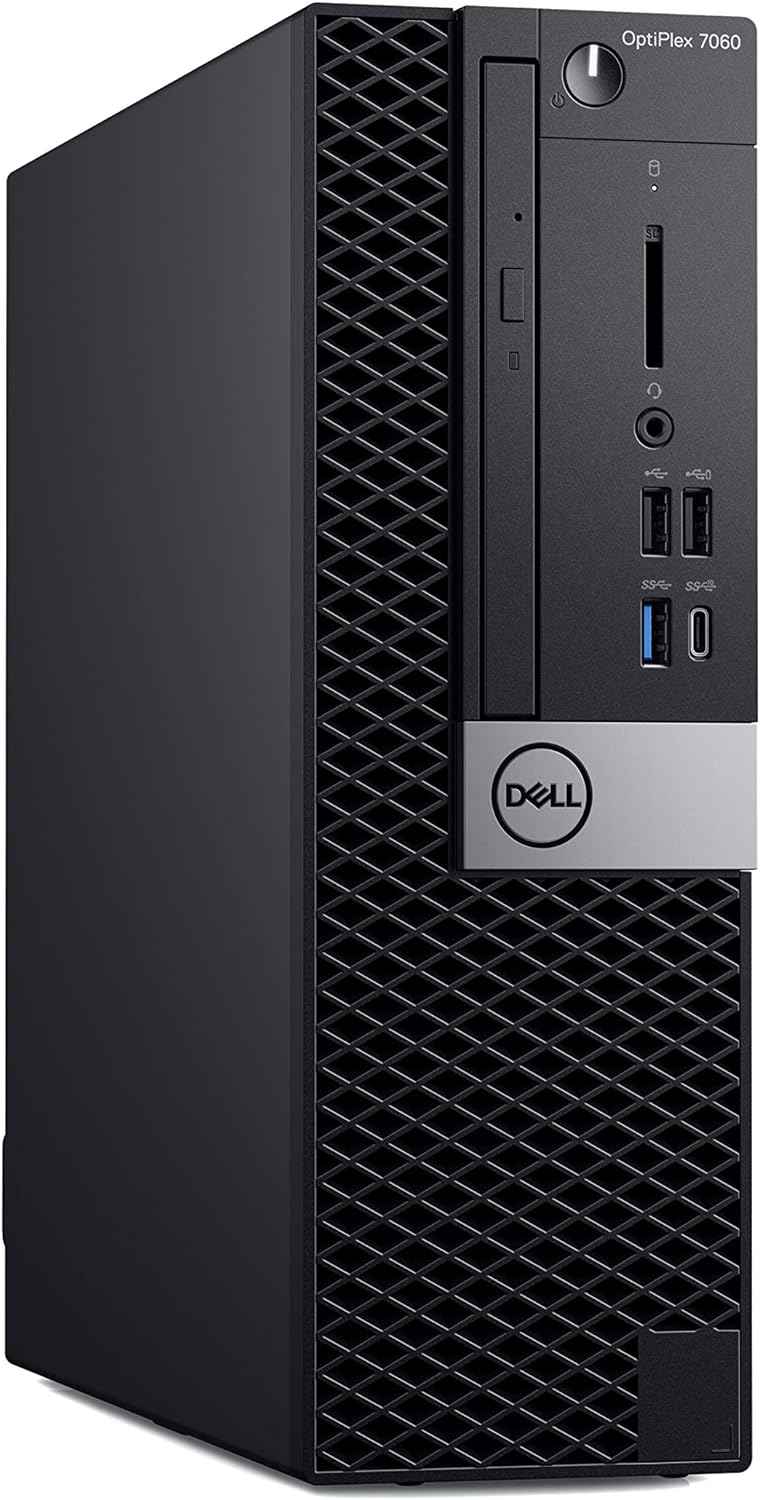
Слика 2.3.1: Предна страна View of OptiPlex 7060 SFF. This image displays the front panel of the desktop, highlighting the power button, slim optical drive bay, USB 3.0 and USB 2.0 ports, and headphone/microphone jacks.

Слика 2.3.2: Заден дел View of OptiPlex 7060 SFF. This image illustrates the back panel, featuring display ports (DisplayPort, HDMI), multiple USB ports, Ethernet port, audio jacks, and the power connector.
3. Водич за поставување
Follow these steps to set up your Dell OptiPlex 7060 SFF desktop computer:
- Распакувајте го системот: Внимателно извадете го компјутерот и сите додатоци од пакувањето.
- Поврзете периферни уреди:
- Connect the supplied keyboard and mouse to the available USB ports on the rear or front of the computer.
- Connect your monitor to one of the available video output ports (e.g., DisplayPort, HDMI) on the rear of the computer. Ensure your monitor is also connected to a power source.
- Ако користите надворешни звучници или слушалки, поврзете ги во приклучокот за аудио излез.
- For wired network access, connect an Ethernet cable from your router or modem to the Ethernet port on the rear of the computer.
- Поврзете напојување: Поврзете го кабелот за напојување со конекторот за напојување на задната страна од компјутерот, а потоа вклучете го другиот крај во заземјен електричен штекер.
- Вклучување: Притиснете го копчето за вклучување што се наоѓа на предната страна од компјутерот. Системот ќе почне да се стартува.
- Почетно поставување: Follow the on-screen instructions to complete the Windows 10 Pro initial setup, including language selection, network configuration, and user account creation.
4. Упатства за работа
Your Dell OptiPlex 7060 SFF comes with Windows 10 Pro pre-installed, offering a familiar and intuitive operating environment.
4.1 Основно работење
- Вклучување/исклучување: Press the power button to turn the computer on. To shut down, click the Start button, then Power > Shut down.
- Рестартирајте: За да го рестартирате системот, кликнете на копчето „Старт“, потоа на „Вклучување“ > „Рестартирај“.
- Режим на спиење: За да го ставите компјутерот во режим на спиење, кликнете на копчето Start (Старт), потоа на Power (Вклучување) > Sleep (Спиење).
- Поврзување на Wi-Fi: If a wireless adapter is installed (or using Bluetooth for tethering), click the network icon in the system tray, select your Wi-Fi network, and enter the password.
- Користење на USB порти: Connect USB devices such as external drives, printers, or webcams to the available USB 2.0 or USB 3.0 ports.
- Оптички погон: Insert CDs or DVDs into the DVD-Writer drive for reading or writing data.
4.2 Карактеристики на Windows 10 Pro
Familiarize yourself with key Windows 10 Pro features:
- Мени за почеток: Пристап до апликации, поставки и опции за напојување.
- Кортана: Your personal digital assistant for voice commands and searches.
- Мајкрософт Еџ: Стандардно web прелистувач.
- File Истражувач: Управувајте со вашите files и папки.
- Поставки: Customize system preferences, manage devices, and update Windows.
5. Одржување
Regular maintenance helps ensure the optimal performance and longevity of your Dell OptiPlex 7060 SFF.
- Ажурирања на софтверот: Regularly check for and install Windows updates and driver updates from Dell's official support webстраница за да се обезбеди стабилност и безбедност на системот.
- Отстранување прашина: Periodically clean the exterior of the computer with a soft, dry cloth. Use compressed air to gently clear dust from vents and fan openings to prevent overheating. Ensure the computer is powered off and unplugged before cleaning.
- Антивирусна заштита: Одржувајте го вашиот антивирусен софтвер ажуриран и редовно скенирајте за да се заштитите од малициозен софтвер и вируси.
- Чистење на дискот: Користете ја вградената алатка за чистење на дискот во Windows за да отстраните привремени датотеки. fileи ослободи простор за складирање.
- Бекап на податоци: Редовно правете резервна копија на важните податоци на надворешен диск или во облак за да спречите губење на податоци.
6 Смена на проблеми
This section provides solutions to common issues you might encounter with your Dell OptiPlex 7060 SFF.
| Проблем | Можна причина | Решение |
|---|---|---|
| Компјутерот не се вклучува. | No power, loose connections. | Ensure the power cord is securely connected to both the computer and the electrical outlet. Test the outlet with another device. |
| Нема приказ на мониторот. | Monitor off, loose video cable, incorrect input. | Check if the monitor is powered on. Verify the video cable is securely connected to both the computer and the monitor. Ensure the monitor's input source is set correctly. |
| Системот е бавен или не реагира. | Премногу програми работат, мал простор на дискот, малициозен софтвер. | Close unnecessary applications. Run Disk Cleanup. Perform a full system scan with antivirus software. Consider adding more RAM if frequently running demanding applications. |
| Peripheral (keyboard/mouse) not working. | Loose connection, driver issue, faulty device. | Try connecting the device to a different USB port. Restart the computer. Check Device Manager for driver issues. Test with another peripheral if available. |
For more advanced troubleshooting or issues not listed here, refer to Dell's official support webстраница или контактирајте ја техничката поддршка на Dell.
7. Спецификации
Detailed technical specifications for the Dell OptiPlex 7060 SFF Desktop Computer:
| Карактеристика | Детал |
|---|---|
| Модел | OP7060SFFT7G0K |
| Процесор | Intel Core i7-8700 (8th Gen) 3.2 GHz (up to 4.6 GHz) Hexa-core |
| RAM меморија | 16 GB DDR4 SDRAM (2666 MHz), Max 64 GB |
| Складирање | 256 GB SSD (PCI Express, M.2, NVMe, Class 40) |
| Графика | Интегрирана Intel UHD Graphics 630 |
| Оперативен систем | Windows 10 Pro 64-bit Edition |
| Оптички погон | ДВД-Писател |
| USB порти | 4x USB 2.0, 5x USB 3.0 |
| Безжично поврзување | Bluetooth (Wireless Type: Bluetooth) |
| Етернет | Гигабитен етернет (GigE) |
| Димензии (ДxШxВ) | 11.6 x 3.7 x 11.4 инчи (29.5 x 9.4 x 29 см) |
| Тежина | 11.6 фунти (5.26 кг) |
| Боја | Црното |
| Хардверска платформа | Windows |
| Напојување | Внатрешна |
8. Гаранција и поддршка
Your Dell OptiPlex 7060 SFF Desktop Computer includes a 3-Year Dell ProSupport warranty, as indicated in the product description. This service provides enhanced support for your system.
8.1 Dell ProSupport
Dell ProSupport offers advanced technical support, including 24x7 direct access to ProSupport engineers, proactive monitoring, and automated issue resolution. For specific terms and conditions of your warranty, please refer to the documentation provided with your purchase or visit the official Dell support webсајт.
8.2 Добивање техничка поддршка
If you encounter issues that cannot be resolved using the troubleshooting steps in this manual, or for any technical inquiries, please contact Dell Support:
- Поддршка преку Интернет: Посетете ја официјалната поддршка на Dell webсајт (www.dell.com/support) and enter your service tag for product-specific resources, drivers, and diagnostics.
- Телефонска поддршка: Refer to the contact information provided in your warranty documentation or on the Dell Support website for regional telephone support numbers.
Before contacting support, have your computer's service tag readily available. This unique identifier helps Dell provide faster and more accurate assistance.