
Вовед
The ADATA S102PRO is a high-performance USB 3.0 flash drive designed for fast and reliable data storage and transfer. Its durable design and high-speed interface make it ideal for everyday use, allowing you to carry important files, documents, photos, and videos with ease.
Поставување
Follow these steps to begin using your ADATA S102PRO USB Flash Drive:
- Идентификувајте USB порта: Locate an available USB port on your computer. For optimal performance, use a USB 3.0 port (often colored blue internally). The ADATA S102PRO is backward compatible with USB 2.0 ports, but data transfer speeds will be limited to USB 2.0 rates.
- Отстранете го капачето: Carefully remove the protective cap from the USB flash drive to expose the USB connector.
- Вметнете го погонот: Insert the USB connector firmly into the USB port on your computer. Ensure it is inserted correctly; do not force it.
- Системско препознавање: Your operating system (Windows, macOS, Linux) should automatically detect and install the necessary drivers. A notification may appear indicating that the device is ready for use. The drive will typically appear as a removable disk or volume in your file истражувач.
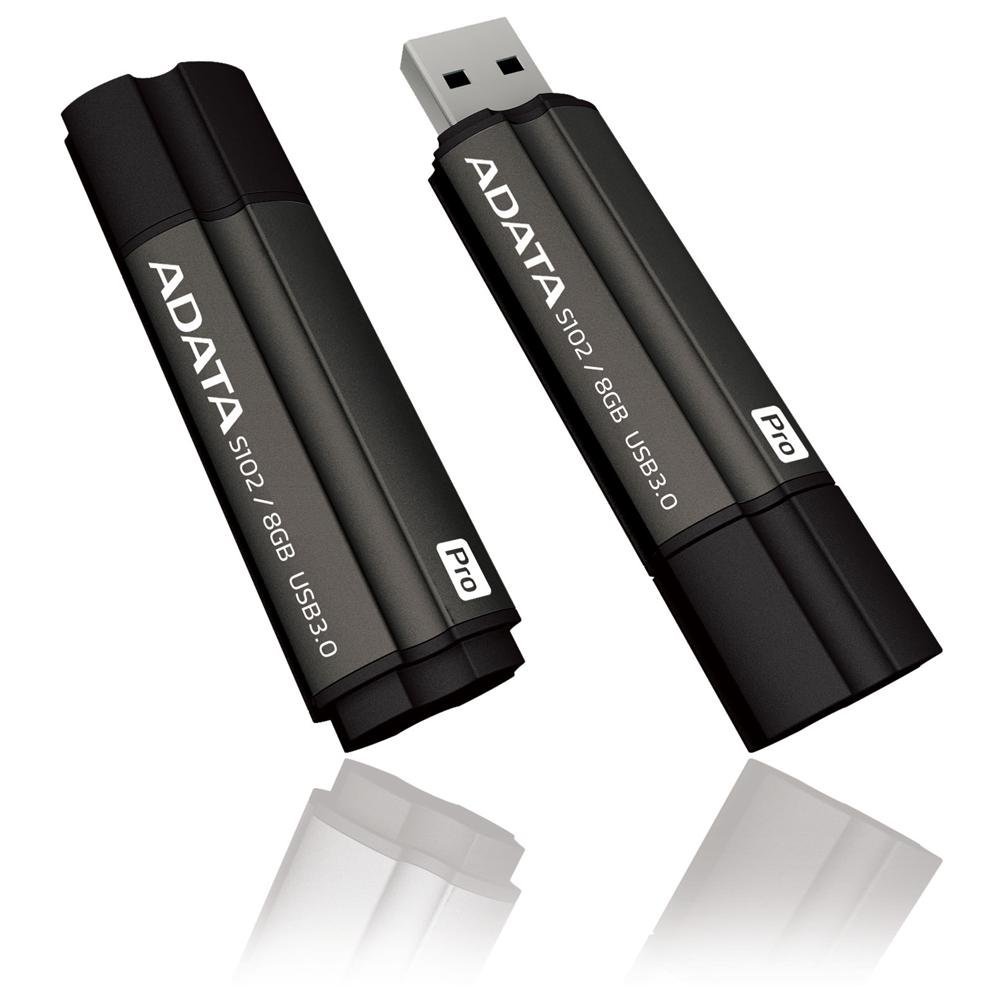
Image: The ADATA S102PRO USB Flash Drive shown with its protective cap on and with the cap removed, revealing the USB 3.0 connector. This illustrates the physical appearance and how to prepare the drive for insertion.
Оперативни
Once the ADATA S102PRO is recognized by your computer, you can begin transferring files:
- Пристап до дискот:
- Windows: Open "This PC" or "My Computer" and locate the drive listed under "Devices and drives" (e.g., "Removable Disk" or a drive letter like E:).
- MacOS: The drive icon will appear on your desktop or in the Finder sidebar under "Locations."
- Пренесување Files:
- За копирање files до the flash drive, drag and drop them from your computer's folders into the flash drive's window.
- За копирање files од the flash drive, drag and drop them from the flash drive's window to a folder on your computer.
- You can also use the standard copy (Ctrl+C / Command+C) and paste (Ctrl+V / Command+V) functions.
- Безбедно отстранување на дискот: Клучно е безбедно да го извадите флеш-уредот пред физички да го отстраните за да спречите оштетување на податоците.
- Windows: Click the "Safely Remove Hardware and Eject Media" icon in the system tray (bottom-right corner), then select your flash drive and click "Eject." Wait for the "Safe to Remove Hardware" message.
- MacOS: Drag the drive icon from the desktop to the Trash, or click the Eject button next to the drive name in the Finder sidebar. Wait for the icon to disappear before removing the drive.
Одржување
Proper care will help ensure the longevity and reliability of your ADATA S102PRO USB Flash Drive:
- Заштитете го конекторот: Секогаш држете го заштитното капаче на USB конекторот кога уредот не се користи за да спречите прашина, нечистотија и физичко оштетување.
- Избегнувајте екстремни услови: Do not expose the drive to extreme temperatures, direct sunlight, high humidity, or strong magnetic fields.
- Ракувајте со внимание: Избегнувајте испуштање на погонот или негово изложување на силни удари.
- Do Not Remove During Transfer: Never unplug the drive while data is being read from or written to it. Always follow the safe removal procedure.
- Редовни бекап: While flash drives are reliable, it is always recommended to back up critical data to another storage device or cloud service.
Решавање проблеми
If you encounter issues with your ADATA S102PRO, try the following solutions:
- Дискот не е препознаен:
- Осигурајте се дека дискот е целосно вметнат во USB-портата.
- Обидете се со друга USB порта на вашиот компјутер.
- Тестирајте го дискот на друг компјутер за да исклучите проблем специфичен за компјутерот.
- Проверете го Управувачот со уреди (Windows) или Системските информации (macOS) на вашиот компјутер за да видите дали дискот е наведен, дури и ако не се појавува во File Истражувач/Пронаоѓач.
- Бавни брзини на пренос:
- Ensure you are connected to a USB 3.0 port for optimal performance. USB 2.0 ports will limit speeds.
- Трансфер на многу мали fileможе да биде побавно од префрлање на неколку големи files.
- Затворете ги другите апликации што можеби користат системски ресурси или извршуваат операции на дискот.
- Не може да се пишува Files за возење:
- Проверете дали дискот е полн. Избришете ги непотребните. fileили префрлете ги на друга локација.
- Обезбедете го file system (e.g., FAT32, NTFS, exFAT) is compatible with your operating system and allows writing. If formatted as NTFS on macOS, you may only have read access without third-party software.
- Check for any software-based write protection or permissions issues on your computer.
Спецификации
| Бренд | ПОДАТОЦИ |
| Име на моделот | S102PRO |
| Број на модел | AT806-4G-CPK |
| Капацитет за складирање на меморија | 4 GB |
| Хардверски интерфејс | USB 3.0 (компатибилен со USB 2.0) |
| Производител | A-DATA TECHNOLOGY (USA) CO. L |
| UPC | 842243005080 |
| ASIN | B004AVOGW8 |
Гаранција и поддршка
For detailed warranty information, product registration, and technical support, please visit the official ADATA webстраница. Таму обично можете да најдете ресурси за поддршка, често поставувани прашања и информации за контакт за корисничка поддршка.
ADATA Official Webсајт: www.adata.com