


Maximum Controls 04-18-24 Max App Based Keypad
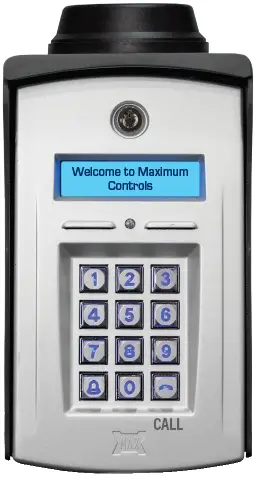
Product Information
Specifications:
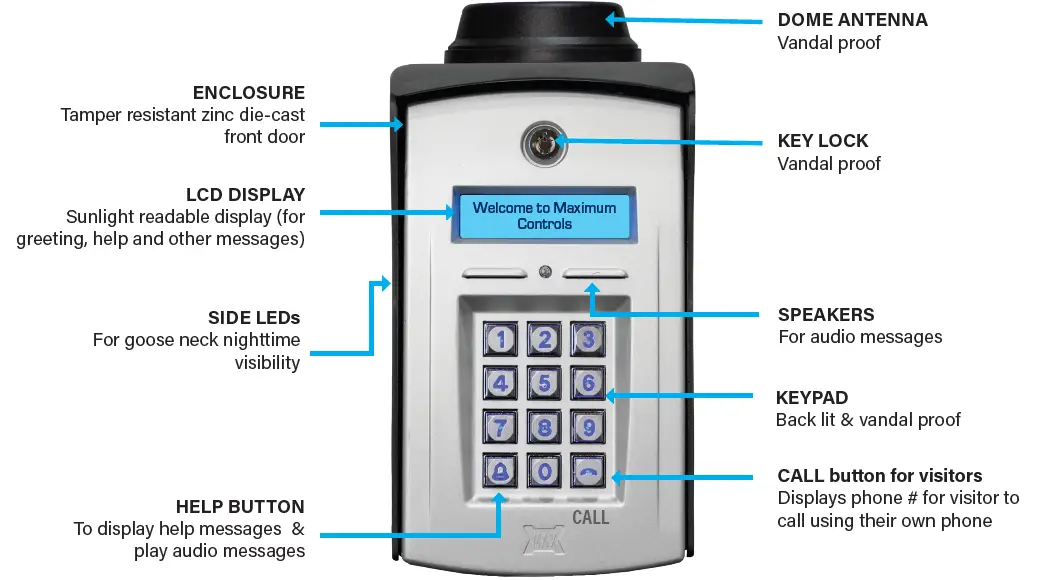
- Enclosure: Tamper resistant zinc die-cast front door
- LCD Display: Sunlight readable display for greeting and messages
- LEDs: Side LEDs for nighttime visibility
- Buttons: Help button for displaying messages, call button for visitors
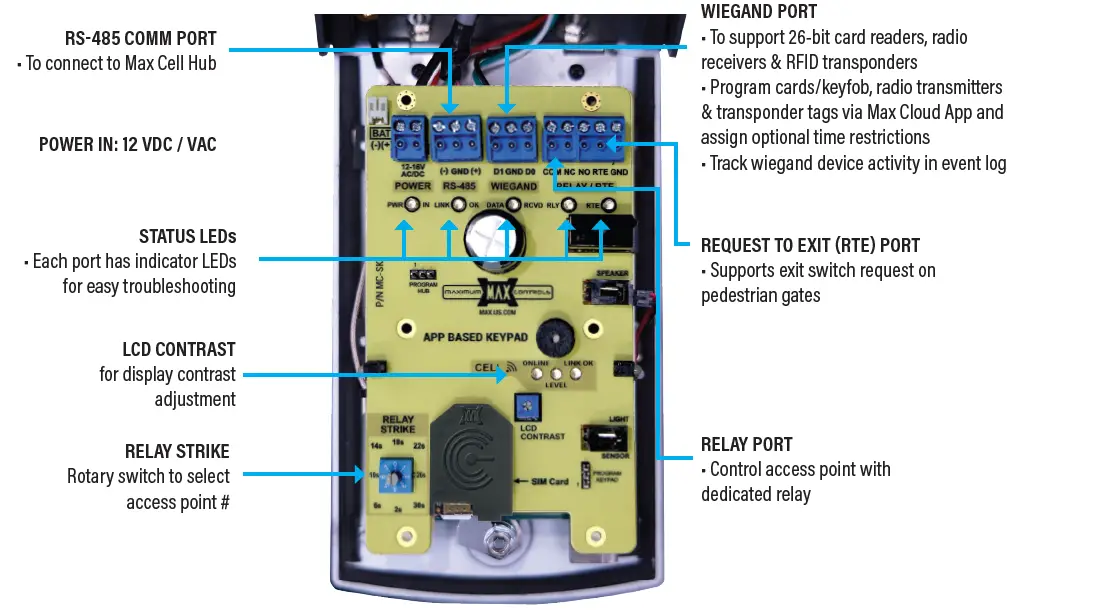
- Power Input: 12VDC / VAC
- Antenna: Dome antenna for improved signal reception
- Keypad: Backlit and vandal-proof with call button and phone number display
Product Usage Instructions
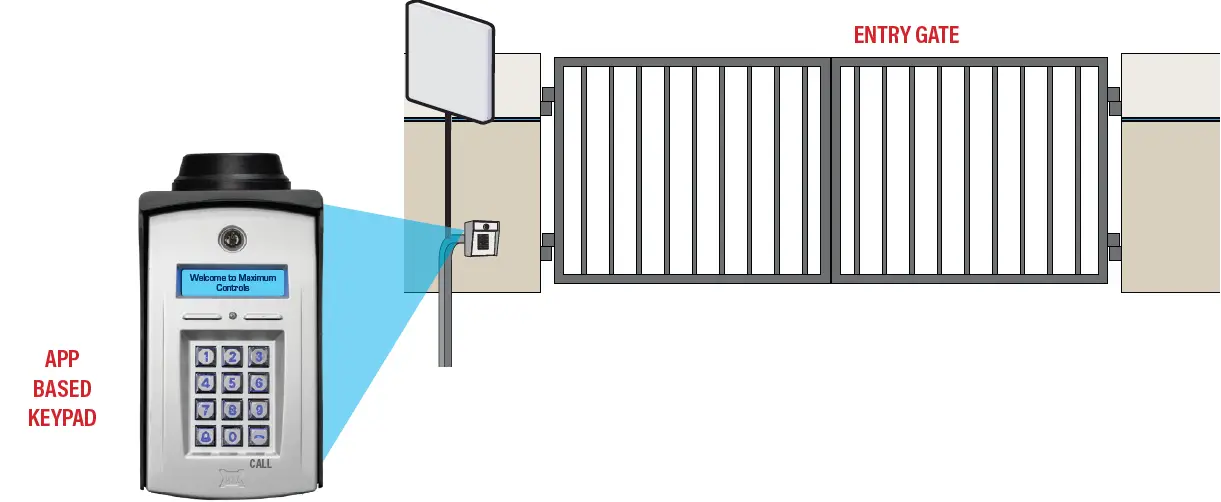
Entry Gate Application:
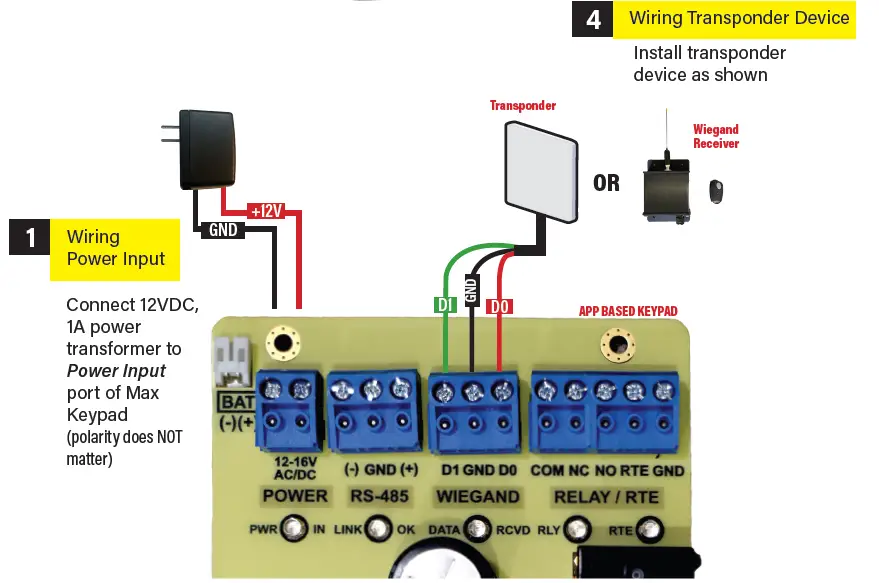
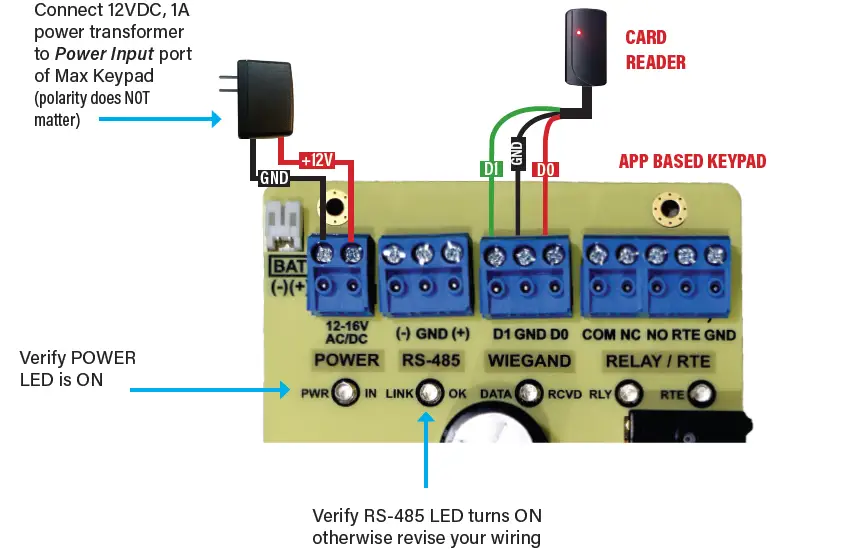
- Connect a 12VDC, 1A power transformer to the Power Input port of the Max Keypad.
- Install the transponder device as shown in the diagram.
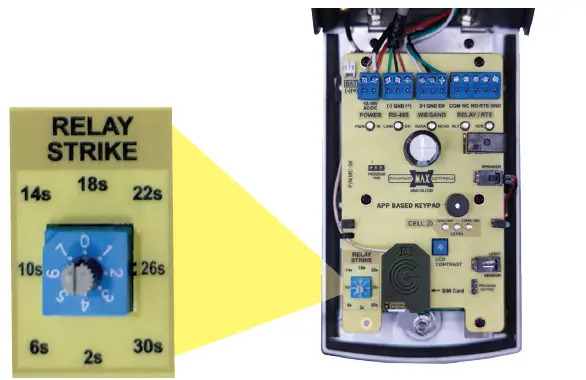
- Select the desired RELAY STRIKE option using the rotary switch for gate access.
Pedestrian Door Application:
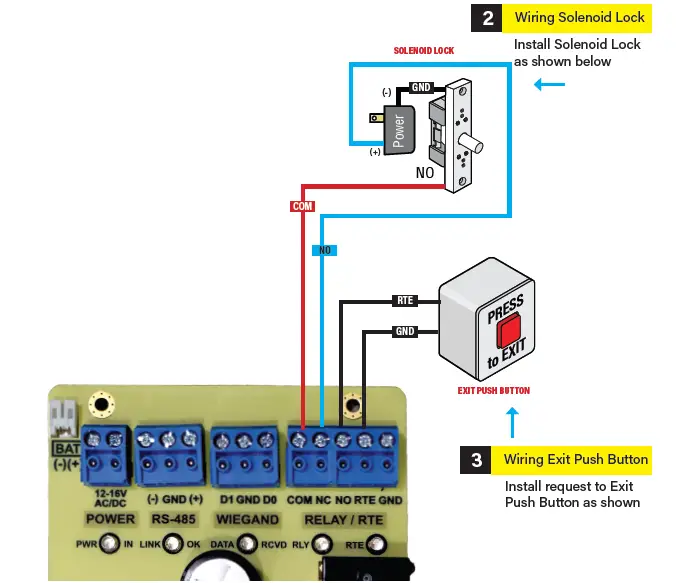
- Install the solenoid lock and connect it as indicated in the wiring diagram.
- Add an Exit Push Button as shown in the instructions.
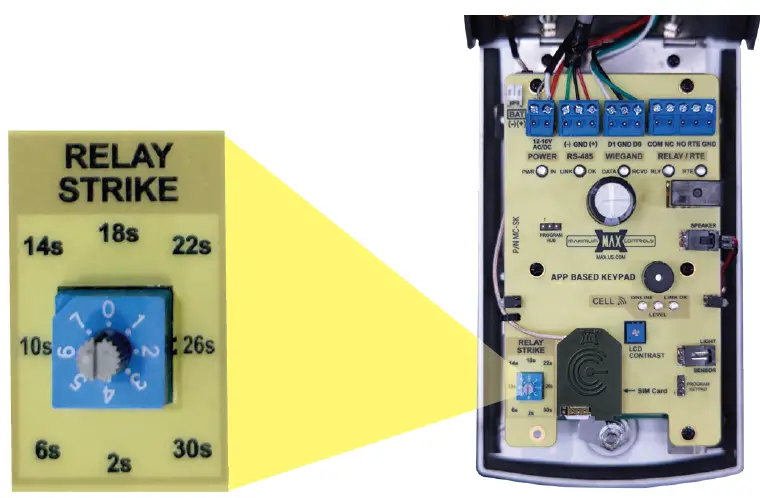
- Select the appropriate Relay Strike Time using the rotary switch for door opening.
Setting up Max Cloud App:
- Download the Max Cloud App from the Google Play Store on your Android phone.
- Follow the on-screen instructions to install the app and set up a new gate site.
FAQ
- Q: How do I add a new user on the app?
A: To add a new user, open the Max Cloud App, navigate to the user settings, and follow the prompts to input the necessary information for the new user. - Q: Can I program keycodes with restrictive times?
A: Yes, you can program keycodes with specific time restrictions by accessing the keypad programming options in the app and setting up the desired schedule for each user.
Key Features
 App Based Trackable Keypad
 Affordable cell data plans (AT&T or Verizon)
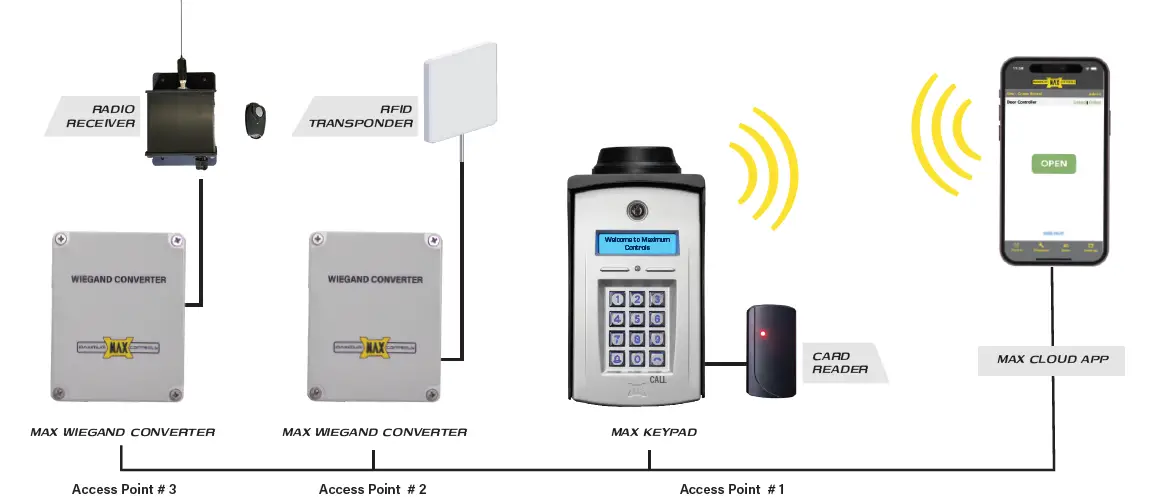
 16 Zone Control using Wiegand Converters
 15 Wireless zone control (1 mile range / 900 MHz)(with wireless Wiegand Converters)
 Push Notification for “Call” button pressed or Visitor Motion Detected COMING SOON
 Guest Pass with date and time restriction
 Event Log of all transactions
MAX APP BASED KEYPAD OVERVIEW
ENTRY GATE APPLICATION USING APP BASED KEYPAD
Select “RELAY STRIKE” using rotary switch
Select #0: to open gate via Cell Hub (note: keypad relay NOT activated)
Select #15: to open gate via Cell Hub (note: keypad relay is also activated)
PEDESTRIAN DOOR APPLICATION
Select “Realy Strike TIme” using rotary switch
Select #2s-30s: to open gate using Relay Strike
PEDESTRIAN DOOR APPLICATION

Wiring Power Input
SETTING UP MAX CLOUD APP
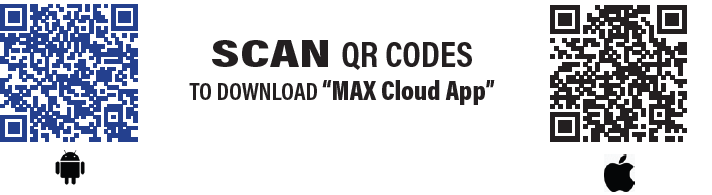
Getting Max Cloud App
Max Cloud App is available for download on:

How to install Max Cloud App on android phones
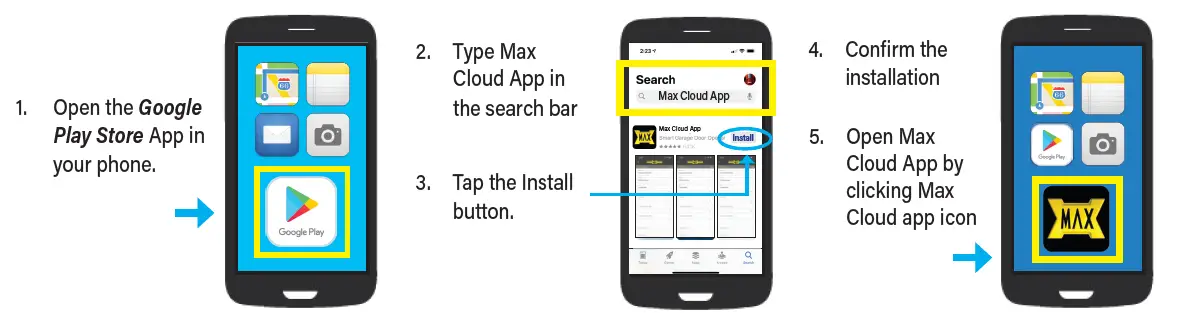
How to install Max Cloud App on Iphone

Max Cloud Login for the first time
- Open the Max Cloud app in your phone.
- Add a phone number then press Login. Android phone does automatic verification
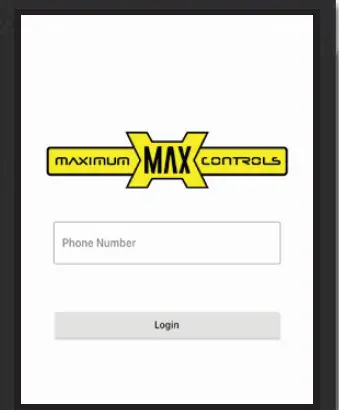 On Iphone phone Max Cloud app will send you a code to verify your account. Enter the code and press verify, now you Max Cloud app is now ready.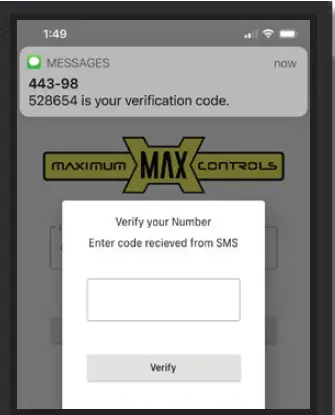
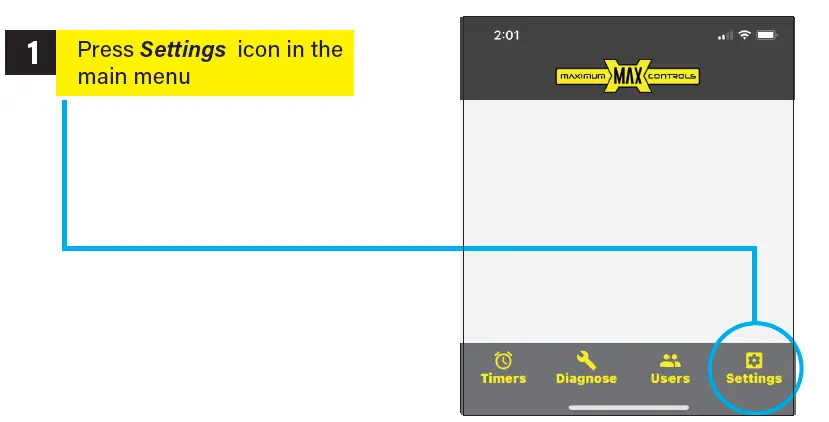
SET UP A NEW GATE SITE ON APP
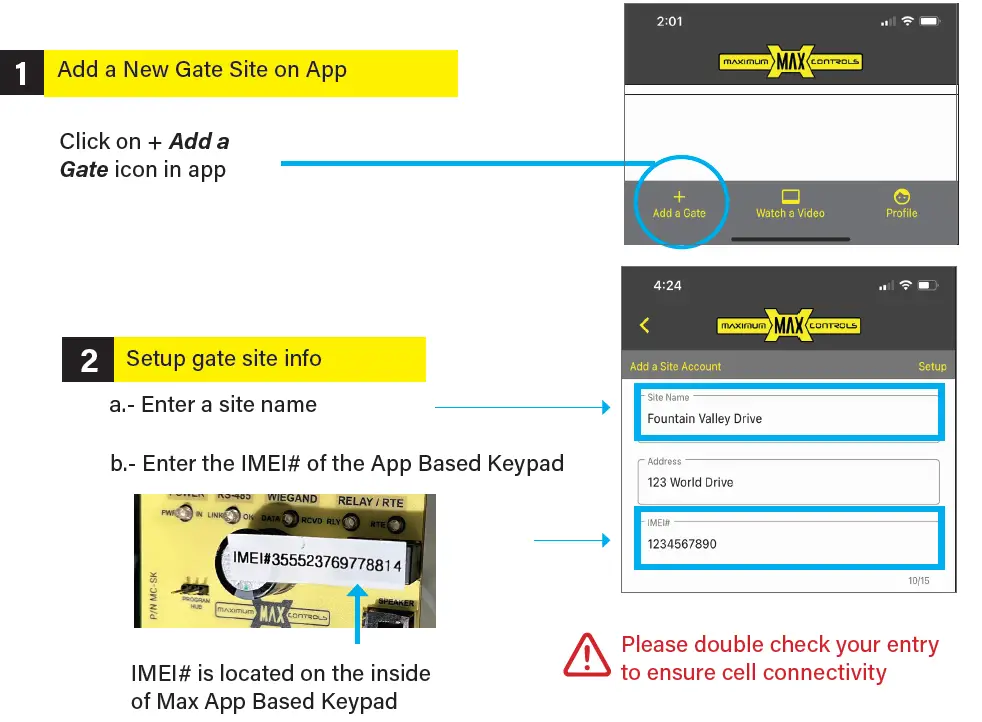
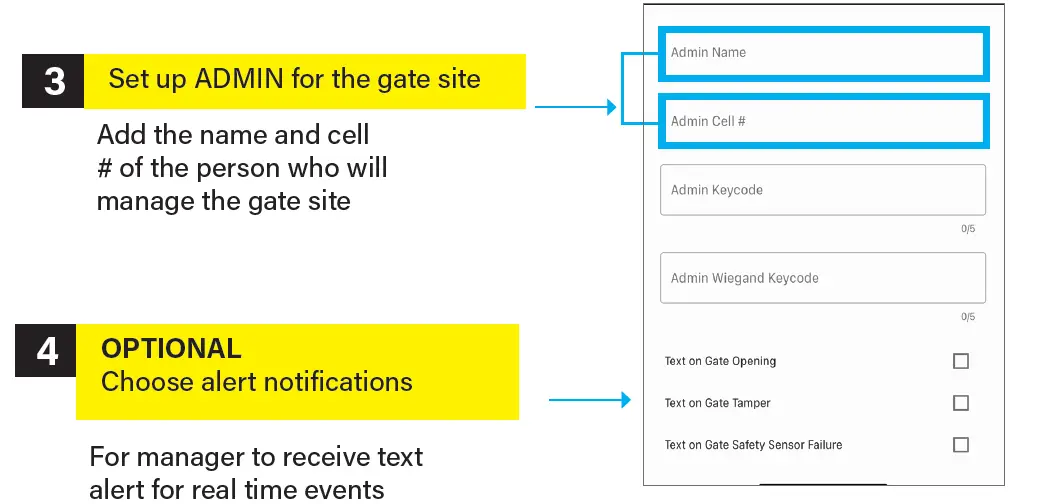
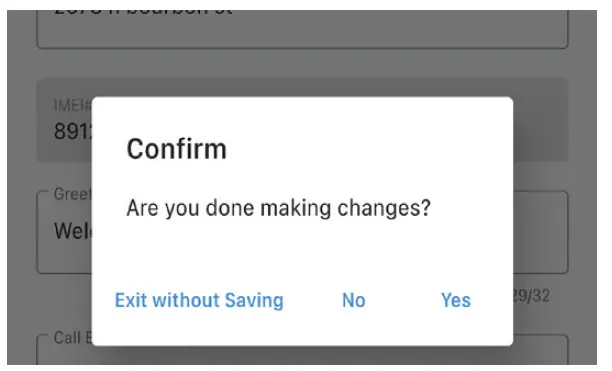
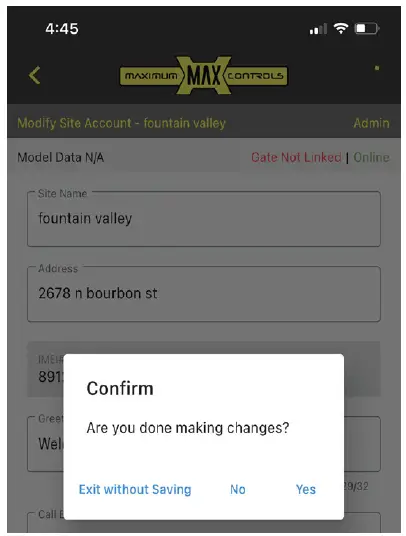
EXIT & SAVE changes
Press the back button [<] on the top left of the screen to confirm changes
Choose the new site from the list
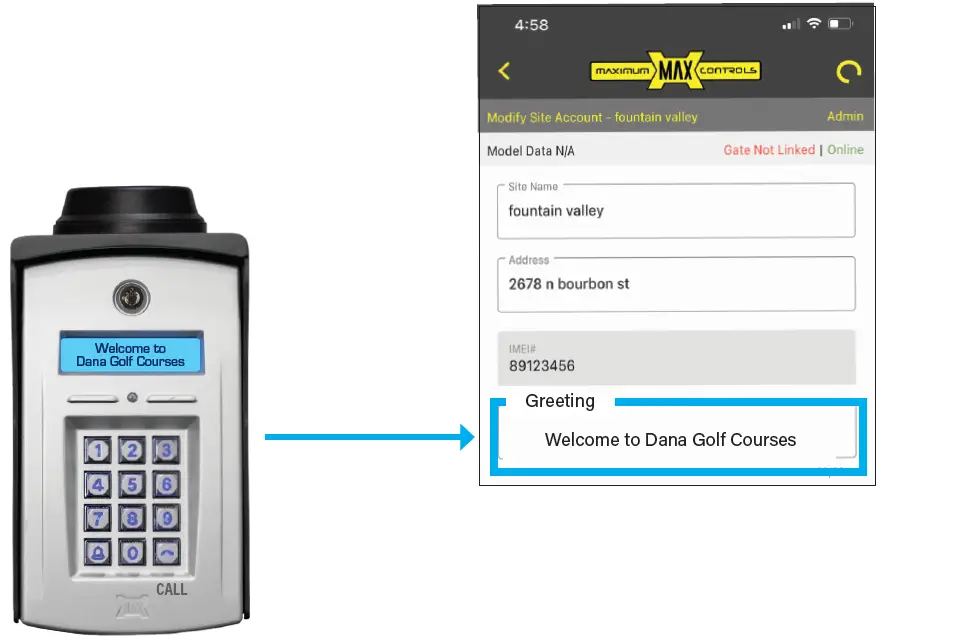
Setup greeting message
Go to the GREETING area and type the message you want to display for your visitors. Limited to 32 characters.
PROGRAM CALL BUTTON MESSAGE
1 Setup Call Button
Go to the Call Button area and type the message that may instruct the visitor to call a specific phone number (i.e. facility manager or home owner) using their personal cell phone. Example CALL button message: “CALL (949) 000-0000 on your phone”.

When CALL button is pressed, display shows programmed message
2 Press the back button [<] on the top left of the screen to confirm changes
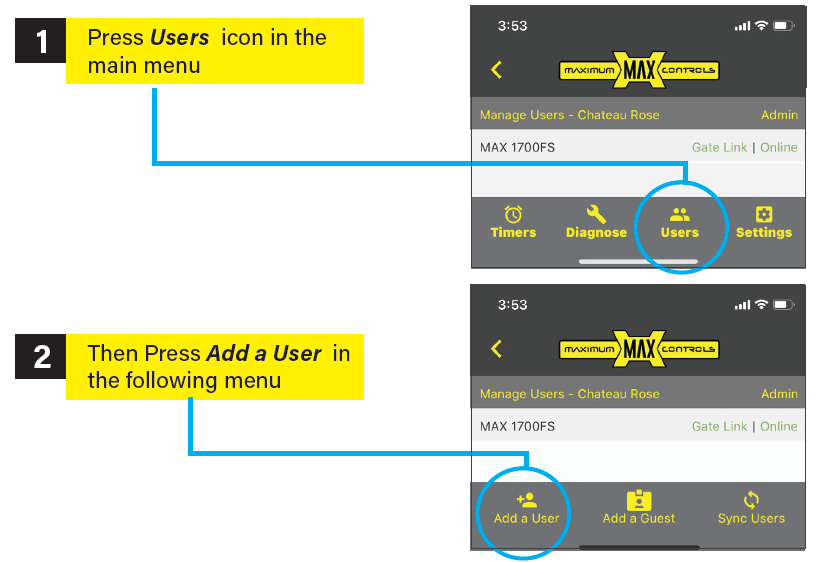
ADD A USER ON APP

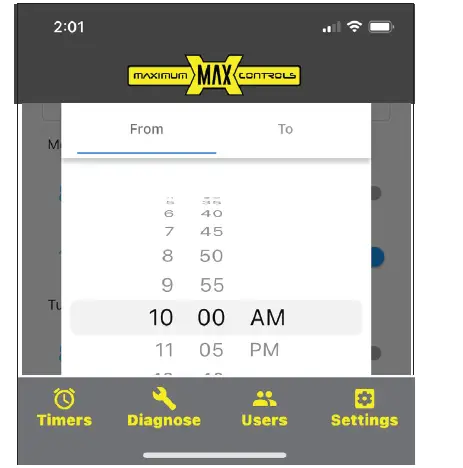
PROGRAM KEYCODES WITH RESTRICTIVE TIME ZONES
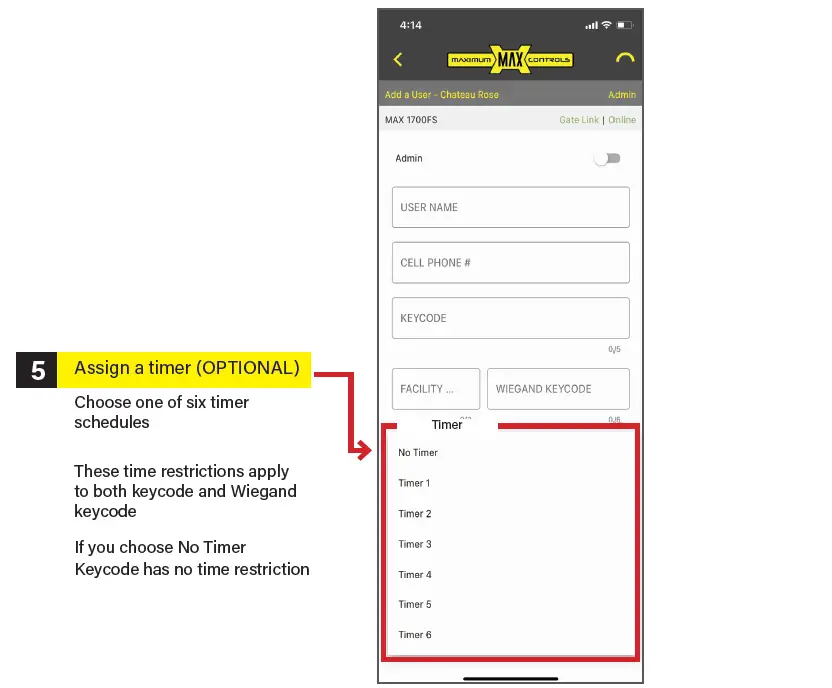
Press the back button [<] on the top left of the screen to confirm create a user
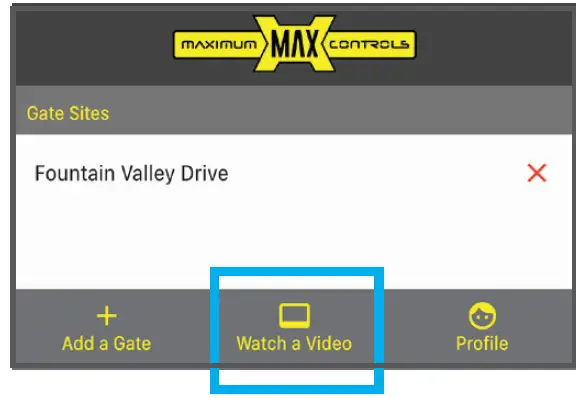
Watch video tutorials from Max Cloud App, just go to the home screen
OR
Applying restrictive time period to keycodes improves the security to your gate site
PROGRAM TIMERS
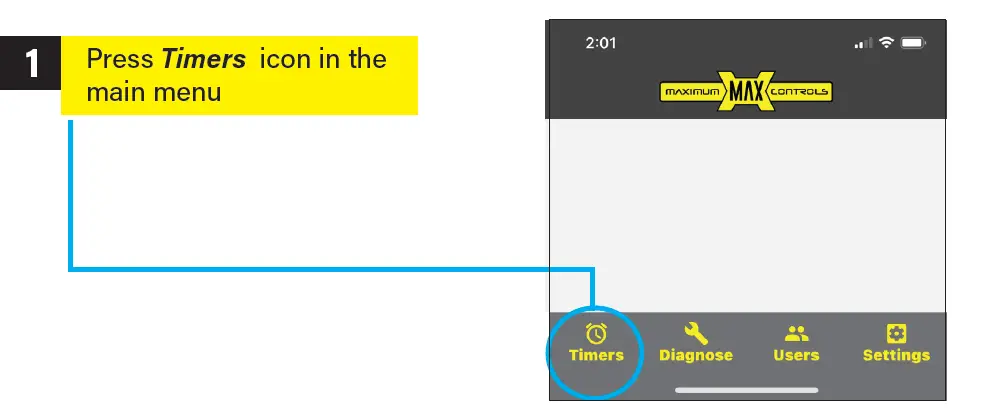
Choose the Timer option you want to setup from the list of timers
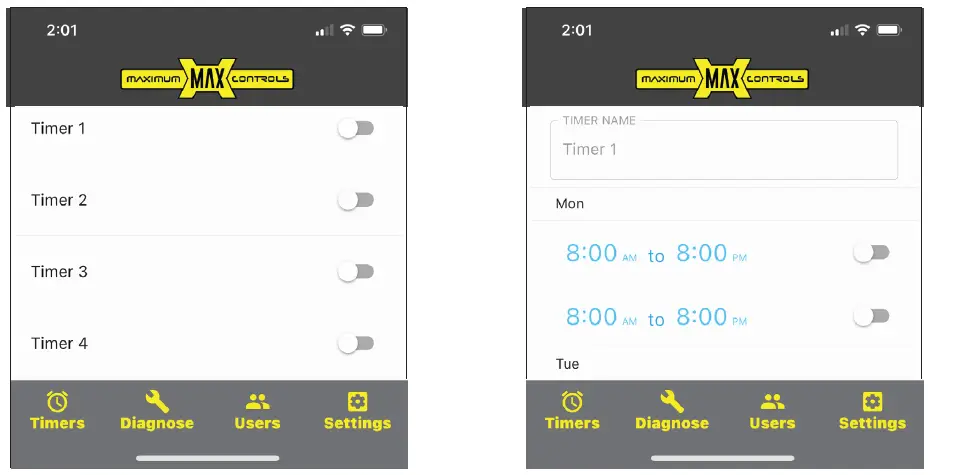
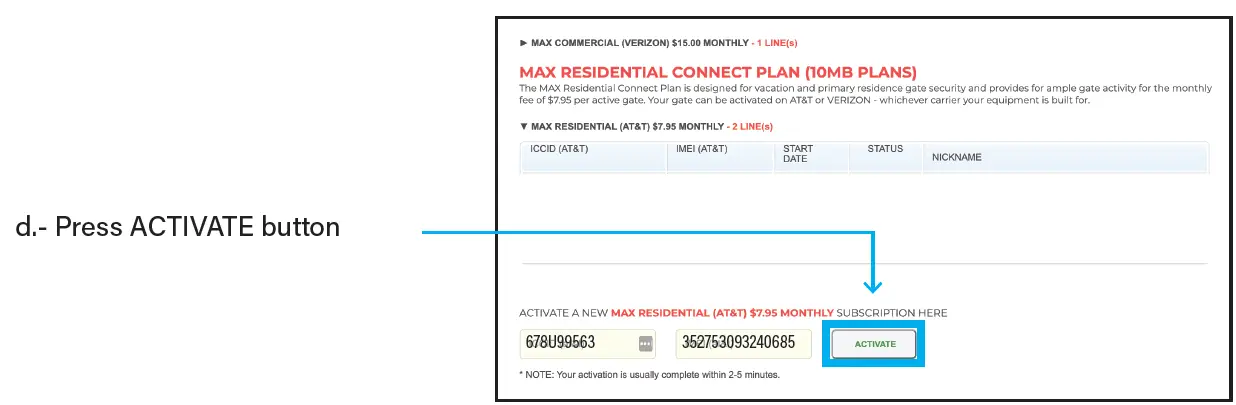
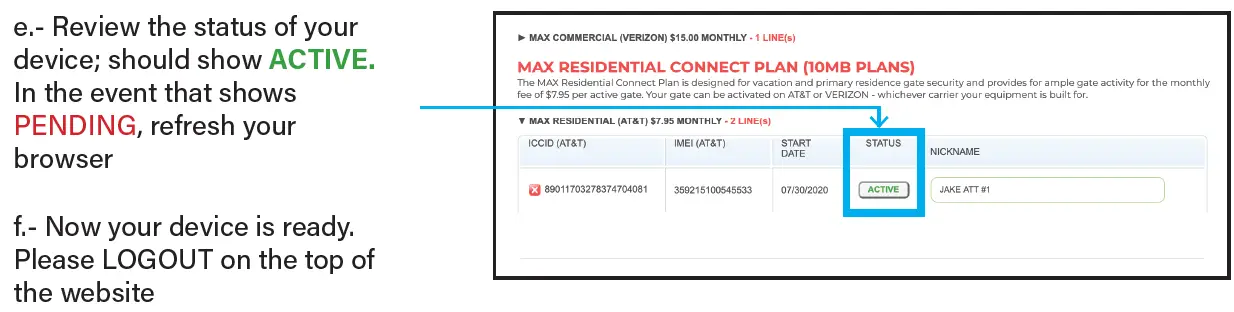
CELL DATA ACTIVATION SETUP
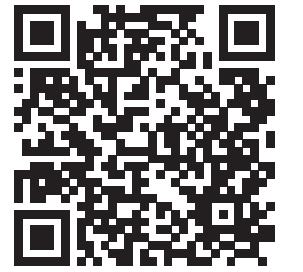
SCAN QR CODE TO:Activate HUB’s SIM card at www.Max.us.com/products-cell-data-activation
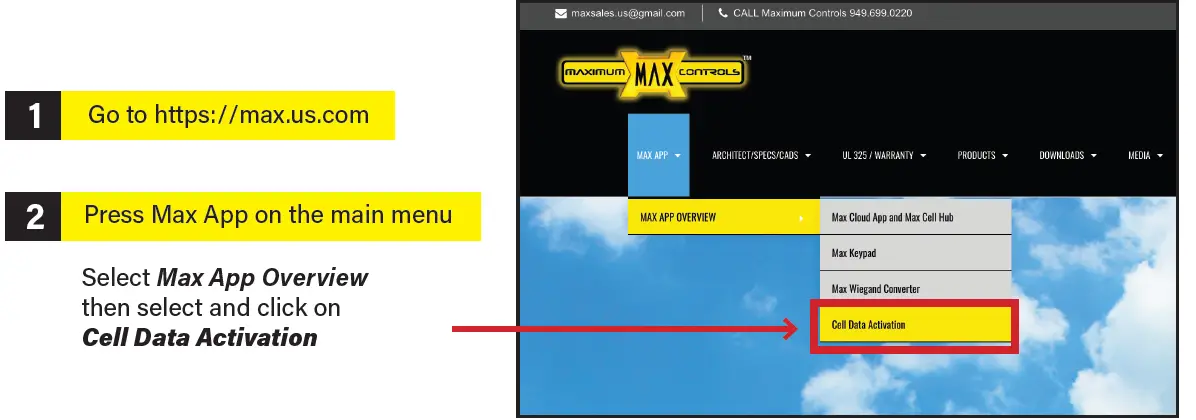

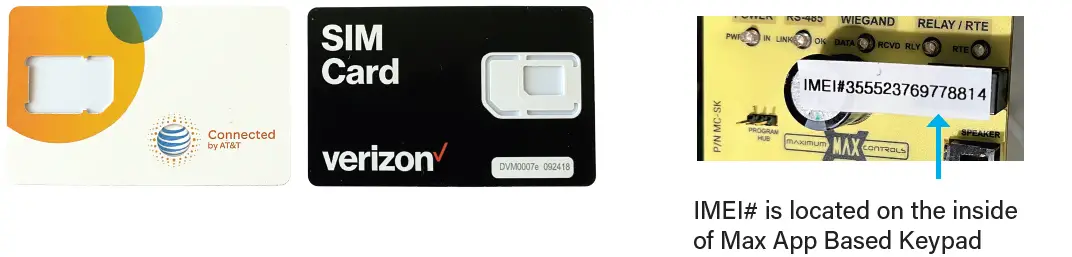
Please have in hand the SIM Card (AT&T or Verizon) provided with Max App Based Keypad and IMEI#
 Please double check your entry to ensure cell connectivity
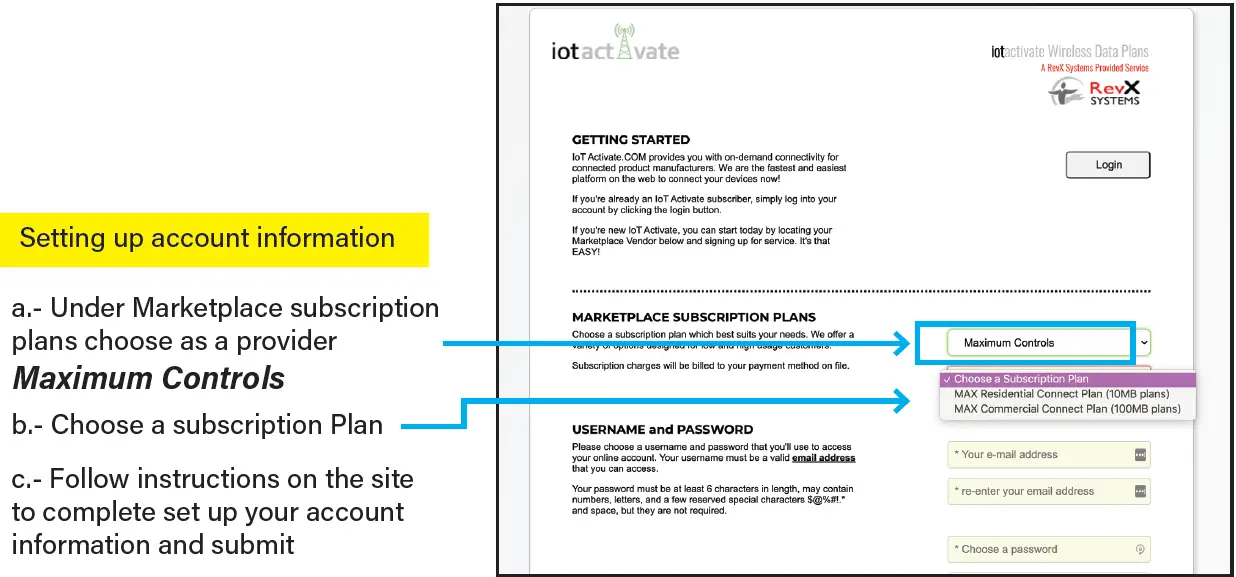
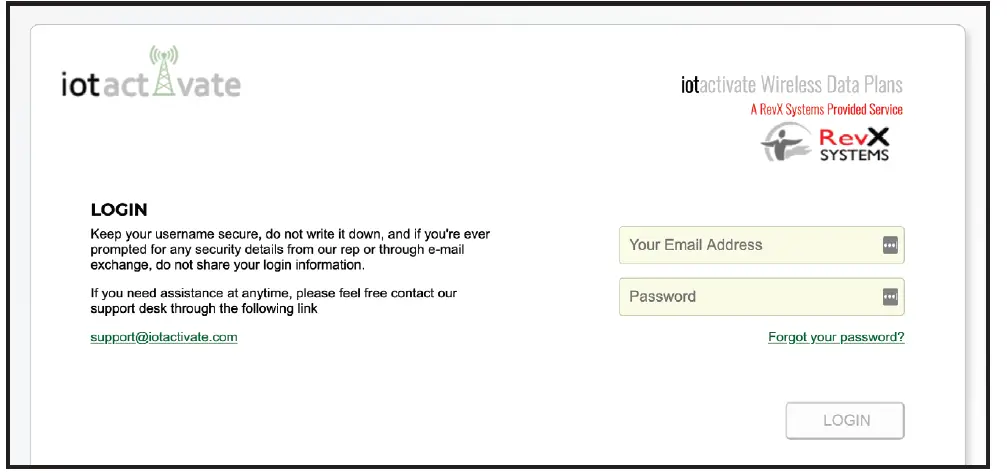
Enter your login info
Will take you to our secure portal https://www.iotactivate.com, enter username and password then press login


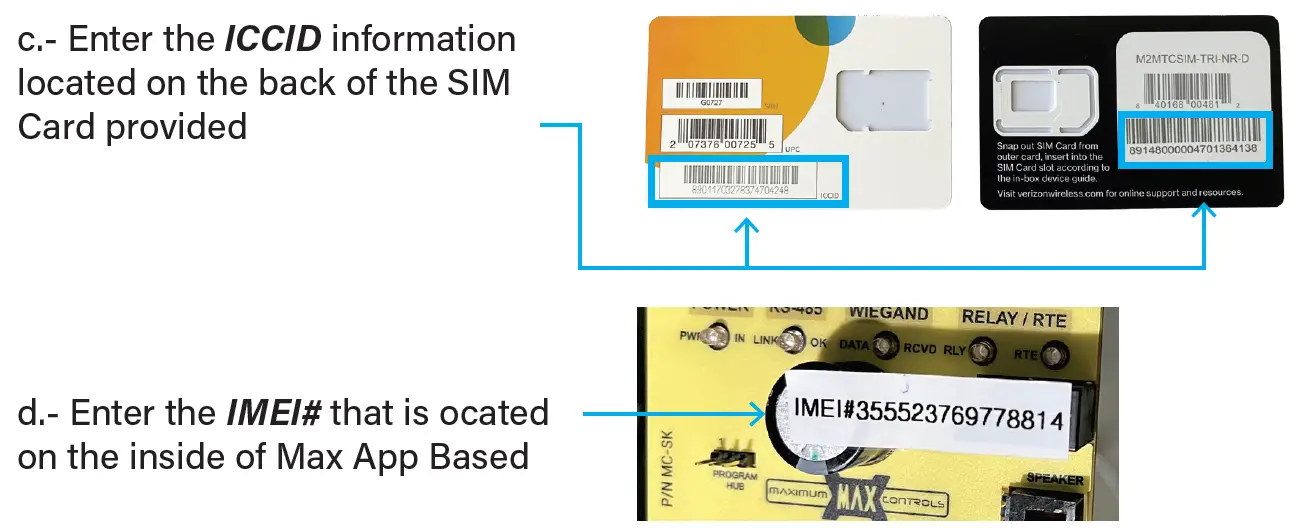
Please double check your entry to ensure cell connectivity
APP BASED KEYPAD
Key Features
- App Based Trackable Keypad
- Affordable cell data plans (AT&T or Verizon)
- 16 Zone Control using Wiegand Converters
- 15 Wireless zone control (1 mile range / 900 MHz)(with wireless Wiegand Converters)
- Push Notification for “Call” button pressed or Visitor Motion Detected COMING SOON
- Guest Pass with date and time restriction
- Event Log of all transactions
10530 Lawson River Ave., Fountain Valley, CA 92708
- Ave., Fountain Valley, CA 92708
- 949-699-0220
- maxsales.us@gmail.com | MAX.US.COM
Documents / Resources
 |
Maximum Controls 04-18-24 Max App Based Keypad [pdf] Installation Guide 04-18-24 Max App Based Keypad, 04-18-24, Max App Based Keypad, App Based Keypad, Based Keypad, Keypad |


