
1. Introduction
This manual provides detailed instructions for the setup, operation, maintenance, and troubleshooting of the URayCoder H.265/H.264 IP Video Decoder, Model UHCVD265-1-4K. This device is designed to decode various IP video streams and output them via HDMI, VGA, or CVBS interfaces, supporting resolutions up to 4K UHD.
2. Product Overview
2.1 Key Features
- Supports H.265 and H.264 video decoding.
- Decodes multiple types of video streams from various video encoders and IP cameras.
- Multi-channel decoding: Supports up to 4 channels simultaneously.
- Multi-protocol support: HTTP(S), RTSP, RTMP, SRT, HLS(M3U8), UDP, RTP, Multicast, Unicast, FLV, ONVIF.
- 4K UHD resolution support: Up to 3840x2160P@30fps output.
- Output interfaces: HDMI, VGA, CVBS.
2.2 Physical Features and Ports
The URayCoder IP Video Decoder features various ports for connectivity and control.

Figure 1: Rear panel of the URayCoder IP Video Decoder, showing the Reset button, Audio output, CVBS output, VGA output, HDMI output, LAN port, and DC12V power input.
- Reset Button: Used to restore factory settings or restart the device.
- Audio Output: 3.5mm jack for audio output.
- CVBS Output: Composite video output.
- VGA Output: Video Graphics Array output.
- HDMI Output: High-Definition Multimedia Interface output.
- LAN Port: RJ45 Ethernet port for network connection.
- DC12V Input: Power input for the 12V DC adapter.

Figure 2: Diagram illustrating the various streaming protocols supported by the decoder, including RTMP, RTSP, HTTPS, M3U8, HLS, SRT, UDP, and ONVIF.
3. Setup
3.1 Basic Connection
Follow these steps to connect your URayCoder IP Video Decoder:
- Connect the DC12V power adapter to the decoder and a power outlet.
- Connect an Ethernet cable from your network router/switch to the decoder's LAN port.
- Connect your display device (monitor, TV) to the decoder using an HDMI, VGA, or CVBS cable.
- Ensure your IP camera or video encoder is connected to the same network and is streaming video.

Figure 3: Connection diagram showing an IP camera or other video stream source connected via the internet to the URayCoder Video Decoder, which then outputs to a display via CVBS, VGA, or HDMI.
3.2 Accessing the Web Interface
The decoder is configured via a web-based interface. To access it:
- Ensure your computer is on the same network as the decoder.
- Open a web browser and enter the decoder's IP address. The default IP address is typically provided in the packaging or can be discovered using network scanning tools.
- Log in using the default username and password (refer to your device's specific documentation for default credentials).
4. Operation
4.1 Adding Video Streams (Address Setting)
To decode a video stream, you must provide its URL in the web interface.
- Navigate to the Address Setting section in the web interface.
- Enter the full stream URL (e.g., RTSP, RTMP, HLS) for each channel you wish to decode.
- For RTSP streams, a common format is
rtsp://username:password@IP_Address:554/cam/realmonitor?channel=1&subtype=0. Adjustusername,password,IP_Address, andchannelas per your camera/encoder configuration. - Click Apply to save the settings.
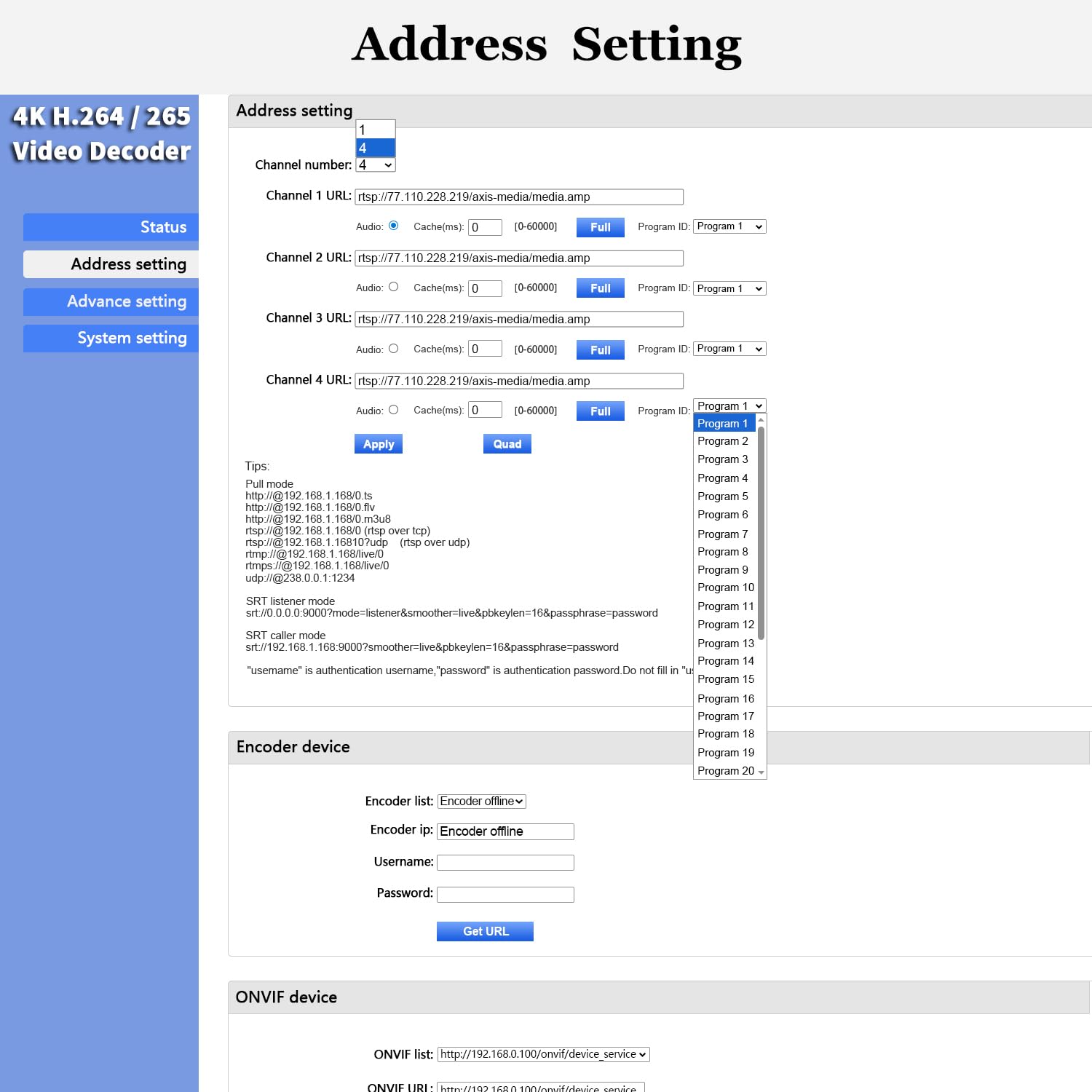
Figure 4: Screenshot of the web interface's 'Address Setting' page, showing fields for entering stream URLs for up to four channels and options for audio and cache settings.
4.2 Multi-channel Decoding and Display Layouts
The decoder supports displaying multiple video streams simultaneously.
- In the web interface, navigate to Channel Layout under Advance setting.
- Select your desired layout (e.g., Fullscreen for a single channel, Quarter Display for four channels, or other custom layouts).
- Configure the display regions for each channel as needed.
- Click Apply.

Figure 5: Illustration of multi-channel output, showing four distinct video inputs being decoded and displayed simultaneously on a single screen in a quad layout.

Figure 6: Screenshot of the web interface's 'Channel Layout' settings, offering various display templates like Fullscreen, Quarter Display, and custom picture-in-picture styles.
4.3 Output Settings (System Output)
Adjust the video output parameters to match your display and preferences.
- Go to System setting > System output.
- Select the desired HD output resolution (e.g., 1080P60, 3840x2160P@30).
- Adjust HDMI color, CVBS output format (PAL/NTSC), rotation, and scaling as needed.
- Fine-tune brightness, contrast, hue, saturation, and volume.
- Click Apply.

Figure 7: Screenshot of the web interface's 'System Output' settings, showing options for HD output resolution, HDMI color, CVBS format, rotation, scaling, and image adjustments like brightness and contrast.
4.4 On-Screen Display (OSD Setting)
You can add text or image overlays to your video output.
- Navigate to Advance setting > Osd setting.
- Enable a region, select the type (Text, Image, Roll text, Time).
- Enter the desired text or configure image settings, including position, font size, background color, and opacity.
- Click Apply.

Figure 8: Screenshot of the web interface's 'OSD Setting' page, demonstrating how to configure on-screen display elements like text, including status, type, transparency, position, text content, font size, and color.
4.5 Status Display
Monitor the decoder's operational status through the web interface.
- Access the web interface and click on Status.
- This page displays system information such as device name, runtime, CPU usage, memory usage, network status, HDMI format, and the status of each decoding channel, including URL, frame rate, bit rate, and any decoding errors.

Figure 9: Screenshot of the web interface's 'Status' page, showing system status details like device name, runtime, CPU/memory usage, network status, HDMI format, and detailed status for each video channel, including URL, frame rate, and bit rate.
5. Maintenance
To ensure optimal performance and longevity of your decoder:
- Keep the device in a well-ventilated area to prevent overheating.
- Clean the exterior with a soft, dry cloth. Avoid liquid cleaners.
- Periodically check the manufacturer's website for firmware updates to improve performance and add new features. Firmware updates are typically performed via the web interface under System setting > Upgrade and Backup.
- Ensure stable power supply to prevent unexpected shutdowns.
6. Troubleshooting
This section addresses common issues you might encounter.
6.1 No Video Output
- Check Connections: Ensure all cables (power, network, HDMI/VGA/CVBS) are securely connected.
- Verify Display Input: Confirm your display is set to the correct input source (HDMI, VGA, AV).
- Stream URL Accuracy: Double-check the stream URL entered in the Address Setting. Incorrect IP addresses, usernames, passwords, or channel numbers are common causes.
- Network Connectivity: Ensure the decoder and the video source (IP camera/encoder) are on the same network and can communicate.
- Source Availability: Confirm the video source is actively streaming.
6.2 Multi-channel Display Issues (e.g., Black Screen on a Channel)
- Resolution Limitations: When displaying multiple channels, especially in quad view, the decoder may have limitations on the combined resolution it can handle. For example, 4K streams might not display simultaneously with other high-resolution streams. Consider using sub-streams (lower resolution streams) from your cameras for multi-view layouts.
- RTSP Sub-stream: If your camera supports it, change
subtype=0(main stream) tosubtype=1(sub-stream) in the RTSP URL for multi-channel viewing to reduce bandwidth and processing load. Example:rtsp://username:password@IP_Address:554/cam/realmonitor?channel=1&subtype=1. - Camera Configuration: Access your camera's settings directly to adjust sub-stream resolutions if necessary.
6.3 Decoder Not Accessible via Web Interface
- IP Address: Verify the decoder's IP address. If unknown, use a network scanner or reset the device to factory defaults (which will revert to a default IP, usually 192.168.1.168).
- Network Settings: Ensure your computer's IP address is in the same subnet as the decoder.
- Firewall: Temporarily disable any firewalls on your computer to rule out blocking access.
6.4 Decoder Constantly Pinging/Chatty on Network
- The decoder may perform network activities like DNS, NTP, etc. If this is a concern in a sensitive network environment, consider isolating it using firewall policies to restrict outgoing connections to only necessary services.
7. Specifications
| Model Number | UHCVD265-1-4K |
| Product Dimensions | 5.91 x 3.94 x 1.18 inches |
| Weight | 1.15 Pounds |
| Interface Type | HDMI+CVBS+VGA |
| Number of Channels | 4 (Max simultaneous decoding) |
| Video Decoding | H.265, H.264 |
| Max Output Resolution | 3840x2160P@30fps |
| Supported Protocols | HTTP(S), RTSP, RTMP, SRT, HLS(M3U8), UDP, RTP, Multicast, Unicast, FLV, ONVIF |
8. Warranty and Support
URayCoder provides free lifetime technical support and warranty for all its video decoders. For assistance, please refer to the contact information provided with your product or visit the official URayCoder website.