
Huawei Smartphone Support
Start Your Journey with HUAWEI Phone
Transfer your data to a new device
Wondering how to switch to a new device? HUAWEI Phone Clone makes super-fast transfers come true easily and safely.

Manage your HUAWEI ID
Use your HUAWEI ID as a gateway to numerous HUAWEI mobile services. Pick up some tips on how to manage it.

What does a HUAWEI ID do?
Your HUAWEI ID allows you to access all HUAWEI Mobile Services.
How to register a HUAWEI ID
Instructions for registering a HUAWEI ID and related notes.
If you forget your HUAWEI ID password
You can reset your HUAWEI ID password if you forget it.
Feel free to share with OneHop
Use Huawei Share to transfer your files between multiple devices in a matter of seconds without using any mobile data.

Huawei Share Facilitates Blistering-Fast File Transfers Between Devices:
Two Methods for Enabling Huawei Share
Swipe down from the status bar to open the notification panel, then touch  to enable or disable Huawei Share. Touch and hold the switch to enter the Huawei Share settings screen.
Go to Settings > More connections > Huawei Share, then enable or disable Huawei Share.
* Enabling Huawei Share automatically enables both Wi-Fi and Bluetooth.

Transfer Files Between Phones, with Huawei Share
Huawei Share allows you to quickly share files between two HUAWEI phones. For example, the recipient will be able to view the transferred pictures or videos in Gallery, or proceed to install a transferred app package.
Instructions:
1.Enable Huawei Share on both the sending and receiving devices.
2.On the sending device, touch and hold a file, select the files you wish to share, before touching  . Then touch Huawei Share, and touch the icon for the receiving device to send the files.
3.On the receiving device, touch Accept to accept the transfer.
4.To view the transferred files, go to Files, then touch Internal storage > Huawei Share on the Categories tab. Transferred pictures or videos can also be found in Gallery > Albums > Huawei Share.
*Make sure that the two devices are within 10 m of each other throughout the entire transfer process, and that the receiving device has sufficient storage.
*Keep both devices unlocked with the screen turned on during the entire connection and transmission process.
Connect Your Phone and Laptop with Just a Tap
You can also use Huawei Share to your phone with your laptop, with a single tap. You’ll then be able to answer calls and reply to phone messages, drag and drop phone files, share the clipboard content, and edit phone files, from the convenience of your laptop screen.
*Before initiating a one-tap connection, first confirm that your phone supports NFC and Huawei Share, and that the laptop comes marked with a Huawei Share icon  and has installed PC Manager 9.0 or a later version. To establish a connection for Multi-screen Collaboration, you’ll need PC Manager 10.0 or a later version.
Instructions:
1.On your phone, swipe down from the status bar to open the notification panel, and enable NFC, Wi-Fi, and Bluetooth.
2.On your laptop, enable Wi-Fi and Bluetooth, press F10 to open PC Manager, and confirm the user agreement as prompted.
3.Tap the NFC area on the back of your phone against the Huawei Share icon on your laptop, and hold it there until your phone vibrates or plays a notification tone.
4.Then follow the onscreen instructions on both your phone and laptop to complete the connection.
Record and share your night
At night or in low light environments, Night mode is useful at helping you take colorful shots and making pictures lighter and clearer.

NIGHT Mode Helps You Capture Gorgeous Photos
With NIGHT mode, you are able to capture incredible colors and details and therefore take better photos at night easily. In low light environments, it is your best helper to record every amazing story in your sight.
How to Use NIGHT Mode
*The instructions below are followed with EMUI 10.1 as an example. It may be slightly different in other versions. Please adjust according to your actual situation.
Open Camera  , select NIGHT mode, and touch
 to shoot. The camera will calculate the exposure time according to the light intensity, just wait for the countdown to finish your shot.
*To avoid blurring the photo, please keep your phone steady until the countdown is finished.

Tap Settings  , you can change Aspect ratio as you wish, or use Assistive grid, Horizontal level or other tools to take better pictures.

Four Tips for Shooting with NIGHT Mode
Keep the lens still: Camera shake will blur the picture. Please try to keep it steady when taking photos, for example by using a tripod.
You can also connect an earphone to your phone, and then use the function key on the earphone as a remote shutter button to avoid shake and take better and clearer pictures.
Adjust to appropriate exposure: When it is dark, the NIGHT mode will automatically increase the sensitivity (ISO). But too high sensitivity will produce a lot of noise and thus result in poor quality.
You can take a test shot by setting the ISO value to 100 and SHUTTER SPEED to 2 seconds. If there is too much noise, reduce the shutter speed. If the photo is too dark, then increase the shutter speed until nailing the perfect exposure.
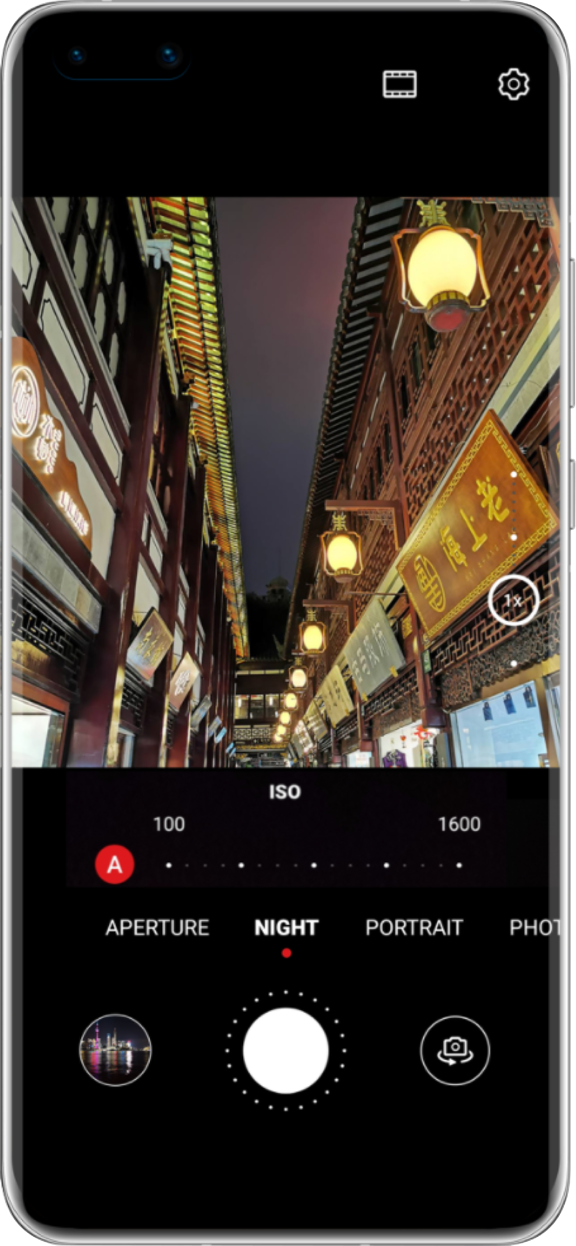
Find the proper time: Shooting at sunrise or sunset enables you to capture the tranquil night scene with a dim blue sky, producing more artistic and interesting photos.
Rainy day creates a great opportunity to photograph water droplets and neon images. Moreover, try focusing on the reflection in a puddle to produce a sense of oil painting.
Capture your screen
Want to share what’s happening on your screen? Take quick screenshots using simple gestures or shortcut keys.
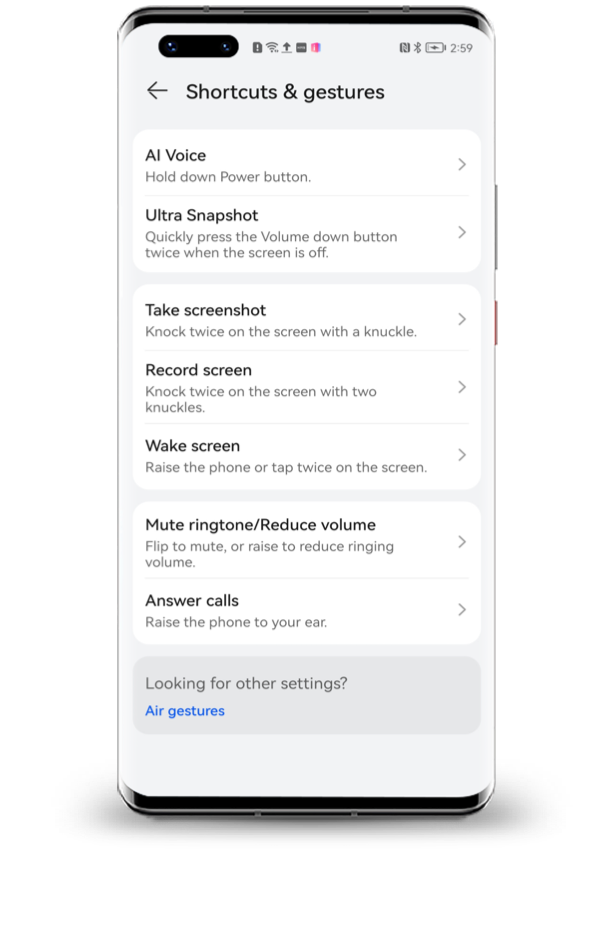
Fun with Screenshots on HUAWEI Phones
HUAWEI phones allow you to take a wide range of engaging and immersive screenshots – from full screen and partial screen captures, to scrolling screenshots that continue all of the way to the end of the page – and best yet, you hardly need to lift a finger!
*The screenshot settings may vary by phone model.
*Screenshots are saved to Gallery by default.
Taking a Screenshot of the Entire Screen
Go to Settings > Accessibility features > Shortcuts & gestures > Take screenshot, and make sure that Knuckle screenshots is enabled. Knock on the screen twice in quick succession with one knuckle to take a screenshot.

Taking a Scrolling Screenshot
Scrolling screenshots capture content that does not fit on the screen. It is especially useful for sharing chat logs and web pages.
Rap a knuckle against the screen and hold to draw an “S”. Your phone will automatically scroll to the bottom of the page to capture all of the content in a single screenshot. You can touch the screen at any time to halt the screenshot.

Taking a Partial Screenshot
To take a partial screenshot, rap and hold a knuckle against the screen, and use it to draw an outline around the portion of the screen that you would like to capture. Make sure that your knuckle does not leave the screen, while doing so. You can also select a frame to determine the shape of the partial screenshot. When you are done, touch  to save the finished screenshot.
 These myriad of different methods give you the freedom to take and share screenshots with newfound ease.
Get Support
Please select the problem description of product and we will recommend the most appropriate solution for you
-

Display and touchscreen
-

Battery, charging and discharging
-

Startup, shutdown and operation
-

Communication, network and connecti…
-

Other hardware damage
-

HUAWEI ID and privacy security
References
- User Manualmanual.tools
سلام، من ایمیل و رمز گوشی خودم را فراموش کردهام و هیچ راهی برای باز کردن گوشی ریست شدهام ندارم
How can I unlock my Huawei phone if I have forgotten my email and password after a reset?
If you have reset your Huawei smartphone and are locked out because you forgot your HUAWEI ID (email) or password, you can attempt to recover access using the following steps:
Read the full Q&A page