
 S41 Security Camera
User Guide
 Support email: support@foscam.com
To view this guide in other languages (e.g. Nederlands, Deutsch, Français, Español), and for detailed manuals, tools, etc., please visit
foscam.com/downloads.
Setting Up Your Foscam Security Camera
Getting Started
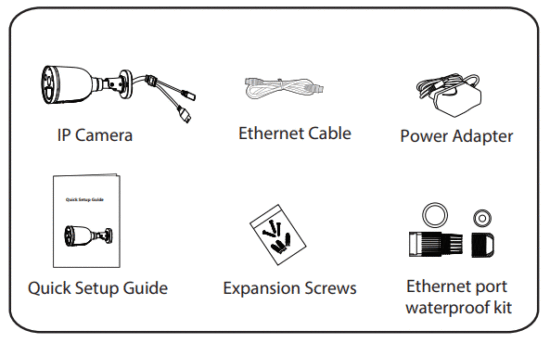
Package Contents
Security Tips
- Please change the camera’s password regularly, using a combination of numbers, letters and special characters.
- We recommend that you regularly update your camera with the latest available software and firmware to ensure the best experience with your camera.
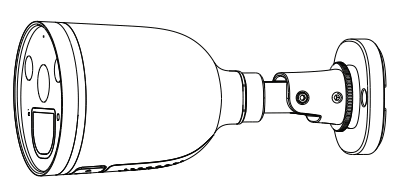
Physical Description

Warning:

The cords on this product are a potential strangulation hazard. For child safety, please keep these cords out of the reach of children.
Setting Up Your Camera: Connection via the Foscam App (Recommended)
Before You Get Started
Scan the QR code below to download and install the Foscam APP.

To ensure a smoother video experience on your smartphone, it is recommended that your smartphone meet the following specifications:
- iOS: version 11 or higher.
- Android: 4.1 or higher, using a device with a Graphics Processing Unit (GPU).
Note: For the best experience, please update the APP to the latest version!
WiFi connection
- Plug the power adapter into the camera, and please wait for a few seconds until hearing the “Ready for WiFi configuration”.

- Make sure your smartphone is connected to the same WiFi network as the camera.
 Tips: The camera supports dual-band 2.4GHz and 5GHz WiFi networks, so you can choose the channel with the stronger signal to use.
For example, choose your SSID: XXXXX_2.4G or XXXXX_5G. - Open the foam APP and please register a Foscam account, or sign in if you have one already.
- After logging into the Foscam APP, select the “Tap to add a camera” or “+” icon on the upper right corner, then select “Scan the QR code” and scan the QR code label on the bottom of your camera.

- In “Add Device”, if you hear “Hello Foscam”, select the checkbox and tap ”Next”, continue to confirm that the device is in the blue flashing state, and tap ”Next”. In “WiFi connection”, enter your WiFi password and tap “Confirm”.

- Please scan the QR code on the doorbell with the smartphone camera, then you will hear a voice prompt saying ”WiFi connecting”. Select the checkbox and tap ”Next”.
 Tips: Please place the QR code on the phone screen about 10 to 15cm (3.94 to 5.9in) away, and if you encounter difficulties you can try to move the screen slowly around 10 – 15cm (3.94 – 5.9in).
 - Wait a few seconds until the camera notifies you that the “Wireless connection succeeded”, which means your camera has connected to your WiFi successfully. After, you can set the camera name and tap “Save” in the “Set name” interface.
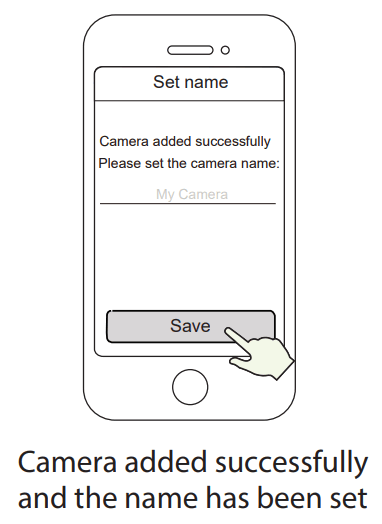 Note: If the process of adding a camera fails, please reset your camera and try adding again according to the above method.
- Tapping on the play button in the video box will jump to the “Camera Login” setting interface. For your security, please set a new username and password for your camera before viewing live video.
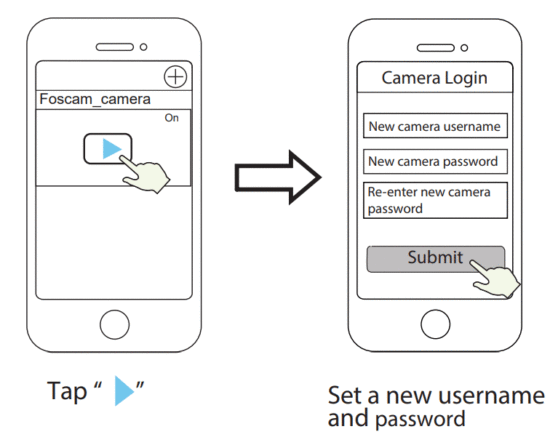
- After completing the above steps, you can begin using your camera.
Other Ways to Access Your Camera
Foscam VMS
Foscam VMS is a new tool for PCs. It does not require plug-ins and is compatible with Windows & Mac, supporting all Foscam HD cameras and up to 36 cameras at the same time. If you would like to manage multiple cameras, we suggest you install Foscam VMS. You can download the “Foscam VMS ” Windows version from foscam.com/vms, and can download the “Foscam VMS” Mac version from the APP store: https://apps.apple.com/cn/app/foscamvms/id1521202507?mt=12
Note: For the best experience, please update Foscam VMS to the latest version!
Add the IP Camera
- Run Foscam VMS, then create a local administrator account and login.
- Tap the “+” icon on the Foscam VMS and follow the setup wizard to add your camera.
Please visit foscam.com/downloads to view the user manual and for additional detailed steps.

Hardware Installation
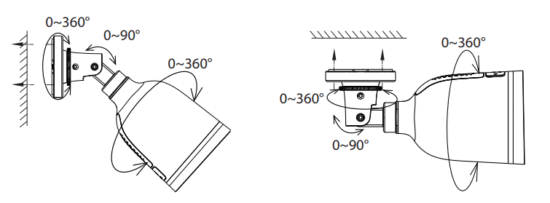
Point the camera at the desired location and use the screws provided to mount it.
For the best product experience, we suggested the installation height of the Spotlight camera: 2.2m (7.22 feet), camera downward tilt angle 30°.

Please Note:
Ensure that rain or water will not reach the connector ports at the end of the pigtail wiring. These connectors are not weather-resistant.
Important Notice
Camera Username & Password
The camera username & password are used to access and manage your camera. Having a strong password can significantly improve the security of your camera.
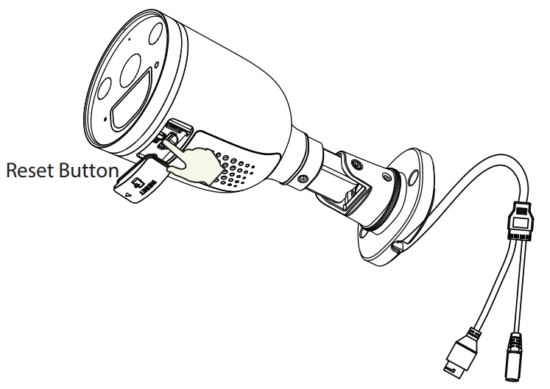
If you have forgotten either of them, please press the “Reset” button and hold it for more than 10 seconds while the camera is powered on. After releasing the button. The camera will automatically reboot and the default settings will be restored.
You can then reconnect the camera by following this Quick Setup Guide.
Foscam Cloud Service Account Username & Password
Your Foscam Cloud service account and password may be used to access both the Foscam App and the Foscam Cloud service website.
Therefore, you can register your account username & password on either one.
Storage Media
Your camera supports cloud, NVR (Network Video Recorder), and Micro SD card (supports FAT32 and exFAT format) storage formats. If you wish to record and playback large amounts of video, we recommend using a Foscam NVR device as well.
Firmware Upgrade
You can upgrade the firmware of your camera with the Foscam App by using the new “One-Key Online Upgrade” feature (Open the Foscam App and Login to the camera, select Settings > Firmware Upgrade).
You also can download the latest version to upgrade your camera from our official website foscam.com/upgrades.
Safety Tips
- Please ensure that the proper power supply is used before using the camera.
- Please install the camera securely using the screws provided.
- Please use this product within the temperature range. When the ambient temperature is too high or too low, it may cause product failure.
- To avoid the risk of fire fire or electric shock, please keep your camera connectors in a cool, dry place.
- Please keep the camera out of reach of small children.
- This product is not a toy; children should use the product under adult supervision.
- Change your default port to a greater range to help ensure the safety of your connection. How to change the default port: please visit foscam.com/downloads to view the user manual.
- Check the logs of your Foscam cameras frequently. Foscam Foscam Cameras have embedded logs reminding telling you which IP addresses are accessing the camera.
Product Performance
WLAN frequency range: 2412MHz – 2472MHz and 5725MHz – 5850MHz Maximum transmission power: < 16dBm
Wireless Standard: IEEE802.11b/g/n (2.4GHz) IEEE802.11a/n/ac (5GHz)
Power Supply: DC 12V 1.0A 12W
Technical Support
If you have problems with your Foscam device, please contact the reseller you purchased from, or you can e-mail the headquarter company headquarters technical support team: support@foscam.com
Your valuable comments and suggestions on improving Foscam products are welcomed!

CE Certificate statement Website:
https://www.foscam.com/company/ce-certificate.html
Exporter and Importer Information Opened to Public:
https://www.foscam.com/company/open-information.html
Manufacturer: Shenzhen Foscam Intelligent Technology Co., Ltd
Address: Room 901-902, Building 1B, Xingke 1st Street, Shenzhen
International Innovation Valley, Nanshan Dist., Shenzhen, 518055, China
www.foscam.com
Support email: support@foscam.com
Due to product upgrades and other reasons, this guide may be slow to update, resulting in slight inconsistencies with the official website information. Please take the official website (www.foscam.com) information as the current standard.
Documents / Resources
 | S41 Security Camera |
 | S41 Security Camera |
References
- apps.apple.com/cn/app/foscamvms/id1521202507?mt=12apps.apple.com
- Foscam Support - FAQsfoscam.com
- foscam.com/upgradesfoscam.com
- Foscam Support - FAQsfoscam.com
- myfoscam.orgmyfoscam.org
- Foscam Official Website - Security Cameras, NVRs, Baby Monitors, IP Cameras, NVR Kits, Security Kit, Pet Monitors, Cloud Storage Servicewww.foscam.com
- Foscam Declaration of Conformity Systemwww.foscam.com
- Foscam Open-Information Systemwww.foscam.com
- User Manualmanual.tools
Hi! Foscam S41. He went from a computer but is equipped in the countryside. Well there was a small error and I need to reinstall. I had the download, but I can’t activate it because it asks for a QR code, which I can’t show. So I would need a manual setup if I can get help. Thank you
Üdv! Foscam S41. Számítógépről ment, de vidéken van felszerelve. Nos történt egy kis hiba és újra kell telepítenem. A letöltés megvolt, de nem tudom aktiválni mert QR kódot kér, amit nem tudok megmutatnineki. Tehát mauális beállításra lenne szükségem, ha kaphatok segítséget. Köszönette
Üdv! Foscam S41. Számítógépről ment, de vidéken van felszerelve. Nos történt egy kis hiba és újra kell telepítenem. A letöltés megvolt, de nem tudom aktiválni mert QR kódot kér, amit nem tudok megmutatnineki. Tehát mauális beállításra lenne szükségem, ha kaphatok segítséget. Köszönette
How can I perform a manual setup for the Foscam S41 camera without scanning a QR code?
If you cannot scan the QR code for your Foscam S41, you can use the Foscam VMS software on a computer or the Search in LAN feature in the mobile app to add the camera manually. Please follow these steps:
Note: Since the camera is in a remote location, manual setup usually requires the camera and the setup device (phone or PC) to be on the same local network (LAN) initially.
Read the full Q&A page