
1. Product Overview
The MCHOSE A7 V2 Ultra is a high-performance wireless gaming mouse designed for precision and comfort. It features an ultra-lightweight design, an advanced optical sensor, and versatile connectivity options to enhance your gaming and productivity experience.
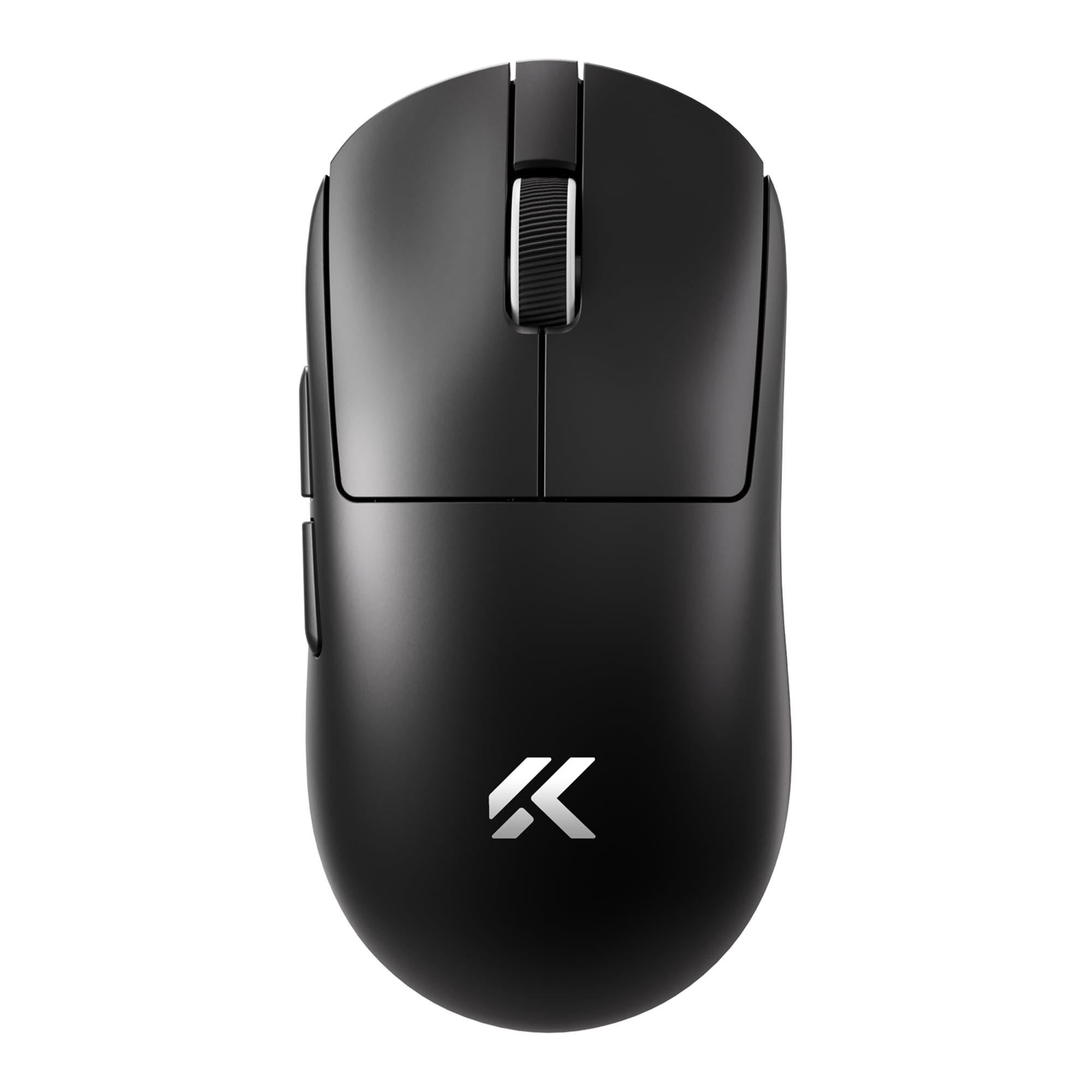
Image: MCHOSE A7 V2 Ultra Wireless Gaming Mouse, showcasing its ergonomic design.
2. Package Contents
Please verify that all items are present in your package:
- MCHOSE A7 V2 Ultra Wireless Gaming Mouse
- USB-C to USB-A Charging/Data Cable
- 2.4GHz USB Wireless Receiver
- User Manual
- Additional Grip Tape (optional accessory)
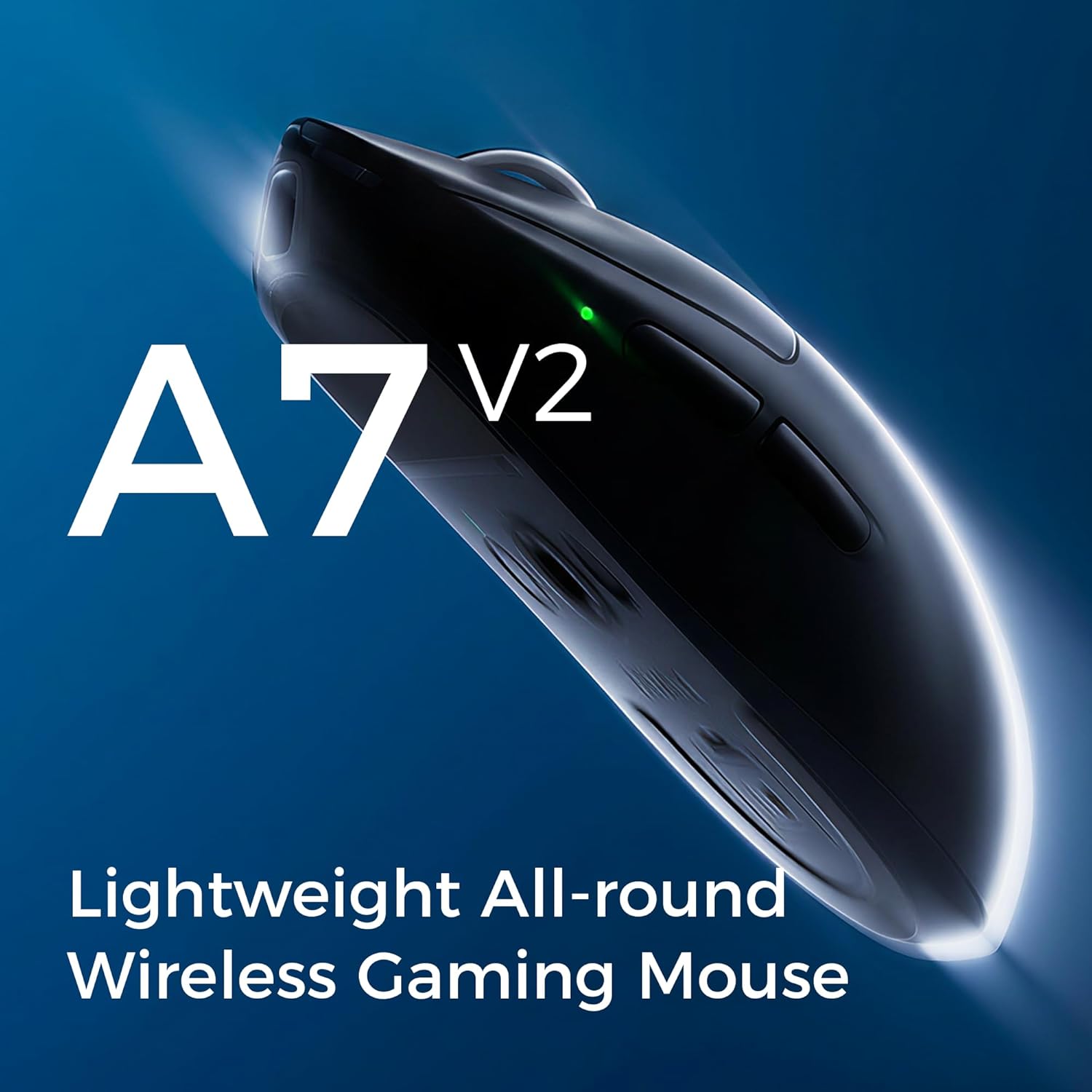
Image: The MCHOSE A7 V2 Ultra mouse along with its charging cable, USB receiver, and grip tape.
3. Setup Guide
3.1 Charging the Mouse
Before first use, it is recommended to fully charge the mouse. Connect the provided USB-C cable to the mouse's charging port and the USB-A end to a powered USB port on your computer or a wall adapter. The mouse features a 130-hour battery life on a single charge.

Image: Illustration highlighting the mouse's long battery life.
3.2 Connectivity Options (Tri-Mode)
The MCHOSE A7 V2 Ultra supports three connection modes: Wired, 2.4GHz Wireless, and Bluetooth.
- Wired Mode: Connect the USB-C cable directly from the mouse to your computer. The mouse will automatically switch to wired mode and begin charging.
- 2.4GHz Wireless Mode:
- Locate the 2.4GHz USB wireless receiver, typically stored in a compartment on the underside of the mouse.
- Plug the receiver into an available USB port on your computer.
- Turn on the mouse using the switch on the bottom and select the '2.4G' mode. The mouse should connect automatically.
- Bluetooth Mode:
- Turn on the mouse using the switch on the bottom and select the 'B' (Bluetooth) mode.
- On your computer or device, go to Bluetooth settings and search for new devices.
- Select 'MCHOSE A7 V2 Ultra' from the list of available devices to pair.
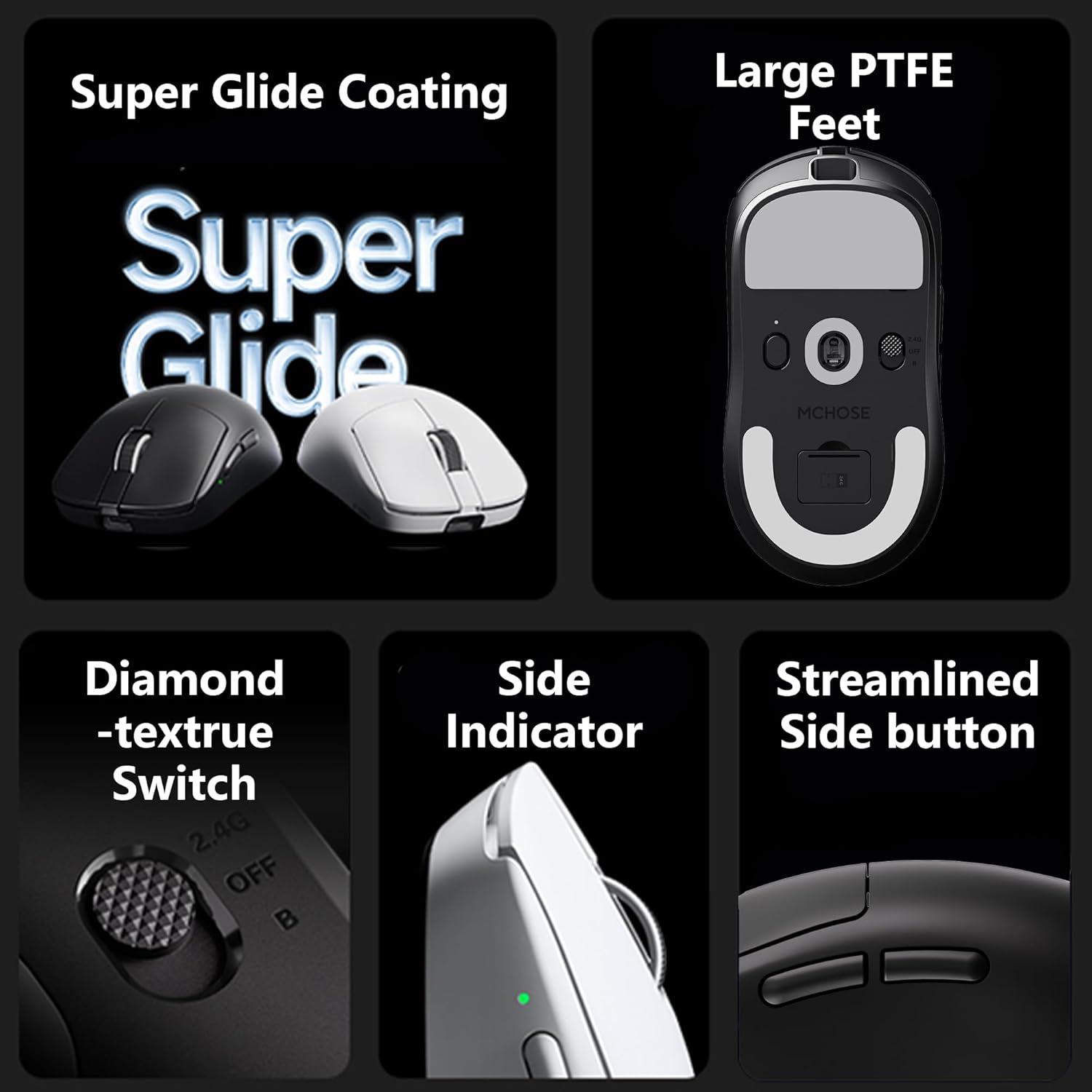
Image: Underside of the MCHOSE A7 V2 Ultra mouse, showing the connectivity mode switch and USB receiver storage.
4. Operating Instructions
4.1 DPI Adjustment
The MCHOSE A7 V2 Ultra is equipped with a PAW3950TI custom optical sensor, offering up to 42,000 DPI. You can adjust the DPI sensitivity using the dedicated DPI button on the mouse or through the custom software. Refer to the software section for advanced customization.

Image: Close-up view of the PAW3950TI custom optical sensor for high precision tracking.
4.2 Polling Rate
Experience ultra-fast response times with a dual 8000Hz polling rate in both wired and 2.4GHz wireless modes. This high polling rate ensures minimal input lag for competitive gaming.

Image: Graphic illustrating the 8K polling rate capability of the mouse.
4.3 Custom Software (M-HUB)
The MCHOSE A7 V2 Ultra supports custom software, M-HUB, which allows you to personalize button assignments, DPI settings, polling rates, and other advanced functions. This software enables you to store custom settings directly on the mouse's onboard memory.

Image: Screenshot of the M-HUB software interface, showing customization options for MCHOSE devices.
4.4 Ergonomics and Grip
Weighing only 59g, the mouse is designed for comfortable use across various grip styles including palm, claw, and fingertip grips, ensuring stable and efficient handling during extended use.

Image: The MCHOSE A7 V2 Ultra mouse highlighting its ultra-lightweight design.
5. Maintenance
Proper maintenance ensures the longevity and optimal performance of your MCHOSE A7 V2 Ultra mouse.
- Cleaning: Use a soft, dry cloth to wipe the surface of the mouse. For stubborn dirt, slightly dampen the cloth with water or a mild cleaning solution. Avoid using harsh chemicals or abrasive materials.
- Sensor Care: Keep the optical sensor on the underside of the mouse clean and free from dust or debris to ensure accurate tracking.
- Storage: When not in use for extended periods, store the mouse in a cool, dry place away from direct sunlight and extreme temperatures.
- PTFE Feet: The mouse features large PTFE feet for smooth gliding. If these wear out, replacement feet can be purchased from authorized retailers.

Image: Close-up of the large PTFE feet on the underside of the MCHOSE A7 V2 Ultra mouse.
6. Troubleshooting
If you encounter issues with your MCHOSE A7 V2 Ultra mouse, please refer to the following common solutions:
- Mouse Not Responding:
- Ensure the mouse is charged.
- Check the connectivity mode switch on the bottom of the mouse (Wired, 2.4G, B).
- For 2.4GHz wireless, ensure the USB receiver is securely plugged into a working USB port. Try a different USB port.
- For Bluetooth, ensure Bluetooth is enabled on your device and the mouse is paired correctly.
- Try connecting the mouse in wired mode to see if it functions.
- Inconsistent Tracking or Lag:
- Clean the optical sensor on the underside of the mouse.
- Ensure you are using a suitable mouse pad.
- Check for interference in 2.4GHz wireless mode (e.g., other wireless devices).
- Update mouse firmware via the M-HUB software.
- Battery Not Charging:
- Ensure the charging cable is securely connected to both the mouse and a powered USB port.
- Try a different USB port or charging cable.
If these steps do not resolve your issue, please contact MCHOSE customer support for further assistance.
7. Specifications
| Feature | Specification |
|---|---|
| Model | A7 V2 Ultra |
| Weight | 59g (approx. 2.12 ounces) |
| Sensor | PAW3950TI Custom Optical Sensor |
| DPI Range | Up to 42,000 DPI |
| Polling Rate | Up to 8000Hz (Wired/2.4GHz Wireless) |
| Connectivity | Wired (USB), 2.4GHz Wireless, Bluetooth |
| Battery Life | Up to 130 hours |
| Dimensions | 7.17 x 4.41 x 3.27 inches (Package) |
| Manufacturer | MCHOSE |
8. Warranty and Support
MCHOSE products are manufactured to the highest quality standards. For information regarding warranty coverage, terms, and conditions, please refer to the warranty card included in your product packaging or visit the official MCHOSE website.
For technical support, product inquiries, or to download the latest M-HUB software and firmware updates, please visit the official MCHOSE support page or contact their customer service directly.


