
1. Product Overview
The NETGEAR 4-Stream AX1800 WiFi 6 Router (RAX20) is engineered with the latest generation WiFi 6 technology, designed to enhance network capacity for a greater number of connected devices and deliver speeds up to 1.8Gbps. This ensures fast internet connections across all your devices. The RAX20 is suitable for small to medium-sized homes, covering areas up to 1,500 sq. ft., and supporting 20 or more connected devices. Its powerful quad-core processor optimizes performance for simultaneous real-time applications such as multimedia streaming, online gaming, and audio/video chats. Additionally, NETGEAR Armor provides advanced cyber threat protection for your home network and connected devices.
2. What's in the Box
- 4-Stream AX1800 WiFi 6 Router (RAX20)
- Quick Start Guide
- Ethernet cable
- Power adapter
3. Key Features
- WiFi 6 Technology: Supports 802.11ax standard for faster speeds up to 1.8Gbps, increased capacity, and improved performance in device-dense environments.
- Dual-Band Connectivity: Operates on both 2.4 GHz and 5 GHz frequency bands for flexible and optimized connections.
- Powerful Processor: Integrated quad-core processor ensures smooth 4K UHD streaming and efficient handling of multiple tasks.
- Gigabit Ethernet Ports: Features 4 x 1G Ethernet ports for reliable wired connections, ideal for gaming consoles, PCs, and other network devices.
- USB 3.0 Port: Includes 1 x USB 3.0 port for connecting external storage or printers, enabling network-wide sharing.
- NETGEAR Armor: Provides advanced cyber threat protection for your home network and connected devices.
- Nighthawk App: Easy setup and management of your WiFi settings, internet speed testing, and data usage monitoring via a mobile application.
4. Physical Overview
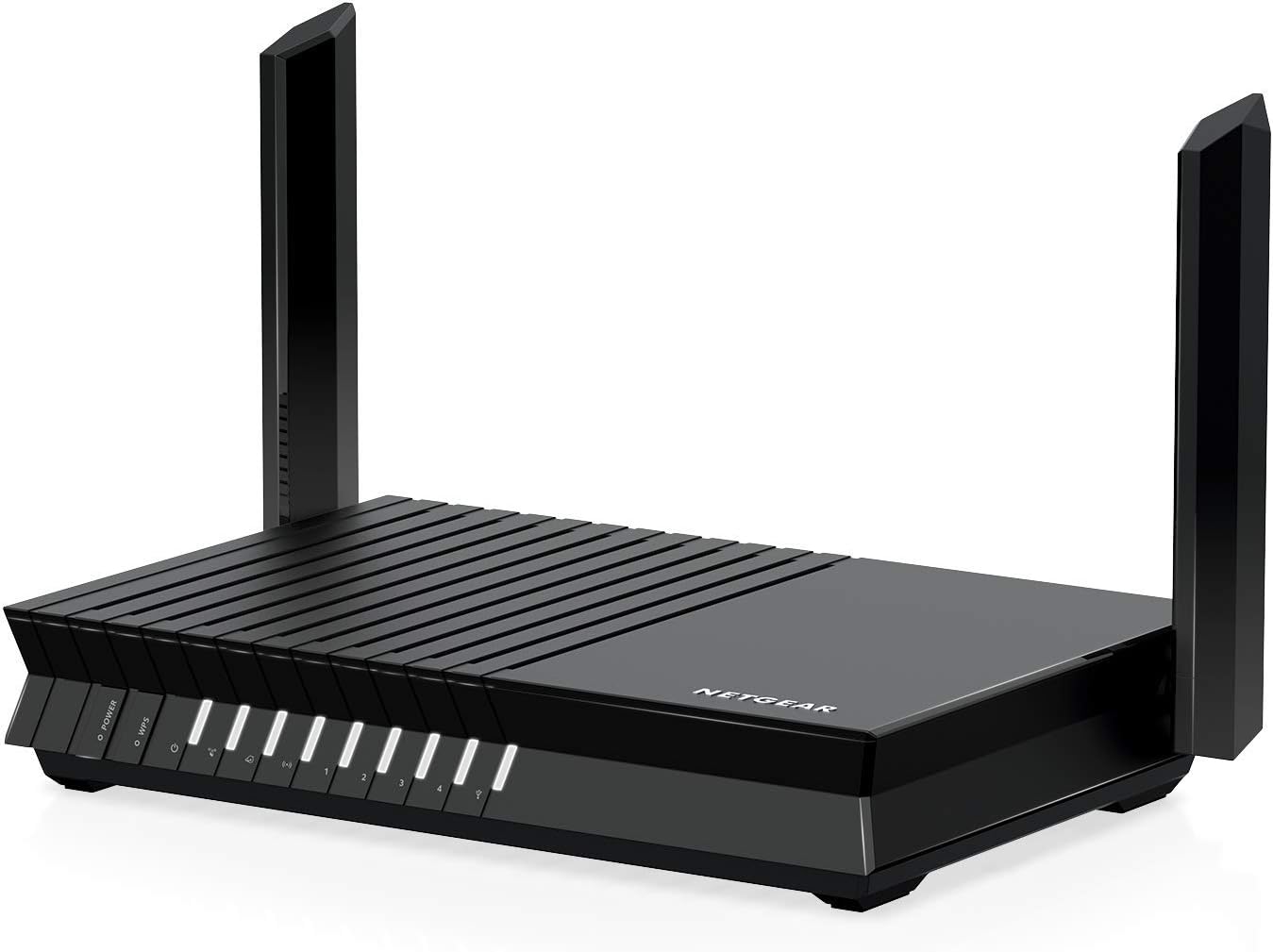
Figure 4.1: Front and top view of the NETGEAR RAX20 WiFi 6 Router with antennas extended.

Figure 4.2: Rear panel of the RAX20, featuring the yellow Internet port, four Gigabit Ethernet LAN ports, a Reset button, and the power input.

Figure 4.3: Side view of the RAX20, highlighting the blue USB 3.0 port for connecting external devices.

Figure 4.4: Front panel LED indicators for power, WPS, internet connectivity, and individual Ethernet ports.

Figure 4.5: Screenshot of the NETGEAR Nighthawk App interface, demonstrating security and parental control features.
5. Setup Instructions
Follow these steps to set up your NETGEAR RAX20 WiFi 6 Router:
- Unpack the Router: Carefully remove the RAX20 router, power adapter, and Ethernet cable from the packaging.
- Connect to Modem: Connect one end of the provided Ethernet cable to the yellow Internet port on the back of your RAX20 router. Connect the other end to an Ethernet port on your existing modem or gateway.
- Power On: Plug the power adapter into the router's power input and then into a wall outlet. Wait for the router's LED indicators to stabilize (typically the Power LED will be solid white, and the Internet LED will be solid white or amber).
- Download Nighthawk App: Download the NETGEAR Nighthawk app from your mobile device's app store (App Store for iOS or Google Play Store for Android).
- Connect to Default Wi-Fi: On your mobile device, go to Wi-Fi settings and connect to the default NETGEAR Wi-Fi network. The default Wi-Fi network name (SSID) and password are printed on a label on the router.
- Launch Nighthawk App: Open the Nighthawk app. The app will guide you through personalizing your Wi-Fi network name (SSID) and password. It will also prompt you to set up an admin password for router management.
- Firmware Update: The app may detect available firmware updates. It is recommended to update the firmware to ensure optimal performance, the latest features, and security enhancements. This process may take a few minutes and involve a router reboot.
- Test Internet Speed: Use the Nighthawk app's built-in speed test feature to verify your internet connection and speeds.
Video 5.1: A detailed guide on unboxing and setting up the NETGEAR RAX20 WiFi 6 Router using the Nighthawk app, including initial connection, network personalization, and firmware updates.
6. Operating Instructions
6.1. Connecting Devices
- Wireless Devices: Search for your personalized Wi-Fi network name (SSID) on your smartphone, tablet, laptop, or other Wi-Fi enabled devices. Enter your network password to connect.
- Wired Devices: For devices requiring a stable, high-speed connection (e.g., desktop computers, gaming consoles, smart TVs), connect an Ethernet cable from the device to any of the four Gigabit Ethernet LAN ports on the back of the router.
6.2. Using the Nighthawk App
The NETGEAR Nighthawk app provides comprehensive control over your network:
- Network Management: View connected devices, pause internet access for specific devices, and manage guest Wi-Fi.
- Internet Speed Test: Monitor your internet speeds directly from the app.
- Security: Manage NETGEAR Armor settings for cyber protection.
- Parental Controls: Set up content filters and time limits for connected devices.
6.3. USB Storage/Printer Sharing
Connect a USB storage device or a compatible USB printer to the USB 3.0 port on the side of the router. This allows you to share files across your network or print from any connected device.
7. Maintenance
- Firmware Updates: Regularly check for and install firmware updates via the Nighthawk app or the router's web interface. Updates provide new features, performance improvements, and critical security patches.
- Security Monitoring: Utilize NETGEAR Armor to monitor your network for threats and ensure all connected devices are protected.
- Physical Cleaning: Keep the router in a well-ventilated area and periodically clean dust from the vents to prevent overheating.
- Password Management: Change your Wi-Fi and admin passwords periodically to maintain network security. Use strong, unique passwords.
8. Troubleshooting
- No Internet Connection:
- Check all cable connections, especially between the router and modem.
- Restart both your modem and router by unplugging them for 30 seconds and then plugging them back in.
- Verify your Internet Service Provider (ISP) is not experiencing an outage.
- Slow Wi-Fi Speeds:
- Ensure your devices are connected to the appropriate Wi-Fi band (5 GHz for closer, faster connections; 2.4 GHz for longer range).
- Minimize interference from other electronic devices (cordless phones, microwaves).
- Update your router's firmware.
- Nighthawk App Issues:
- Ensure your mobile device is connected to the router's Wi-Fi network.
- Check if the app has necessary local network access permissions on your device.
- Try reinstalling the app.
- Overly Bright LED Lights: Some users have noted the LED lights can be very bright. While there isn't a built-in dimmer, covering them with a small piece of opaque tape can reduce their intensity if desired.
- Factory Reset: If you encounter persistent issues, you can perform a factory reset. Locate the Reset button on the back of the router (often a small pinhole). Use a paperclip to press and hold the button for about 7-10 seconds until the Power LED blinks. The router will then revert to its factory default settings.
9. Specifications
| Feature | Detail |
|---|---|
| Brand | NETGEAR |
| Model Name | RAX20-100NAS |
| Wireless Standard | 802.11ax (WiFi 6) |
| Frequency Band Class | Dual-Band (2.4 GHz, 5 GHz) |
| Data Transfer Rate | Up to 1800 Mbps |
| LAN Port Bandwidth | 1000.0 Mbps (Gigabit Ethernet) |
| Number of Ports | 4 x 1G Ethernet ports |
| USB Connections | 1 x 3.0 USB port |
| Processor | Quad-core |
| Security Protocol | WPA3 |
| Coverage | Up to 1,500 sq. ft. |
| Control Method | App Control (Nighthawk App), Voice |
| Item Weight | 1.23 Pounds |
10. Warranty and Support
10.1. Warranty Information
The NETGEAR 4-Stream AX1800 WiFi 6 Router (RAX20) comes with a 1-year warranty from the date of purchase. Please retain your proof of purchase for warranty claims.
10.2. Technical Support
For further assistance, troubleshooting, or to access the latest drivers and documentation, please visit the official NETGEAR support website:


