
Zoom Telephonics 5341J DOCSIS 3.0 Cable Modem
Modem InformationDOCSIS 3.0 Cable Modem 8×4 channel bonding with speeds of up to 150 Mbps on a wired connection Cox recommends a DOCSIS 3.0 16×4 or higher modem |
Highest Service LevelPreferred 150 |
Front View
|
|
|
Back View
|
The Zoom 5341J has the following ports available on the back of the modem.
|
|
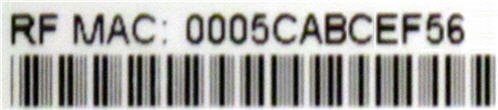
MAC Address
|
MAC addresses are written as 12 digits containing both letters and numbers (0-9, A-F). A MAC address is unique. The first six characters of the MAC address are unique to the manufacturer of the device. |



Troubleshooting

The lights indicate the current status of your modem. To troubleshoot any connection problems, use the table below.
| Modem Light | Status | Problem |
|---|---|---|
| Power | Off | No power – Verify all cable connections and try resetting the modem. |
| On | None | |
| DS
(Downstream) |
Blinking Green | Establishing a connection from the Internet to the computer – Verify all cable connections and try resetting the modem. |
| Solid Green | None – connection | |
| Blinking Blue | Negotiating a bonded DS (downstream) channel – Verify all cable connections and try resetting the modem. | |
| Solid Blue | One or more DS (downstream) channels are bonded | |
| US
(Upstream) |
Off | Establishing a connection from the computer to the Internet – Verify all cable connections and try resetting the modem. |
| Solid | None | |
| Blinking Blue | Negotiating a bonded US (upstream) channel – Verify all cable connections and try resetting the modem. | |
| Solid Blue | One or more DS (downstream) channels are bonded | |
| Online | Blinking Green | Establishing a connection to the cable provider – Verify all cable connections and try resetting the modem. |
| Solid Green | None – connection established | |
| Off | Offline – Verify all cable connections and try resetting the modem. | |
| Link | Blinking Green | None – data flowing |
| Solid Green | None – connected to LAN device, like computer or router | |
| Off | No Ethernet found |
Manufacturer Resources
Use the following resource from Zoom for more detailed information on the 5341J.
Zoom_5341J_Quick_Start_Guide [PDF]
References
- User Manualmanual.tools
Published: August 10, 2021
Updated: February 11, 2023
I absolutely cannot find how to disable SIP ALG on my zoom cable modem and I cannot find a telephone number that works to contact zoom.
How do I disable SIP ALG on the Zoom 5341J cable modem and how can I contact Zoom support?
The Zoom 5341J is a bridge-only cable modem, not a gateway or router. Because it does not have built-in routing or firewall capabilities, it does not have a SIP ALG (Session Initiation Protocol Application Layer Gateway) setting to disable. If you are experiencing VoIP issues related to SIP ALG, the setting is likely located in the standalone router connected to the modem's LAN port.
To resolve this, you should log into your router's web interface (common addresses include 192.168.1.1 or 192.168.0.1) and look for SIP ALG under settings typically labeled as "Firewall," "NAT," or "Advanced Settings."
Regarding manufacturer support, Zoom Telephonics (now operating largely under the Motorola Brand for retail cable products) can be reached via the following methods:
Read the full Q&A page
My telephone company says to disable SIP ALG but I do not know how and I have not found any support site or telephone number for customer service for this product. I guess there is no customer service for the Zoom cable mode 534ij. Once you buy it …good luck.
How do I disable SIP ALG on the Zoom 5341J cable modem?
The Zoom 5341J is a standalone cable modem, not a gateway or router. Because it does not have built-in routing or firewall functions, it does not have a SIP ALG setting to disable.
If your telephone company is requesting this change, the setting will be located in your standalone wireless router (the device connected to the modem's LAN port) rather than the modem itself. You should log into your router's web interface (commonly found at 192.168.0.1 or 192.168.1.1) and look for SIP ALG under the "Firewall," "NAT," or "Advanced Settings" menus.
Regarding customer service, Zoom Telephonics transitioned its branding to Motorola Network products several years ago. For legacy support, you may try contacting their technical support team at 1-800-753-0797 or visiting their official support site at motorolanetwork.com/support.
Read the full Q&A page