
XMING V1 Ultra
Xming V1 Ultra Native 4K Projector User Manual
Model: V1 Ultra
1. Introduction
Thank you for choosing the Xming V1 Ultra Native 4K Projector. This manual provides essential information for setting up, operating, and maintaining your projector to ensure optimal performance and longevity. Please read this manual thoroughly before using the product.
Key Features:
- Native 4K Resolution: Experience stunning clarity with true 4K definition (3840 x 2160 pixels) for an immersive viewing experience.
- Advanced Light Transmission: Utilizes ultra-transparent LTPS screens for higher efficiency and stronger light transmittance, enhancing overall brightness.
- High Contrast Ratio: Features a 2000:1 contrast ratio with an AI engine for precise pixel-level light control, revealing details in both bright and dark scenes.
- Optimized Optical Lens: Equipped with a customized seven-piece low-light-loss optical lens group to enhance central clarity, offering 30% higher resolving power than comparable products.
- Integrated Audio System: Dual 6W high-power speakers with a self-developed FAA sound engine provide rich, realistic audio tailored to different content.
- Smart Image Adjustment: Includes seamless/automatic smart focus, automatic image obstacle avoidance, and automatic screen alignment for effortless setup.
- Eye Protection: The projection imaging is soft and non-dazzling, with SGS low blue light authoritative certification to reduce eye strain.
2. Setup Guide
2.1 Unboxing and Components
Carefully remove all components from the packaging. Ensure the following items are present:
- Xming V1 Ultra Projector
- Power Adapter
- Remote Control
- User Manual (this document)

Figure 2.1: Front view of the Xming V1 Ultra Projector, showcasing the lens and sleek design.
2.2 Placement
Choose a stable, flat surface for the projector. Ensure adequate ventilation around the unit. The projector can be placed on a table, mounted on a ceiling, or positioned on a tripod. Consider the projection distance to achieve your desired screen size.
- Dimensions: 11.02 x 8.78 x 9.69 inches
- Weight: 16.5 pounds
2.3 Power Connection
Connect the power adapter to the projector's power input port, then plug the other end into a wall outlet. The power indicator light will illuminate.
2.4 Initial Power On
Press the power button on the projector or the remote control to turn on the device. The projector will perform an initial boot-up sequence.
3. Operating Instructions
3.1 Basic Controls
Use the included remote control to navigate the projector's interface. The main buttons typically include:
- Power Button: Turns the projector on/off.
- Navigation Buttons (Up/Down/Left/Right): Move through menus.
- OK/Enter Button: Confirms selections.
- Back Button: Returns to the previous screen.
- Home Button: Returns to the main menu.
- Volume Buttons: Adjust audio output.
3.2 Image Adjustment
The Xming V1 Ultra features advanced automatic image adjustment capabilities:
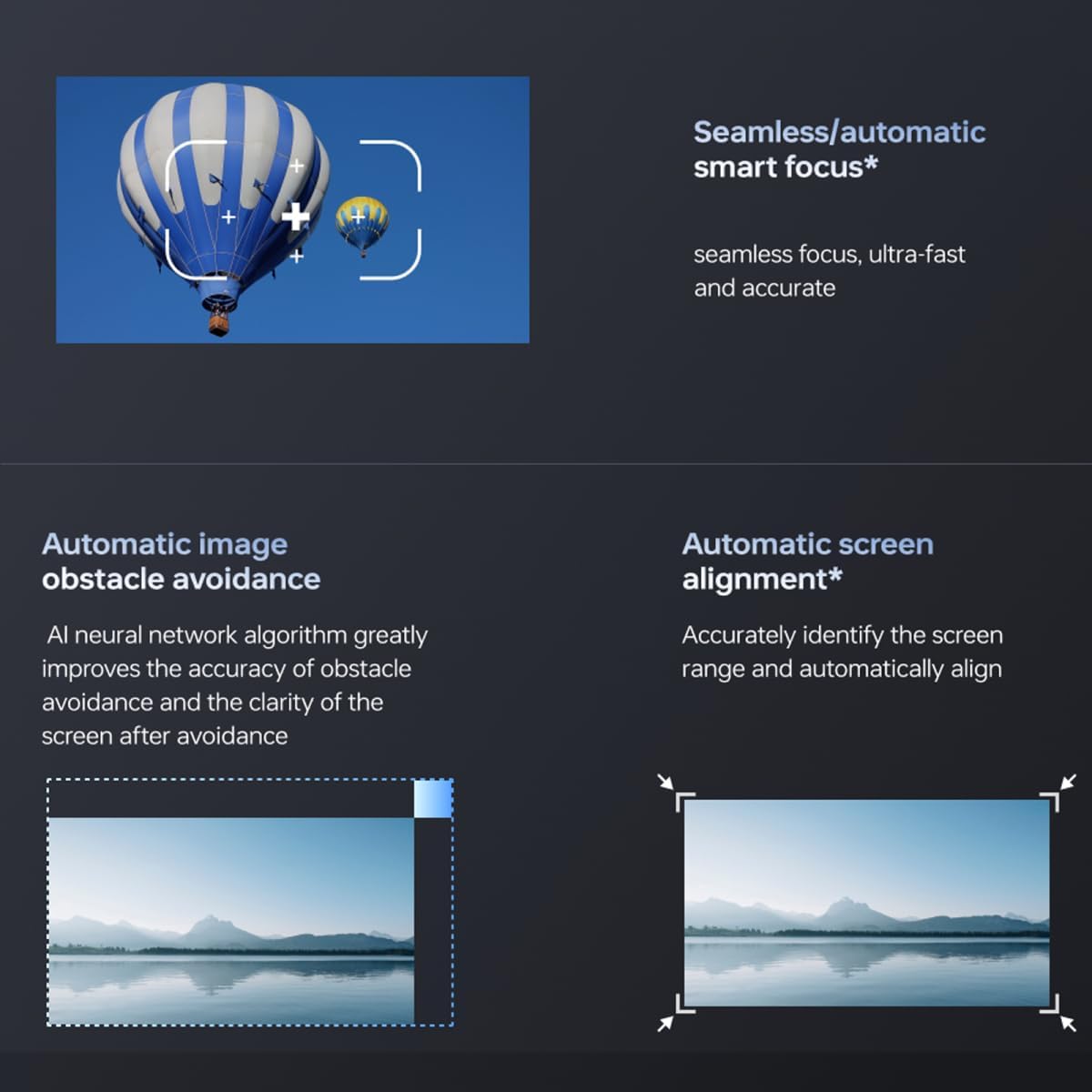
Figure 3.1: Visual representation of the projector's smart focus, automatic obstacle avoidance, and automatic screen alignment features.
- Seamless/Automatic Smart Focus: The projector automatically adjusts focus for a clear image.
- Automatic Image Obstacle Avoidance: The projector detects and adjusts the image to avoid obstacles on the projection surface.
- Automatic Screen Alignment: The projector accurately identifies the screen range and automatically aligns the image to fit.
Manual adjustments for focus and keystone correction may also be available in the settings menu if needed.
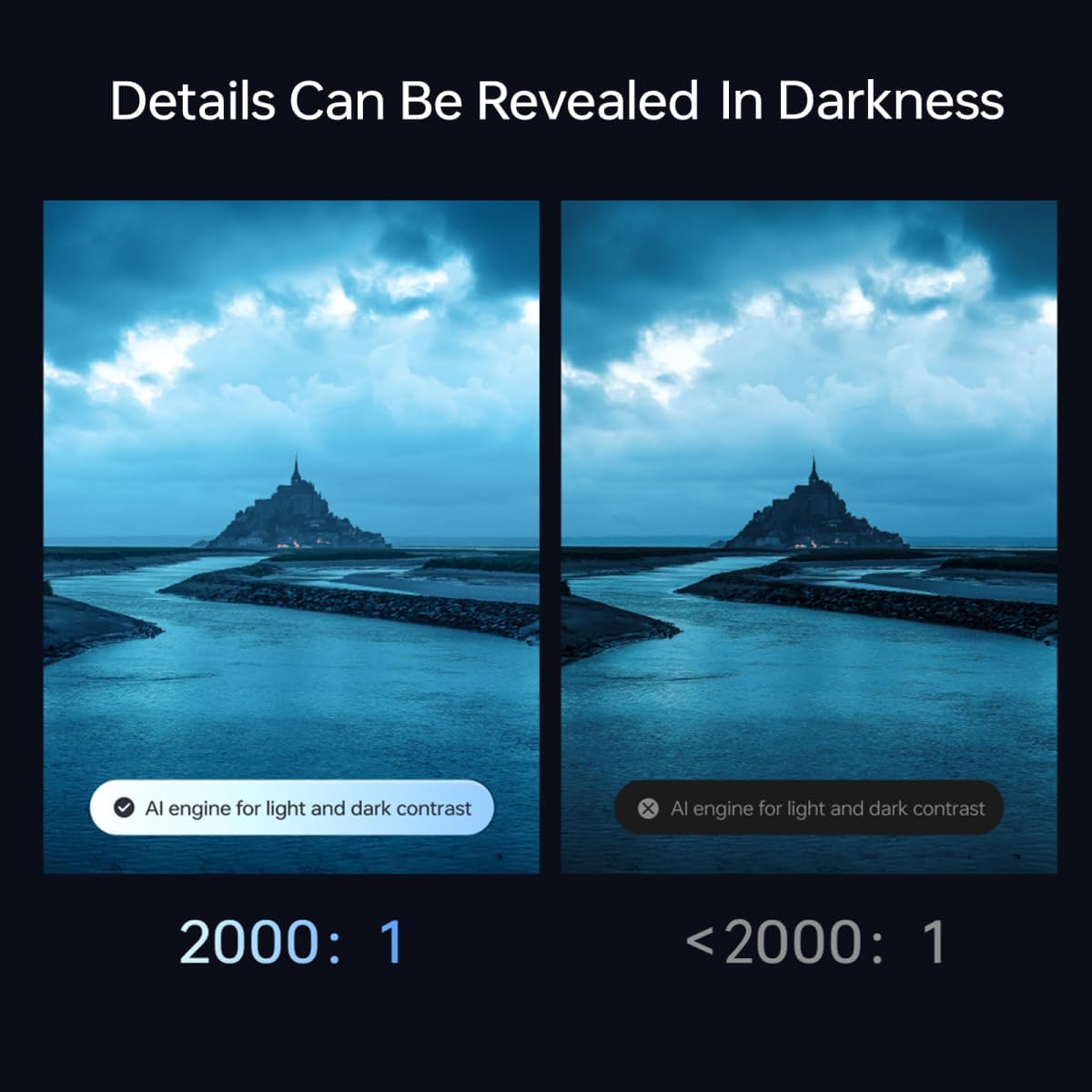
Figure 3.2: Demonstrates the enhanced detail and clarity in dark scenes achieved by the AI engine for light and dark contrast.
3.3 Input Sources and Connectivity
The projector supports various input sources:

Figure 3.3: Icons representing the projector's support for Wi-Fi 6, HDMI 2.1, and USB 3.0 connectivity, highlighting fast loading and stable performance.
- HDMI: Connect external devices such as Blu-ray players, gaming consoles, or laptops using an HDMI cable.
- USB: Play media files directly from a USB storage device.
- Wireless (Wi-Fi 6): Connect to your home network for streaming content or screen mirroring from compatible devices.
Select the desired input source from the projector's main menu.
3.4 Audio Settings
The Xming V1 Ultra is equipped with a high-quality audio system:

Figure 3.4: Illustrates the projector's audio capabilities, including Dolby Audio support and dual 6W high-power speakers.
- Built-in Speakers: Two 6W high-power speakers provide robust sound.
- Dolby Audio Support: Enhances the audio experience with rich, clear sound.
- FAA Sound Engine: Optimizes sound effects for various content types.
Adjust the volume using the remote control. Further audio settings may be available in the projector's system menu.
4. Maintenance
4.1 Cleaning
- Projector Body: Use a soft, dry cloth to wipe the exterior. For stubborn marks, slightly dampen the cloth with water and then wipe dry. Do not use abrasive cleaners or solvents.
- Lens: Gently clean the projector lens with a lens cleaning cloth or a soft, lint-free cloth specifically designed for optical surfaces. Avoid touching the lens directly with your fingers.
- Ventilation Ports: Periodically check and clean the ventilation ports to ensure proper airflow and prevent overheating. Use a soft brush or compressed air to remove dust.
4.2 Storage
When not in use for extended periods, store the projector in a cool, dry place, away from direct sunlight and extreme temperatures. It is recommended to use the original packaging for storage to protect it from dust and physical damage.
5. Troubleshooting
If you encounter issues with your Xming V1 Ultra Projector, refer to the following common problems and solutions:
| Problem | Possible Cause | Solution |
|---|---|---|
| No Power | Power cable not connected; Power outlet faulty; Projector in standby mode. | Ensure power cable is securely connected. Try a different power outlet. Press the power button on the projector or remote. |
| No Image | Incorrect input source selected; Device not connected properly; Lens cap on. | Select the correct input source (HDMI, USB, Wireless). Check cable connections. Remove lens cap. |
| Blurry Image | Out of focus; Projector not perpendicular to screen. | Allow automatic focus to adjust or manually adjust focus in settings. Ensure projector is aligned with the screen. |
| No Sound | Volume too low/muted; External audio device not connected; Audio settings incorrect. | Increase volume. Check if muted. Ensure external audio devices are connected correctly or select internal speakers. |
| Remote Control Not Working | Batteries low/dead; Obstruction between remote and projector. | Replace batteries. Ensure clear line of sight to the projector's IR receiver. |
6. Specifications
The following are the technical specifications for the Xming V1 Ultra Projector:
- Brand: XMING
- Model: V1 Ultra
- Display Resolution: 3840 x 2160 (Native 4K)
- Brightness: 700 CVIA Lumens
- Contrast Ratio: 2000:1
- Refresh Rate: 120Hz
- Connectivity Technology: Wireless (Wi-Fi 6), HDMI 2.1, USB 3.0
- Special Features: Internet Built-In, Internet Ready, Speakers, Adjustable Base, Smart Focus, Obstacle Avoidance, Screen Alignment
- Audio: 2x6W High-Power Speakers, Dolby Audio, FAA Sound Engine
- Product Dimensions: 11.02 x 8.78 x 9.69 inches
- Item Weight: 16.5 pounds
- Recommended Uses: Indoor/Outdoor
- ASIN: B0DBG4BHS1
- Date First Available: July 25, 2024
7. Warranty and Support
7.1 Product Warranty
The Xming V1 Ultra Projector comes with a standard manufacturer's warranty. Please refer to the warranty card included in your product packaging for specific terms and conditions, including warranty period and coverage details. Keep your purchase receipt as proof of purchase for warranty claims.
7.2 Customer Support
For technical assistance, troubleshooting beyond this manual, or warranty inquiries, please contact XMING customer support. Contact information can typically be found on the official XMING website or on the product packaging.
Consider purchasing extended protection plans for additional coverage:
- 2-Year Protection Plan
- 3-Year Protection Plan
- Complete Protect (monthly plan)
Ask a question about this manual
Ask about setup, troubleshooting, compatibility, parts, safety, or missing instructions. Manuals+ will review the question and use this page’s manual context to help answer it.