
JmGO N1 Ultra
JMGO N1 Ultra 4K Triple Laser Projector User Manual
Model: N1 Ultra
Brand: JmGO
Introduction
Welcome to the user manual for your JMGO N1 Ultra 4K Triple Laser Projector. This guide provides essential information to help you set up, operate, and maintain your projector, ensuring you get the most out of its advanced features and deliver an unparalleled cinematic experience.
The JMGO N1 Ultra is designed to deliver a true-to-life 4K image with exceptional color accuracy and brightness, powered by patented MALC Triple Color RGB Laser Optics. Its integrated gimbal design offers flexible placement options, while multi-intelligent features ensure instant image calibration. Enjoy vibrant sound co-created with Dynaudio and endless entertainment with Android TV 11.0.

Image: The JMGO N1 Ultra 4K Triple Laser Projector, showcasing its sleek design and integrated gimbal stand.
What's in the Box
Please check the contents of your package to ensure all items are present:
- JMGO N1 Ultra Projector
- Carrying Bag
- Remote Control
- Power Adapter
- User Manual (this document)
Setup Guide
1. Unpacking
Carefully remove the projector and all accessories from the packaging. Retain the original packaging for future storage or transport.
2. Placement
The JMGO N1 Ultra's integrated gimbal design allows for versatile placement. You can pan the projector 360° horizontally and tilt it 135° vertically to find the optimal projection angle, even on the ceiling.

Image: Diagram illustrating the 360° horizontal pan and 135° vertical tilt capabilities of the JMGO N1 Ultra projector.
For best results, place the projector on a stable, flat surface. Ensure there is adequate ventilation around the projector to prevent overheating.
3. Power Connection
- Connect the power adapter to the projector's power input port.
- Plug the power adapter into a suitable electrical outlet.
4. Initial Power On & Smart Calibration
Once powered on, the JMGO N1 Ultra will automatically initiate its multi-intelligent features for instant image calibration:
- Auto Adaptive Brightness: Adjusts brightness based on ambient light conditions.
- Auto Keystone Correction: Automatically corrects trapezoidal distortion for a perfectly rectangular image.
- Smart Object Avoidance: Detects and moves the projected image away from obstacles on the wall.
- Auto Screen Fitting: Automatically fits the image to your projection screen.

Image: Visual representation of the JMGO N1 Ultra's adaptive brightness, auto screen fitting, smart eye protection, smart object avoidance, and lossless zoom features.
Operating Instructions
1. Connectivity
The JMGO N1 Ultra offers extensive connectivity options:
- HDMI 2.1 Ports (x2): Connect external devices such as Blu-ray players, gaming consoles, or laptops. One port supports eARC for enhanced audio return channel.
- USB-A 2.0 Port (x1): For connecting USB storage devices to play media.
- 3.5mm Headphone Jack (x1): For connecting external audio devices or headphones.
- Bluetooth: Connect wireless headphones or speakers.
- Wi-Fi: Connect to your home network for online streaming and updates.
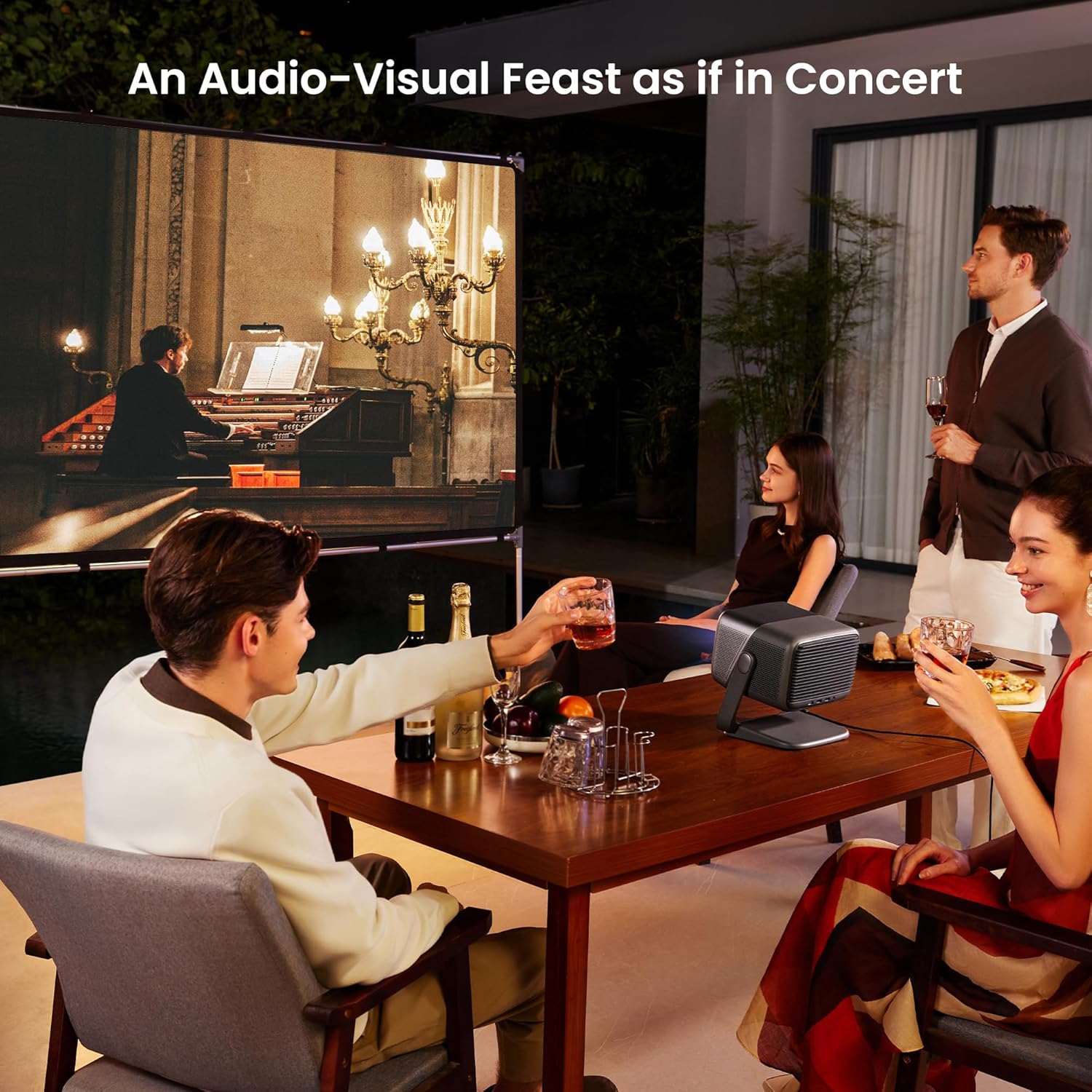
Image: Close-up view of the JMGO N1 Ultra's rear panel, showing the USB, HDMI1, HDMI2 (eARC), and 3.5mm headphone jack ports.
2. Android TV 11.0
The projector comes with Android TV 11.0 built-in, providing access to a vast array of entertainment:
- Google Play Store: Download and install over 5000+ applications.
- Google Assistant: Use voice commands for near-field control.
- Chromecast Built-in: Stream content directly from your Android or iOS devices.

Image: A user interacting with the Android TV 11.0 interface projected by the JMGO N1 Ultra, showing various app icons and content suggestions.
3. Audio Features
Experience immersive sound co-created with Dynaudio:
- 10W*2 Large Speakers: Deliver powerful and clear audio.
- 45Hz Extreme Low-Frequency Bass: Provides deep and rich bass.
- Dolby Audio & DTS Certified: Ensures high-quality surround sound experiences.

Image: The JMGO N1 Ultra projector with sound waves emanating, highlighting its Dynaudio speakers and support for Dolby Audio and DTS.
4. Gaming & 3D
The projector is optimized for gaming and 3D content:
- 15ms Ultra-Low Latency: Ensures responsive gameplay.
- MEMC (Motion Estimation, Motion Compensation): Provides silky smooth motion for fast-paced scenes.
- Blu-Ray 3D Support: Enjoy immersive 3D movies (3D glasses sold separately).
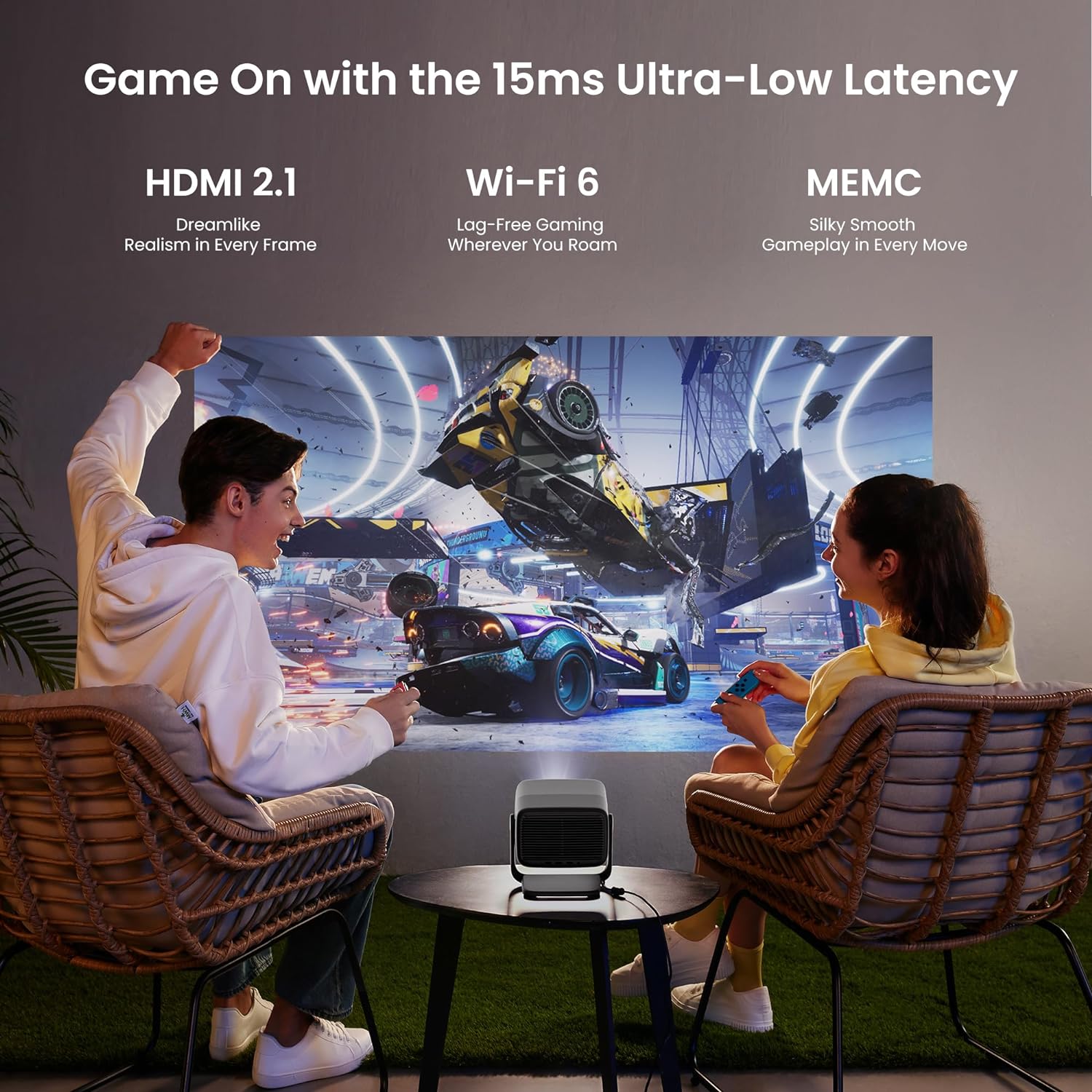
Image: Two people playing a racing video game projected by the JMGO N1 Ultra, emphasizing its low latency and smooth motion for gaming.
Maintenance
1. Cleaning
- Exterior: Use a soft, dry cloth to wipe the projector's exterior. Do not use abrasive cleaners or solvents.
- Lens: Gently clean the projector lens with a lens cleaning cloth or specialized lens cleaning solution. Avoid touching the lens directly with your fingers.
- Ventilation Grilles: Periodically check and clean the ventilation grilles to ensure proper airflow and prevent dust buildup. Use a soft brush or compressed air.
2. Storage
When not in use for extended periods, store the projector in a cool, dry place, away from direct sunlight and extreme temperatures. Use the provided carrying bag for protection against dust and physical damage.
Troubleshooting
| Problem | Possible Cause | Solution |
|---|---|---|
| No image projected | Power cable disconnected; Projector off; Input source not selected; Lens cap on. | Ensure power cable is securely connected and projector is on. Select correct input source (HDMI, USB). Remove lens cap. |
| Image is blurry or out of focus | Auto-focus issue; Projector too close/far from screen. | Ensure auto-focus is enabled. Adjust projector distance from screen. If needed, manually adjust focus via settings. |
| Image is distorted (trapezoid shape) | Projector not perpendicular to screen. | Ensure Auto Keystone Correction is enabled. If manual adjustment is preferred, access keystone settings in the menu. |
| No sound | Volume too low; Muted; External audio device not connected properly; Incorrect audio output selected. | Increase volume. Check if muted. Ensure external audio devices are connected correctly. Select correct audio output in settings. |
| Remote control not working | Batteries low/dead; Obstruction between remote and projector; Remote not paired. | Replace batteries. Remove obstructions. Re-pair the remote control according to the quick start guide. |
| Projector overheats or shuts down | Blocked ventilation; Prolonged use in high temperatures. | Ensure ventilation grilles are clear. Operate in a well-ventilated area. Allow projector to cool down if it shuts off. |
Technical Specifications
| Feature | Specification |
|---|---|
| Model Number | N1 Ultra |
| Display Resolution | 3840 x 2160 (4K UHD) |
| Brightness | 1900 ISO Lumens |
| Contrast Ratio | 1600:1 |
| Color Gamut | 110% BT.2020 |
| HDR Support | HDR 10 |
| Operating System | Android TV 11.0 |
| Audio | 10W*2 Dynaudio Speakers, Dolby Audio, DTS |
| Connectivity | Bluetooth, Wi-Fi, 2x HDMI 2.1 (1x eARC), 1x USB-A 2.0, 1x 3.5mm Jack |
| Special Features | 360° Freestyle Gimbal, Auto Adaptive Brightness, Auto Keystone Correction, Smart Object Avoidance, Auto Screen Fitting, Blu-Ray 3D, MEMC |
| Product Dimensions | 9.48 x 9.29 x 8 inches |
| Item Weight | 9.9 pounds |
| Manufacturer | JMGO |
| Country of Origin | China |
Warranty and Support
JMGO products are designed and manufactured to the highest quality standards. For information regarding your product's warranty, please refer to the warranty card included in your product packaging or visit the official JMGO website.
For technical support, troubleshooting assistance, or any inquiries regarding your JMGO N1 Ultra projector, please contact JMGO Customer Service:
- Email: after-sales@jmgo.com
Please have your product model and serial number ready when contacting support to ensure efficient service.
Related documentsN1 Ultra


Ask a question about this manual
Ask about setup, troubleshooting, compatibility, parts, safety, or missing instructions. Manuals+ will review the question and use this page’s manual context to help answer it.