
1. Introduction
Welcome to your Google Fitbit Edge, your daily health and fitness companion. This manual provides essential information to help you set up, operate, maintain, and troubleshoot your device, ensuring you get the most out of its advanced features.
The Fitbit Edge offers personal coaching built with Gemini, advanced health insights, metrics, and stats at a glance. It features a battery life of up to a week and fast charging capabilities, providing a full day of power in just five minutes.
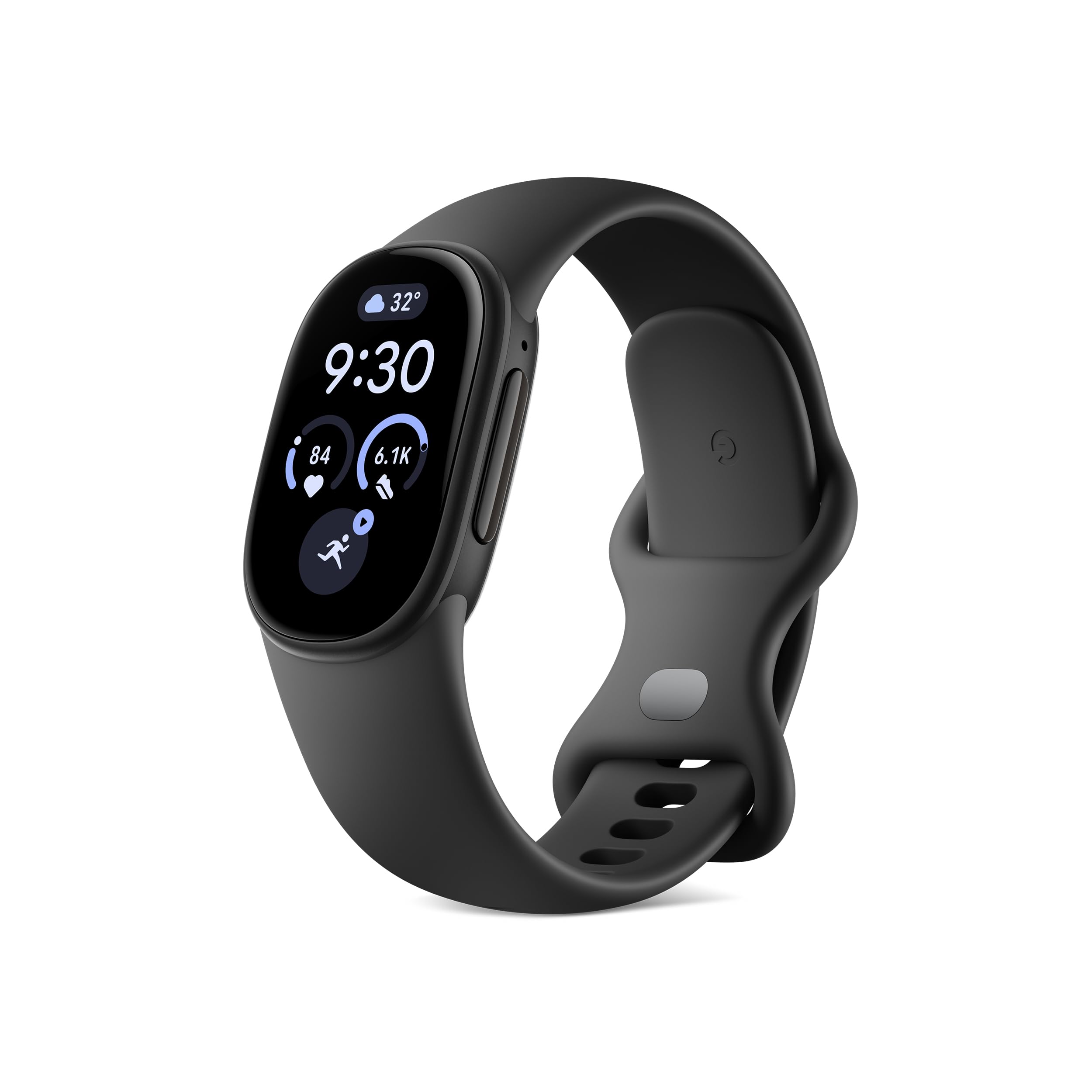
Figure 1: Google Fitbit Edge Activity Tracker
2. What's in the Box
Please check the contents of your Google Fitbit Edge package. It should include:
- Google Fitbit Edge Activity Tracker
- Small Active Band
- Large Active Band
- USB-C Charging Cable
- User Manual (this document)

Figure 2: Package Contents
3. Setup
3.1 Charging Your Device
Before first use, fully charge your Fitbit Edge. Connect the USB-C charging cable to the charging port on the back of your device and plug the other end into a USB power source (e.g., computer USB port, USB wall adapter). A full charge can take approximately 1-2 hours. Fast charging provides a full day of power in just five minutes.

Figure 3: Charging the Fitbit Edge
3.2 Attaching the Bands
Your Fitbit Edge comes with both small and large active bands. Choose the band size that best fits your wrist for comfort and accurate tracking.
- Small size: Fits wrists 130-170mm around.
- Large size: Fits wrists 170-210mm around.
To attach a band, slide the pin on the band into the corresponding slot on the tracker until it clicks into place. Ensure both ends are securely fastened.

Figure 4: Band Sizing Guide
3.3 Pairing with the Google Health App
The Google Fitbit Edge requires the Google Health app for full functionality. The app is compatible with Android 11.0 or higher and Apple iOS 16.4 or higher.
- Download the Google Health app from the Google Play Store or Apple App Store.
- Open the app and follow the on-screen instructions to create an account or log in.
- Select 'Set up a device' and choose Google Fitbit Edge from the list.
- Follow the pairing instructions on your phone and Fitbit Edge. Ensure Bluetooth is enabled on your smartphone.

Figure 5: Google Health App Interface
4. Operating Your Fitbit Edge
4.1 Basic Navigation
Your Fitbit Edge features a responsive touchscreen. Swipe up, down, left, or right to navigate through different screens and menus. Tap to select items or view more details.
4.2 Activity Tracking
The Fitbit Edge automatically tracks your daily activity, including steps, distance, calories burned, and active zone minutes. It features:
- Built-in GPS: For precise tracking of outdoor workouts like runs, walks, and bike rides without needing your phone.
- Altimeter: To better capture elevation changes during climbs.
- Improved Automatic Activity Recognition: SmartTrack automatically recognizes and records select exercises.

Figure 6: Activity Tracking Features
4.3 Health Tracking
Monitor various aspects of your health directly from your wrist and through the Google Health app:
- Heart Rate Tracking: Continuous heart rate monitoring to understand your resting heart rate and heart rate zones during exercise.
- Health Guardian Features: Tracks important shifts in your health and wellness, providing timely notifications.
- Blood Pressure & Insulin Resistance: Easily track trends and signs (subscription may be required for detailed insights).
- Cycle Tracking: Log your menstrual cycle and symptoms to understand your body's rhythm.

Figure 7: Blood Pressure Trend Tracking

Figure 8: Cycle Tracking on Fitbit Edge
4.4 Sleep Tracking
The Fitbit Edge tracks your sleep stages (light, deep, REM) and provides a Sleep Score to help you understand your sleep quality. Advanced new sleep quality metrics offer deeper insights into factors contributing to your score.
4.5 Personal Coaching with Gemini
Leverage personal coaching built with Gemini through the Google Health Coach. Get personalized fitness plans that adjust based on your life, goals, and progress. A Google Health Premium subscription unlocks even more features.
4.6 Data Privacy
Your health data is protected by built-in security. You are in control of your health data with easy-to-find and easy-to-use privacy settings within the Google Health app.

Figure 9: Data Privacy and Security
5. Maintenance
5.1 Cleaning Your Device
Regularly clean your Fitbit Edge and bands to prevent skin irritation and maintain device functionality.
- Wipe the tracker and bands with a soft, lint-free cloth.
- For silicone bands, you can use a mild soap and water solution, then rinse thoroughly and dry completely.
- Avoid harsh chemicals, abrasive cleaners, or ultrasonic cleaners.
5.2 Water Resistance
The Google Fitbit Edge is water-resistant up to 50 meters. This means it is swim-proof and can be worn in the shower, pool, or ocean. However, it is recommended to dry your device and band after getting them wet to ensure comfort and prevent skin irritation.
5.3 Battery Life
Your Fitbit Edge battery lasts up to 7 days on a single charge, depending on usage. Features like continuous GPS use will reduce battery life. To maximize battery life, ensure regular charging.

Figure 10: Long-lasting Battery
6. Troubleshooting
If you encounter issues with your Google Fitbit Edge, try the following steps:
- Device Not Responding: Try restarting your device. This can usually be done through the settings menu on the tracker or by holding down the side button for several seconds.
- Not Syncing: Ensure Bluetooth is enabled on your smartphone and the Fitbit Edge is within range. Check if the Google Health app is up to date. Try restarting both your phone and the tracker.
- Charging Issues: Ensure the charging cable is securely connected to both the tracker and the power source. Try a different USB port or power adapter. Clean the charging contacts on the back of the device.
- Inaccurate Readings: Ensure the device is worn snugly on your wrist, about one finger's width above your wrist bone. Clean the sensors on the back of the device.
- App Issues: Close and reopen the Google Health app. Clear the app's cache or reinstall it if problems persist.
For further assistance, please refer to the official Google Fitbit support website.
7. Specifications
| Feature | Detail |
|---|---|
| Model Name | Google Fitbit Edge |
| Model Number | GA11583-US |
| Operating System | Fitbit OS |
| Display Type | AMOLED |
| Screen Size | 1.34 inches |
| Connectivity | Bluetooth |
| GPS | Built-in GPS |
| Battery Life | Up to 7 days |
| Water Resistance | 50 meters |
| Band Material | Silicone |
| Compatible Devices | Android 11.0+ / iOS 16.4+ |
| Memory Storage Capacity | 64 MB |
| UPC | 840353961760 |
8. Warranty and Support
8.1 Manufacturer's Warranty
The Google Fitbit Edge comes with a 1-Year Manufacturer's Limited Warranty. This warranty covers defects in materials and workmanship under normal use. For full terms and conditions, please refer to the warranty information provided with your product or visit the official Google Fitbit website.
8.2 Customer Support
For technical support, warranty claims, or additional information, please visit the official Google Fitbit support website or contact their customer service directly. You can usually find contact details on the Google Fitbit website or within the Google Health app.


