
1. Introduction
The Baseus PicoGo Pro AH22 is a compact 100W USB-C charger designed for efficient and intelligent charging of multiple devices simultaneously. It features three USB-C ports, a smart display, and advanced battery care technologies to optimize charging performance and prolong battery life.
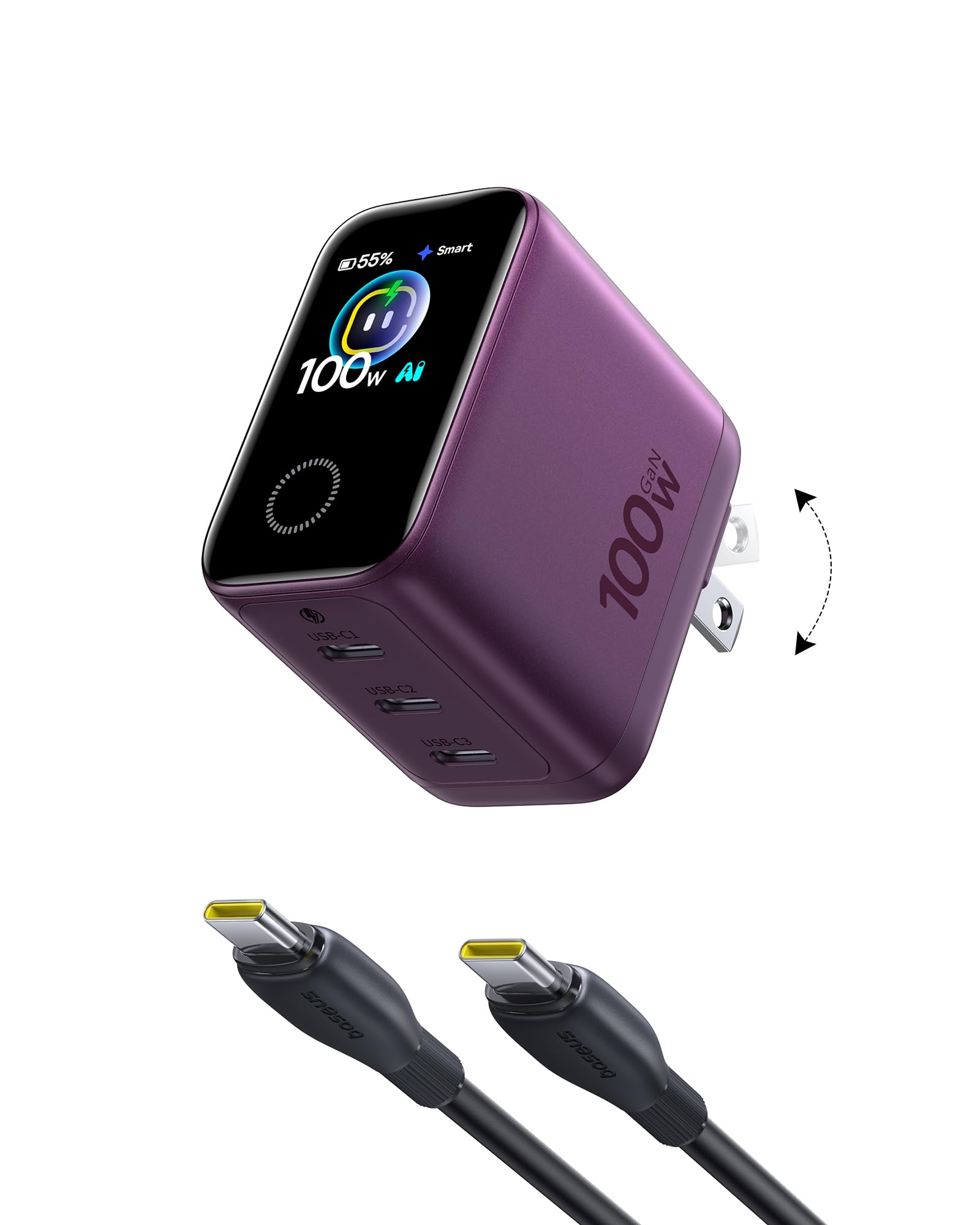
Image: The Baseus PicoGo Pro AH22 100W USB C Charger in Dark Cherry color.
Key Features:
- 3-in-1 Intelligent Charging: Charge a laptop, phone, and earbuds concurrently with optimized power allocation across three USB-C ports.
- Active Battery Care: Smart power-off protection reduces unnecessary power delivery after charging, helping to maintain long-term battery health. Features Smart, Gentle, and Turbo charging modes.
- 5-Layer Thermal Management: Incorporates Dual GaN technology, AHB architecture, MCU controller, smart temperature control, and graphene for cooler, safer fast charging.
- Compact Portability: Measures 2.13 × 2.05 × 1.26 inches, making it easy to carry for travel and daily use. Features foldable prongs.
- Interactive Smart Display: Provides real-time information on charging power, temperature, duration, and protocols.

Image: Overview of the charger's active battery care features and smart charging capabilities.
2. Setup
Follow these steps to set up your Baseus PicoGo Pro AH22 charger:
- Connect to Power: Plug the charger directly into a wall outlet using its foldable prongs. Alternatively, use the included extension cord for more flexible placement, especially in hard-to-reach outlets.
- Connect Devices: Use appropriate USB-C cables to connect your devices (laptops, phones, tablets, earbuds, etc.) to the charger's USB-C ports. The charger will automatically detect and allocate power.
- Observe Smart Display: The interactive smart display will activate, showing real-time charging status.

Image: The charger connected to a wall outlet, simultaneously charging a laptop, phone, and earbuds.

Image: Visual representation of PowerTune 3.0 intelligently allocating power across three USB-C ports.
3. Operating Instructions
3.1 Smart Display Overview
The integrated smart display provides real-time feedback on your charging status. It shows:
- Charging Power: Current wattage delivered to connected devices.
- Temperature: Operating temperature of the charger.
- Charging Duration: Time elapsed since charging began.
- Protocols: Active charging protocols.
- Peeko Emojis: Visual indicators for charging status and interactions.

Image: Various display screens showing charging power, temperature, and mode indicators.
3.2 Charging Modes
The charger offers three distinct charging modes to suit different needs. Double-tap the touch control area to cycle through these modes:
- Smart Mode: Default mode for efficient multi-device charging with intelligent power allocation.
- Gentle Mode: Provides a gentler charge (up to 20W) for overnight charging, preserving battery health.
- Turbo Mode: Prioritizes the C1 port for maximum power boost when rapid charging is required.

Image: Smart Mode in action, balancing power for a laptop, phone, and accessories.

Image: Gentle Mode providing a low-power charge for overnight use, preserving battery health.

Image: Turbo Mode prioritizing power to the C1 port for a quick charge to a laptop.
3.3 Intuitive Control
Interact with the smart display using simple touch gestures:
- Single Tap: Browse menus or switch screens.
- Double Tap: Change settings in supported menus (e.g., switch charging modes).
- Triple Tap: Rotate the display for optimal viewing angle.
- Press & Hold: Turn the display off.

Image: Demonstrates single tap, double tap, triple tap, and press & hold gestures for display control.
4. Maintenance
To ensure the longevity and optimal performance of your Baseus PicoGo Pro AH22 charger, follow these maintenance guidelines:
- Cleaning: Disconnect the charger from the power outlet and all devices before cleaning. Use a soft, dry cloth to wipe the surface. Avoid using liquid cleaners, aerosols, or solvents.
- Storage: Store the charger in a cool, dry place away from direct sunlight and extreme temperatures. When traveling, fold the prongs to prevent damage.
- Avoid Moisture: Do not expose the charger to water or high humidity. If it comes into contact with liquid, disconnect it immediately and allow it to dry completely before reuse.
- Handle with Care: Avoid dropping or subjecting the charger to strong impacts, as this can damage internal components.
5. Troubleshooting
If you encounter issues with your Baseus PicoGo Pro AH22 charger, refer to the following common problems and solutions:
- Charger Not Powering On:
- Ensure the charger is securely plugged into a functional wall outlet.
- If using the extension cord, ensure the charger is fully seated into the extension cord's receptacle. Some users have noted that a firm, angled insertion may be required initially.
- Try plugging another device into the same outlet to confirm the outlet is working.
- Devices Not Charging or Charging Slowly:
- Verify that your charging cables are in good condition and properly connected to both the charger and your devices.
- Ensure your devices support the charging protocols provided by the charger (e.g., USB Power Delivery).
- Check the smart display for current power output. If multiple devices are connected, power is allocated dynamically. For maximum power to a single device, ensure it is the only device connected or use Turbo Mode for the C1 port.
- Clean the charging ports on both the charger and your devices to remove any debris.
- Smart Display Not Working:
- Ensure the charger is receiving power.
- Try unplugging and replugging the charger from the power source.
- If the display was turned off via 'Press & Hold', tap the touch control area to reactivate it.
- Charger Feels Warm:
- It is normal for the charger to become warm during operation, especially during high-power charging. The 5-layer thermal management system is designed to dissipate heat efficiently.
- Ensure the charger is in a well-ventilated area and not covered by insulating materials like blankets or pillows.
- If the charger becomes excessively hot or emits smoke/unusual odors, disconnect it immediately and contact customer support.
6. Specifications
Detailed technical specifications for the Baseus PicoGo Pro AH22 100W USB C Charger:
| Feature | Specification |
|---|---|
| Brand | Baseus |
| Model Number | E01259 |
| Wattage | 100 watts (Max) |
| Input Voltage | 240 volts |
| Output Current | 5 A (Max) |
| Output Voltage | 20 volts (Max) |
| Connector Type | USB Type C |
| Number of Ports | 3 x USB-C |
| Special Feature | Fast Charging, Smart Display, Active Battery Care, Foldable Prongs |
| Compatible Devices | MacBook Pro 16"/14" (M5/M4/M3/2021), MacBook Air 13" (M4/M1), iPad Pro M4, iPad Air 5th Gen; Lenovo ThinkPad X1 Carbon 2025, Dell Latitude 5450 / Inspiron 14 Plus, HP ProBook/EliteBook, ASUS Zenbook/ROG Ally, Tablet, Laptop, Cell Phone, Headphone, Smart Watch, Switch, Steam Deck, iPhone 17/16/15/14/13 Series, Samsung Galaxy S26/S25/S24 Series, Z Fold/Flip, Xiaomi, Huawei, Google Pixel, OnePlus, OPPO, Vivo. |
| GTIN | 810196186965 |

Image: Exploded view illustrating the 5-layer advanced thermal management system, including Dual GaN technology and graphene.
7. Warranty and Support
7.1 Warranty Information
This Baseus PicoGo Pro AH22 charger comes with a 2-Year Manufacturer Warranty. This warranty covers defects in materials and workmanship under normal use.
7.2 Customer Support
For technical assistance, warranty claims, or any product-related inquiries, please contact Baseus customer support:
- Online Support: Visit the official Baseus website or the Baseus Brand Store on Amazon.
- Contact Seller: If purchased through Amazon, you can contact the seller directly via your Amazon order details page. Navigate to 'Your Orders', find the product, and select 'Ask a question' or 'Send message' to the seller.
- All messages are typically answered within 48 hours.

Image: Details on 24-month coverage and lifetime expert assistance for the product.


